Configure Inactive Computer Policy
This guide explains how to configure the Inactive Computer Policy in Endpoint Central to automatically notify, stage, or delete computers that stop contacting the Central Server.
The policy runs on a configurable daily schedule and evaluates every computer under your Scope of Management against three thresholds — notify, stage, and delete — in sequence. Each threshold is independently optional. Only the thresholds you enable are enforced.
When to Use This Policy
Configure this policy when:
- Your environment includes computers that may go offline for extended periods — remote laptops, decommissioned VMs, retired hardware, or branch office machines with intermittent connectivity.
- You want early warning before a machine silently disappears from your managed inventory.
- You need automated cleanup of stale computer records without manual audits.
Prerequisites
Before configuring the policy, confirm the following:
Understanding the Three Thresholds
The policy operates as a sequential pipeline. A computer moves through stages based on how long it has been silent.
Steps
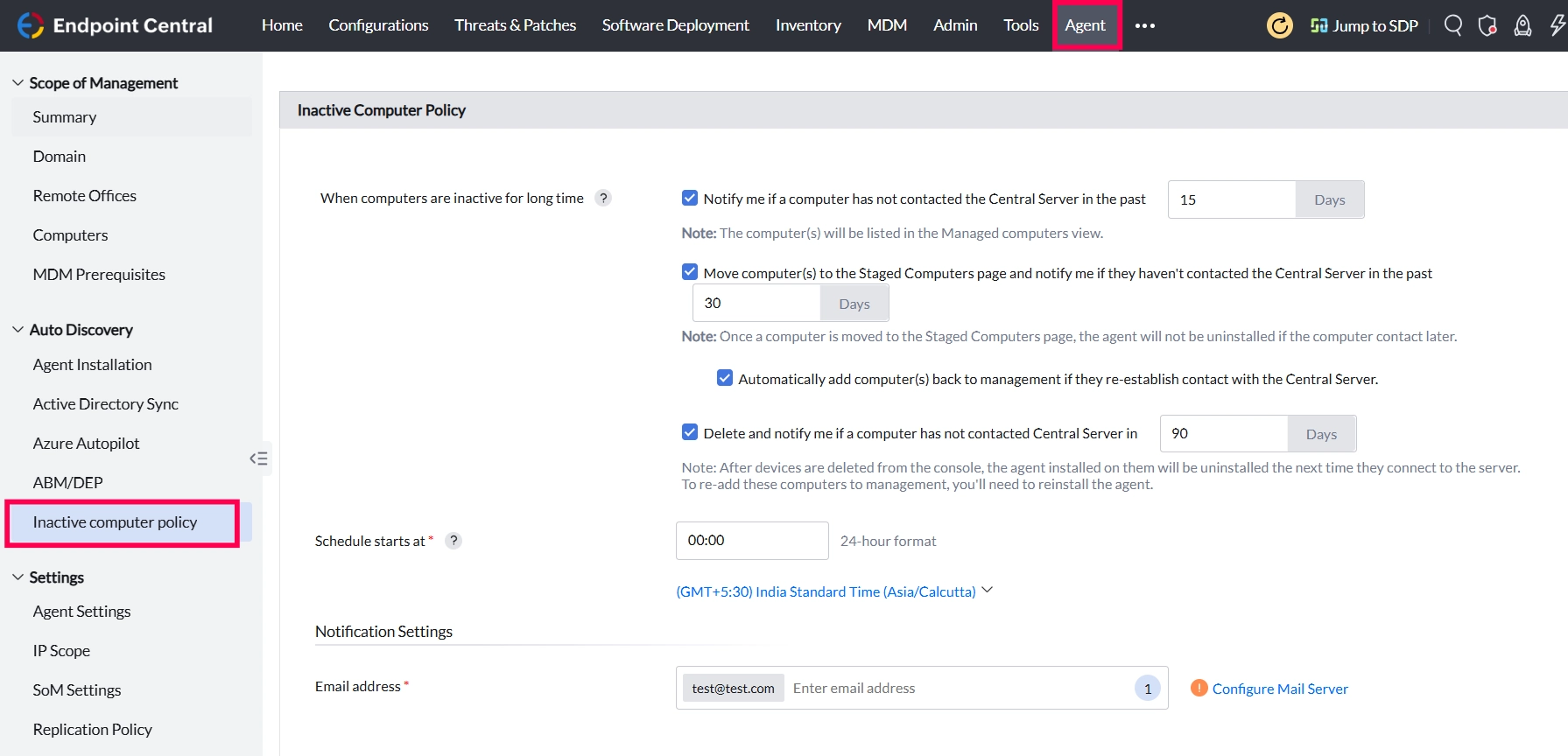
1. Navigate to the Inactive Computer Policy page
In the Endpoint Central console, navigate to Agent → Inactive Computer Policy.
2. Enable the Notify threshold
- Check "Notify me if a computer has not contacted the Central Server in the past [N] Days".
- Enter the number of inactivity days (for example: 15). Set this based on the typical offline window acceptable in your environment.
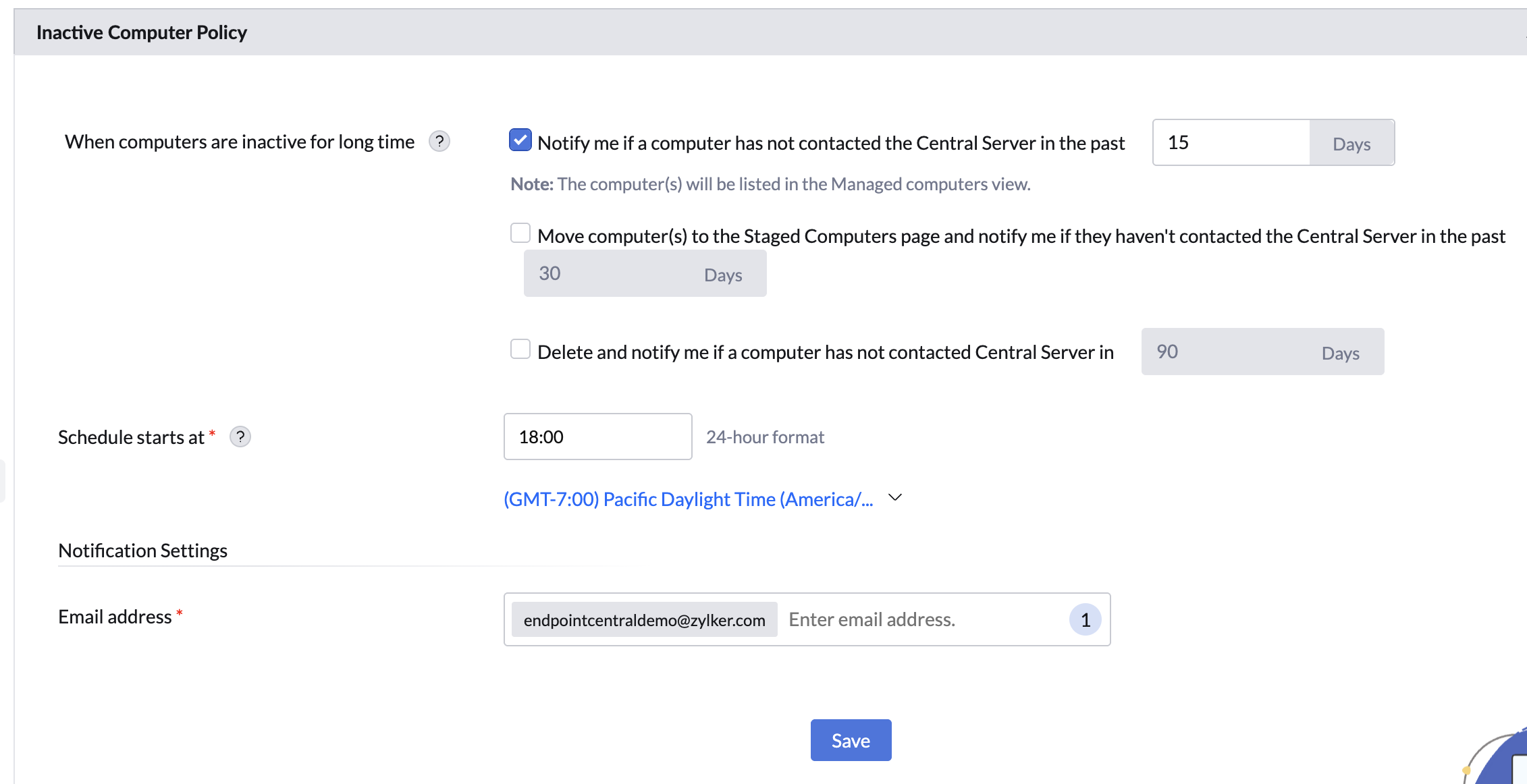
- What this does: The computer remains fully managed. No agent action occurs. It appears flagged in the Managed Computers view and a notification email is sent to configured recipients.
- What this does not do: It does not move the computer to Staged or affect the agent in any way.
3. Enable the Stage threshold
- Check "Move computer(s) to the Staged Computers page and notify me if they haven't contacted the Central Server in the past [N] Days".
- Enter a value higher than your Notify threshold (for example: 30). This should reflect how long a machine can reasonably be unresponsive before it is treated as potentially lost.
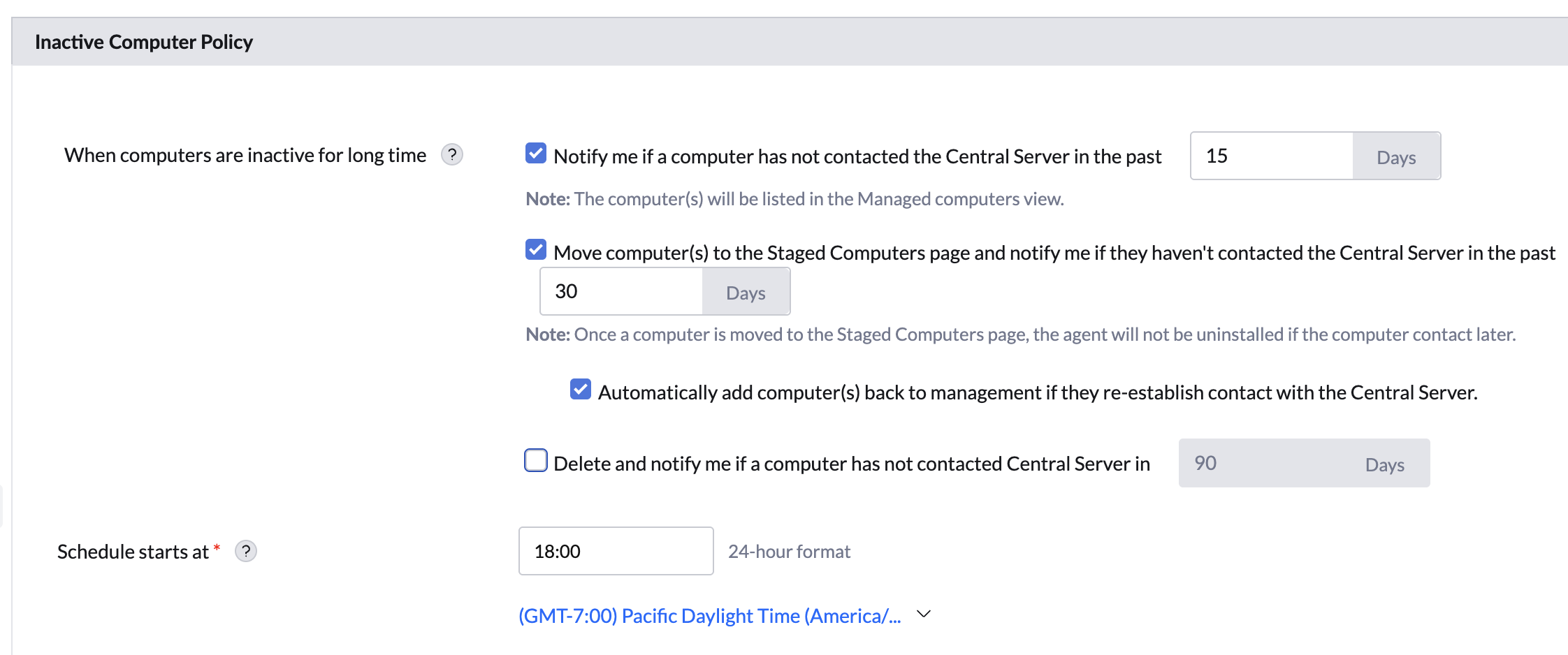
- What this does: The computer is moved from the Managed Computers view to the Staged Computers page. A notification email is sent. The agent remains installed on the device.
- What this does not do: It does not uninstall the agent. If the computer reconnects, whether it returns to management automatically or stays in Staged depends on the reconnect behavior setting in Step 4.
4. Configure reconnect behavior for Staged computers
This checkbox controls what happens when a Staged computer re-establishes contact with the Central Server.
- Enable auto-restore for environments with frequently offline devices (roaming laptops, field machines) where reconnection is expected.
- Leave unchecked in high-security environments where reconnecting unknown machines should require manual review before re-entering management.
5. Enable the Delete threshold
- Check "Delete and notify me if a computer has not contacted Central Server in [N] Days".
- Enter a value higher than your Stage threshold (for example: 90). Set this to the longest period your organization is willing to retain a stale record before permanent removal.
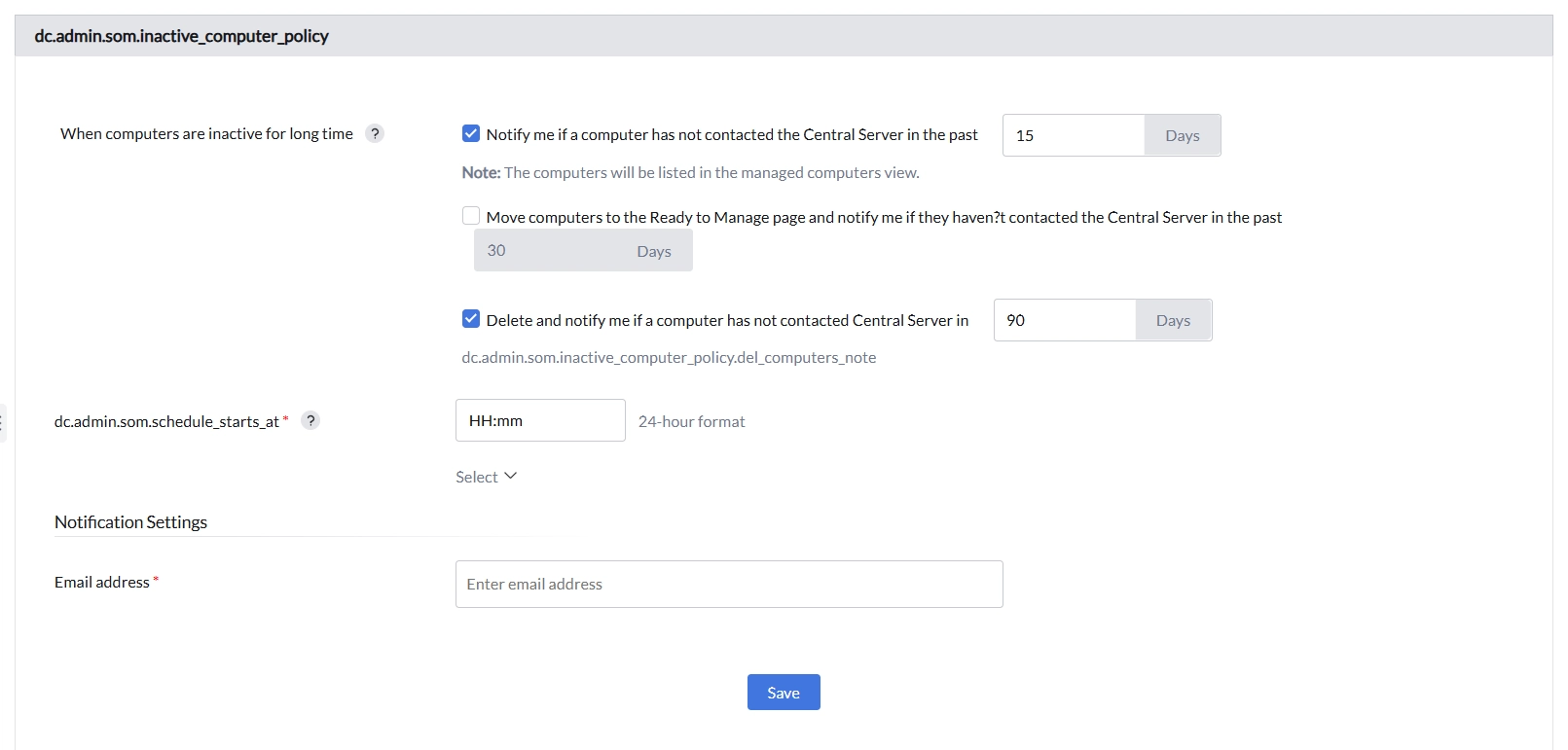
- What this does: The computer record is removed from the Endpoint Central console. A notification email is sent. The next time the device contacts the server, its agent is automatically uninstalled.
- What this does not do: It does not immediately uninstall the agent — uninstall is triggered on the device's next server contact, not at the moment of deletion.
6. Optionally remove the MDM enrollment profile
This option appears under the Delete threshold and is unchecked by default.
Check "Remove MDM Enrollment Profile" only if deleted computers should also have their MDM profile revoked.
- When to enable: Decommissioned devices being retired or reassigned outside the organization.
- When to leave unchecked: Devices that may return to service and need their MDM config intact.
7. Set the schedule start time
- Under Schedule starts at, enter the time the policy check should run each day in 24-hour format (for example: 18:00).
- Select the correct time zone from the dropdown to align the schedule with your organization's working hours or off-peak window.
8. Configure notification recipients
Under Notification Settings → Email address, confirm or update the email addresses that should receive alerts for all three threshold stages.
Verify that:
- The email address is correct and active.
- Your mail server or spam filter will not block automated notifications from the Endpoint Central server's sender address.
9. Save the policy
Click Save. A confirmation message will appear in the console indicating the policy has been saved successfully.
Verifying the Configuration
After the next scheduled run, confirm each of the following:
Troubleshooting
Computers not appearing as inactive despite exceeding the threshold
Cause: The scheduled run has not yet occurred since the policy was saved, or the computer's last contact timestamp was recently refreshed.
Fix:
- Check the Schedule starts at time and confirm whether the daily run has occurred since you saved the policy.
- Navigate to Scope of Management → Computers and check the Last Contact timestamp for the affected computer.
No email notifications received
Cause: Notification email address is missing, incorrect, or filtered by the mail server.
Fix:
- Confirm the address under Notification Settings → Email address.
- Check recipient spam/junk folders.
- Verify that your mail server is not blocking automated messages from the Endpoint Central server's sender address.
- If a "Mail Server Not Configured" banner is shown above the policy panel, no notification emails will be sent at all until a mail server is configured; click Configure Now on that banner, or see Configuring the Mail Server.
Staged computer not returning to management after reconnecting
Cause: The "Automatically add computer(s) back to management" checkbox was not enabled at the time the computer reconnected.
Fix:
- Enable the auto-restore checkbox for future occurrences.
- For the current computer: navigate to Staged Computers, select the device, and manually click Enable Management.
Agent not uninstalled after computer deletion
Cause: The deleted computer has not yet re-contacted the Central Server. Agent uninstall is triggered on next contact, not at deletion time.
Fix:
- Confirm the device is powered on and network-reachable.
- If the device needs to rejoin management, reinstall the agent manually — it will not re-add itself automatically.