×![]()
×
×![]()
×
×
How to install agent silently?
This document will guide you to install an agent silently on a client machine. To accomplish silent installation of the agent, follow the steps below.
Silent Agent Installation using agent .exe file
- Download the respective remote office agent installer file from Agent → Computers → Download Agent.
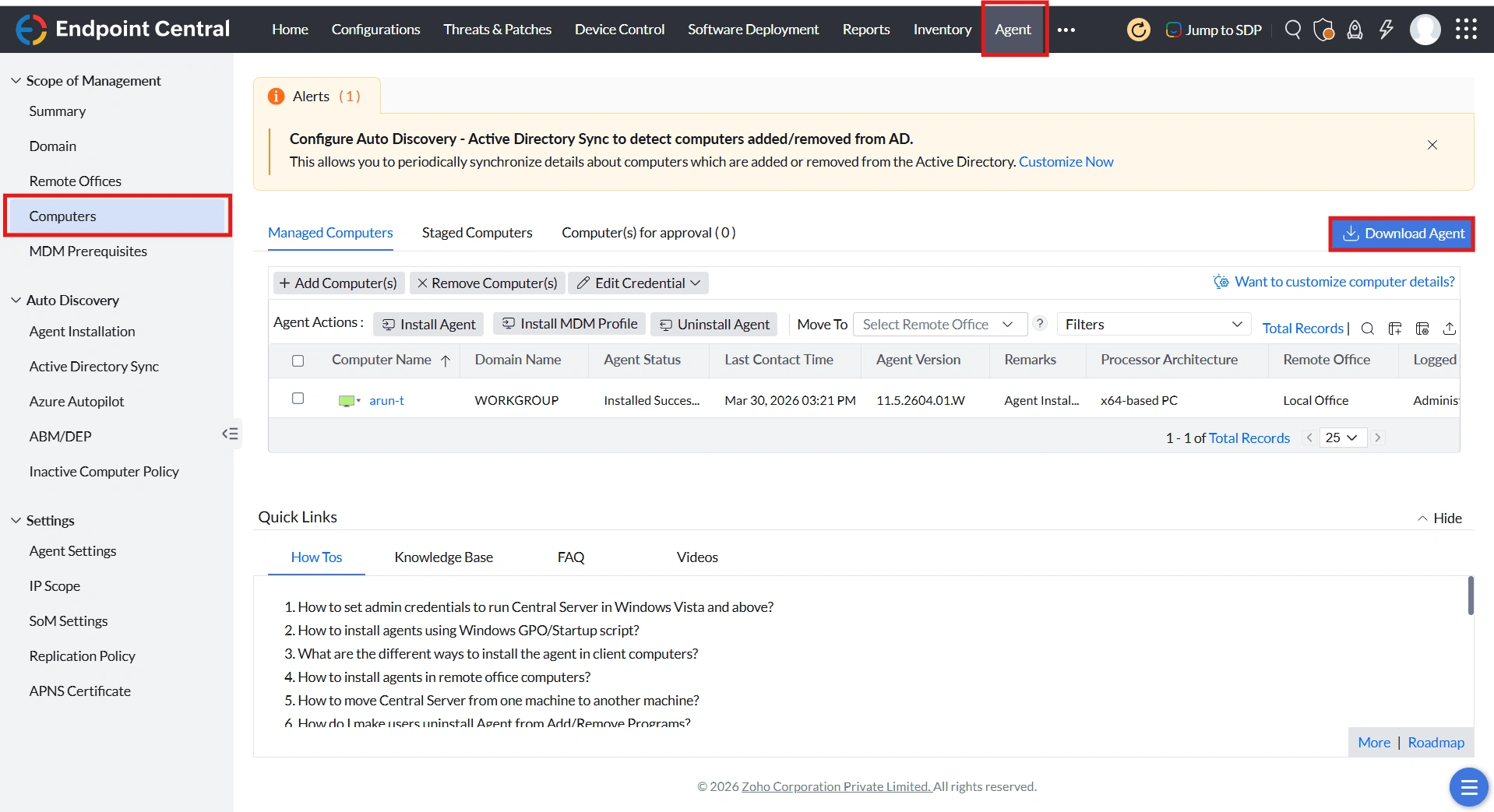
- A .zip file is downloaded, containing the agent installer .exe and DCAgentServerInfo.json.
- Extract the downloaded .zip file into a folder on the target machine.
- Open Command Prompt as Administrator from the location where the file is downloaded.
- Execute the command in Command Prompt based on your requirement.
Note
If your Endpoint Central server is on a build version lower than 11.5.2627.75, the agent will download as a single
.exe. In such cases, you do not need the DCAgentServerInfo.json file. Simply use the downloaded .exe for installation.Note
Make sure the agent installer .exe and DCAgentServerInfo.json are in the same folder. Do not rename DCAgentServerInfo.json or move it out of this folder. The agent reads the server details from this file during installation.
Silent Installation Options
Option 1: Silent Install with Progress Bar
Runs silently with no user interaction, but the progress bar is still visible during installation.
Command Prompt
<RemoteOffice_agent>.exe /silent
Example
LocalOffice_Agent.exe /silent
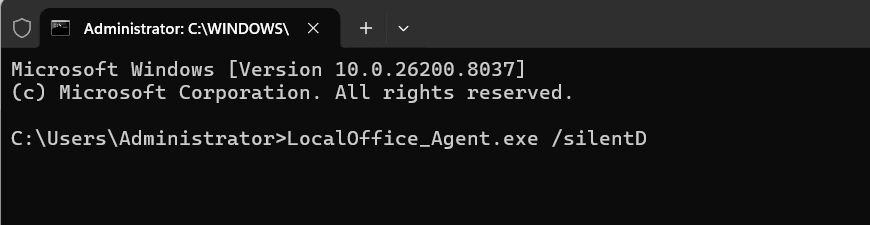
Option 2: Complete Silent Install
Fully silent with no splash screen, no progress bar. Ideal for automated deployments.
Command Prompt
<RemoteOffice_agent>.exe /silent /hide_progress /hide_splash
Example
LocalOffice_Agent.exe /silent /hide_progress /hide_splash
Silent Agent Installation using MSI zip file
- Download the respective remote office agent installer file from Agent → Agent Installation → Other Methods → Download Agent under the Command Line option.
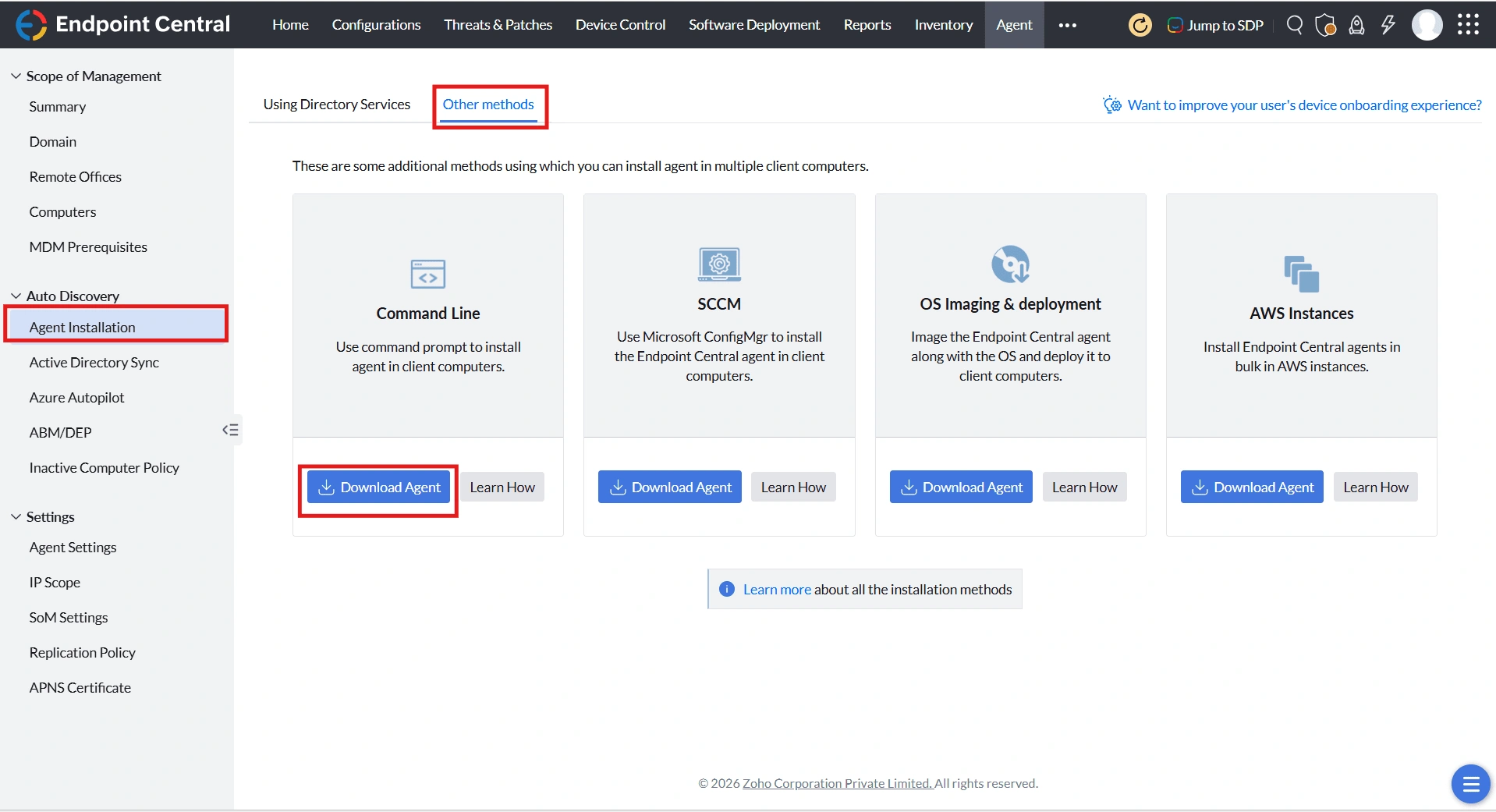
- Extract the .zip into a folder on the agent machine.NoteThe extracted folder also contains the setup.bat file. To install the agent manually, run setup.bat.
- Open Command Prompt as Administrator from the location where the .zip file is extracted.
- Run the command provided below.Command Prompt
msiexec /i "UEMSAgent.msi" /qn TRANSFORMS="UEMSAgent.mst" ENABLESILENT=yes REBOOT=ReallySuppress INSTALLSOURCE=Manual SERVER_ROOT_CRT="%cd%DMRootCA-Server.crt" DS_ROOT_CRT="%cd%DMRootCA.crt" /lv "Agentinstalllog.txt"