Endpoint DLP Policy Deployment
After creating a data rule, the next crucial step is deploying it. Deploying a policy ensures that the data rules are enforced on endpoints, providing real-time protection for sensitive information across your network.
Setup
Deploy a Policy
- Navigate to Policy Deployment → Associate Policy.
- Under Select Custom Group, select the computer groups to associate with the policy.
Configuration
Data Discovery
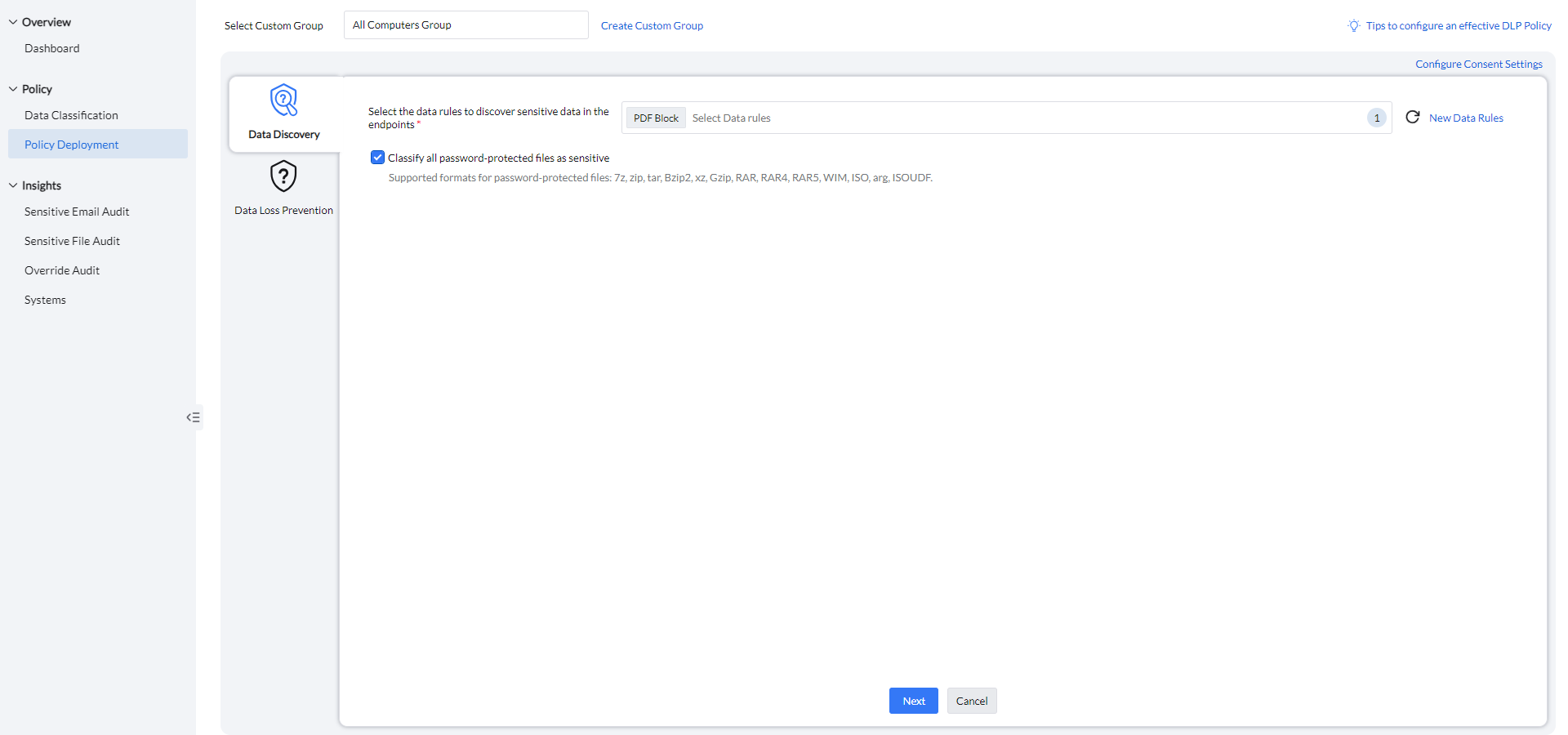
Select the relevant data rules from the data classification set up earlier to apply within the policy. Password-protected files can be classified as sensitive, with support for formats including 7z, zip, tar, Bzip2, xz, Gzip, RAR, RAR4, RAR5, WIM, ISO, ARG, and ISOUDF.
Configuration
Data Leakage Prevention
To manage the various access controls for sensitive files, navigate to Policy Deployment → Data Loss Prevention.
Applications
The Applications feature enables admins to specify which applications are permitted to access and open sensitive files.
- Not Configured — No restrictions or monitoring are applied. All applications can access sensitive files, and no activity will be audited.
- Audit Only — All applications can access and read the data, but all activity is tracked and recorded, with detailed insights available for review.
- Allow Within Trusted Applications — Enables admins to designate a list of trusted applications, ensuring that only approved apps can access and open files classified as sensitive.
For enhanced security, the preview pane in Windows File Explorer can be disabled.

MS Outlook
The MS Outlook feature allows admins to define how Outlook handles sensitive files, ensuring secure file management during email communication.
- Not Configured — File sharing is allowed without any restrictions, and no email activity will be audited.
- Audit Only — All files can be shared, but any transfer of sensitive files is tracked and audited.
- Allow Within Trusted Domains — Restricts the sharing of sensitive files to configured email domains only. Any attempt to transfer sensitive files outside these domains is blocked, ensuring files remain secure while enabling seamless internal collaboration.
- Block Emails with Sensitive Content/Attachments — Completely prevents the sharing of sensitive files through MS Outlook, ensuring that sensitive data cannot be transmitted via email.

Consent Settings for MS Outlook
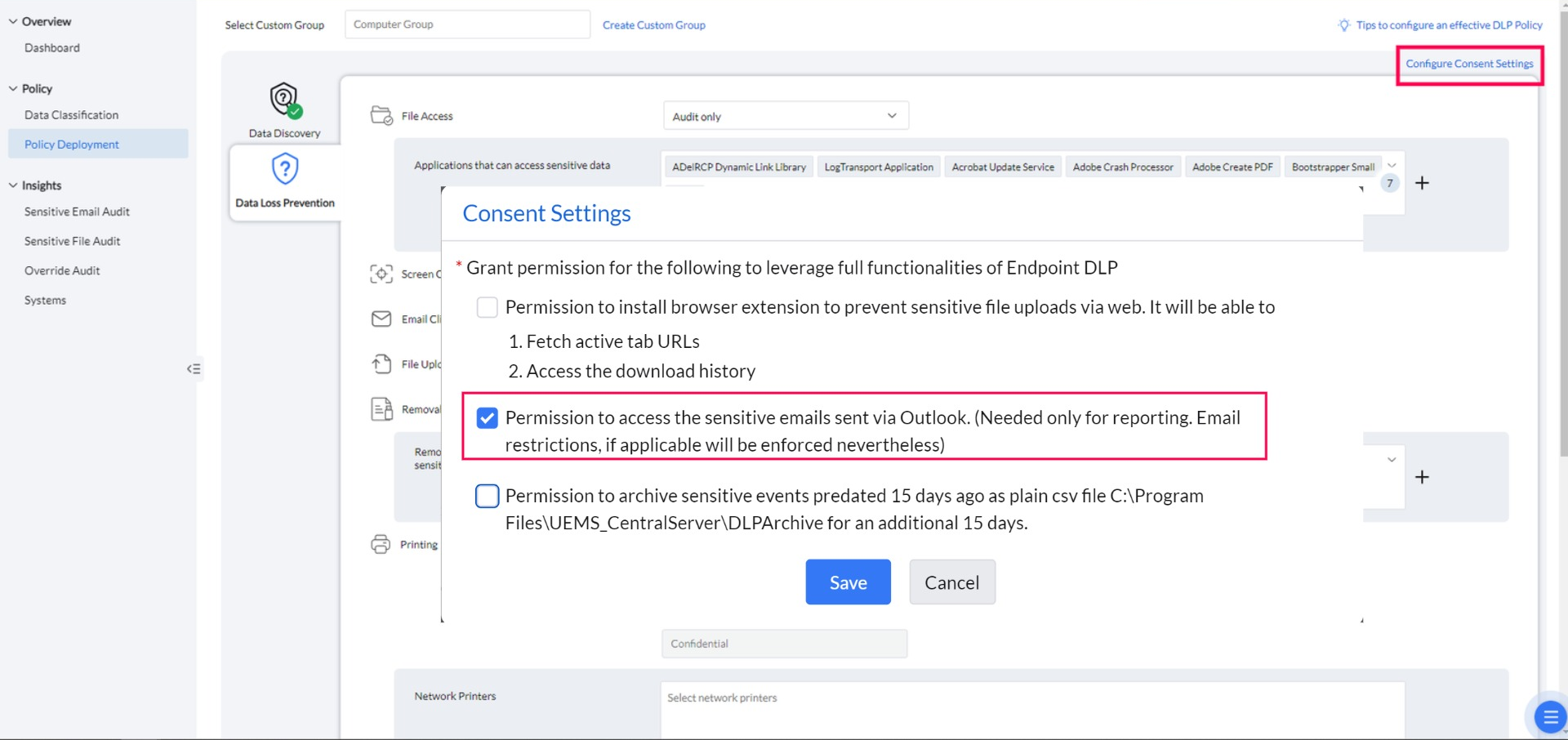
Navigate to Policy Deployment → Configure Consent Settings. By enabling this consent, Endpoint Central DLP will be able to monitor the transfer of sensitive emails through the installation of Outlook add-ins. Without this consent, the add-ins will not be installed, and sensitive email transfers will go unmonitored.
If enabling consent does not result in the add-in being installed on endpoints, refer here to manually deploy the add-in via the Microsoft 365 Admin Center.
Removable Storage Devices
Admins can control how sensitive files are managed when using removable storage devices, ensuring secure handling and preventing unauthorized data transfers.
- Not Configured — No restrictions are applied. Sensitive files can be transferred to removable storage devices without any limitations, and no transfer activity will be audited.
- Audit Only — Files containing sensitive data can be transferred, but all such transfers are tracked and audited.
- Allow Within Trusted Devices — Lets admins define a list of trusted devices. Transfer of sensitive files is permitted only between these approved devices, while transfers to all other devices are blocked.
- Block Sensitive File Transfers — Completely restricts the transfer of files containing sensitive data to removable storage devices, ensuring that sensitive data cannot be moved or copied.

Printers
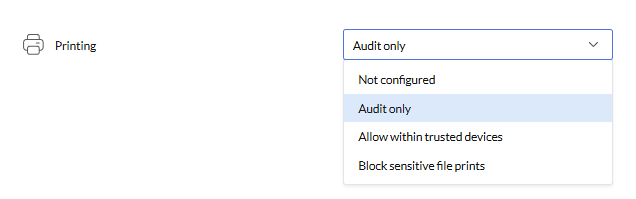
Admins can manage the handling of sensitive files during printing, ensuring secure processing and preventing unauthorized access or distribution.
- Not Configured — No restrictions are applied. Sensitive files can be printed without any limitations, and no print activity will be audited.
- Audit Only — Printing of sensitive documents is allowed, but all print activities are tracked and audited.
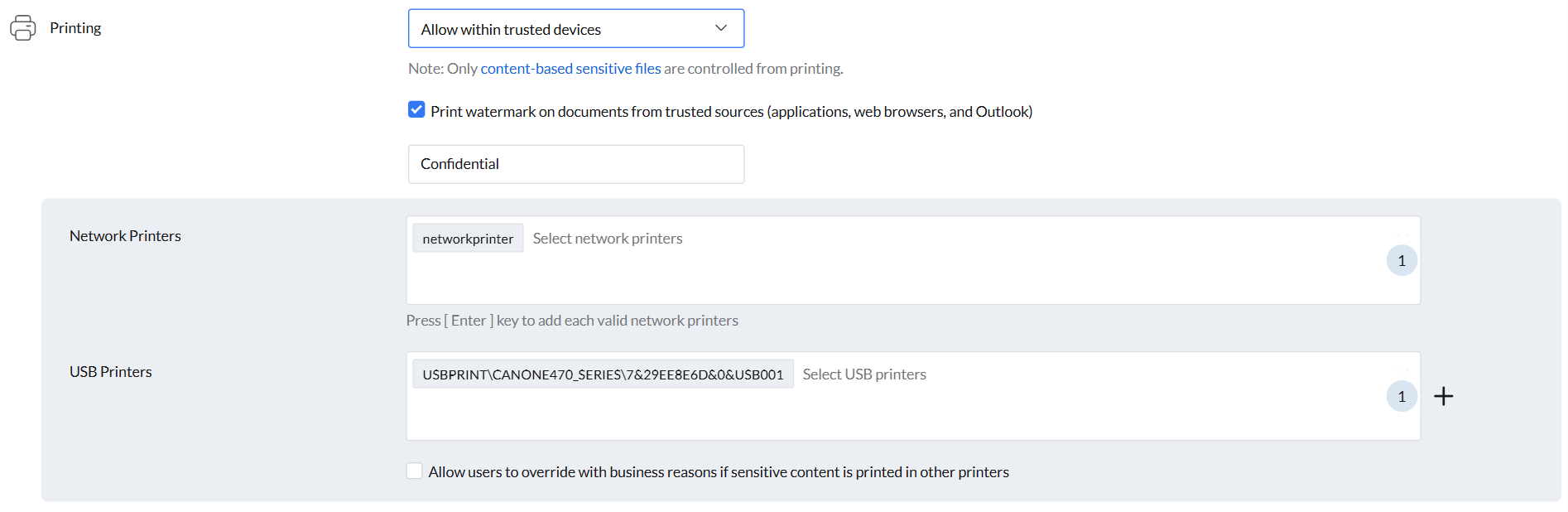
- Allow Within Trusted Devices — Printing of sensitive files is permitted only on trusted printers, while printing on all other devices is blocked.
- Block Sensitive File Prints — Printing of sensitive files is completely restricted, preventing any unauthorized printing.
- Custom watermarks can be configured to print on documents from trusted sources (applications included in Applications and MS Outlook), adding an extra layer of identification and security.
- An option is available to allow users to override restrictions with business reasons, allowing the printing of sensitive content on other printers.
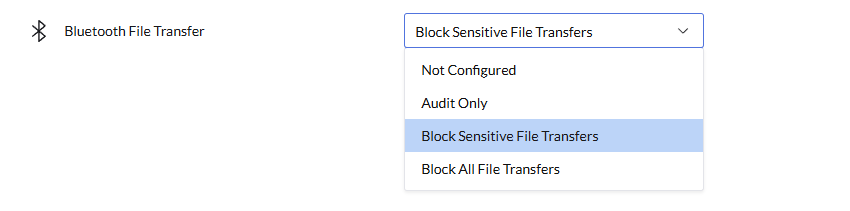
Bluetooth
Admins can control how sensitive files are managed when transferring via Bluetooth, ensuring secure handling and preventing unauthorized data transfers over wireless connections.
- Not Configured — No restrictions are applied. Sensitive files can be transferred via Bluetooth without any limitations, and no transfer activity will be audited.
- Audit Only — Files containing sensitive data can be transferred via Bluetooth, but all transfers are tracked and audited for review.
- Block Sensitive File Transfers — Restricts the transfer of files containing sensitive data via Bluetooth, while allowing transfers of non-sensitive files.
- Block All File Transfers — Completely restricts all file transfers via Bluetooth.
Web Applications
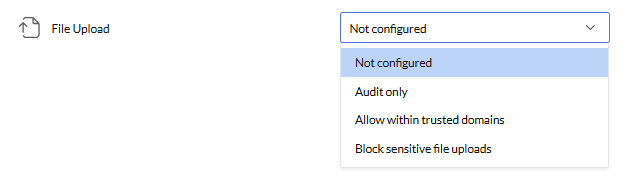
Configure settings to prevent the upload of sensitive files to the web, ensuring that critical data remains secure.
- Not Configured — No restrictions are applied. Sensitive files can be uploaded without any limitations, and no file upload activity will be audited.
- Audit Only — There are no restrictions on data uploads. However, when sensitive data is uploaded to non-trusted domains, the activity is audited.
- Allow Within Trusted Domains — Permits the upload of sensitive data only to trusted domains, while uploads to untrusted domains are restricted.
- Block Sensitive File Uploads — Completely restricts the upload of sensitive files to any domain or destination.
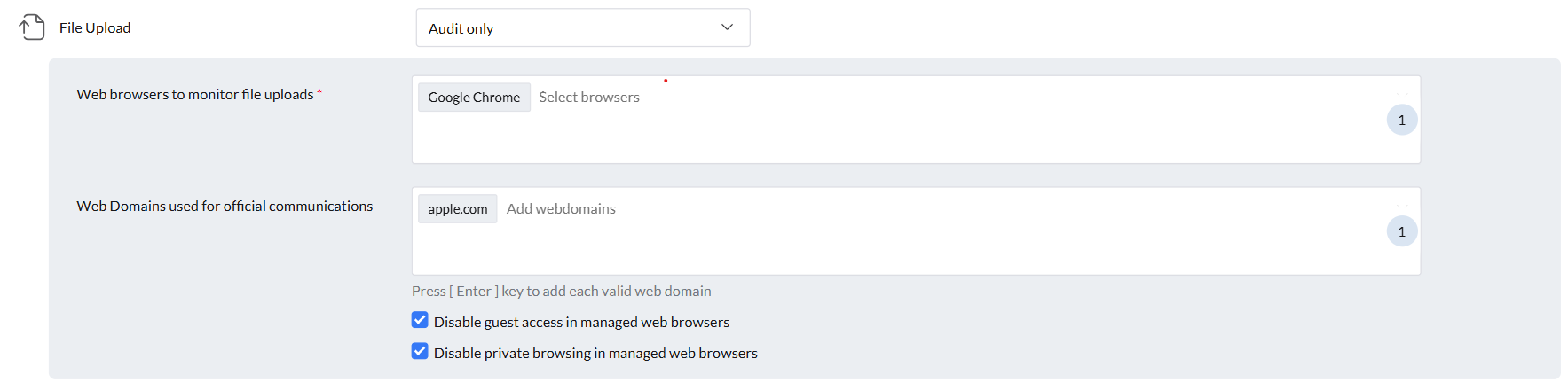
- Choose the web browsers to monitor for file uploads.
- Add a list of trusted domains where sensitive file uploads should not be tracked.
Consent Settings for Web Applications
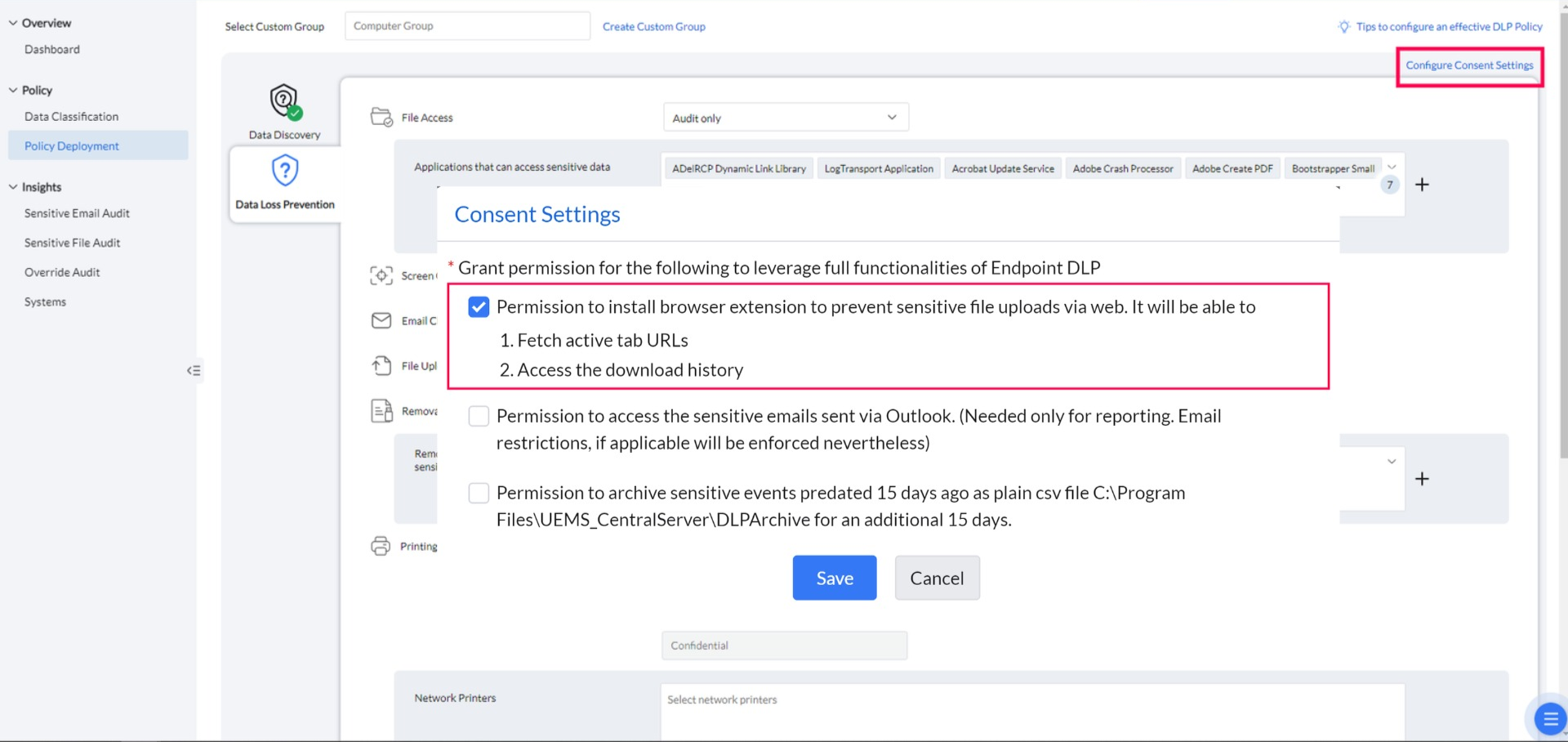
- Navigate to Policy Deployment → Configure Consent Settings.
- Providing consent installs the browser plugin, allowing Endpoint Central DLP to block sensitive file uploads to the web. Without consent, the plugin will not be installed, and sensitive file uploads cannot be restricted.
File Download
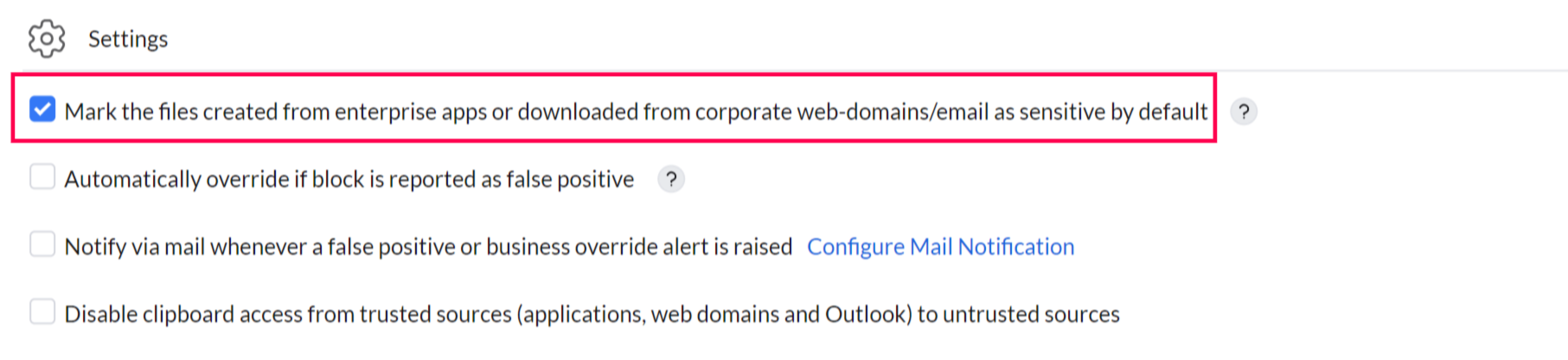
Under the settings option, you can enable the feature to automatically mark files created from enterprise apps or downloaded from corporate web domains or emails as sensitive by default.
Screen Capture
The Screen Capture feature allows admins to enable or restrict screen capture.
- Allow — Permits all users to take screenshots of sensitive data without restrictions.
- Block Within Trusted Applications — Restricts screenshots of sensitive data within any trusted application listed under the Applications feature settings, ensuring enhanced data security.

Clipboard Restrictions
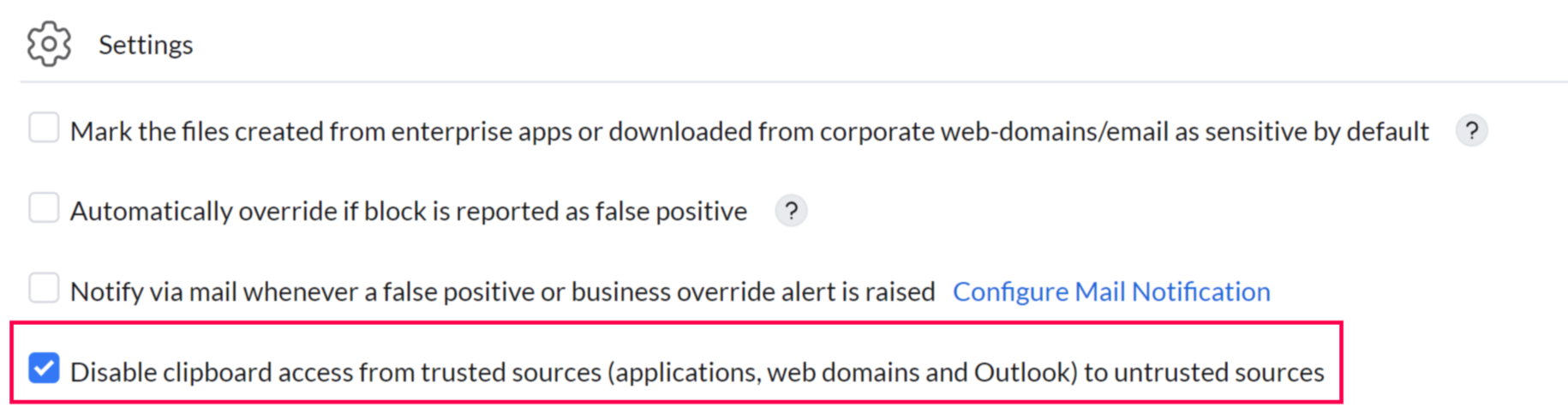
The Clipboard Restriction option prevents copying information from trusted applications to untrusted ones, while still allowing file copying within the trusted applications listed.
Configuration
False Positives and Overrides
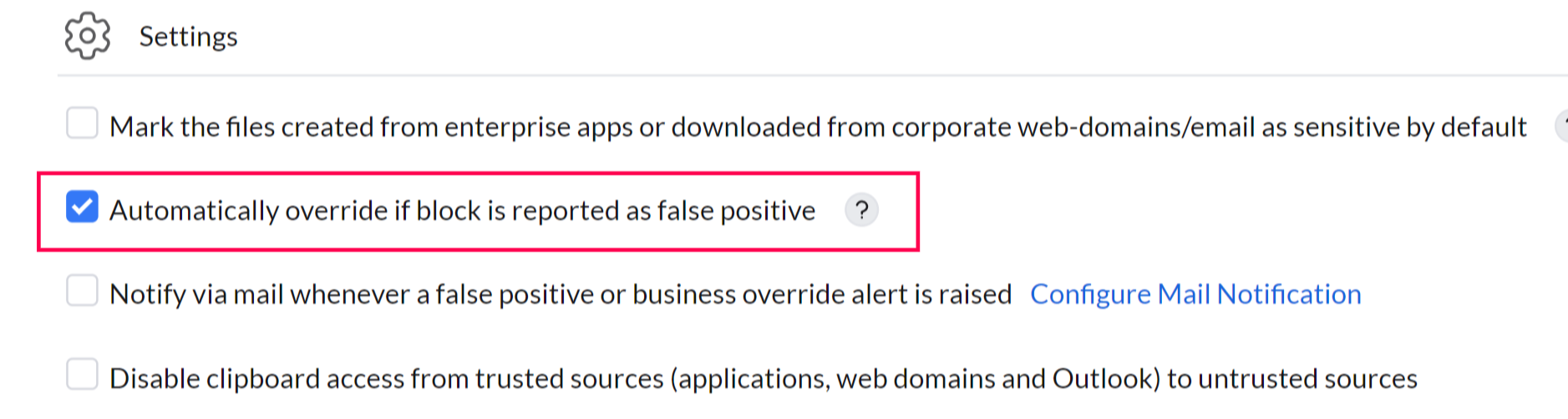
The Automatically Override if False-Positive feature allows users to bypass a block if they believe a non-sensitive file has been incorrectly flagged as sensitive. All overrides are logged in the audit for review. This option can be enabled temporarily until the DLP policy is fine-tuned, ensuring employee productivity remains unaffected.
Configuration
Configuring Email Alerts
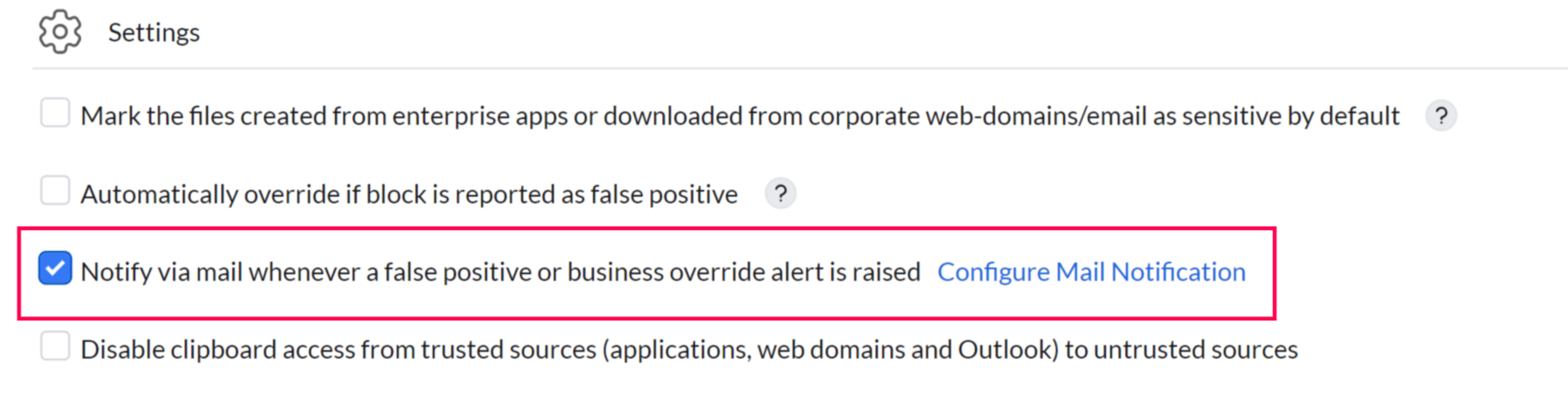
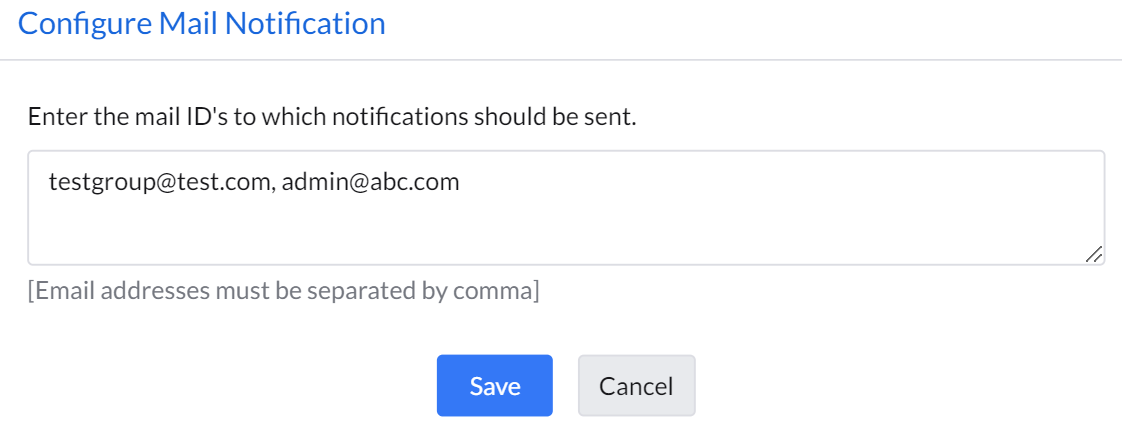
The Mail Configuration feature allows you to configure email notifications that are sent to admins whenever a user raises a business override or reports a false positive. This ensures that administrators are alerted in real time and can take immediate action to review and address the incident.
Mail Notification Settings
- Navigate to Settings → Configure Mail Notification.
- Add the list of email addresses that need to be notified when an override is reported.
Monitoring
Viewing Policy Deployment Status and Progress
Monitor the deployment progress of DLP policies to track how many endpoints have received and applied the policy.
View Overall Deployment Status
- Go to Policy Deployment → Associate Policy.
- Select the DLP policy you want to monitor.
- A status link or progress indicator shows the deployment status across all associated computer groups.
Understanding Deployment Status
- Pending — Policy is associated but not yet deployed to endpoints (awaiting the next refresh cycle).
- In Progress — Endpoints are receiving the policy (typically 0—90 minutes).
- Deployed / Completed — Policy has been applied to the endpoint.
- 0% Progress — No endpoints have received the policy yet. This is normal immediately after association; progress updates as endpoints check in with the server (default 90-minute refresh cycle).
Troubleshooting Slow or Stuck Deployment
- Wait for the next refresh cycle — Endpoints check in every 90 minutes by default. Deployment progress updates when endpoints communicate with the server.
- Force an immediate refresh — On a target computer, run
cfgUpdatefromC:\Program Files (x86)\ManageEngine\UEMS_Agent\binto sync policies immediately. - Check agent status — Go to Insights → Managed Computers and verify the target computer's Agent Status is Alive.
- Verify policy association — Confirm the policy is associated with the correct computer groups and that those groups contain the target computers.
- Check for policy conflicts — If multiple DLP policies are deployed to the same endpoint, the last deployed policy takes effect.
cfgUpdate command to bypass the default 90-minute wait.