# Configuring Wi-Fi | Endpoint Central
### Table of Contents
1. [Configuring Wi-Fi](https://www.manageengine.com/products/desktop-central/help/user_configuration/configuring_wifi.html#configuring-wifi-profile-introduction)
2. [How to configure a Wi-fi profile in Endpoint Central?](https://www.manageengine.com/products/desktop-central/help/user_configuration/configuring_wifi.html#how-to-configure-wifi-profiles)
## Configuring Wi-Fi
Configuring Wi-Fi profiles for different machines in the network is made easy with Endpoint Central as our product supports Wi-fi configuration for all kinds of operating systems. You can create, modify and delete existing Wi-fi profiles using the Wi-fi configuration in Endpoint Central. The only pre-requisite for deploying a Wi-fi profile is to ensure that a Wi-fi adapter is enabled on all the target computers beforehand. You can turn on the Wi-fi adapter while creating a Wi-fi profile and create multiple Wi-fi profiles. Profiles within a configuration will be applied as per the specified sequence. If you have chosen to delete all configurations first and then create a new Wi-fi profile, all the existing Wi-Fi profiles will be removed from the computer initially followed by the addition of the second profile.
## How to configure a Wi-Fi profile in Endpoint Central?
1. In Endpoint Central Console, navigate to **Configurations tab** --> **Add Configurations** --> **Configurations** --> **Windows**
2. Select **Wi-Fi** and choose **User**
3. Specify the **Name** and **Description** for the configuration.
4. In the Configure Wi-Fi settings:
- Select the option to enable or disable a wireless adapter
- Choose whether you want to create, modify or delete Wi-Fi profile
## To add a Wi-Fi profile,
- Profile: Click **Add** profile
- Option: Choose whether you want to add a new profile or import a Wi-Fi profile
## To add a new Wi-Fi profile:
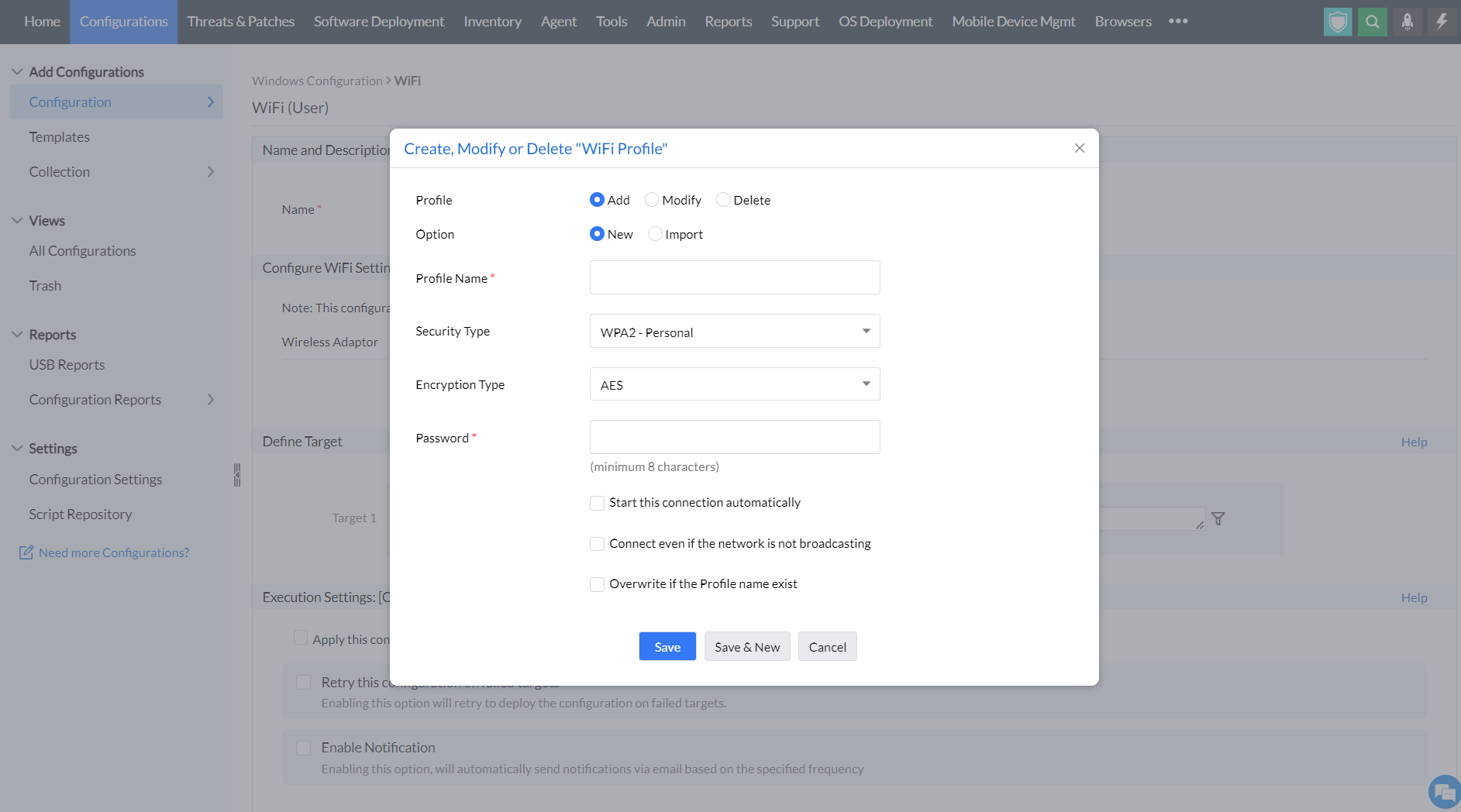
You will have to provide the following details.
| Configuration Option | Description |
|---|---|
| Profile Name | Name for the Wi-Fi configuration |
| Security Type | - No Authentication (Open)
- **WEP** (Wired Equivalent Privacy): Outdated and insecure encryption, avoid if possible.
- **WPA-Personal** (Wi-Fi Protected Access - Personal): Older security, better than WEP but not as strong as WPA2.
- **WPA2-Personal:** Strongest security for personal Wi-Fi with AES encryption.
- **WPA2-Enterprise**: High security with central server for business use.
- **WPA-Enterprise**: Less secure business option using WPA protocol. (802.1x is considered more secure than WPA and WEPA2 Personal) |
| Encryption Type | - **AES** (Advanced Encryption Standard): Considered highly secure with 128-bit keys, it is the recommended encryption type for personal and business Wi-Fi networks.
- **TKIP** (Temporal Key Integrity Protocol): An older encryption algorithm introduced with WPA, TKIP is less secure than AES. |
| Connection Preferences | - Automatically connect to the configured Wi-Fi network
- Establish connection even if the network is not broadcasting |
| Overwrite Existing Profiles | Choose to overwrite if any existing profiles exist with the same name |
## To add and import a Wi-Fi profile,
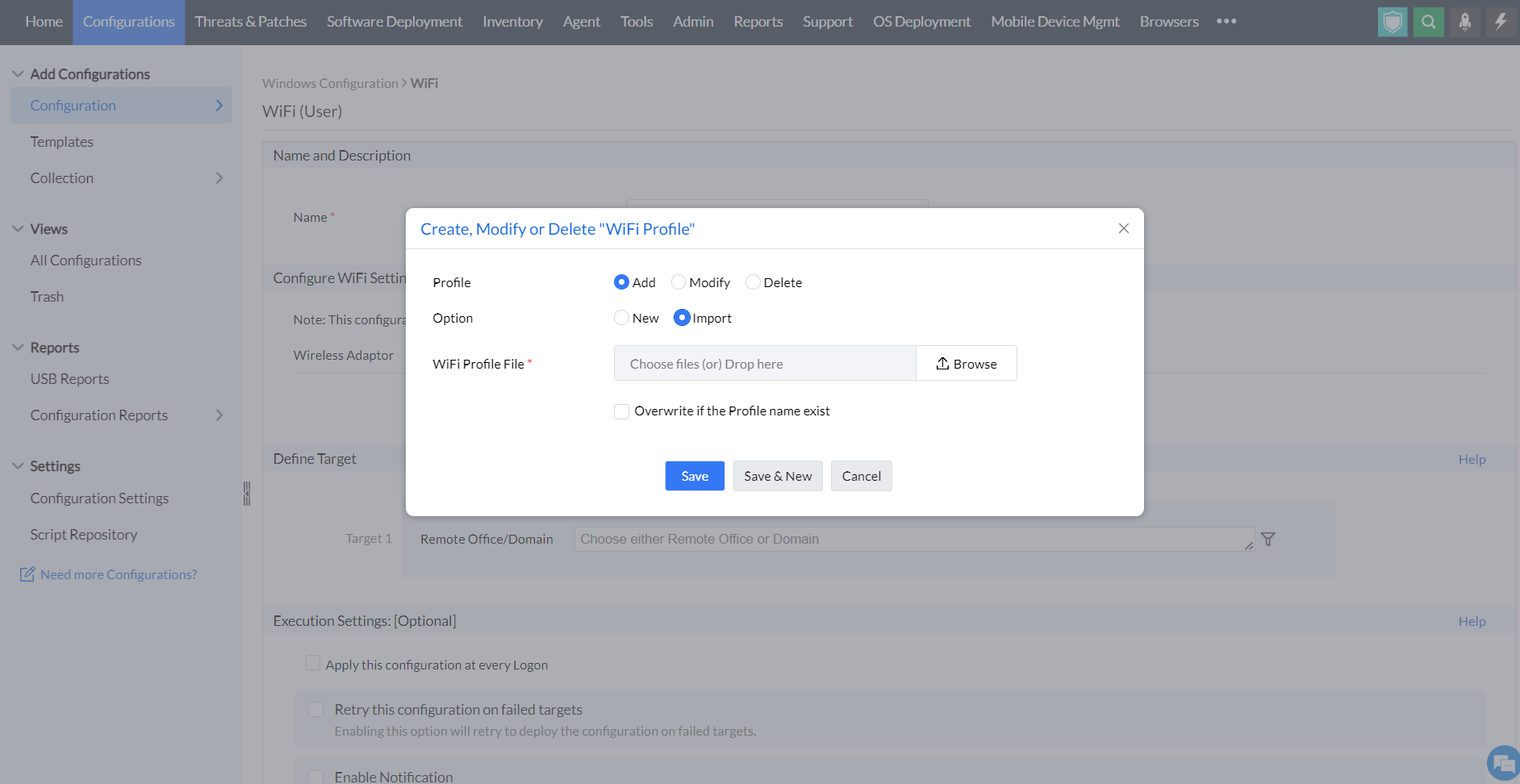
- Browse the necessary file and drop it in the drop-down menu
- Enable the option to overwrite a new profile if you want to
## To modify a Wi-Fi profile:
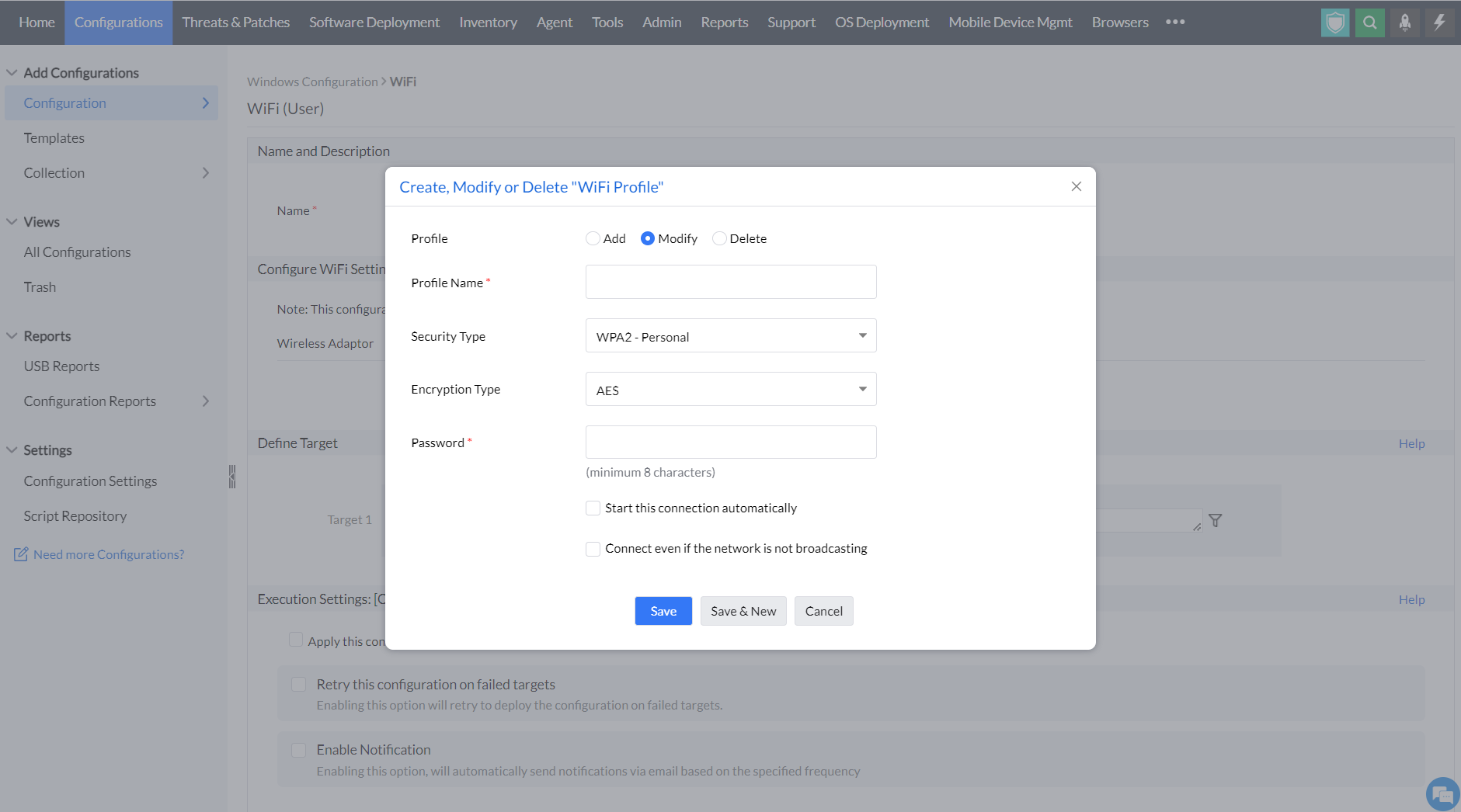
- Add **Profile type** ---> Select **Security Type** ---> Choose **Encryption type** ----> **Add Password**
- You can also enable two options to start the connection automatically and to connect even if the network is not broadcasting.
## To delete a Wi-Fi profile:
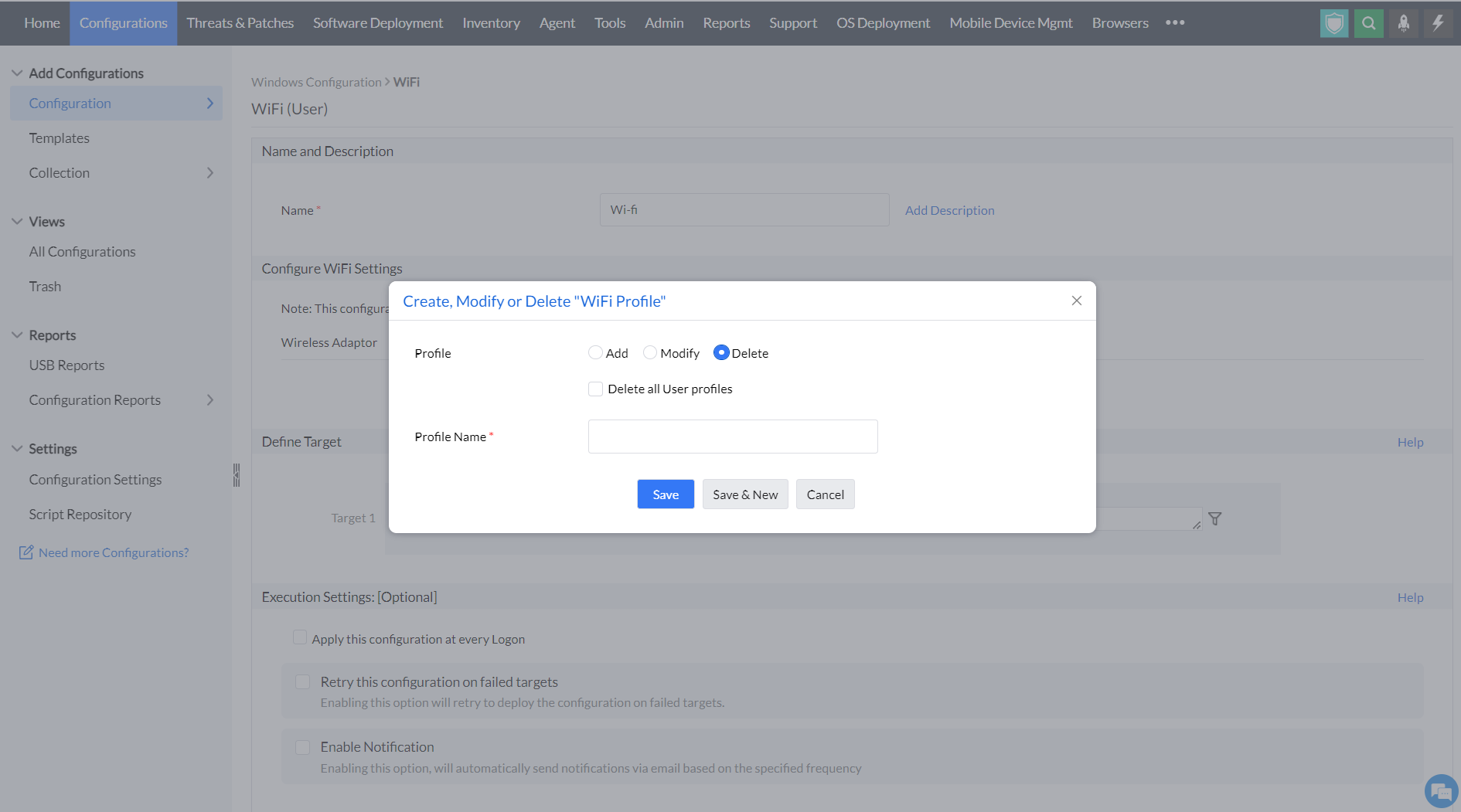
- Choose **Delete profile** ----> Enable the option to delete all user profiles if necessary ----> Enter **Profile Name**
After performing the functions to configure a wi-fi profile, follow the steps below:
- Click **Save** to save the above mentioned configurations and **Save and New** to save and add a new configuration.
- [Define the Target](https://www.manageengine.com/products/desktop-central/help/defining_targets.html)
- Specify retry options if required and deploy the configuration.
- You can also enable notifications to receive emails based on the specified frequency.
- Click on the **Deploy** button to deploy the Wi-Fi configuration in all the targets.
- To save the configuration as draft, click **Save as**
You have successfully configured Wi-Fi profiles for Windows machines