# Office Patch Download Failure
Last Updated On: 16 Oct 2026
7 minutes read
## Problem
The patch download fails for Microsoft Office applications, such as Microsoft 365, Office 2021, Office 2019, etc. with the following error codes:
Both the main Office patch and its dependency patch must download before you deploy.
- Command execution failure
- Unable to execute command
- Unknown Error Code:- 2147012894
- Unknown Error Code:- 2147012852
## Investigating Problem Causes
For a remark containing **Please whitelist this url** or **allow extension**, capture the full error, failed URL and extension. Test that exact URL from the configured downloading host, not only from an endpoint browser. Follow the ODT and dependency checks below; a browser download does not confirm product-service access.
For package selection and upload instructions, see [Upload Pending eligibility](https://www.manageengine.com/products/desktop-central/help/patch-management/attention-required.html). Use [Office network and execution checks](https://www.manageengine.com/products/desktop-central/help/patch-management/office-patch-download-whitelisting.html) if allowlisting alone has not resolved the download failure.
If the Office or ODT package is absent from Upload Pending, do not substitute an arbitrary ODT executable. Upload availability depends on the selected patch or dependency and its package instructions; ordinary failed-download upload eligibility does not establish support for every Office package. See [Upload Pending requirements](https://www.manageengine.com/products/desktop-central/help/patch-management/attention-required.html#upload-pending).
The possible reasons of this issue could be:
- **The user doesn't have access to Setup.exe file, and hence won't be able to execute it.**
- **Due to antivirus blocking.**
- **The proxy credentials given in the Proxy Settings are not valid.**
To resolve the issues, follow these steps:
### Step 1:
Allowlist the mentioned domains in this [page](https://learn.microsoft.com/en-us/microsoft-365/enterprise/urls-and-ip-address-ranges?view=o365-worldwide) in your proxy to download the Office patches.
### Step 2:
If the download fails even when the above-mentioned links are whitelisted, follow the steps mentioned below to ensure that there is no network issue or privilege issue in your environment:
- Login to the server installed system and create a folder named **o365**.
- Copy the XML content mentioned below and save it with the file name as **download.xml**. Place the file in the **o365** folder that you created in the first step.
**Note**
```xml
```
- Download the [office deployment tool](https://www.microsoft.com/en-US/download/details.aspx?id=49117) and place it in the **o365** folder along with **download.xml**.
- Then extract the **.exe** file using 7zip in the same path.
- Run Command Prompt as **administrator** and execute the below-mentioned commands:
**Note**
```bat
setup.exe /download download.xml
echo %errorlevel%
```
- Once the above-mentioned steps have been executed, the error level should be **0**. In case any other value is displayed, kindly [contact support](https://www.manageengine.com/patch-management/support.html).
### Step 3:
Once the above-mentioned steps have been performed and if the **exit code is 0**, then there might be a privilege issue in your environment. To resolve, perform the following steps:
1. Open Run (Windows key + R) > type **services.msc**
2. Right-click on **Patch Manager Plus UEMS - Server** > **Properties**
3. Click on **Log On**
4. Click on **This account**, type in the credentials of the system's admin account and click on **OK**
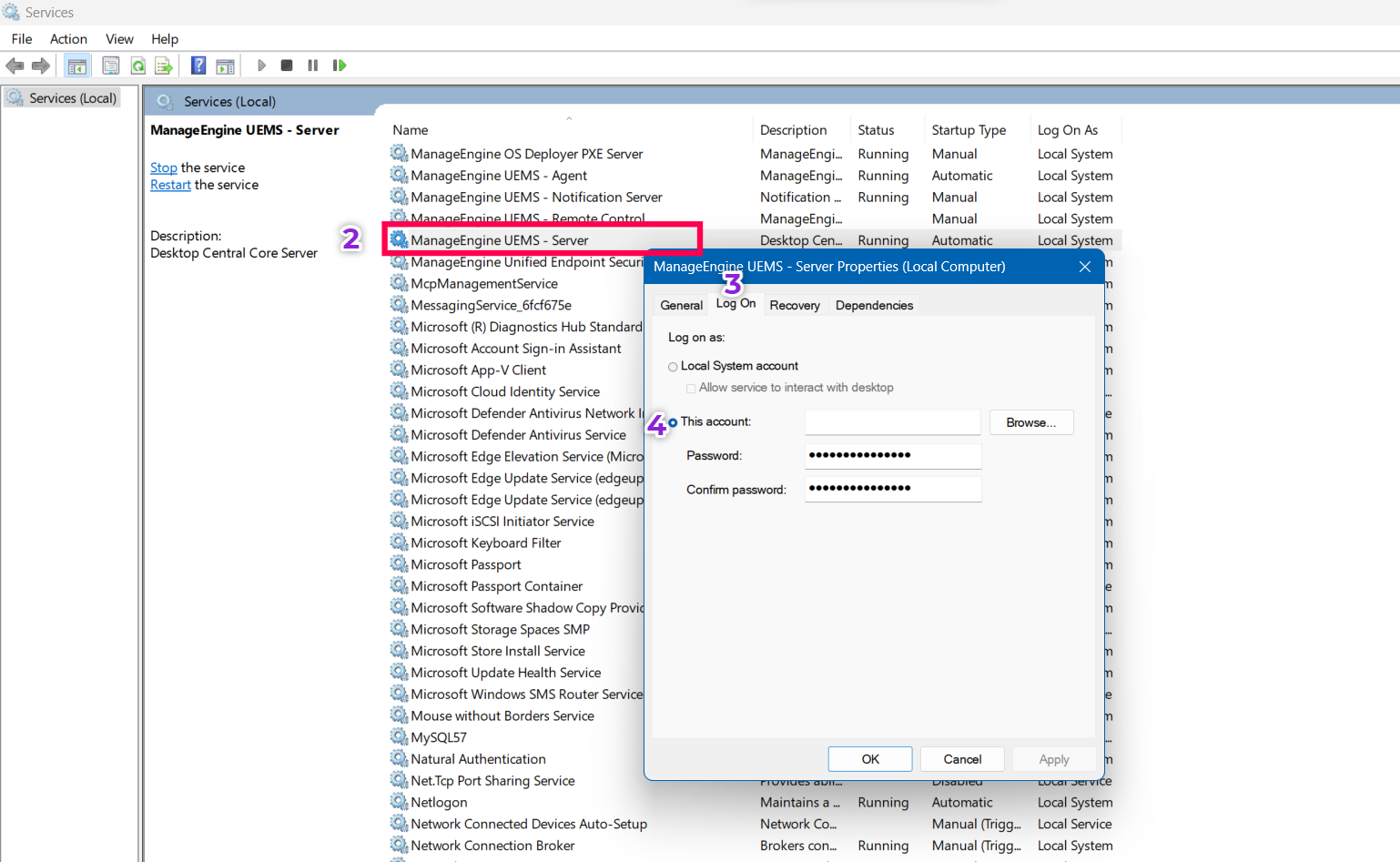
5. Restart the server and deploy/download the O365 patch.
In case the problem persists, kindly [contact support](https://www.manageengine.com/patch-management/support.html).
## Diagnose hosted Office metadata failures
For **Failed to download office patch meta json with error code : 404** or **Failed to decrypt office meta - .json**, identify the stage that failed: downloading the dependency JSON, decrypting it, or downloading the Office files described by it. These are separate stages in the hosted-metadata flow.
1. Record the Patch ID and dependency ID, affected computer, server and agent builds, failure time and full error. For a metadata download failure, include the requested JSON URL and the serving server or Distribution Server response.
2. If the download succeeded but decryption failed, collect the affected agent logs, the recorded `officemeta.exe` helper presence and result, and whether the expected dependency JSON became available. Do not run an undocumented helper command or substitute another JSON file.
3. Share the bundle and stage-specific evidence with Support if the failure persists. A successful allowlisting test does not establish that decryption succeeded.
## Related
- [Office Patch Download Whitelisting](https://www.manageengine.com/products/desktop-central/help/patch-management/troubleshooting/office-patch-download-whitelisting.html)
- [Microsoft 365 (Office 365) Patch Deployment](https://www.manageengine.com/products/desktop-central/help/patch-management/office-365-patch-deployment.html)