Open Network DB Sync Failure
Causes of Patch DB Sync failure include:
- Download failures due to proxy issues.
- Download failures due to unstable internet connections.
- Certificate validation issues.
- DNS resolution issues.
If a scheduled sync fails, navigate to Threats & Patches → Update Now, start a manual sync, and wait for it to complete. If the manual sync succeeds without a configuration change, the scheduled failure may have been caused by a transient network interruption. If it fails again, continue with the checks below.
Troubleshooting Steps
First check whether synchronization reports a failure or remains in progress without changing stage. Record the last successful update time, current stage, full error and server build before retrying. For a failure, follow the matching network or certificate section. If synchronization remains stalled or fails again, collect the server logs and contact Support. See synchronization status details. Restarting a service is not a general repair for every synchronization failure.
- Open your browser and go to: https://patchdb.manageengine.com
- Click the View Site Information (padlock icon) in the address bar
Check the SSL certificate issuer
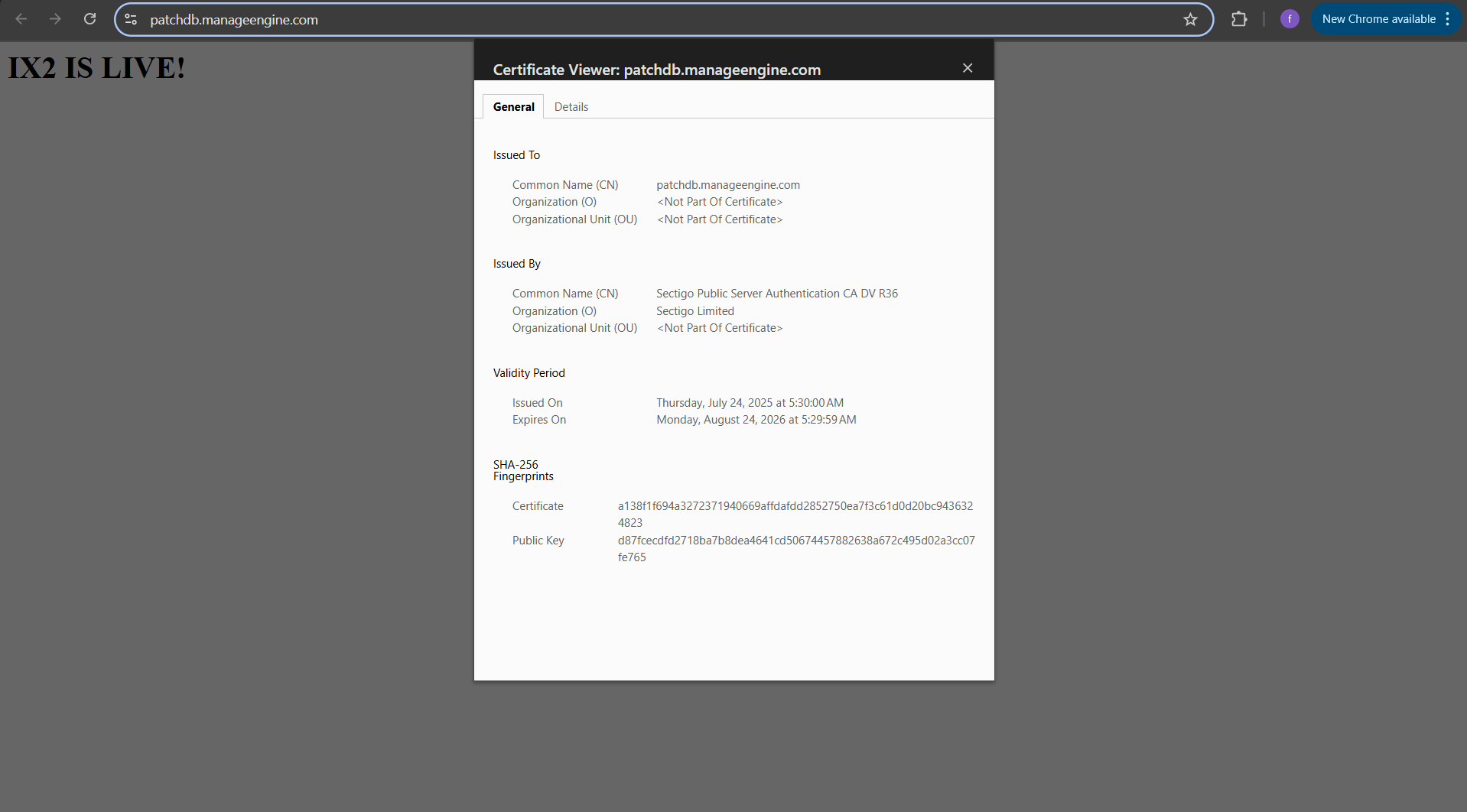
- If the certificate is not issued by Sectigo or Let’s Encrypt R3:
- A proxy or firewall might be intercepting SSL traffic and replacing the certificate
- Check for SSL inspection or MITM (man-in-the-middle) proxies in your network configuration
- If the certificate is not issued by Sectigo or Let’s Encrypt R3:
Possible causes of network failure:
- Unstable internet connection
- High network latency
- Incorrect proxy settings or configurations
Whitelisting Steps
- Check proxy and firewall settings for inbound and outbound traffic
- Ensure the domain https://patchdb.manageengine.com is not blocked
- If blocked, unblock or whitelist the domain in your proxy/firewall configuration
Logs Troubleshooting Steps
- Navigate to the server installation directory, open the logs folder, and access the crslog file.
- Using the last sync timestamp, search for entries indicating "Failure in Download" of any XML or SQL files within the
crslog. - Look for error codes such as 10008, which typically denote download failures.
- If such failures are found, copy the download URL of the corresponding XML or SQL file.
- Search for occurrences of this URL in the DownloadManager logs.
- Use the timestamps from the
crslogas reference points to narrow down the relevant log entries. - Identify the server thread handling the request to locate associated exceptions. You may encounter exceptions such as:
Exceptions
java.net.SocketTimeoutException: Read timed out
- Reason: Network interruption or slow connection during file download.
- Steps to Resolve:
- Ensure a stable and high-speed internet connection.
- Try downloading the file again.
- Check for packet loss or latency issues using tools like
pingortraceroute.
java.net.SocketException: Connection reset
- Reason: Connection lost or forcibly closed during/after file transfer.
- Steps to Resolve:
- Verify network stability and bandwidth usage.
- Check for firewall timeouts or connection limits.
- Inspect server/client logs for abrupt disconnections.
Connection Timeout (ConnectException)
- Reason: Unstable or slow internet, or the server is unreachable.
- Steps to Resolve:
- Test the network using
pingortelnetto the server port. - Ensure proper DNS resolution and gateway reachability.
- Check for blocked or dropped packets by the firewall or proxy.
- Test the network using
java.net.ConnectException: Connection refused: connect
- Reason: Proxy or firewall blocking the connection.
- Steps to Resolve:
- Ensure the destination port is open on the server.
- Check firewall or proxy rules for the blocked domain/IP.
- Whitelist the necessary domains in proxy/firewall settings.
java.net.UnknownHostException
- Reason: DNS resolution failure.
- Steps to Resolve:
- Verify DNS settings on the server.
- Use
nslookupordigto check domain resolution. - Switch to a public DNS server like Google (8.8.8.8) or Cloudflare (1.1.1.1) temporarily.
javax.net.ssl.SSLHandshakeException
- Reason: SSL certificate mismatch, invalid or untrusted certificate.
- Steps to Resolve:
- Import the correct root and intermediate certificates into the truststore.
- Verify that the server’s SSL configuration is valid and trusted.
- Ensure no SSL interception is happening via proxy or firewall (check for MITM proxies).
java.net.ProtocolException: Bug in authorization handling: server refused the given 10 times
- Reason: Server refused repeated authorization attempts; possibly due to proxy issues.
- Steps to Resolve:
- Validate the credentials being used for authentication.
- Check proxy settings to ensure authentication is supported.
- Review server-side authentication policy or rate-limiting configuration.
com.microsoft.sqlserver.jdbc.SQLServerException: Connection reset
- Reason: Lost or reset database connection due to network or SQL Server issues.
- Steps to Resolve:
- Check SQL Server service status and error logs.
- Review application connection pooling and timeout configurations.
- Monitor network path between the application and the SQL Server for interruptions.
javax.net.ssl.SSLHandshakeException: PKIX path building failed: sun.security.provider.certpath.SunCertPathBuilderException: unable to find valid certification path to requested target
- Reason: The SSL handshake failed because the server's certificate could not be validated. This usually happens when the certificate is self-signed, issued by an unknown certificate authority, or the Java truststore lacks the required CA certificate.
- Steps to Resolve:
- Export the server’s certificate and import it into the Java truststore (
cacerts) using thekeytoolutility. - If modifying the default truststore isn’t preferred, create and configure a custom truststore with the server certificate, and reference it using JVM arguments (
-Djavax.net.ssl.trustStoreand-Djavax.net.ssl.trustStorePassword). - Ensure the server presents the complete certificate chain (including root and intermediate CAs) during the SSL handshake. Use tools like
openssl s_clientor online SSL checkers to confirm. - Verify that the Java runtime environment is up to date and correctly configured to use the intended truststore.
- Export the server’s certificate and import it into the Java truststore (