Patch Store Location Not Available
Problem
During patch deployment, the deployment fails with the remark Patch Store Location Not Available. The deployment may also display Error 404 or Unable to download the patches from the server. The main patch or one of its dependency patches may not be available in the patch store.
Cause
This issue occurs when the required patch is not present in the server or Distribution Server patch store. This can happen when:
- The patch or one of its dependency patches failed to download.
- The patch store location was changed without copying the existing files to the new location.
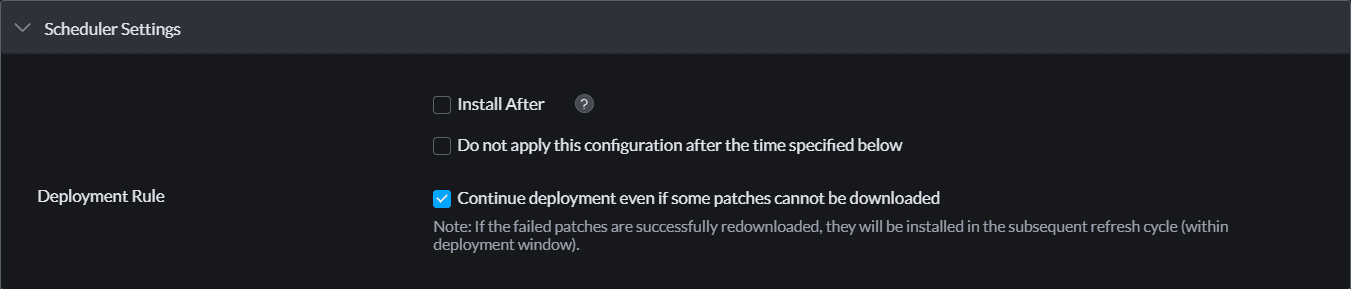
- The Continue deployment option was selected even though one or more patches failed to download to the server.
- The patch has not yet replicated to the Distribution Server store.
Prerequisite
The following troubleshooting procedures apply only when Continue deployment even if some patches cannot be downloaded was enabled under Scheduler Settings → Deployment Rule while creating the configuration. If this option was not enabled, skip these procedures and collect the logs specified below for the applicable deployment type.
Identify the Failed Patch
Manual Deployment
- Navigate to Deployment → Manual Deployment.
- Locate the failed collection.
- Click the Draft Download Failed status.
The view displays the main patch and any dependency patches that failed to download or have not yet been downloaded. Review the Remarks column to identify the failure reason for each patch.
Automate Patch Deployment
- Navigate to Deployment → Automate Patch Deployment.
- Locate the failed collection.
- Click the task name.
- Navigate to Download Pending Patches.
The view displays the main patch and any dependency patches that failed to download or have not yet been downloaded. Review the Remarks column to identify the failure reason for each patch.
Verify the Patch Download
If the required patch is listed as failed or its file is absent from the patch store, first confirm that the target agent can communicate with its Central Server or Distribution Server. Delete the failed patch entry from Patches → Downloaded Patches, and then redeploy the patch to start a fresh download.
On-Premises Server Without a Distribution Server
- Navigate to Patches → Downloaded Patches.
- Locate the failed patch and click its Patch ID.
- Click the Patch Name to obtain the vendor download URL.
- Open the vendor URL in a web browser and verify that the patch downloads successfully.
If the manual download fails, resolve the applicable network, proxy, firewall, or vendor-connectivity issue before proceeding with deployment.
If the issue persists, use the log collection instructions to collect the server logs and agent logs.
Cloud Server Without a Distribution Server
- Navigate to Patches → Downloaded Patches.
- Locate the failed patch and click its Patch ID.
- Click the Patch Name to obtain the vendor download URL.
- Open the vendor URL in a web browser on the agent machine and verify that the patch downloads successfully.
If the manual download fails, resolve the applicable network, proxy, firewall, or vendor-connectivity issue before proceeding with deployment.
If the issue persists, use the log collection instructions to collect the agent logs.
Cloud Server With a Distribution Server
Confirm that the patch is listed for the affected remote office under Patches → Downloaded Patches. If it is absent, verify that the Distribution Server can communicate with the Central Server and that replication is completing according to the configured replication policy.
- Navigate to Patches → Downloaded Patches.
- Select the appropriate Remote Office from the drop-down menu.
- Locate the failed patch and click its Patch ID.
- Click the Patch Name to obtain the vendor download URL.
- Open the vendor URL in a web browser on the Distribution Server machine and verify that the patch downloads successfully.
If the issue persists, use the log collection instructions to collect the Distribution Server logs and agent logs.
On-Premises Server With a Distribution Server
Confirm that the patch is listed for the affected remote office under Patches → Downloaded Patches. If it is absent, verify that the Distribution Server can communicate with the Central Server and that replication is completing according to the configured replication policy.
Use the log collection instructions to collect the server logs, Distribution Server logs, and agent logs.
Provide the applicable collected logs to endpointcentral-support@manageengine.com for further analysis.