Transferring Resource Ownership and Approval Privileges
When an administrator leaves the organization or moves to a different department, the resources, accounts, SSH keys, and SSL certificates they own should be reassigned to another user to ensure seamless resource management. Additionally, if the departing user is designated as the approval administrator for password access requests, those privileges should be transferred to ensure uninterrupted access management.
Manually reassigning resource ownership and approval privileges for each resource or account can be cumbersome and time-consuming, especially in organizations with numerous resources. To streamline this process, Password Manager Pro provides an option to transfer resource ownership and reassign approval privileges to another user, ensuring a smooth transition without disrupting access workflows.
Once the ownership is transferred, the original owner will no longer have access to the resources unless the new owner explicitly shares them again. However, the users with whom the original owner previously shared the resource will continue to have access to it with the same permissions.
Note: Transferring resource ownership to a new user in the Password Manager Pro server will not provide access to the remote resources added via an agent by another administrator. The conf file in the agent installation directory should be updated with the new user name (in the attribute 'UserName=admin' format) and restart the PMP Agent service to manage those resources.
This help document covers the following topics in detail:
- Transferring Approval Privileges
- Transferring the Ownership of Resource Groups
- Transferring the Ownership of Resources, SSH Keys, and SSL Certificates
1. Transferring Approval Privileges
Follow these steps to transfer the approval privileges from one administrator to another:
- Navigate to the Users tab and click on the User Actions icon beside the desired user whose approval privileges you wish to transfer to another administrator.
- On the pop-up that appears, select Transfer Approval privileges from the displayed options.
- On the Transfer Approver Privileges window, you will see the list of all the resources and accounts for which the selected administrator is designated as the authorized administrator for password access requests. Choose the desired resources from the displayed options.
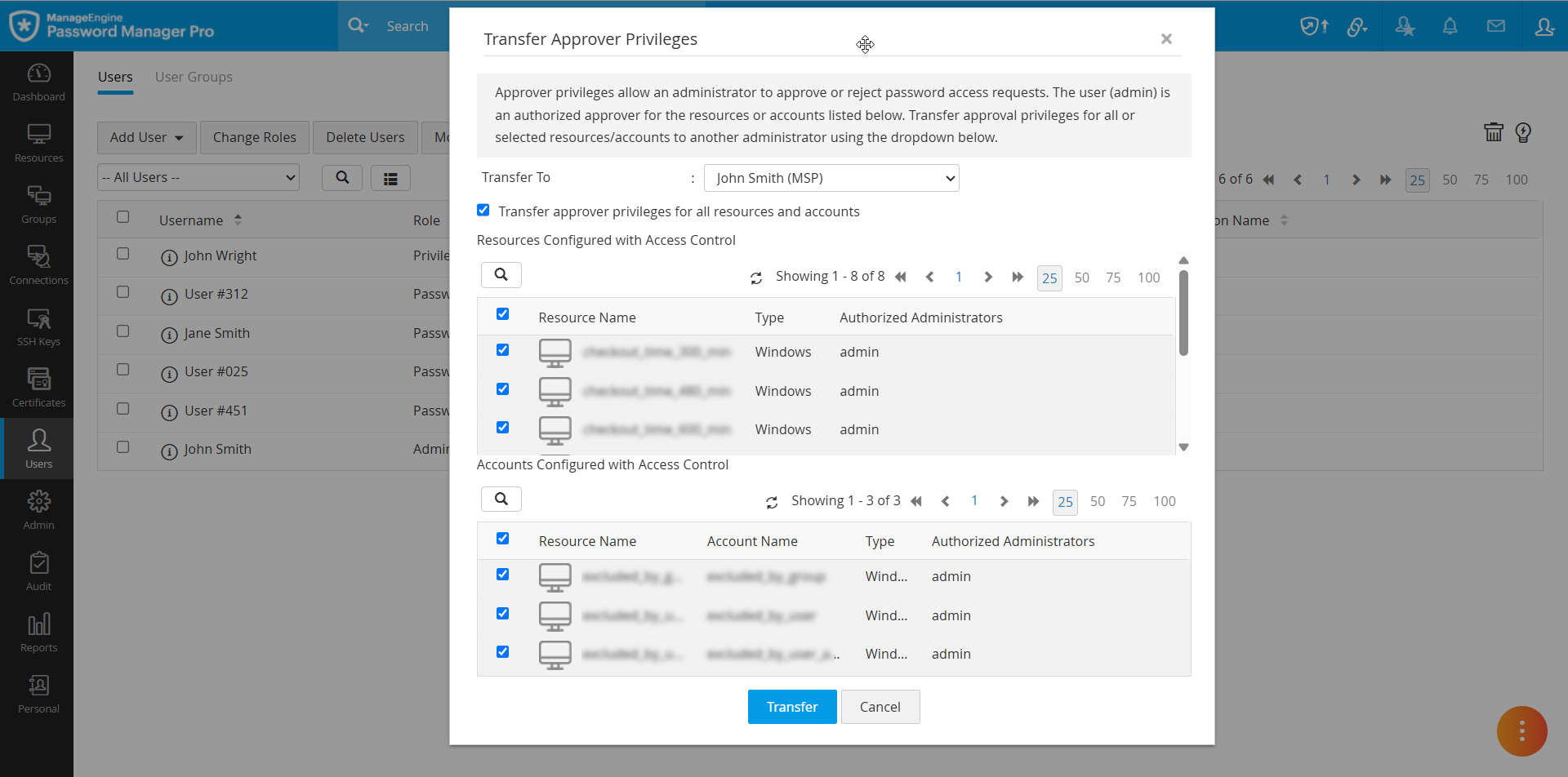
- From the Transfer To drop-down menu, select the desired administrator to whom you wish to transfer the approval privileges and click the Transfer button at the bottom of the window.
- The approval privileges will be successfully transferred to the selected user, and the authorized administrator will be subsequently updated.
Note: Even after transferring an administrator’s approval privileges, they might still be able to approve or reject password access requests if they belong to any user groups designated as approval administrators in the access control settings for a resource or an account. In such cases, the administrators should be removed from those user groups to revoke the approval privileges. Password Manager Pro will display a list of user groups (if applicable) that the selected administrator is a member of while transferring approval privileges. The administrator must be removed from these user groups to ensure they no longer have approval privileges. To remove a user from multiple groups, navigate to the Users tab, click the User Actions icon next to the desired user, select Add User to Multiple Groups, and deselect the groups you want to remove the user from in the window that appears.
2. Transferring the Ownership of the Resource Groups
Follow these steps to transfer the ownership of resource groups you own to another administrator:
- Navigate to the Groups tab.
- Click the Actions icon beside the resource group you wish to transfer to another administrator and select Transfer Ownership from the displayed options.
- On the Transfer Ownership pop-up, select the administrator to whom you wish to transfer the ownership of the selected resource group and click Save. The resource group ownership will be transferred to the selected administrator.
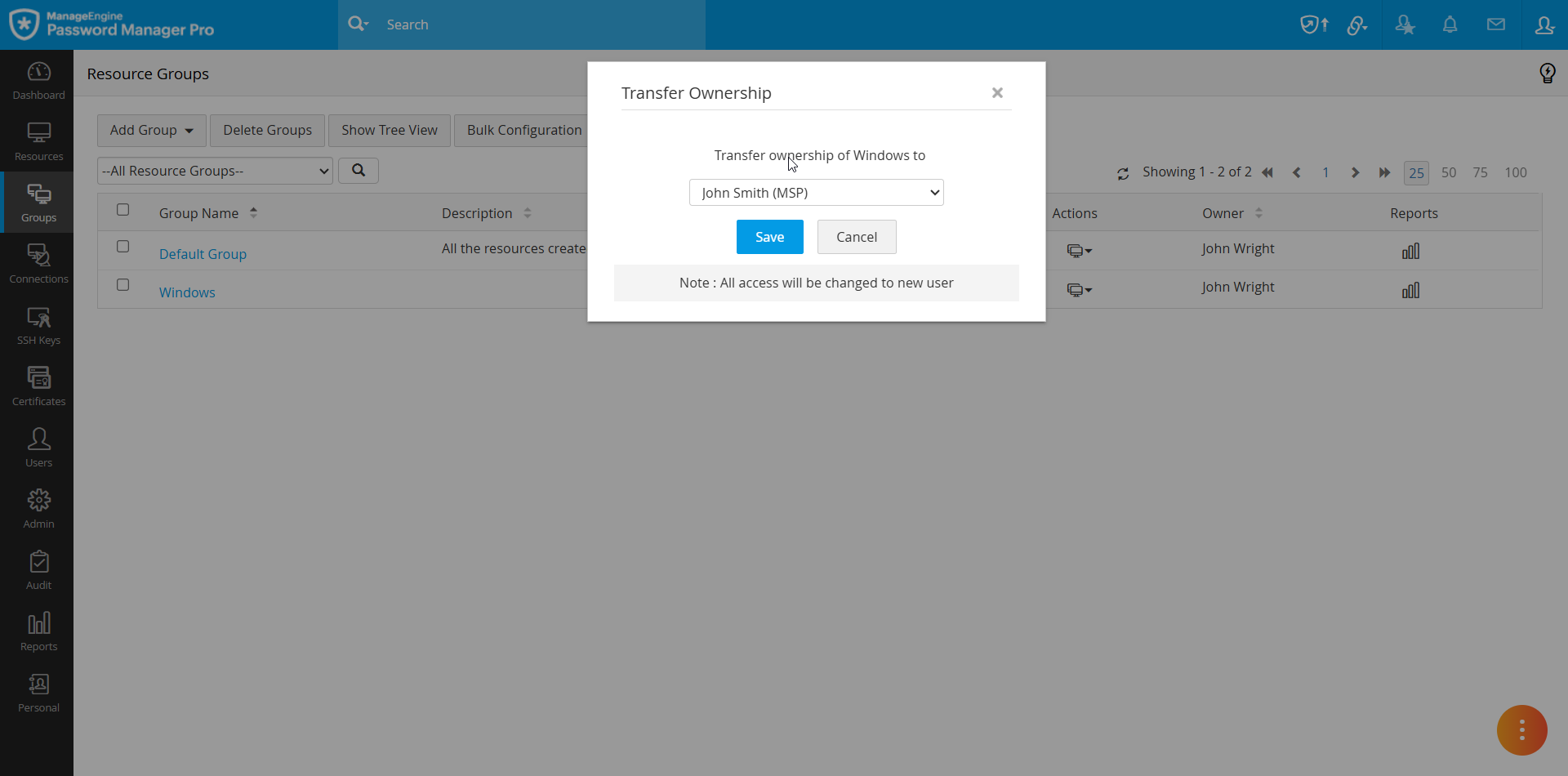
Note: The ownership of the default resource group and criteria-based resource groups cannot be transferred.
3. Transferring the Ownership of Resources, SSH Keys, and SSL Certificates
Follow these steps to transfer the ownership of specific resources to another administrator;
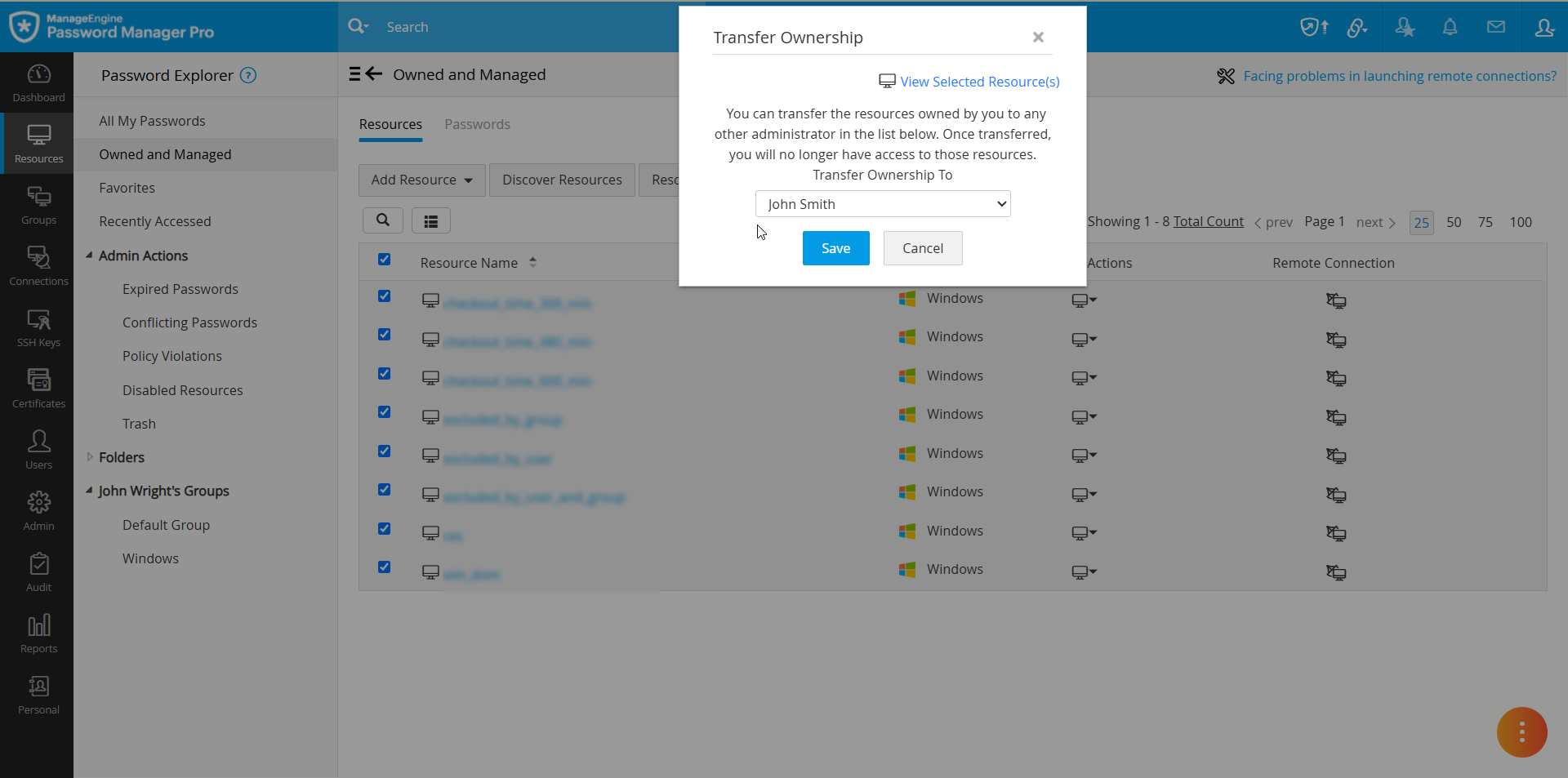
- Navigate to the Resources tab and select Owned and Managed from the Password Explorer tree. You will see the list of all the resources that you own or manage.
- To transfer the resource ownership, click the Resource Actions icon beside the desired resource and select Transfer Ownership from the displayed options.
- To transfer resource ownership in bulk, select the desired resources, click the Resource Actions icon from the top pane, and select Manage >> Transfer Ownership from the drop-down.
- On the Transfer Ownership pop-up, select the administrator to whom you wish to transfer the resource ownership and click Save. The resource ownership will be transferred to the administrator.
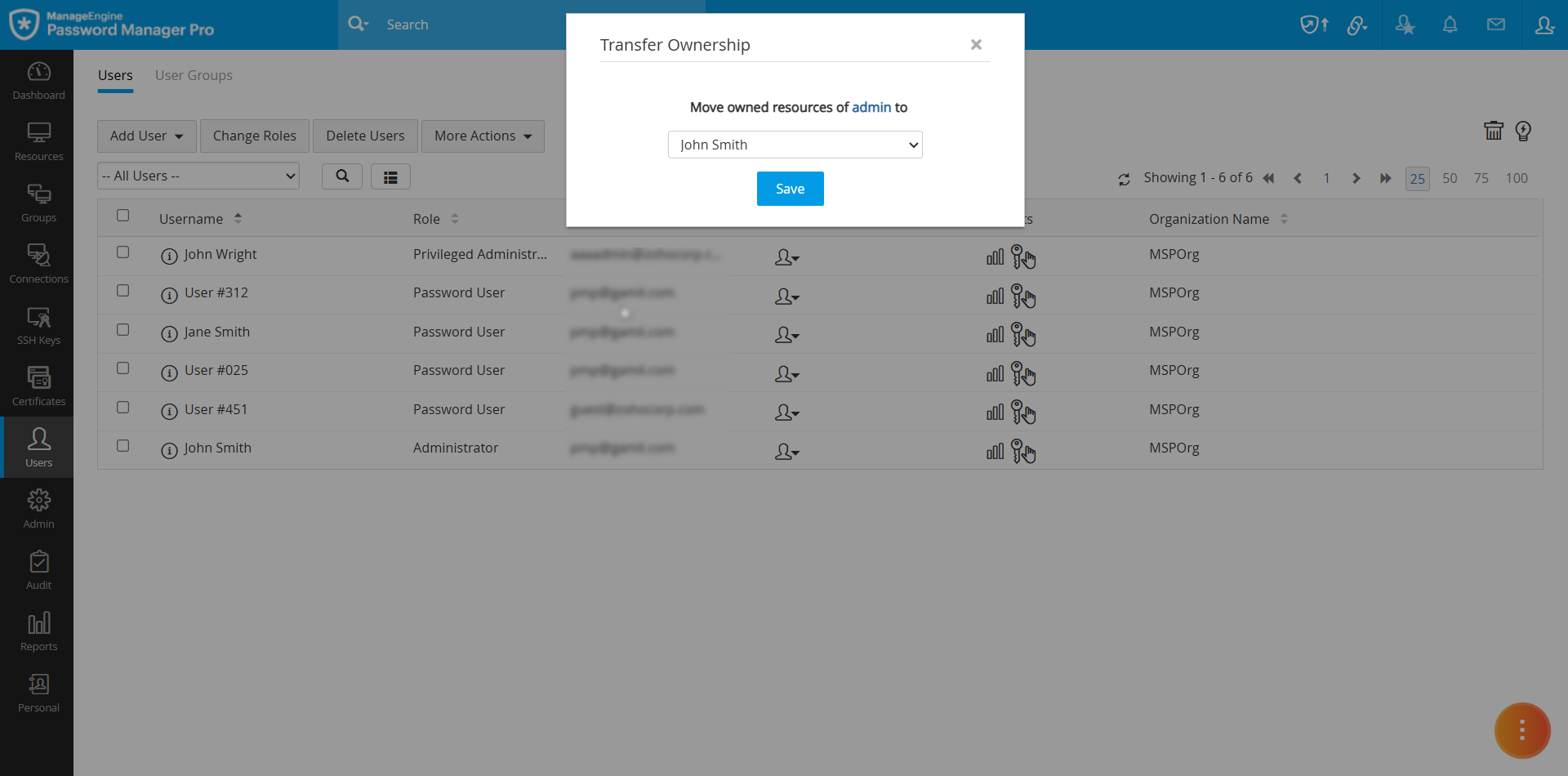
Follow these steps to transfer the ownership of all the resources owned by one administrator to another:
- Go to the Users tab
- Click the User Actions icon beside the user whose ownership you wish to transfer to another administrator and select Transfer Ownership from the displayed options..
- On the Transfer Ownership pop-up, select the administrator to whom you wish to transfer the ownership of the selected resources and click Save. The resource ownership will be transferred to the selected administrator.
Notes:
- We recommend transferring the resource ownership at the resource group level first before transferring the resources. This ensures that any share permissions configured at the group level are retained, as all resources are typically part of one or more resource groups.
- Criteria-based (dynamic) resource groups cannot be transferred for security reasons. After transferring all resources, log in using the new admin account and recreate the dynamic groups with the same criteria.