Smart Card Authentication
ADSelfService Plus allows admins to add a Smart Card button to the login screen, enabling users to access the self-service portal and applications securely without a username or a password.
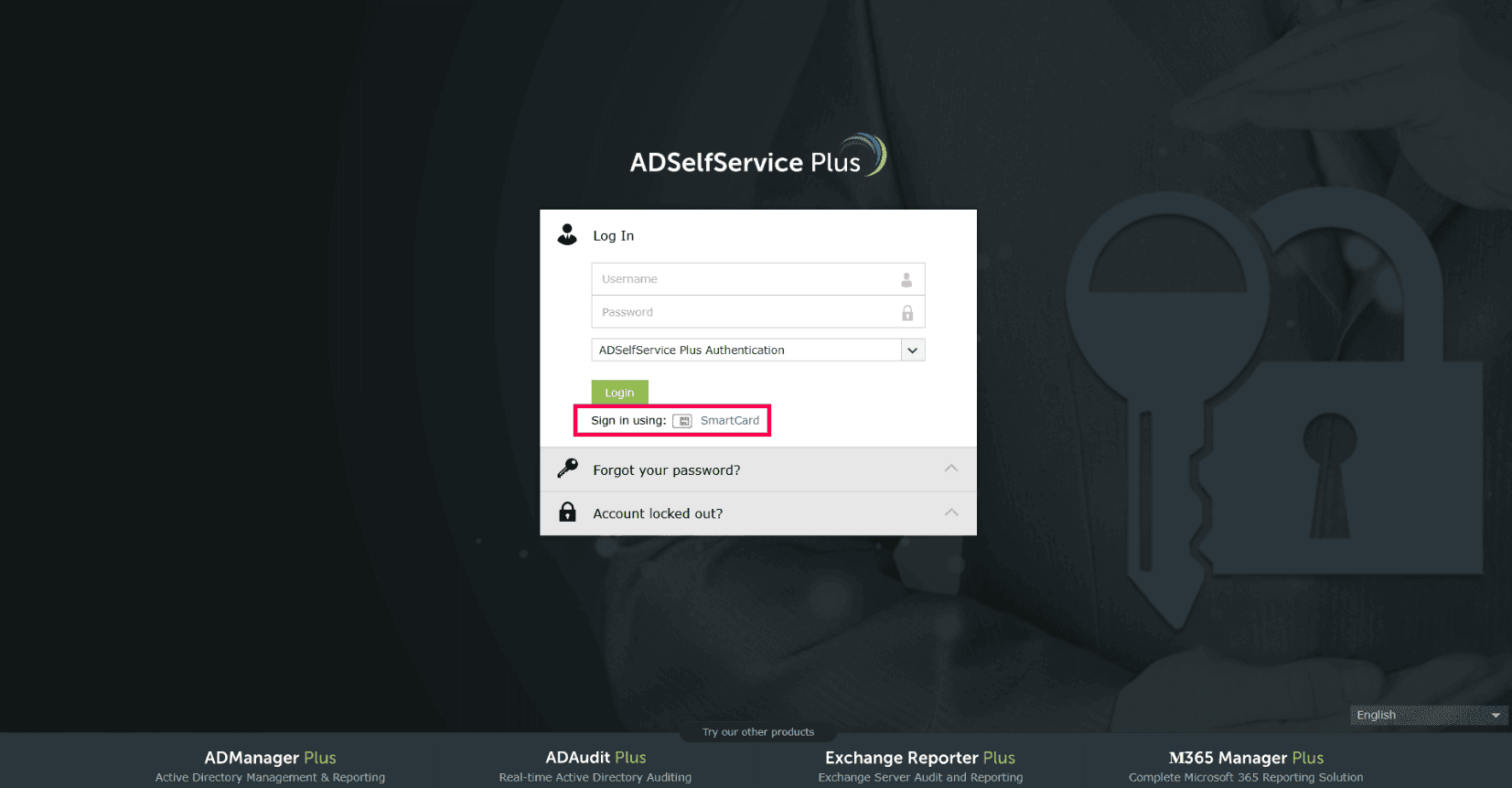
Configuring smart card authentication for ADSelfService Plus
Preparing your smart card authentication environment
Enrolling in smart card authentication can be done by users as well as the admin. The general steps are as follows:
- Users need to be issued a digital certificate and a private key by your organization's certificate authority (CA).
- If you are using AD's CA, you can refer to the Microsoft guide on requesting and granting certificates.
- If an external CA is used for smart card enrollment, the certificates must be imported into AD and linked to the respective user's userCertificate attribute.
- Now, the certificate and the private key (usually issued together as a PFX file) from your CA should be enrolled into the smart cards to complete the preparation steps.
- For smart cards on machines:
- Windows: Import the PFX file directly into the user's personal store via the Certificate Manager tool (certmgr.exe).
- macOS: Not applicable (only physical smart cards are compatible with macOS).
- Linux: Using your browser settings, import the PFX file via the Certificate Manager tab, and the CA root certificate via the Authorities tab.
- For physical smart cards, please refer to the documentation provided by your smart card vendor on how to enroll the certificates with the hardware.
Prerequisites
- ADSelfService Plus must be using an HTTPS connection. Learn more.
- Obtain the CA root certificate from a CA.
Configuration steps
Now that the certificates are in the user's personal certificate store or on their physical devices, and the prerequisites for ADSelfService Plus have been met, let us configure passwordless authentication using smart cards for the ADSelfService Plus portal.
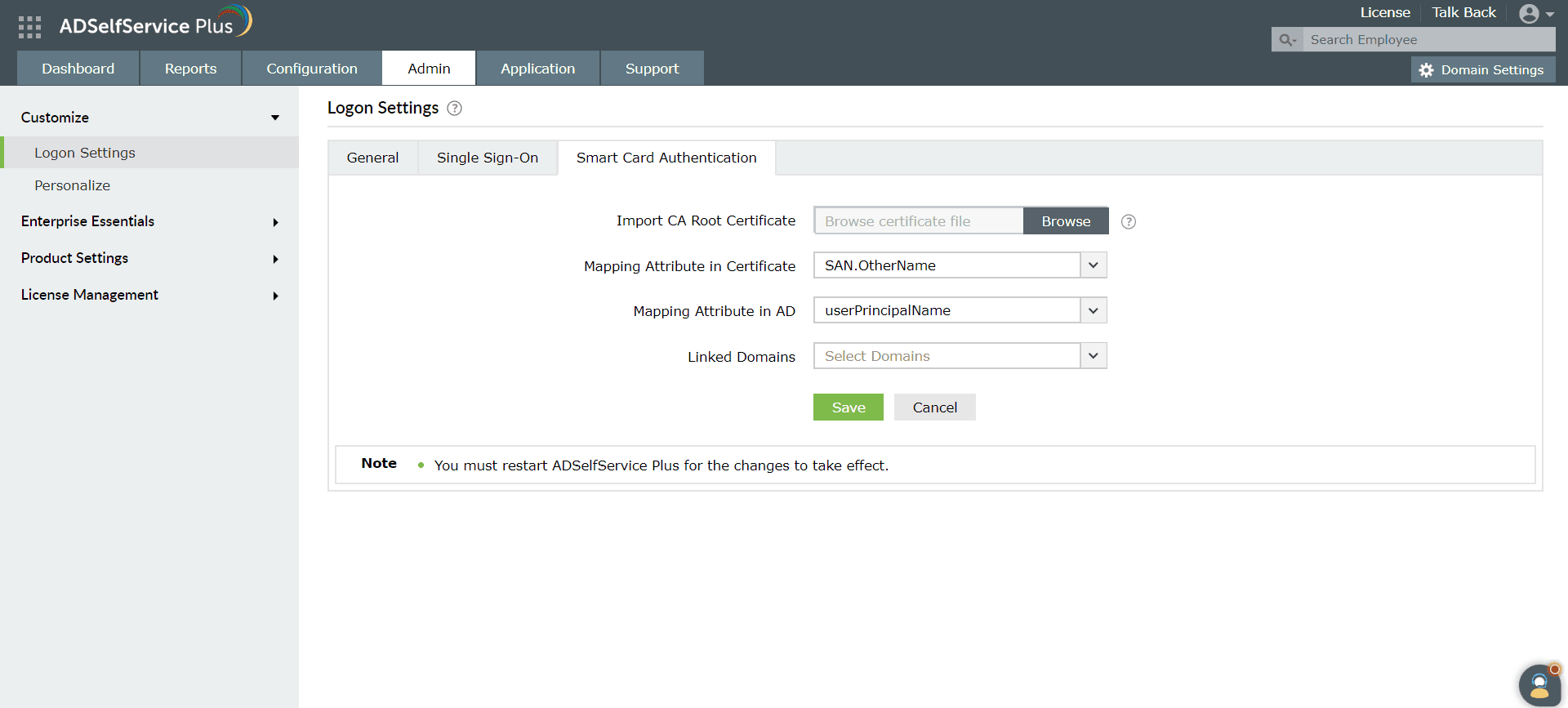
- Log in to the ADSelfService Plus web console with admin credentials.
- Navigate to Admin > Customize > Logon Settings.
- Click the Smart Card Authentication tab.
- In the Import CA Root Certificate field, click Browse to import the required root Certificate file (X.509 certificate) obtained in step two of the prerequisites.
- In the Mapping Attribute in Certificate field, select a unique attribute in the certificate for mapping.
- Ensure that a unique attribute from the certificate is mapped to a unique attribute in AD. Both attributes must have the same values.
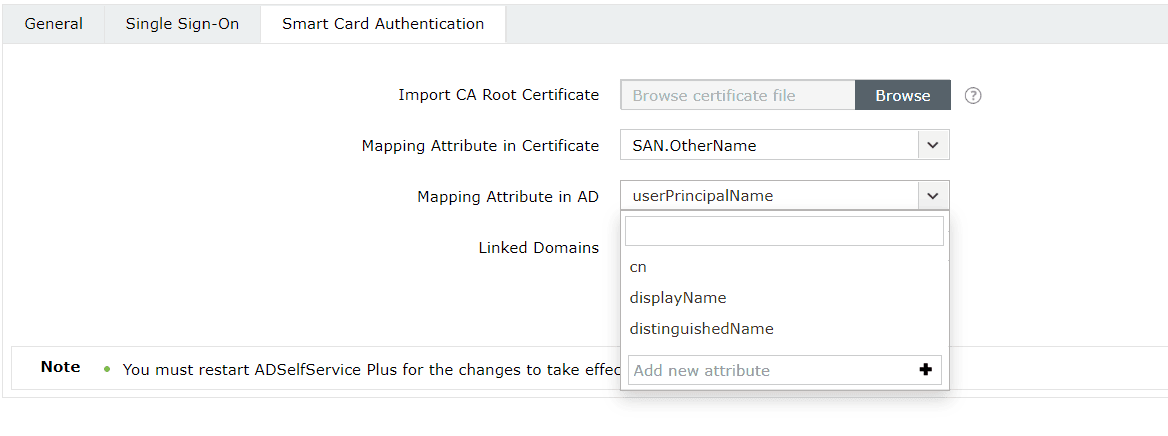
- ADSelfService Plus provides the ability to select any attribute of the smart card certificate that uniquely identifies a user. You can choose SAN.OtherName, SAN.RFC822Name, SAN.DirName, SAN.DNSName, SAN.URI, email, distinguishedName, or CommonName. In case other attributes are used to uniquely identify the user in your environment, enter the attribute name in the text box provided and click the + icon.
- In the Mapping Attribute in AD field, specify the LDAP attribute that should be matched with the specified certificate attribute.
- Here, you need to specify the particular LDAP attribute that uniquely identifies the user in AD (e.g., sAMAccountName).
- During authentication, ADSelfService Plus reads the value corresponding to the certificate attribute that you specified in the certificate's mapping attribute and compares it with the specified mapping attribute in AD.
- In the Linked Domains field, select the domains for which you want to enable smart card authentication from the drop-down.
- Click Save.
- Restart ADSelfService Plus for the changes to take effect.
Managing smart card authentication configurations
After you have added a smart card for authentication, you can perform any of the following functions:
- Adding a new smart card
- Modifying a configured smart card
- Enabling or disabling a smart card
- Deleting a configured smart card

Adding a new smart card
- Navigate to Admin > Customize > Logon Settings > Smart Card Authentication.
- Click the Add a New Smartcard button in the top-right corner.
- Enter all the required details and click Save.
Modifying a configured smart card
- Navigate to Admin > Customize > Logon Settings > Smart Card Authentication.
- Click the pencil icon (
 ) corresponding to the smart
card
whose configuration you wish to edit.
) corresponding to the smart
card
whose configuration you wish to edit. - Modify the settings you wish to change.
- Click Save.
Enabling or disabling a configured smart card
- Navigate to Admin > Customize > Logon Settings > Smart Card Authentication.
- To enable or disable a configured smart card, click the red icon (
 ) or green check icon (
 ) located in the action column of a particular
smart card.
) located in the action column of a particular
smart card.
Deleting a configured smart card
- Navigate to Admin > Customize > Logon Settings > Smart Card Authentication.
- Click the delete icon (
 ) on the smart card
which you wish
to delete.
) on the smart card
which you wish
to delete. - Click Yes to confirm the deletion.