Service pack installation for SharePoint Manager Plus

Update Path Finder


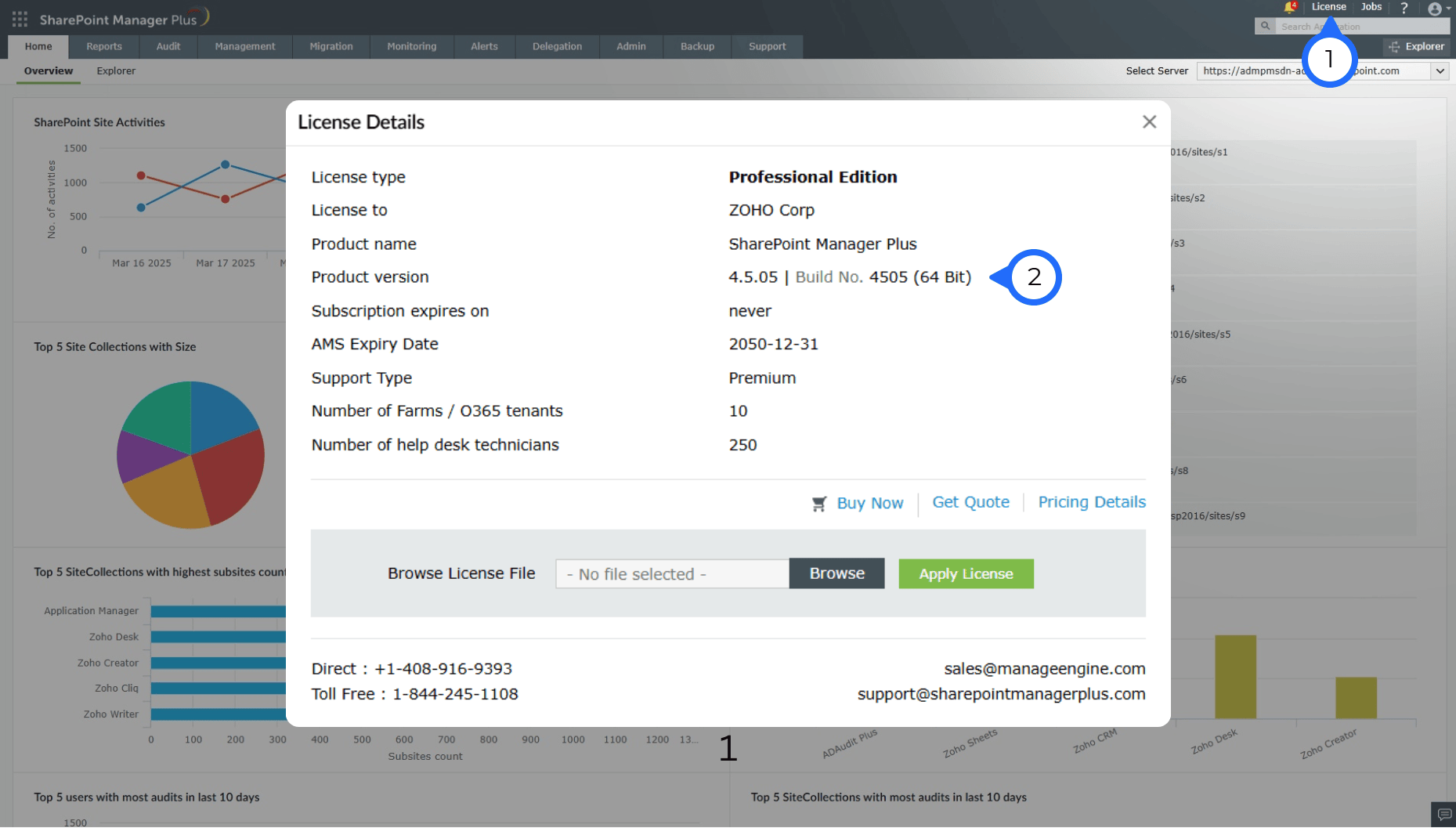
How do I find my current build number?

Important: We strongly recommend you to take backups before migrating. This helps prevent accidental loss of data. Service pack installation steps

Service packs

If your build number isUpdate to build numberSHA256 Checksum hash value
4500 to 4507
4508Latest
Readme
Download
98ce717332283a5515ff84606551adfae279dbd6d444f15f24b336088f2dc272
4401 to 4405
bccc248f2224dcf62157d244d4b78351d6205ed24bb9a290ae8791c0a089a7d1
4300 to 4400
62195bb95943e08ce81957243c76fccde38ad8ab0b1e0e18ec5baf353d454c63
4100 to 4201
343d370508e000afeeea0c486edd0aeec223eea96760114706e6e39446202cbc

Service pack installation steps

Step 1: Shut down SharePoint Manager Plus

  1. If the product runs as an application, click Start > All Programs > SharePoint Manager Plus > Stop SharePoint Manager Plus.

  2. If the product runs as a Windows service, click Start >Run. Type services.msc, and in the window that opens, Stop SharePoint Manager Plus.

Step 2: Back up SharePoint Manager Plus

  1. Execute the stopDB.bat file as administrator under <SharePointManagerPlusHome> > bin directory.

  2. Back up SharePoint Manager Plus by zipping the contents of <SharePointManagerPlusHome> directory.

  3. If you use Microsoft SQL as the Database Server for SharePoint Manager Plus, backup the database as well.

  4. Ensure that the logged on user has Write permission for the <SharePointManagerPlusHome> directory.

  5. If you're not sure about the access provided, provide Full control for Everyone, which can be removed after applying the service pack.

  6. Right click <SharePointManagerPlusHome> directory > Properties > Security tab > Add "Everyone" with Full control > Apply.
Step 3: Update SharePoint Manager Plus

  1. Open Command Prompt as Administrator and execute the UpdateManager.bat file under <SharePointManagerPlusHome>\bin directory.

  2. Click Browse and select the service pack file that you have downloaded.

  3. Click Install for the service pack. Depending on the amount of data to be migrated, the installation procedure may take a few minutes. Please do not terminate this process prematurely.

  4. Once the service pack is installed, click Close and then Exit to quit the Update Manager.

Step 4: Start SharePoint Manager Plus

  1. If the product runs as an application, click Start > All Programs > SharePoint Manager Plus > Start SharePoint Manager Plus.

  2. If the product runs as a Windows service, click Start > Run. Type services.msc, and in the window that opens, Start SharePoint Manager Plus.