Decline Patches
Note: Decline Patch is available for Windows and macOS. To request Decline Patch for Linux, let us know.
Overview
When you automate patch management, all missing patches are downloaded and deployed to the target computers. This can deploy patches that are not critical for your business. Decline the patches that you do not want to deploy. If a missing patch is not installed and is not declined, the system health status includes that patch. The computer can be rated Highly Vulnerable or Vulnerable.
Some patches must stay out of the deployment list. Decline a patch to get these results:
- A declined patch is not a missing patch.
- A declined patch is not included in the system health status.
- A declined patch is not deployed by Automate Patch Deployment.
After a patch is published, a later vendor withdrawal does not decline or remove that patch. Decline the patch to stop automatic deployment.
After the next successful patch scan, declined patches are excluded from automatic patch selection for the selected computers or groups. However, some patches or products declined for All Computers Group can still be installed through manual patch-install configurations. If a declined patch is installed again, check the deployment source, task, and decline scope. For more information, see declined-patch troubleshooting.
You can decline specific patches, or all patches for one application. You can decline patches for all computers or for a group of computers. Vulnerability Manager Plus creates a default group, "All Computers Group". To decline a patch for all computers, select this group and decline the patches. To decline patches for one group of computers, create a custom group. For example, group the computers by operating system or remote office. Then decline the patches for that group.
These examples show how Decline Patch works:
- If "Adobe Acrobat Reader DC 2022.003" is declined for "All Computers Group", that patch is not a missing patch and is not downloaded. Computers are not rated vulnerable when this patch is not installed.
- If the critical patch "Chrome 23.1" is declined for the custom groups "Remote_Office1" and "Remote_Office2", the patch is downloaded and deployed to every other computer where it is missing. If Chrome 23.1 is missing on a computer outside those groups, that computer can be rated vulnerable because a critical patch is missing.
- When a computer is added to the custom group "Remote_Office1", every patch declined for that group is declined for the new computer.
Note: Decline prevents future automatic deployment of the patch. Decline does not uninstall the patch from endpoints where it is already installed.
Declining future updates does not restore a removed component. If an application or .NET component disappears, first follow application-removal checks and review the deployment source. Do not assume that similarly named .NET components are the same application or family.
Export controls depend on the view. An affected-systems popup can differ from the main Declined Patches lists. To export systems for a retained patch, use its Installed Systems list in Applicable Patches when available. If the declined or superseded patch is absent from that view, preserve the decline rule and ask Support for the required report. Do not remove a production decline rule only to reveal an export control. See patch reporting and superseded-patch availability.
To decline patches, click Threats & Patches → Patches → Decline Patch, and then click Select Group & Decline Patch.
You can also decline patches from the Missing Patches view. Go to Patch Mgmt (Threats and Patches) → Patches → Missing patches. Search for the KB in the patch description column. Select the patches, click Decline patches, and select the group. Repeat these steps for each additional KB.
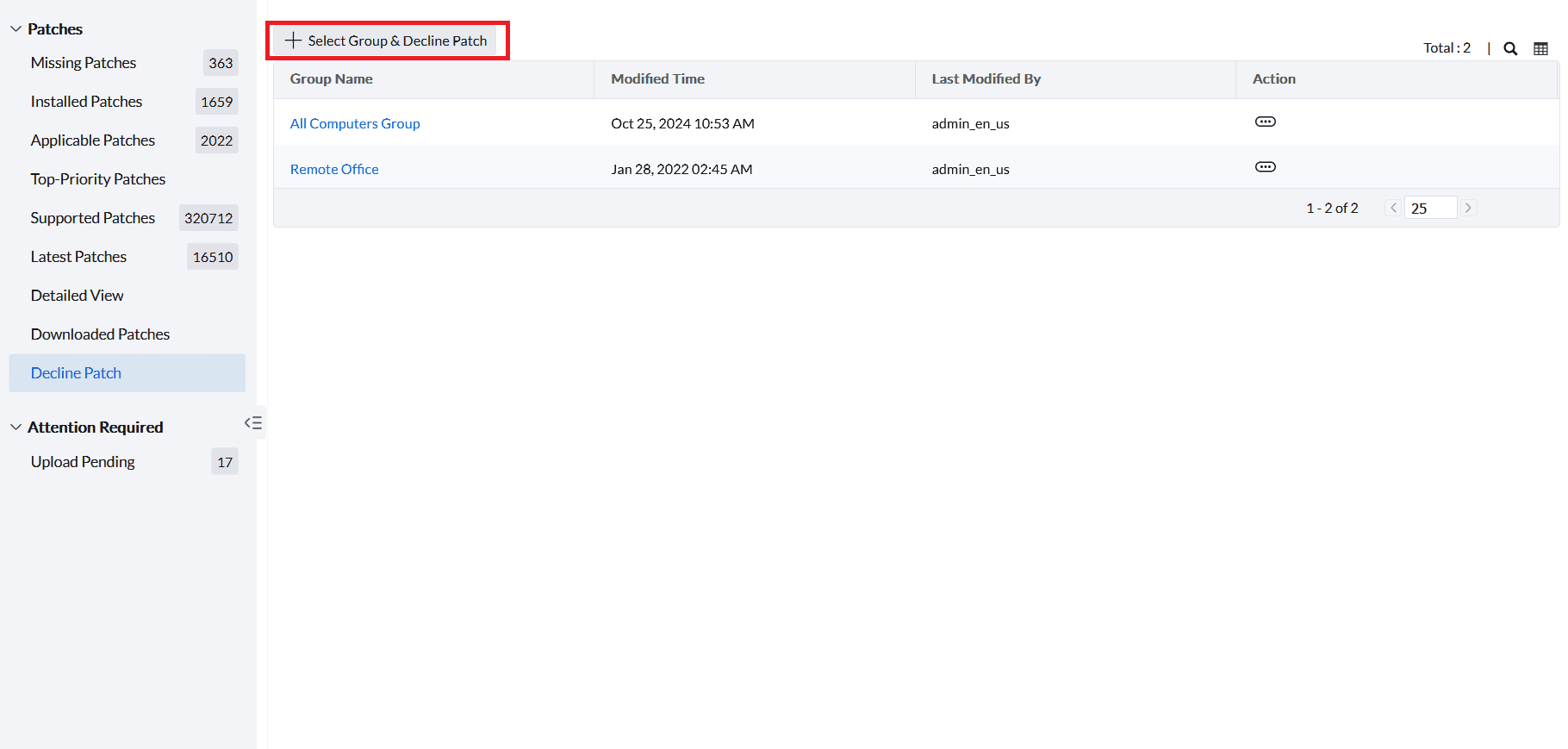
The Select Group & Decline Patch window opens.
Choosing the Group
To make an exception for only a few computers, create or select a custom group containing those computers and decline the patch for that group. Other computers remain eligible. If applicability is disputed, first follow patch detection mismatch checks; a group exception does not diagnose or repair the detection issue.
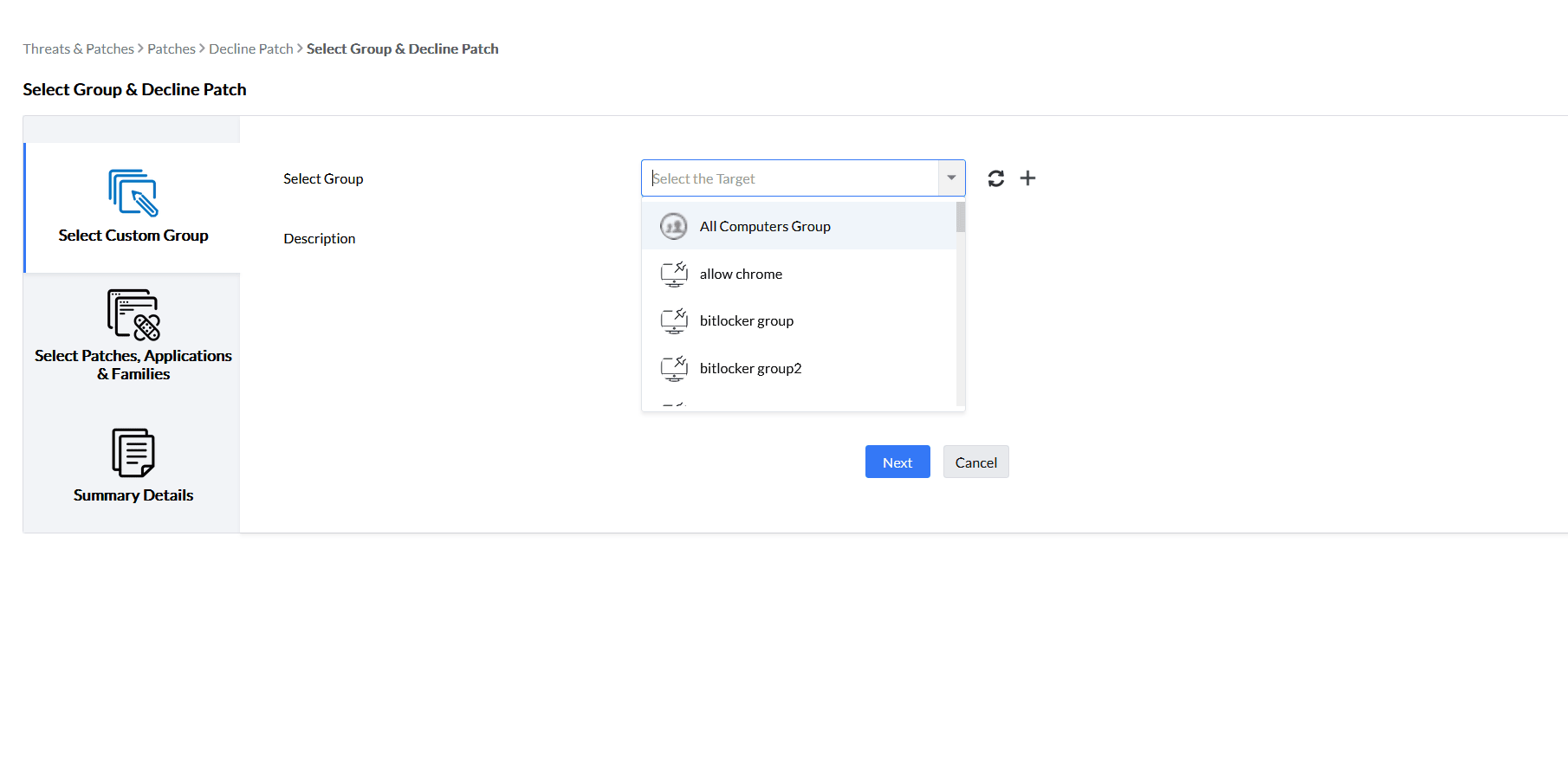
Under Select Custom Group, choose All Computers Group to decline the patch for all managed computers. Or choose the group that contains the target. All Computers Group is a Decline Patch option only. It is not listed under Custom Groups. Add a Description if you need one. Then click Next.
Choosing the Patches, Applications or Families
The Decline Patch selector limits each selection list to 500 items. The check includes entries already in that list plus newly selected items. Adding one item can therefore reach the limit. Review existing selections and remove only entries the rule no longer needs before adding more. This is separate from the patch limit per deployment task.
During Patch Database synchronization, a new patch can inherit an existing All Computers application or family decline rule. Its Approved By value can then show DC-System-User. This system identity alone does not identify the rule that applied.
Review the selected group and the exact entries under Patches, Applications and Family. Compare the product and architecture. Similar names do not establish the same rule: Microsoft ODBC and Microsoft OLE DB are different products.
Remove only the patch, application or family selection that you intend to change, then save the rule. Allow decline processing and a patch scan to complete. Verify the resulting status and apply your normal approval policy before deployment. If no rule explains the decline, provide Support with the Patch ID, group and rule screenshots.
Under Select Patches,Applications & Families, select the patches to decline, or select an application or application family.
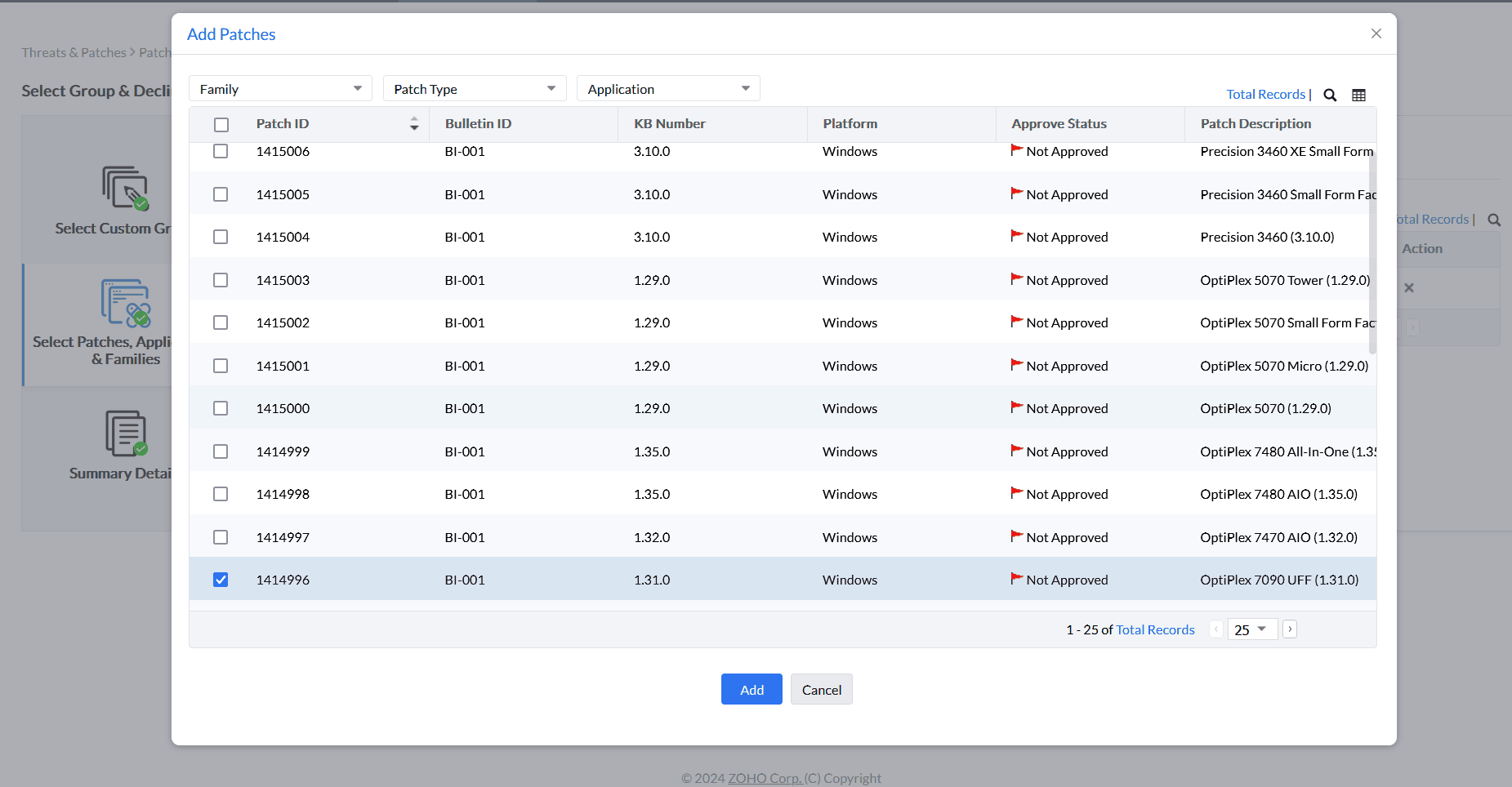
To select patches, under Patches click Add Patches.
In the new window, select patches by Family, Patch Type and Application.
After you select the patches, click Add.
To decline patches for an application or an application family, use the Applications tab or the Family tab.
A family decline rule applies to patches that match that family in the selected group, including later matching patches. A similarly named product can belong to a different family. If a patch remains eligible, compare its exact family, the selected group and the deployment task criteria.
Microsoft 365 Apps for enterprise patches are included in the Office application family. Use the Family tab to select that family.
In the new window, select patches by Family, Patch Type, and Application. You can also enter a reason and remarks. The reason and remarks keep an audit record.
Note: The reason and remarks fields are available in Vulnerability Manager Plus 11.5.26.20.01 and later.
Under Summary Details, review the settings and click Save.
The patches are declined for the group. Declined patches are not included in the system health status and are not calculated as missing patches.
To review previously declined patches, open Threats & Patches → Patches → Decline Patch, open the group, and enable the required columns.
To undecline a patch, open that group, select the patches, click Remove Patches, then run a patch scan.
An unsuperseded patch remains in the group's Decline Patch view until you remove it. When a declined patch is superseded and N-1 patching is disabled, the superseded patch is no longer available for deployment. Only the latest applicable update is retained. To make a declined patch applicable again, remove it from the group and complete a patch scan.
If installation is aborted because a required dependency patch was declined, mark that dependency as Approved in Supported Patches, then re-deploy the failed patch.
Declining a patch removes it from Missing Patches only for the group to which it was declined. A non-superseded declined patch remains in the Decline Patch view. When a declined patch is superseded, only the latest update is retained in that view.
Declining a patch controls deployment through Vulnerability Manager Plus; it does not disable Windows Automatic Updates on the endpoint. If Windows must not install the update independently, configure the operating system's automatic-update controls separately.