Patch Database Synchronization
The Patch Database (also known as Vulnerability Database) is a central repository on the Vulnerability Manager Plus website, and contains data about patches and vulnerabilities released by vendors. This database is periodically updated and maintained through analysis and testing by Vulnerability Manager Plus.
Vulnerability Manager Plus's Patch Repository is updated with the latest patch information from Microsoft, Apple, Linux, and other third-party vendors and other vulnerability databases. Regular synchronization between the Patch DB and the Vulnerability Manager Plus Patch Repository keeps patch information current so vulnerabilities in managed systems can be detected and remediated promptly. You can configure the Patch Database Settings to choose which patches the product manages and set the frequency at which the patch database synchronizes with the Vulnerability Manager Plus's Patch Repository. To access Patch Database Settings, go to Threats and Patches ----> Settings ------> Patch Database Settings.
Selection of Patches
Select the category shown for the required Patch ID. Severity alone does not determine Patch Type. For example, a Critical patch can be listed as Optional Updates. See patch category and severity and include the required category in the deployment task.
If a patch-category choice is absent from an APD task, check the categories selected for that operating system here. Save the required selections, then reopen the task and review its choices. Follow Automate Patch Deployment to configure the task. If the choice is still absent, record the product, build, technician permissions and a full-page screenshot for Support.
Open Patch Database Settings from the settings area available in your patch console. If it is listed under Admin, use Admin → Patch Database Settings. The location and available scheduling controls depend on the product and deployment type.
Deselecting a patch type removes that selection from affected Test and Approve and Automated Patch Deployment tasks. A task that has no update types remaining is deleted. Review affected tasks before saving the change.
Review daily patch releases and select the patches required for your network. Vulnerability Manager Plus lets IT administrators configure preferences to download and deploy operating-system and third-party software patches. In Patch Database Settings, use the Select the patches that you wish to manage section to select patch categories for each supported operating system.
Review the enabled categories and selected update types for each platform. An empty selection is not equivalent to selecting all update types. If the settings summary shows empty brackets and a vulnerability count is zero, check the category selections, database synchronization and endpoint scan results. The bracket display alone does not identify the cause.
For a required non-security update, enable Non-Security Updates under Microsoft Updates before synchronizing the Patch Database and scanning the computers.
Vulnerability Manager Plus receives updates from the patch repository regardless of the selected patch types. After the Patch Database sync completes, computers are scanned, and only missing patches from the selected categories are listed. Excluded patches won't be shown as missing. You can also use the Decline Patch feature if needed.
Selecting a category makes its supported updates eligible for detection. It does not by itself download every newly listed patch to the repository. Automatic prefetch of missing patches is controlled by on-premises Cleanup Settings or Cloud Cleanup Settings. A separately requested manual or automated deployment can still download the packages it needs. Review the applicable download settings before estimating storage or bandwidth.
This enables targeted patch management. For instance, you might choose to install only patches related to the Mac operating system and third-party patches for Windows, excluding Windows BIOS updates. Scans will focus on identifying missing patches in these selected categories. As a result, patches like BIOS updates won't be listed as missing (even if they are missing in the managed computers), since you haven't configured the Patch Database Settings to include them.
To offer Microsoft Defender definition updates, enable Definition Updates under Microsoft Updates in Patch Database Settings. You can ignore the information alert if you do not use Defender.
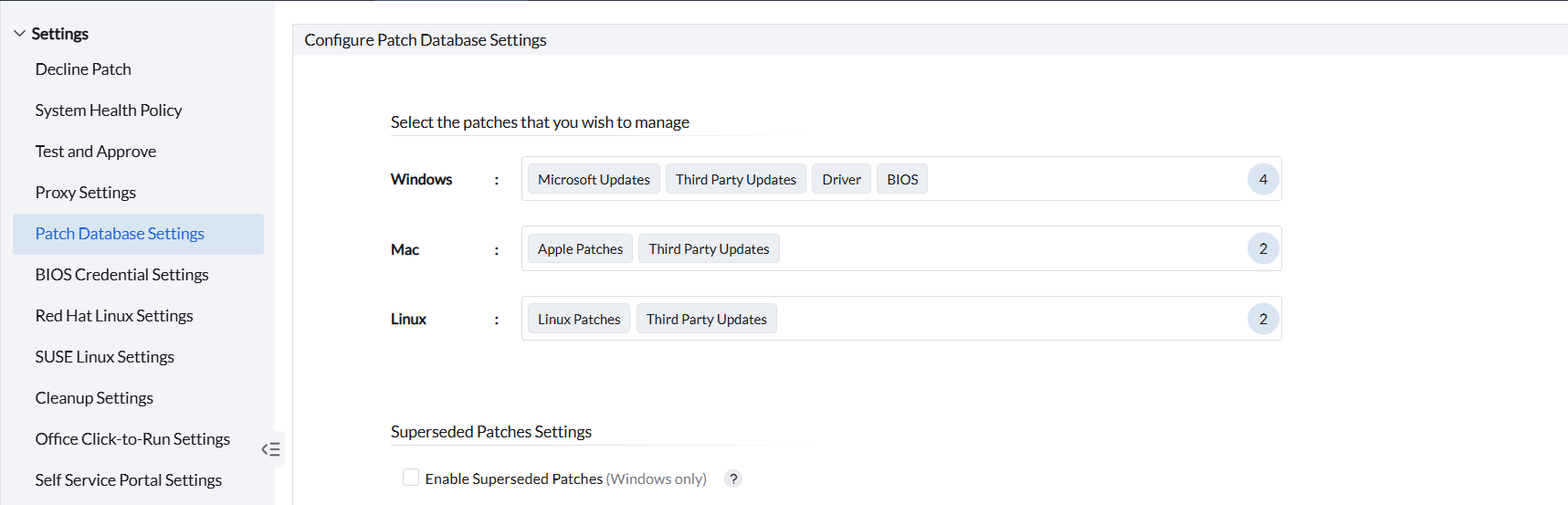
The macOS and Linux patch-selection options become available after at least one agent for the corresponding platform is installed and communicates with the server. The options can remain unavailable even when the operating system itself is supported if no agent for that platform has checked in.
Verify newly released third-party patches
For a new Chrome release, compare the release channel and version. A Beta release is different from a Stable release. Confirm that the application and release channel are supported before treating an unavailable version as an overdue update. Follow patch availability checks and the maintained patch release guidance. Do not assume that all applications follow the same release-channel behavior.
Use the update status view to distinguish Vulnerability Database Update is in Progress from the last completed update. Review Last Successful Vulnerability DB Update, Last Vulnerability DB Update Result, and, where available, Next Scheduled Vulnerability DB Update. The progress view shows the current synchronization stages and remarks. The stages can vary by platform and deployment. An earlier successful update does not confirm that the current update is complete.
Checking For New Updates and Downloading All Required Files are separate synchronization stages. Completion of one stage does not confirm that synchronization is complete. If a download fails, review the error and correct the reported connectivity or download problem. If a stage remains In progress without advancing, record the stage, Sync Start Time, full remark and last successful update time. Provide these details and the server synchronization logs to Support if the update remains stalled or fails again. See database synchronization troubleshooting.
Release Date indicates when the vendor released the patch. Supported Date indicates when the patch was added to the supported catalog. The last database synchronization time identifies the latest local or service database update. To identify patches added to the catalog during a specific period, use the Supported Date field and filter in a patch view that provides these options. The last synchronization time does not indicate when a patch was added to the catalog. For more information, see patch reports.
After a Patch Database synchronization completes, verify that the update is listed under Supported Patches. Run a patch scan on the managed computers to detect the update as missing. Then, deploy the patch through the appropriate patch deployment workflow.
Synchronization updates the catalog; it does not confirm installation on every endpoint or refresh every task result. For a post-deployment count discrepancy, compare the computer-level task result and last successful scan. Follow patch-visibility checks or APD count checks.
A successful database update does not confirm that all required scan files are available on the assigned Distribution Server. If a patch scan fails because of a missing file or an HTTP 404 error, follow the scan-data availability checks.
Superseded Patch Settings (Windows Only)
To manage superseded Windows patches, use N-1 Patch Settings. For configuration and retention details, see N-1 patching.
Schedule the Sync
You can schedule the time at which the vulnerability database information is updated. Enable the Schedule Vulnerability Database Update and fill in the required fields to activate the patch database sync. Set Start at to run patch sync at that time each day.
Defender definition updates
Why do Microsoft Defender definition updates appear before the vulnerability database refresh?
Microsoft Defender definition updates are synchronized every hour. The vulnerability database for operating systems and third-party applications is synchronized daily.
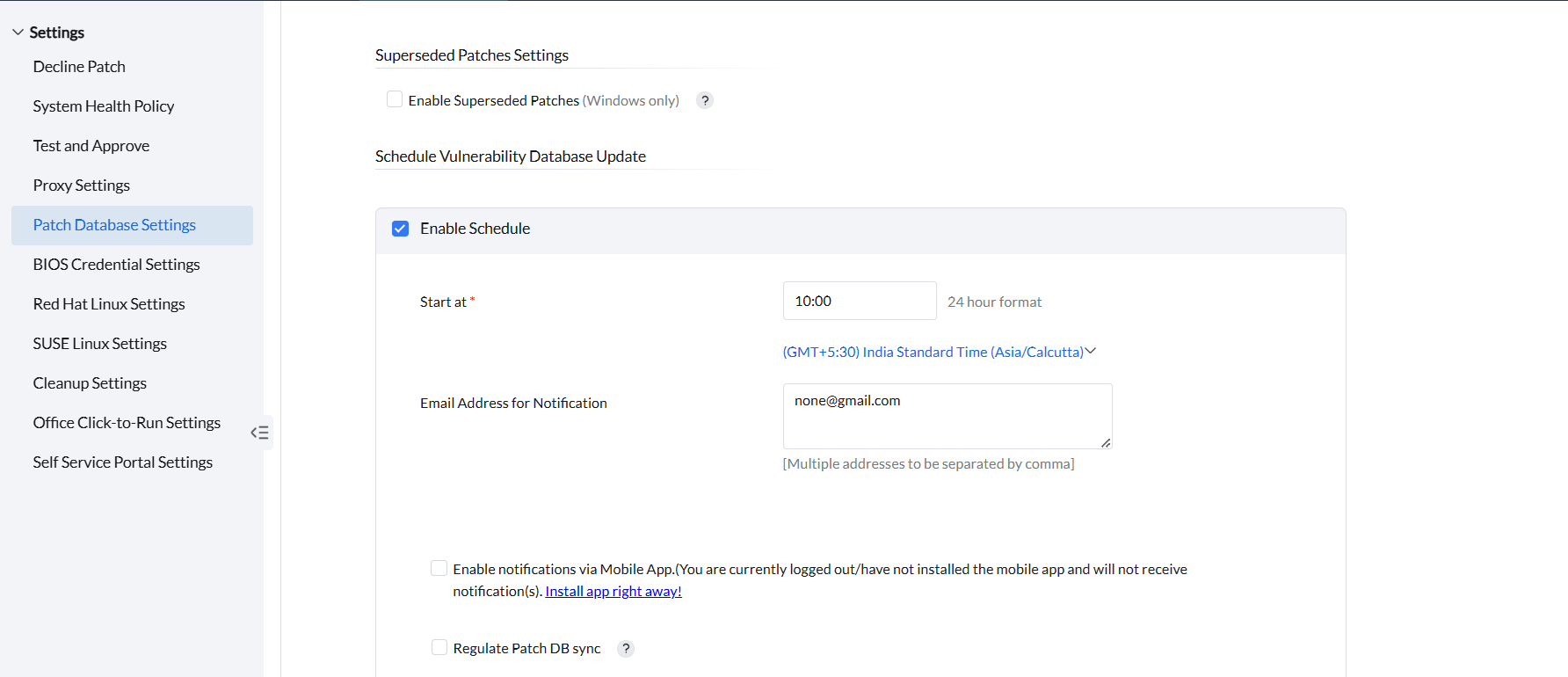
To receive synchronization notifications, configure the notification server settings and enter your Email Address for Notification in the corresponding field. To receive mobile app notifications, install the mobile application version of Vulnerability Manager Plus and configure the notification settings.
For Cloud versions, notification settings appear in a separate section under Patch Database Settings. Expand Configure Notification or Configure Notification Settings, as shown in your interface. Set the notification control to the required state. If notifications are enabled, enter the recipient email addresses and click Save. Reopen the settings to verify the saved state and recipients. Inventory and asset-report email notifications use separate settings.
If Patch Vulnerability Database Report emails continue after notifications are disabled, verify the saved setting in the originating portal. Record the subject, recipient and received time. Open Admin → Audit → Action Log Viewer and review Patch Mgmt setting changes within the retained history. If no retained entry explains the message, give Support the message details and saved-settings screenshot. Inventory scan-alert emails use separate settings. See Schedule Reports for scheduled report settings.
You can also allow the server to regulate Patch Database synchronization during critical situations by initiating or deferring synchronization. To enable this option, select Regulate DB Sync. For more information, see Regulate DB Sync.
After configuring the required settings, click Save. If a patch download failed before the settings were changed, run Sync Now and confirm that synchronization completes successfully. Then, retry the download. If the download continues to fail, see Patch Download Failures. If synchronization fails, see Open Network DB Sync Failure for troubleshooting, including certificate and SSL inspection issues.
For synchronization failures in a closed network, follow Closed Network Patch Database Failure. Use the open-network guide for an open-network synchronization failure.
A patch scan starts during the next agent refresh cycle after the Vulnerability Database synchronization completes successfully.
The Patch Database sync setting applies to all managed operating systems. You cannot pause the sync for one operating system while continuing it for another.