How to Schedule Patch Scanning?
Summary
This document will guide you through the steps involved in scanning the computers to identify the missing patches.
Description
Vulnerabilities keep increasing every day. So we must have up to date scanned data of which computers on our network are missing patches of any severity.
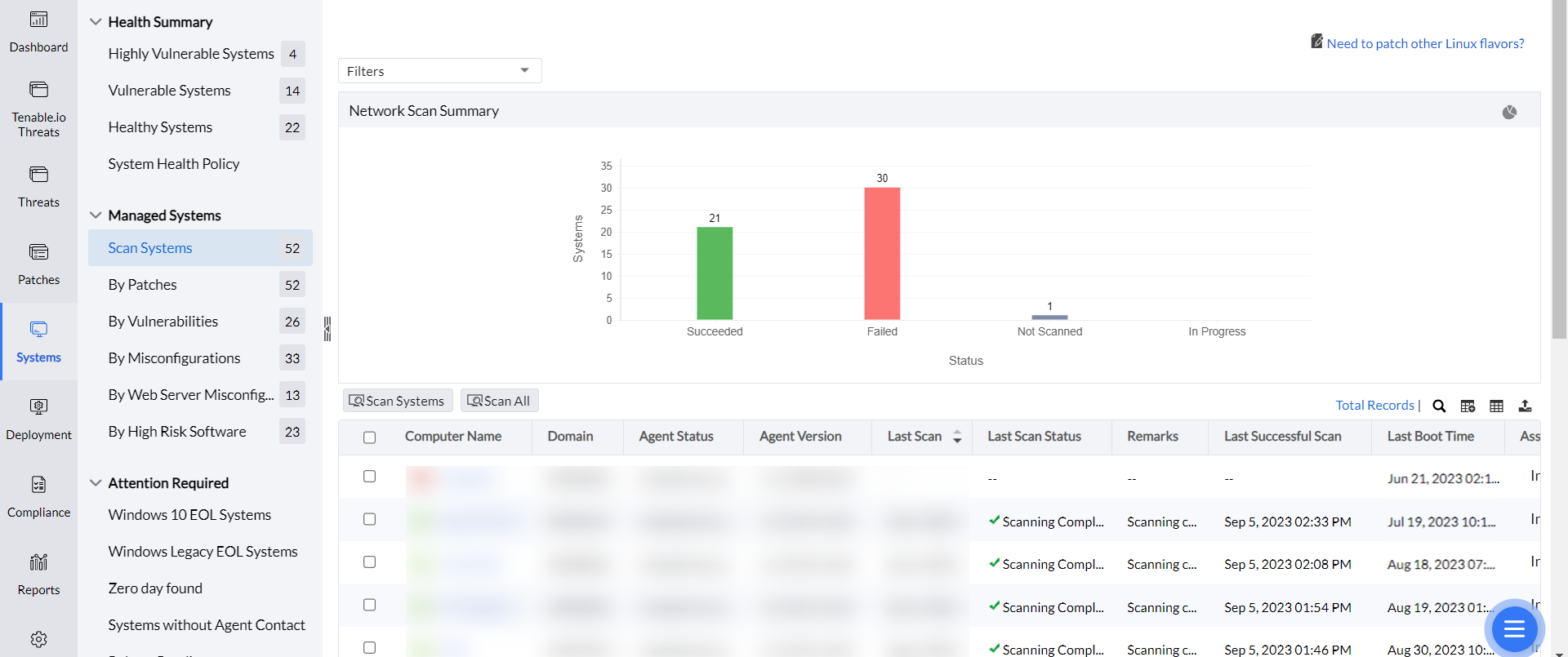
Workflow
- After synchronization with the patch database, Endpoint Central will collect details of the latest patches released.
- In the next refresh policy, Endpoint Central agents will automatically scan the computers to check if the newly available patches are missing. The scan happens right after the database is synced. The User can go to patch DB settings to change the sync timings.
- Every time the scan happens the latest missing patches are detected. The agents will scan only in their subsequent refresh cycle. So, the network traffic is distributed in the refresh interval and hence the Server remains undisturbed.
- The User can get reports of missing patches after the scan is completed. Navigate to Reports -> Schedule Reports -> Scan Report. You can get it easily by scheduling the reports to be emailed 2 hours from the database sync. Also, you can configure it at any frequency you wish.
Note:
- The scanning operation will take an approximate time of 11/2 to 2 hours to take into account the agent contact interval of 90 minutes plus an additional scanning buffer of 30 minutes. The status of this task will get updated to completed only after 2 hours from the time of the schedule. For example, if User wants the machine to be scanned at 6, the sync should be performed at 4:30.
- If you have enabled email notifications, an email with the details of the scan status will be sent after 2 hours of the commencement of the scan process.
- The scheduled scan is triggered exclusively upon the release of new patches by the vendor. Even after a database synchronization, the scan will only proceed in the endpoints if new patches have been released.




