Service Pack for 12.8 customers
SHA Value: 0ae52c93454ef9e341882476f7dfd33b534ea475d8cd1f53b52ff98abc9060f0
Note: Users on 5990 build, please fill this form. Other users, please refer to the table below for the upgrade path.
Read and accept the License Agreement before downloading this software.
We recommend users to move to the latest version Network Configuration Manager 12.8.667
Download Service Packs
| Current build | Upgrade path to the latest build |
|---|---|
| 12.8.000 & above | Install the service pack to move to the latest build. |
| 12.7.000 to 12.7.317 | Install the service pack to move to the build 128004. |
| 12.6.000 to 12.6.329 | Install the service pack to move to the build 127007. |
| 12.5.000 to 12.5.659 | Install the service pack to move to the build 126007. |
| 124000 to 124196 | Install the service pack to move to the build 125012 |
| 12300 | Install the service pack to move to the build 124006 |
| 12200 | Fill this form and we'll send you the Service Pack to move to 12300 |
| 12000/12100 | Install the Service Pack to move to build 12200 |
If you need any assistance or clarifications, please contact ncm-support@manageengine.com
How do I find out my Build number?
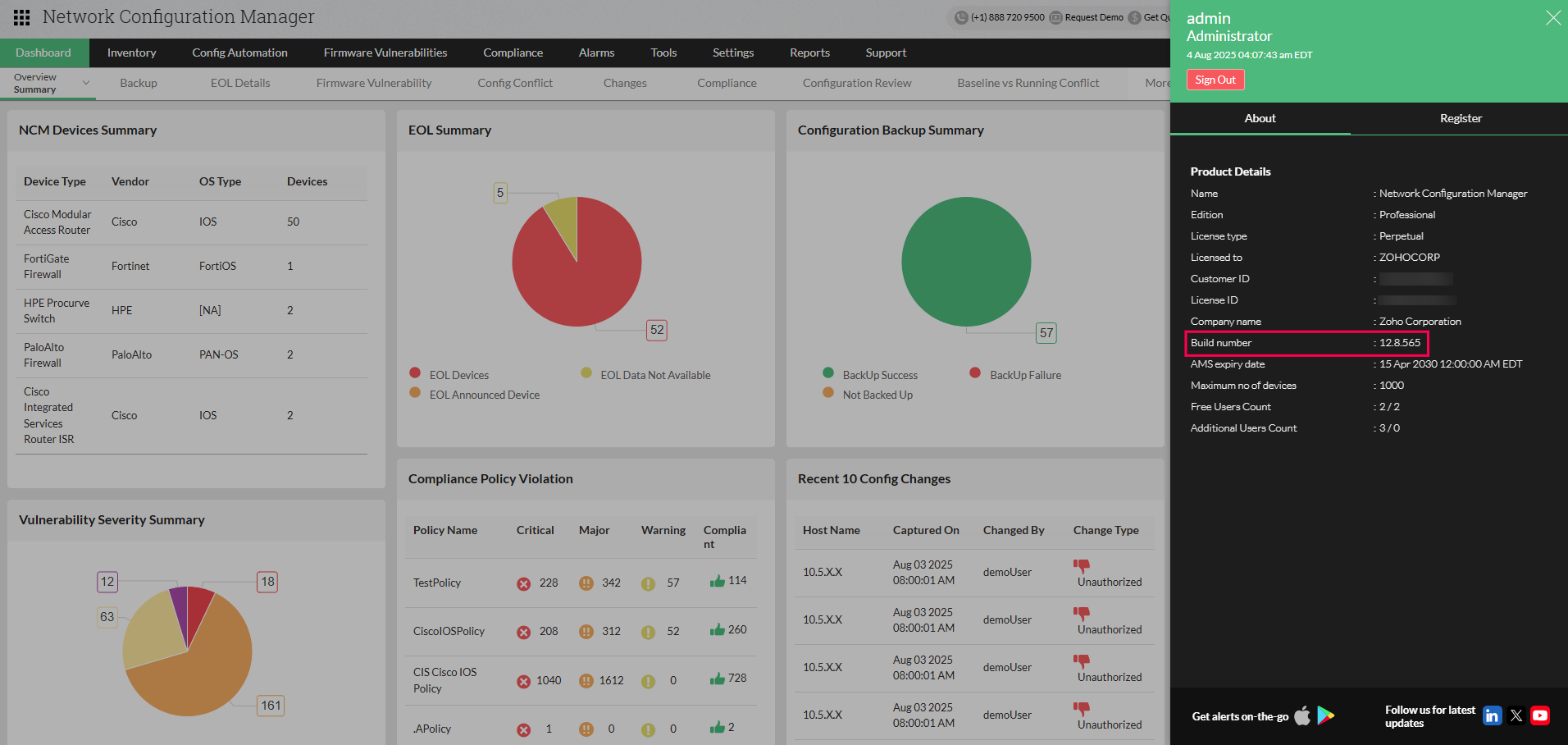
Log in to the Network Configuration Manager web interface, and click the About link in the top pane. You will find the build number mentioned below the version number. This is the build number of the currently installed Network Configuration Manager.
Note:
- An end of support has been announced for Network Configuration Manager Version 5980 and below versions.
- Only users with a valid AMS (Annual Maintenance and Support) contract are eligible to download Service packs and other upgrades. Refer https://www.manageengine.com/support.html for more details.