Disaster Recovery
In the event of a disaster or data loss, you can restore the backed up data to the Password Manager Pro database. To restore the data, Password Manager Pro provides scripts.
The following topics are covered in this document:
1. Configuration Steps for PostgreSQL and MySQL
The following steps are required for disaster recovery for Password Manager Pro with PostgreSQL (OR) MySQL as the backend database.
Important Notes:
- Stop Password Manager Pro server before trying to restore data. If restoration is done while the server is running, it may lead to data corruption.
- Data backed up from Password Manager Pro running on Windows can be restored only in Windows.
- While restoring the back up, ensure that you re-install the same Password Manager Pro build and architecture type that was present previously. For example: If you had Password Manager Pro build 10500 and 32-bit earlier, then install the same again.
- Make sure you start and stop the service once each time before using the restoreDB command.
i. For Windows
- Open the Command Prompt with administrative privileges and navigate to the <PMP_Installation_Directory>/bin folder.
- Execute the script 'restoreDB.bat <backup file name> -p <Key path>'. Enter your backup file name in .ezip format. Note that the backup file and the pmp_key.key file should be located in the same folder under the same path inside the Password Manager Pro server.
- Open the <PMP_Installation_Folder>/conf folder, edit the manage_key.conf file, and specify the location of pmp_key.key (AES 256 encryption master key). Password Manager Pro requires the pmp_key.key file accessible with its full path when it starts up every time. After a successful start-up, it does not need the key anymore and so the device with the key file can be taken offline. The backed up contents would be restored to the Password Manager Pro database.
- From build 13140 onwards, navigate to the <PMP_Installation_Directory>/bin folder and execute the command UpdateServerDns.bat <old-hostname> to update the server's DNS information in the database.
- Execute the command 'updateserverconf.bat'. In the pop-up that appears, enter the default certificate name as Server.keystore and password as passtrix. This action will apply the default SSL certificate that comes with the product to your Password Manager Pro server.
- To add your trusted SSL certificate to your Password Manager Pro server, follow these steps:
- Login to the Password Manager Pro web interface using an administrator account and go to Admin >> Configuration >> Password Manager Pro Server.
- Here, browse for your trusted certificate, enter the necessary certificate details, and save the changes. Now, your Password Manager Pro server will be encrypted using the trusted SSL certificate you provided.
Note: Replace <old-hostname> with the actual hostname used before migration.
ii. For Linux
- Open the Command Prompt with administrative privileges and navigate to the <PMP_Installation_Directory>/bin folder.
- Execute the script 'sh restoreDB.sh <backup file name> -p <Key path>'. Enter your backup file name in .ezip format. Note that the backup file and the pmp_key.key file should be located in the same folder under the same path inside the Password Manager Pro server.
- Open the <PMP_Installation_Folder>/conf folder, edit the manage_key.conf file, and specify the location of pmp_key.key (AES 256 encryption master key). Password Manager Pro requires the pmp_key.key file accessible with its full path when it starts up every time. After a successful start-up, it does not need the key anymore and so the device with the key file can be taken offline. The backed up contents would be restored to the Password Manager Pro database.
- From build 13140 onwards, navigate to the <PMP_Installation_Directory>/bin folder and execute the command UpdateServerDns.sh <old-hostname> to update the server's DNS information in the database.
- Execute the command 'updateserverconf.sh'. In the pop-up that appears, enter the default certificate name as Server.keystore and password as passtrix. This action will apply the default SSL certificate that comes with the product to your Password Manager Pro server.
- To add your trusted SSL certificate to your Password Manager Pro server, follow these steps:
- Login to the Password Manager Pro web interface using an administrator account and go to Admin >> Configuration >> Password Manager Pro Server.
- Here, browse for your trusted certificate, enter the necessary certificate details, and save the changes. Now, your Password Manager Pro server will be encrypted using the trusted SSL certificate you provided.
Note: Replace <old-hostname> with the actual hostname used before migration.
Note: Before executing the 'updateserverconf.sh' command, ensure that x11 is enabled on your Password Manager Pro server.
2. Configuration Steps for MS SQL Server
Follow the below steps for disaster recovery if Password Manager Pro is running with MS SQL server as the backend database.
2.1 Prerequisite
Password Manager Pro uses SQL server's encryption mechanism to encrypt the data. The encryption master key will be stored under <PMP Installation Folder>/conf directory with the name masterkey.key. For security reasons, during installation of MS SQL, we recommend moving the encryption key from the default location to a secure location and use it while performing disaster recovery.
Step 1
Install another instance of Password Manager Pro with MS SQL server as the backend. You are now specifying a new instance of MS SQL server where the backup has to be restored. Ensure that the new instance of MS SQL server is configured with SSL. For details, refer steps 1 to 3 under MS SQL Configuration.
Step 2
Copy the Password Manager Pro backup file from the SQL server. By default, it will be present under <MSSQL_installation_folder>/Backup folder and have the name something like pmpbackup_pmpversion_backupdate-time.bak (For example, pmpbackup_6400_110721-1159.bak). Click here to learn more about taking backups of your Password Manager Pro data. The backups taken from the MS SQL database will be stored as a .bak file in the host, where the SQL server is running.
Step 3
Launch Microsoft SQL Server Management Studio (in the machine where the backed up data are to be restored - that is, another instance of SQL server) and connect to the Database Engine.
Step 4
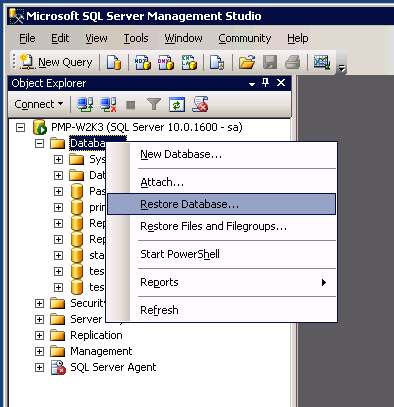
Right-click on Databases and the click Restore Database from the displayed menu.
Step 5
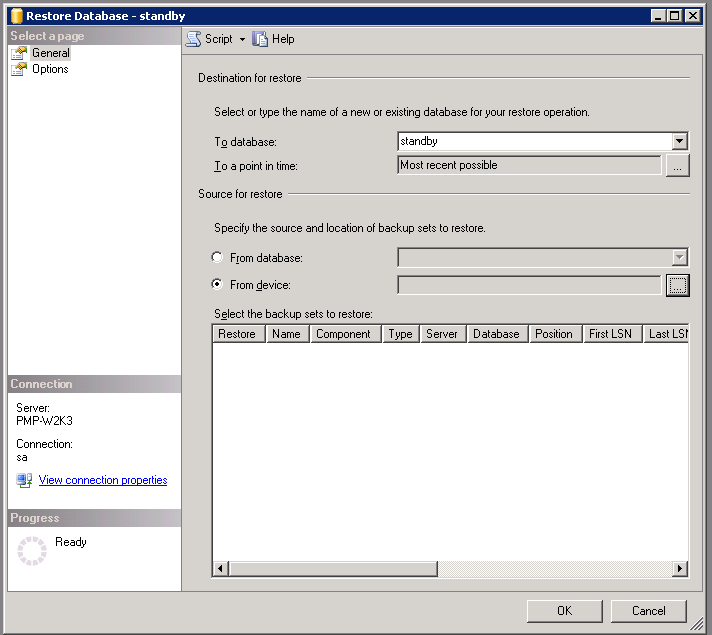
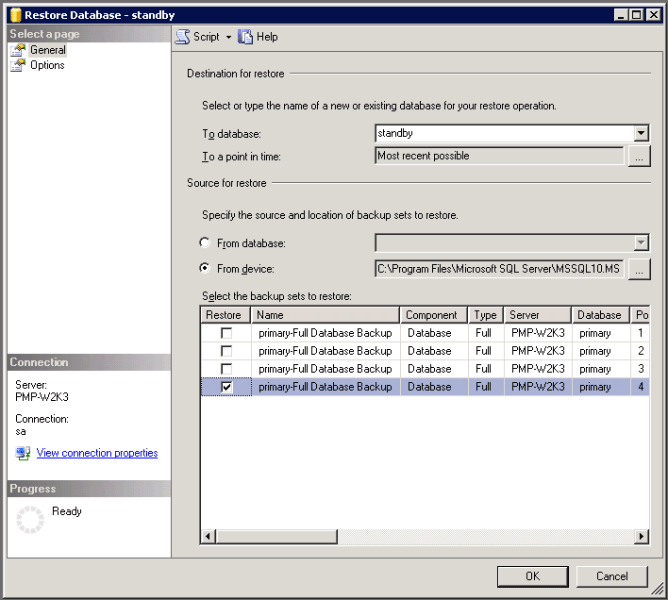
In the Restore Database window, choose the option From device and click [...] button to browse the Password Manager Pro backup file.
Step 6
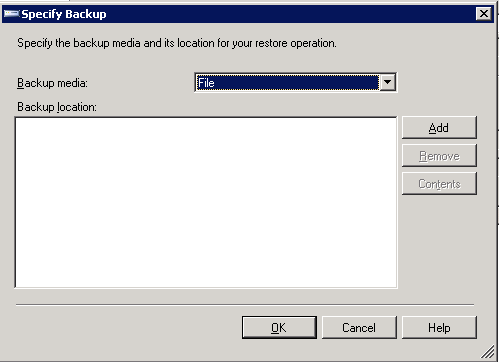
In the Specify Backup window that opens up, choose the option File as the Backup media and click Add.
Step 7
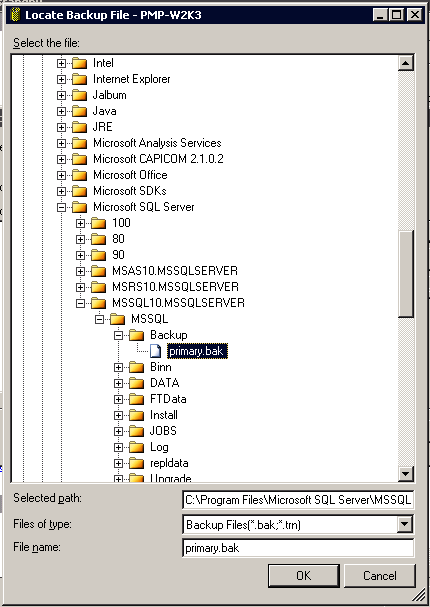
In the Locate Backup File window, select the Password Manager Pro backup file and click OK.
Step 8
- Now, in the Restore Database window, select the database where the backup is to be restored and specify it in the To database field.
- Under Select the backup sets to restore, select the required Restore column.
- Click OK to start the restoring the database.
- Upon completion of the restoration, a status window pops-up.
Step 9
Now, you need to restore the Master Key. As mentioned in the prerequisite section above, by default, the encryption master key will be stored under <PMP Installation Folder>/conf directory in the file named masterkey.key. For security reasons, if you have moved the file to some other secure location, identify that. Open the masterkey.key file and copy the password.
Step 10
Connect to the SQL server in which you have restored the Password Manager Pro backup file.
Open Microsoft SQL Server Management Studio and connect the database engine.
Execute the following queries:
use write_the_name_of the restored_database;
OPEN MASTER KEY DECRYPTION BY PASSWORD = 'type_the_master_key_password';
alter master key regenerate with encryption by password = 'type_the_master_key_password';
Example:
use passtrix;
OPEN MASTER KEY DECRYPTION BY PASSWORD = 'secret';
alter master key regenerate with encryption by password = 'secret';
Execution of the above queries will help decrypt the data.
Step 11
Navigate to <PMP_Installation_Folder>/conf folder, edit manage_key.conf and specify the location of pmp_key.key (encryption master key). PMP requires the pmp_key.key file accessible with its full path when it starts up every time. After a successful start-up, it does not need the key anymore and so the device with the key file can be taken offline.
Important Notes:
- Perform database restore of the .bak file and execute the above queries to set the master key using the same account with which Password Manager Pro connects to the database.
- However, if you are using a different account to restore the database in SQL studio and to execute the Alter master key queries, then execute the additional queries given below to provide required permissions for the Password Manager Pro account to read the master key.
- GRANT VIEW DEFINITION ON CERTIFICATE::PMP_CERT TO [user]
- GRANT VIEW DEFINITION ON SYMMETRIC KEY::PMP_SYM_KEY TO [user]
- GRANT CONTROL ON CERTIFICATE::PMP_CERT TO [user]
- The [user] in the above queries refers to the actual login name of the account used by Password Manager Pro to connect to the SQL database. You can find this account's name in the JDBC URL present in the <PMP_Installation_Folder>/conf/database_params.conf file, unless the account uses Windows authentication.
- Execute the queries given below to verify the correct names of the CERTIFICATE and SYMMETRIC KEY:
- select * from sys.certificates
- select * from sys.symmetric_keys