Reports
(Feature available only in Premium and Enterprise Editions)
The information on the entire password management process in your enterprise is presented in the form of comprehensive reports in Password Manager Pro. The status and summaries of the different activities such as password inventory, policy compliance, password expiry, user activity etc. are provided in the form of tables and graphs, which assist the IT administrators in making well-informed decisions on password management.
Password Manager Pro provides a wide range of canned reports classified as six types. In addition to canned reports, you can also create custom reports using the templates available in the product or develop a fully customized criteria-based report.
The topics listed below include the various types of reports offered by Password Manager Pro and the steps to schedule or terminate automatic report generation. Click each topic to learn about it in detail:
- Canned Reports
1.1 Password Reports
1.2 User Reports
1.3 General Reports
1.6 SSH Keys Reports
- Custom Reports
- Query Reports
- Scheduling Report Generation
1. Canned Reports
Password Manager Pro provides six types of canned reports:
1.1 Password Reports
All details related to device properties such as hardware properties, firmware details, audit details of the devices, etc., are presented using Password reports. To access Password reports:
- Navigate to Reports >> Password Reports.
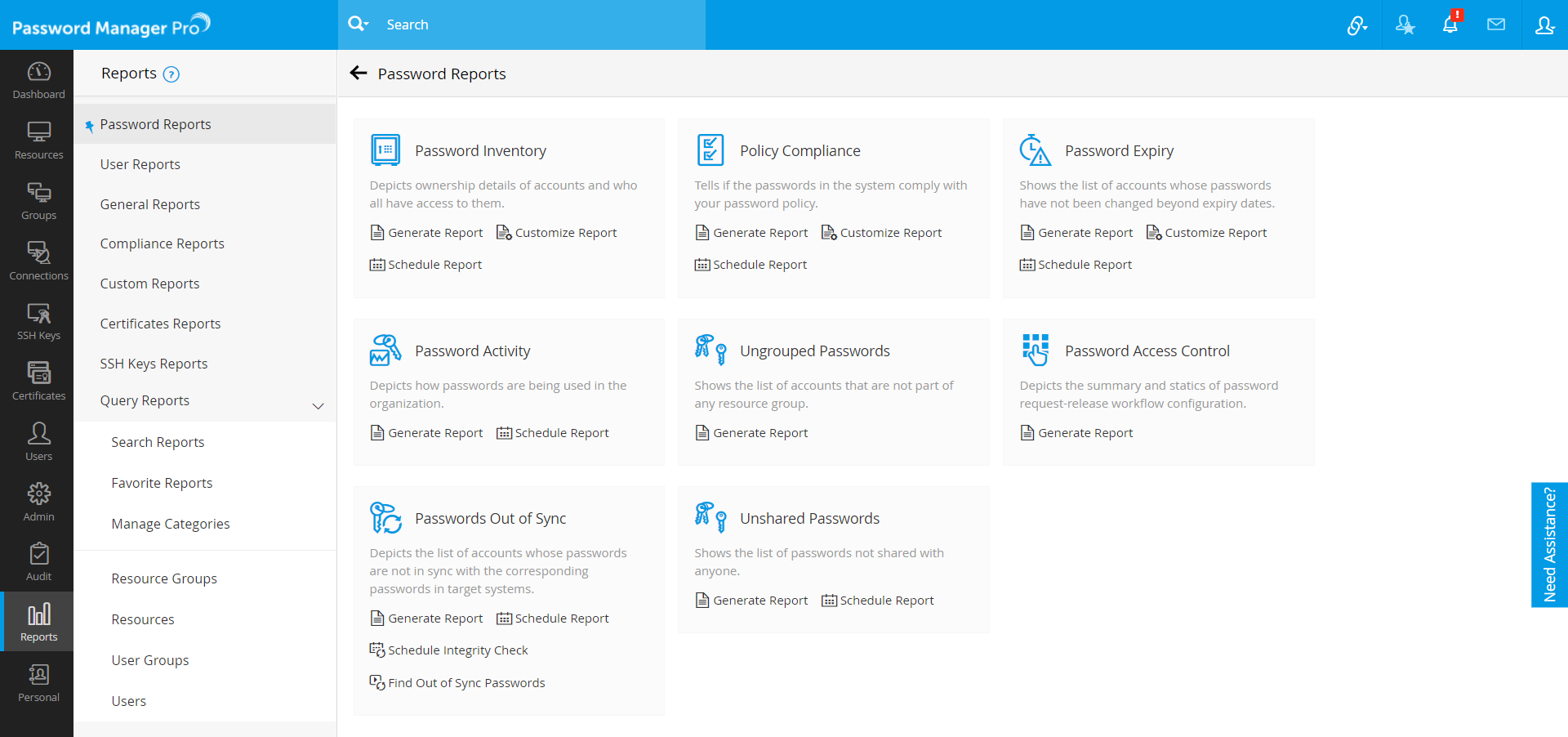
- You will see multiple report types under this report category. The following table describes each report type in detail:
| Report Name | What does it Convey | Additional Information |
|---|---|---|
Password Inventory Report |
This report provides a snapshot of details about the total number of resources, passwords, resource types and users present in Password Manager Pro. Besides, it provides details about the ownership of each password/resource and details about the time at which the passwords were accessed. There are three sections in this report: Password Inventory - Summary Report This section lists down the details in summary about the total number of resources, total number of passwords, total number of users and total number of resource types. Password Distribution by Resource Type This section provides a pie-chart showing the number of resources based on the resource types. Password Inventory- Detailed Report This section lists down the details of all the resources passwords, resource types and users present in Password Manager Pro. Besides, it provides details about the ownership of each password/resource and details about the time at which the passwords were accessed. |
This report can be generated in the form of PDF or spreadsheet and can also be emailed to required recipients. Click the links Export to PDF, Export to XLS or Email this Report to do the required operation. |
PolicyCompliance Report |
This report provides a snapshot of details about the passwords that comply to the password policy set by the administrator and the ones that do not comply. Besides, it provides details about the ownership of each password. Also, in the case of the passwords which are found to be non-compliant, details about non-compliance are also provided. This helps in taking the required corrective action immediately to make them compliant. There are three sections in this report: Password Policy Compliance Summary This section lists down the details in summary about the total number of passwords, total number of passwords that comply to the policy and total number of passwords that are non-compliant. Policy Violation by Resource Type This section provides a pie-chart showing the number of passwords that are non-compliant to the defined policy based on the resource type. List of Password Policies This section lists down all policies that have been created. Details about each policy can be easily viewed by simply clicking on the name of each policy. Policy Compliance Status This section lists down the compliance details of all the resources (whether they are compliant with the defined policy or not). It also depicts the number of violations in each resource and the ownership details of resources and passwords in tabular form. You can make a search in this report by clicking the icon present at the top-right hand corner of the table. |
This report can be generated in the form of PDF or spreadsheet and can also be emailed to required recipients. Click the links Export to PDF, Export to XLS or Email this Report to do the required operation. |
Password Expiry Report |
This report provides information about the validity details of passwords. In other words, it provides details about the passwords that have expired and the passwords that are valid. There are three sections in this report: Password Expiry - Summary This section lists down the details in summary about the total number of passwords, total number of expired passwords and total number of valid passwords. Resource Types and Expiry Status This section provides a pie-chart showing the number of expired passwords in each resource type. Expiry Status of Passwords This section lists down the expiry/validity details of all the resources. It also depicts the number of expired/valid passwords in each resource and the ownership details of resources and passwords in tabular form. You can make a search in this report by clicking the icon |
This report can be generated in the form of PDF and can be emailed to required recipients. Click the links Export to PDF, Export to XLS or Email this Report to do the required operation. |
Password Activity Report |
This report provides information about the usage details of all passwords in the system. It provides details about the passwords that were most accessed during a specific time period, the ones that were least accessed, average access per day, per week, passwords that were frequently reset etc. There are six sections in this report: Activity Statistics - Summary Report This section lists down the details in summary about the total number of passwords, average access per day/ per week, average password age, the number of passwords for which reset is supported, number of passwords that were reset using agents, the number of passwords that were reset without agents, number of failures in password reset. Most Accessed Passwords This section provides a graph showing the top 10 passwords that were accessed the most. Frequently Reset Passwords This section provides a graph showing the top 10 passwords that were reset the most. Least Accessed Passwords This section provides a graph showing the least accessed 10 passwords. Rarely Changed Passwords This section provides a graph showing the least reset 10 passwords. Password Activity Details This section provides the following details about the passwords that are in sync with the target systems: Date of creation of the password, number of times the password had been accessed from the date of creation, number of time the password underwent changes, the time at which the password was accessed/changed last, the frequency at which the password is being accessed every day, the frequency at which the password is being changed every week etc. |
This report can be generated in the form of PDF and can be emailed to required recipients. Click the links Export to PDF, Export to XLS or Email this Report to do the required operation. |
Password Access Control - Resource |
This report provides a detailed summary of how password request-release workflow configuration for resources is configured and used. The report contains the details of resources for which Resource-level access control is configured. In addition, the report provides a list of password access requests raised, approved and denied in the specified number of days (a minimum of 5 and a maximum of 30 days). The report contains the following sections: Access Control Activated This section lists all the resources for which Resource-level Access Control is activated. This section lists all the resources for which an auto-approval time frame is configured. This section lists all the resources for which Access Control is not configured. This section lists all the resources for which Access Control is currently deactivated. This section lists all the resources which are currently excluded from Resource-level Access Control. This section lists all the password access requests raised in the specified number of days. This section lists all the password access requests approved in the specified number of days. This section lists all the password access requests denied in the specified number of days. This section lists all the passwords checked out in the specified number of days. This section lists all the passwords checked in during the specified number of days. |
This report can be generated in the form of PDF or spreadsheet and can also be emailed to required recipients. Click the links Export to PDF, Export to XLS or Email this Report to do the required operation. |
Password Access Control - Account |
This report provides a detailed summary of how password request-release workflow configuration for accounts is configured and used. The report contains the details of resources for which Account-level access control is configured. In addition, the report provides a list of password access requests raised, approved and denied in the specified number of days (a minimum of 5 and a maximum of 30 days). The report contains the following sections: Access Control Activated This section lists all the accounts for which Account-level Access Control is activated. This section lists all the accounts for which an auto-approval time frame is configured. This section lists all the accounts for which Access Control is currently deactivated. This section lists all the password access requests raised in the specified number of days. This section lists all the password access requests approved in the specified number of days. This section lists all the password access requests denied in the specified number of days. This section lists all the passwords checked out in the specified number of days. This section lists all the passwords checked in during the specified number of days. |
This report can be generated in the form of PDF or spreadsheet and can also be emailed to required recipients. Click the links Export to PDF, Export to XLS or Email this Report to do the required operation. |
Passwords Out of Sync Report |
Passwords of resources such as servers, databases, network devices and other applications are stored in Password Manager Pro. It is quite possible that someone who have administrative access to these resources could access the resource directly and change the password of the administrative account. In such cases, the password stored in Password Manager Pro would be outdated and will not be of use to the users who access Password Manager Pro for the password. Password Manager Pro provides option for checking the integrity of passwords at any point of time on demand and also at periodic intervals. You can create a scheduled task for carrying out the integrity check at periodic intervals. Click Schedule Report and fill in the details. You can also generate this report at any point of time by clicking the link Generate Report. When you do so, you will get the results of the automatic integrity check done by Password Manager Pro at 1 AM every day for all the accounts for which remote synchronization has been enabled. The results of the current day's check done at 1 AM will be depicted in the report. In case, you want to carry out integrity check at any moment on demand to get latest details, you need to click the option Schedule Integrity Check. Password Manager Pro will try to establish connection with the target systems for all the accounts for which remote password reset has been enabled. Once the connection is established, it tries to login with the credentials stores in Password Manager Pro. If login does not succeed, Password Manager Pro concludes that the password is out of sync. In case, Password Manager Pro is not even able to establish connection with the system due to some network problem, it will not be taken as password out of sync. A consolidated notification would be emailed to all the administrators and auditors. The Passwords Out of Sync report provides information if the passwords in the system are in sync with the corresponding passwords in the target systems. There are two sections in this report: Password Integrity Statistics This section lists down the statistical details in summary about the total number of passwords for which reset is supported, passwords for which reset is done using agents, number of passwords that were reset using agents, number of passwords in the system are in sync with the corresponding passwords in the target systems, number of passwords that are out of sync etc. Passwords Out of Sync Distribution This section displays a pie-chart that portrays the distribution of passwords (that are out of sync) across resource types. Passwords Out of Sync Details This section provides an expanded list of passwords, mentioning which of them are not in sync, who owns them, and their resource type. |
This report can be generated in the form of PDF or spreadsheet and can also be emailed to required recipients. Click the links Export to PDF, Export to XLS or Email this Report to do the required operation. |
Provides complete details about the password access control workflow scenario of your organizations. List of resources for which access control has been enabled, resources for which access control is activated/deactivated, resources for which the requests are automatically approved, list of password release requests approved/denied etc are depicted through this report. |
This report can be generated in the form of PDF or spreadsheet and can also be emailed to required recipients. Click the links Export to PDF, Export to XLS or Email this Report to do the required operation. |
|
Unshared Passwords |
Passwords stored in Password Manager Pro. Certain passwords may not be shared with anyone. Such unshared passwords are listed in this report. |
 present at the top-right hand corner of the table.
1.2 User Reports
| Report Name | What does it Convey | Additional Information |
|---|---|---|
User Access Report |
This report provides details about all users in the system with reference to password and resource access. This report has three sections: User Statistics - Summary Report This report can be generated in the form of PDF and can be emailed to required recipients. Click the links "Export to PDF" and "Email this Report" to do the required operation. Details such as the number of new users added during the last five days, users deleted, role change, number of invalid login attempts, users who carried out password reset during the past five days, users who did not login during the last five days, total number of users/user groups in the system, user roles etc are presented as part of this report. User Activity Summary Report The actions performed by users on passwords such as password retrieval, password reset etc captured as part of this summary report. This report provides the number of such actions done by each user. Similarly, the number of password actions performed by members of each user group are also depicted. User Access Details The resources and resource User Group Access Details groups that are owned by/shared to each user are depicted as part of this report. The privileges allowed for the user are also listed. The list of users who are members of the group, resource groups that are owned by/shared to the user group are depicted as part of this report. |
This report can be generated in the form of PDF and can be emailed to required recipients. Click the links Export to PDF, Export to XLS or Email this Report to do the required operation. |
User Activity Report |
This report provides details about the password usage of all the users in the system. This report has the following sections: Activity Statistics - Summary Report The total number of passwords accessed by users and user groups during a specified time period are depicted in the form of graphs. Most Active Users - Login/Access/Reset The list of the top 10 users who performed most login attempts, most password access and most password resets. Least Active Users - Login/Access/Reset The list of 10 users who performed least login attempts, least password access and least password resets. All details about users, including the total number of login attempts made, number of invalid attempts, number of passwords accessed, number of passwords reset are depicted. |
This report can be generated in the form of PDF or spreadsheet and can also be emailed to required recipients. Click the links Export to PDF, Export to XLS or Email this Report to do the required operation. |
Ungrouped Users |
Users in Password Manager Pro can be grouped into user groups. Certain users may not be a part of any user group. Such users and the passwords owned by them are listed in this report. |
1.3 General Reports
1.4 Compliance Reports
(Feature available only in Enterprise Edition)
| Report Name | What does it Convey | Additional Information |
|---|---|---|
PCI DSS Compliance Report The PCI DSS stands for Payment Card Industry Data Security Standard. It is a multifaceted security standard that includes requirements for security management, policies, procedures, network architecture, software design and other critical protective measures. It represents a set of rules that need to be adhered to by businesses that process credit cardholder information, to ensure data is protected. The PCI Data Security Standard is comprised of 12 general requirements designed to:
This standard is governed by PCI Security Standards Council https://www.pcisecuritystandards.org/ |
This reports the violations in your network from the requirements of Payment Card Industry (PCI) Data Security Standard (DSS), relevant to the use and management practices of shared administrative, software and service account passwords of various systems. PCI DSS requirements 2,3,7,8,10 & 12 are covered in this report. Note: In order to adhere to "all" the requirements of the PCI DSS standard completely, you will need other tools and security procedures to be implemented. |
You have the option to generate separate compliance reports for each PCI DSS requirement 2,3,7,8,10 & 12. You can also generate a consolidated PCI DSS report too. This report can be generated in the form of PDF and can be emailed to required recipients. Click the links Export to PDF, Export to XLS or Email this Report to do the required operation. |
ISO/IEC 27001 Compliance Report ISO/IEC 27001 is a specification developed to "provide a model for establishing, operating, monitoring, reviewing, maintaining, and improving an information security management system (ISMS). Simply put, ISO 27001 is a robust framework that helps you protect information such as financial data, intellectual property or sensitive customer information. The standard also stresses on the selection of adequate security controls that help protect information assets. In all, ISO 27001 has ten short clauses and also an Annex A. The Annex A alone specifies numerous control frameworks. Among them, A.9 deals with "Access Control." The clause basically requires the use of
|
This report communicates an organization's compliance level in relation to the control requirements as outlined in the clause A.9. The compliance will be based on various factors such as stringent password policies for privileged accounts in the enterprise, authentic audit records, strong authentication mechanisms, secure privileged access, and data security levels. A consolidated ISO/IEC 27001 compliance report will include information about the controls listed under A.9.1, A.9.1.1, A.9.1.2, A.9.2, A.9.2.1, A.9.2.2, A.9.2.3, A.9.2.4, A.9.2.5, A.9.2.6, A.9.3, A.9.3.1, A.9.4, A.9.4.1, A.9.4.2 and A.9.4.3. There are also option to generate separate compliance reports for requirements listed under each sections given above. |
|
NERC CIP Compliance Report The NERC CIP standards is a set of requirements designed to ensure the security and reliability of the power systems. The North American Electric Reliability Corporation (NERC) introduced the Critical Infrastructure Protection (CIP) standards mainly to protect the critical assets such as electric utilities generation and transmission systems in the power grid. Broadly, NERC CIP has nine sections that cover various physical, virtual, and organizational measures that must be enforced to secure the bulk power system. In particular, the clauses CIP-004-3a, CIP-005-3a, and CIP-007-3a mandate
|
This reports shows an organization's level of compliance with select requirements of clauses CIP-004-3a, CIP-005-3a, and CIP-007-3a. The report will help auditors understand the various security measures implemented in the concerned organization, such as privileged access control policies, authentication checks for privileged users, user activity auditing, privileged session recording & monitoring, and password policy enforcement. Apart from a consolidated NERC CIP report, there are also options to generate separate compliance reports for requirements specific to each clauses, i.e. CIP-004-3a, CIP-005-3a, and CIP-007-3a. |
This reports can be generated in the form of PDF or spreadsheet and can also be emailed to required recipients. Click the links Export to PDF, Export to XLS or Email this Report to do the required operation. These compliance reports help address requirements only in select clauses of each security standards. In order to adhere to "all" the requirements of NERC CIP, other tools and security procedures should be implemented. |
1.5 Certificates Reports
| Report Name | What does it Convey | Additional Information |
|---|---|---|
SSL Certificates Report |
Provides a list of all SSL certificates discovered, imported or created using Password Manager Pro. |
This report can be generated in the form of PDF and can be emailed to required recipients. Click the option Export and choose PDF / CSV / EMAIL to do the required operation. |
SSL Request Report |
Provides a list of all certificate requests generated using Password Manager Pro. |
This reports can be generated in the form of PDF or spreadsheet and can also be emailed to required recipients. Click the option Export and choose PDF / CSV / EMAIL to do the required operation. |
SSL Expiry Report |
Provides a detailed list of certificates with expiry information according to your specification. |
This reports can be generated in the form of PDF or spreadsheet and can also be emailed to required recipients. Click the option Export and choose PDF / CSV / EMAIL to do the required operation. |
Wildcard SSL Certificates Report |
Provides a detailed list of wildcard certificates in use along with the servers in which they are deployed. |
This reports can be generated in the form of PDF or spreadsheet and can also be emailed to required recipients. Click the option Export and choose PDF / CSV / EMAIL to do the required operation. |
Deployed Servers Report |
Provides a list of certificates that are deployed in more than one server. |
This reports can be generated in the form of PDF or spreadsheet and can also be emailed to required recipients. Click the option Export and choose PDF / CSV / EMAIL to do the required operation. |
AD User Certificate Report |
Provides a list of all certificates mapped to user accounts in the Active Directory. |
This reports can be generated in the form of PDF or spreadsheet and can also be emailed to required recipients. Click the option Export and choose PDF / CSV / EMAIL to do the required operation. |
SHA1 Certificate Report |
Provides a list of all certificates using the obsolete SHA-1 hashing algorithm. |
This reports can be generated in the form of PDF or spreadsheet and can also be emailed to required recipients. Click the option Export and choose PDF / CSV / EMAIL to do the required operation. |
Deployment Report |
Provides a list of all certificates deployed using Password Manager Pro. |
This reports can be generated in the form of PDF or spreadsheet and can also be emailed to required recipients. Click the option Export and choose PDF / CSV / EMAIL to do the required operation. |
Sign Report |
Provides a detailed list of certificates signed using Microsoft Certificate Authority or custom root CA from Password Manager Pro. |
This reports can be generated in the form of PDF or spreadsheet and can also be emailed to required recipients. Click the option Export and choose PDF / CSV / EMAIL to do the required operation. |
Lets Encrypt Requests Report |
Provides details on the statuses of certificate requests submitted to Let's Encrypt CA. |
This reports can be generated in the form of PDF or spreadsheet and can also be emailed to required recipients. Click the option Export and choose PDF / CSV / EMAIL to do the required operation. |
GoDaddy Orders Report |
Provides details on the statuses of certificate requests submitted to Go Daddy |
This reports can be generated in the form of PDF or spreadsheet and can also be emailed to required recipients. Click the option Export and choose PDF / CSV / EMAIL to do the required operation. |
The SSL Store Orders Report |
Provides details on the statuses of certificate requests submitted to The SSL Store. |
This reports can be generated in the form of PDF or spreadsheet and can also be emailed to required recipients. Click the option Export and choose PDF / CSV / EMAIL to do the required operation. |
DigiCert Orders Report |
Provides details on the statuses of certificate requests submitted to DigiCert. |
This reports can be generated in the form of PDF or spreadsheet and can also be emailed to required recipients. Click the option Export and choose PDF / CSV / EMAIL to do the required operation. |
Provides a list of all SSL certificates procured using Let's Encrypt CA and is a subset of SSL Certificates report. |
This reports can be generated in the form of PDF or spreadsheet and can also be emailed to required recipients. Click the option Export and choose PDF / CSV / EMAIL to do the required operation. |
|
SSL Vulnerability Report |
Provides detailed information on vulnerability scan performed on SSL certificates that are stored in Password Manager Pro's certificate repository. |
This reports can be generated in the form of PDF or spreadsheet and can also be emailed to required recipients. Click the option Export and choose PDF / CSV / EMAIL to do the required operation. |
Microsoft Certificate Authority Auto Renewal |
Provides details on attempted / successful auto-renewals of MS CA certificates, invoked from Password Manager Pro. |
This reports can be generated in the form of PDF or spreadsheet and can also be emailed to required recipients. Click the option Export and choose PDF / CSV / EMAIL to do the required operation. |
1.6 SSH Keys Reports
| Report Name | What does it Convey | Additional Information |
|---|---|---|
PrivateKey Report |
Provides a list of SSH keys generated using Password Manager Pro. |
This reports can be generated in the form of PDF or spreadsheet and can also be emailed to the required recipients. Click the option Export and choose PDF / CSV / EMAIL to do the required operation. |
Provides detailed information on SSH key rotations executed by Password Manager Pro. |
This reports can be generated in the form of PDF or spreadsheet and can also be emailed to the required recipients. Click the option Export and choose PDF / CSV / EMAIL to do the required operation. |
|
PublicKey Deployment Report |
Provides a list of SSH keys that are deployed to target servers. |
This reports can be generated in the form of PDF or spreadsheet and can also be emailed to the required recipients. Click the option Export and choose PDF / CSV / EMAIL to do the required operation. |
PGP Keys Report |
Provides a list of PGP keys that are created from Password Manager Pro. |
This reports can be generated in the form of PDF or spreadsheet and can also be emailed to the required recipients. Click the option Export and choose PDF / CSV / EMAIL to do the required operation. |
2. Custom Reports
(Feature available only in Enterprise Edition)
You can create customized reports out of the canned reports and the audit reports. You can specify certain criteria and create customized reports as per your needs.
The custom reports have been designed to bring out specific information from the Password Manager Pro database as per your needs. The canned reports provide a snapshot of details in general. On the other hand, you can create a custom report out of this canned report to get specific details.
Examples
For instance, let us take the case of creating a custom report out of Password Inventory Report. Assume that you want to get a report on the resources owned by 'User A' in 'Network Administration' department. You can create a custom report from the 'Password Inventory Report' by specifying the criteria as Resources from 'Department' 'Network Administration' AND 'Owner' name as 'User A'.
The real power of the custom reports lies in the fact that you can specify criteria expression and cull out information catering to your more specific needs.
Example: 2
2. Assume that your need is to take a list of all the sensitive passwords belonging to the resource types Windows and Windows Domain, Linux and Cisco, owned by a particular administrator - say John. Also, you want to get details on the share permissions for those passwords - with whom the passwords have been shared.
Here, the following are the conditions:
- Sensitive accounts with names 'administrator' on Windows and Windows Domain, 'root' on Linux and 'enable' on Cisco are to be identified
- Among such accounts, only those that are owned by john are to be identified
So, the criteria will be as follows:
To identify the 'administrator' accounts on Windows/Windows Domain, the criteria is
- Resource Type starts with Windows (take this as column C1)
- Account Name is administrator (take this as column C2)
To identify the 'root' accounts on Linux, the criteria is
- Resource Type is Linux (take this as column C3)
- Account Name is root (take this as column C4)
To identify the 'enable' accounts on Cisco devices, the criteria is
- Resource Type contains Cisco (take this as column C5)
- Account Name is root (take this as column C6)
To identify the resources owned by john
- Owner is John (take this as column C7)
Now, you need to specify the criteria expression to combine the above factors:
((C1 and C2) or (C3 and C4) or (C5 and C6)) and C7
That means, you want to identify the resources/accounts complying to any and all the criteria listed above and finally match the ownership.
2.1 Steps to Create Custom Reports
- Navigate to Reports >> Custom Reports.
- Click the link Create Custom Reports available on the top bar.
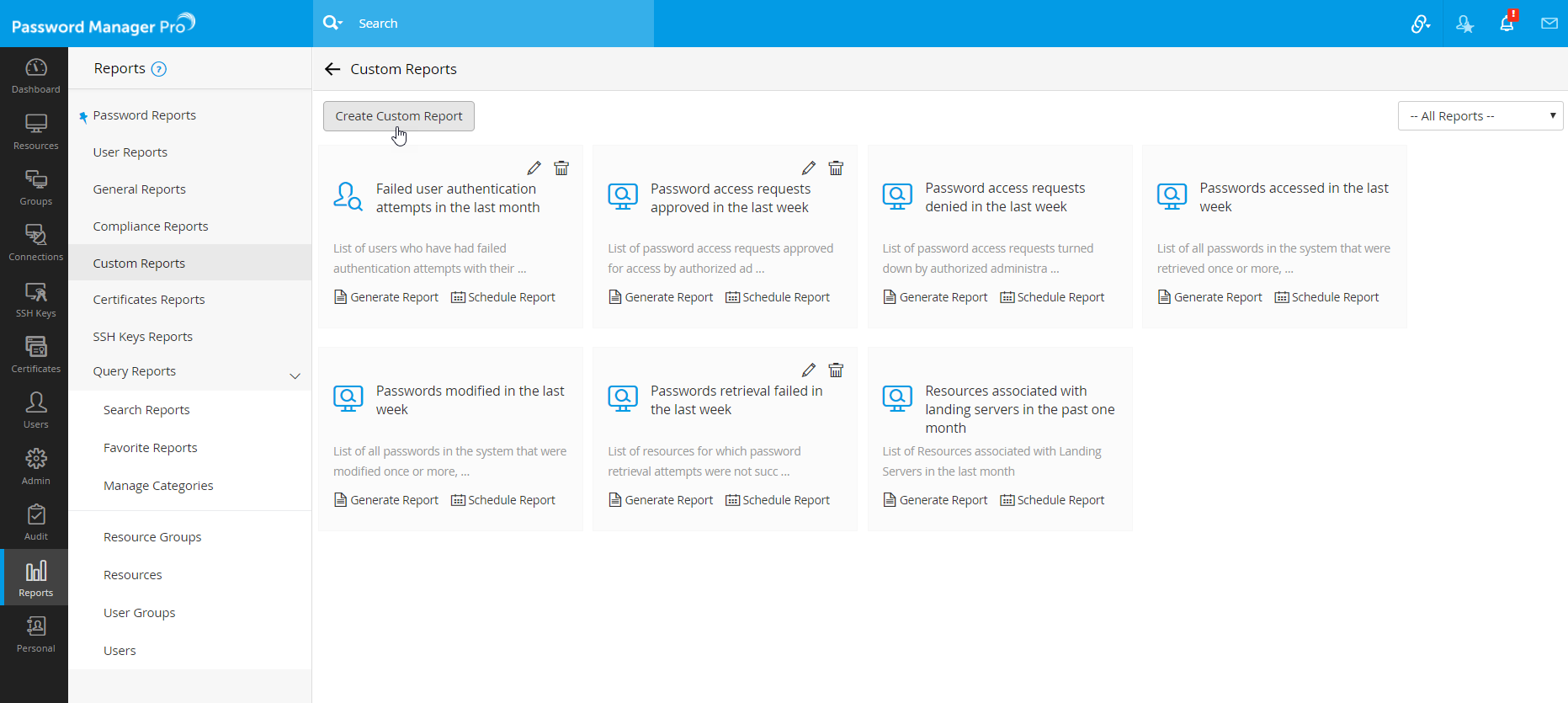
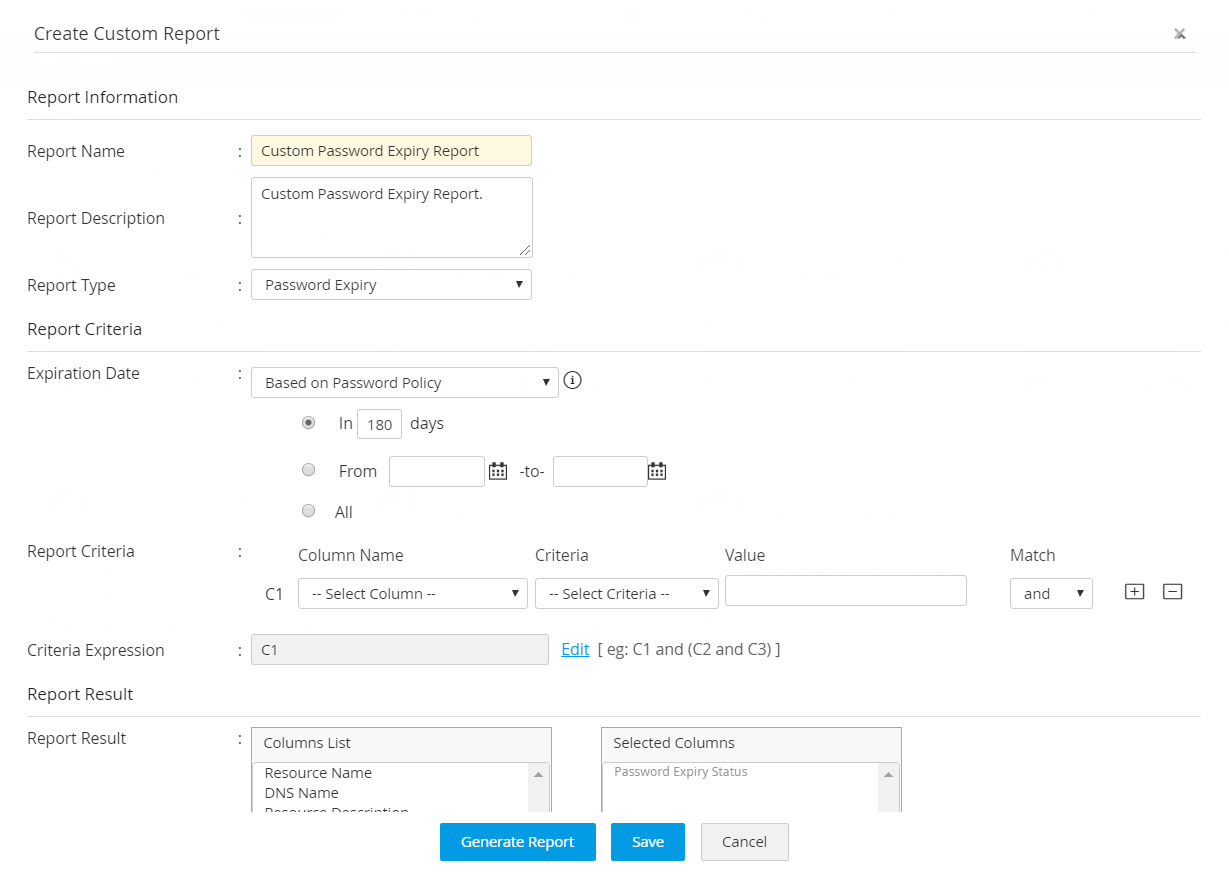
- In the pop-up form that opens, provide a name for the custom report being created; enter description for easy identification of the report.
- Select the type of report out of which you wish to create the custom report.
- specify the criteria based on which the custom report has to be created. Refer to the example above on specifying the criteria. In case, you want to specify multiple values for the same column name, enter the entries in comma separated form. In the example above, in case, you want to generate the report pertaining to two departments - Network Administration and Finance departments, enter the values for the column 'Department' as Network Administration,Finance.
- In case, you want to specify advanced criteria, edit the control expressions field; you can specify advanced conditions using expressions. Refer to the example above for details.
- you have the option to control the number and order of columns to be displayed in the custom report. From Select Columns on LHS, choose the required columns. Use the up, down arrows on the RHS to control the arrangement of the columns in the report.
- Click Save to save the entries. Click Generate Report to generate the customized report.
2.2 Use Case for Custom Reports
By leveraging the power of the custom reports, you can meet many of your auditing requirements with ease. Following is just one use case:
Exit Audit Report:
Continuously assessing the vulnerability with respect to password access is one of the important auditing requirements. When an administrator, who had active access to the privileged passwords leaves the organization, it is imperative to assess the vulnerability. This requires taking a list of all the passwords that were accessed by the particular user during a specified time period and then initiate steps to change the passwords.
Taking a report on all the password management operations performed by the particular administrator during a specified time period, could serve as 'Exit Audit Report'. Custom reports help you generate a report to achieve this precisely. All that you need to do is to get the report out of the 'Resource Audit'.
- Specify the time period for the custom report
- Select the criteria as 'Operation Type' contains (C1) (just leave the criteria field blank to represent that you want to take a report on all operations)
- 'Operated by' 'User A' (C2) who is leaving the organization
The resultant report will provide you list of password management operations performed by the particular administrator during the time range specified.
Custom Reports for 'Resource Audit' and 'User Audit' will help you meet most of your auditing requirements and prove to be highly useful.
The resultant report will provide you list of password management operations performed by the particular administrator during the time range specified.
3. Scheduling Report Generation
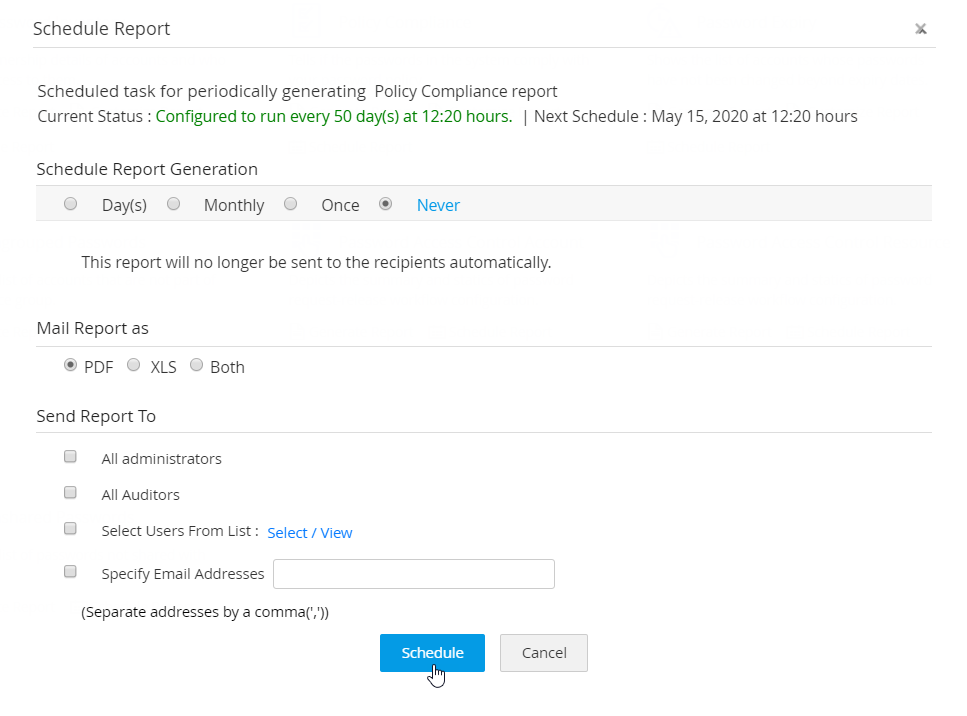
All reports can be scheduled to be generated at periodic intervals. The reports thus generated can be sent via email to the required recipients.
To create a schedule for any report, follow the below steps:
- Navigate to the Reports tab.
- Click the Schedule Report option available under the name of the required report.
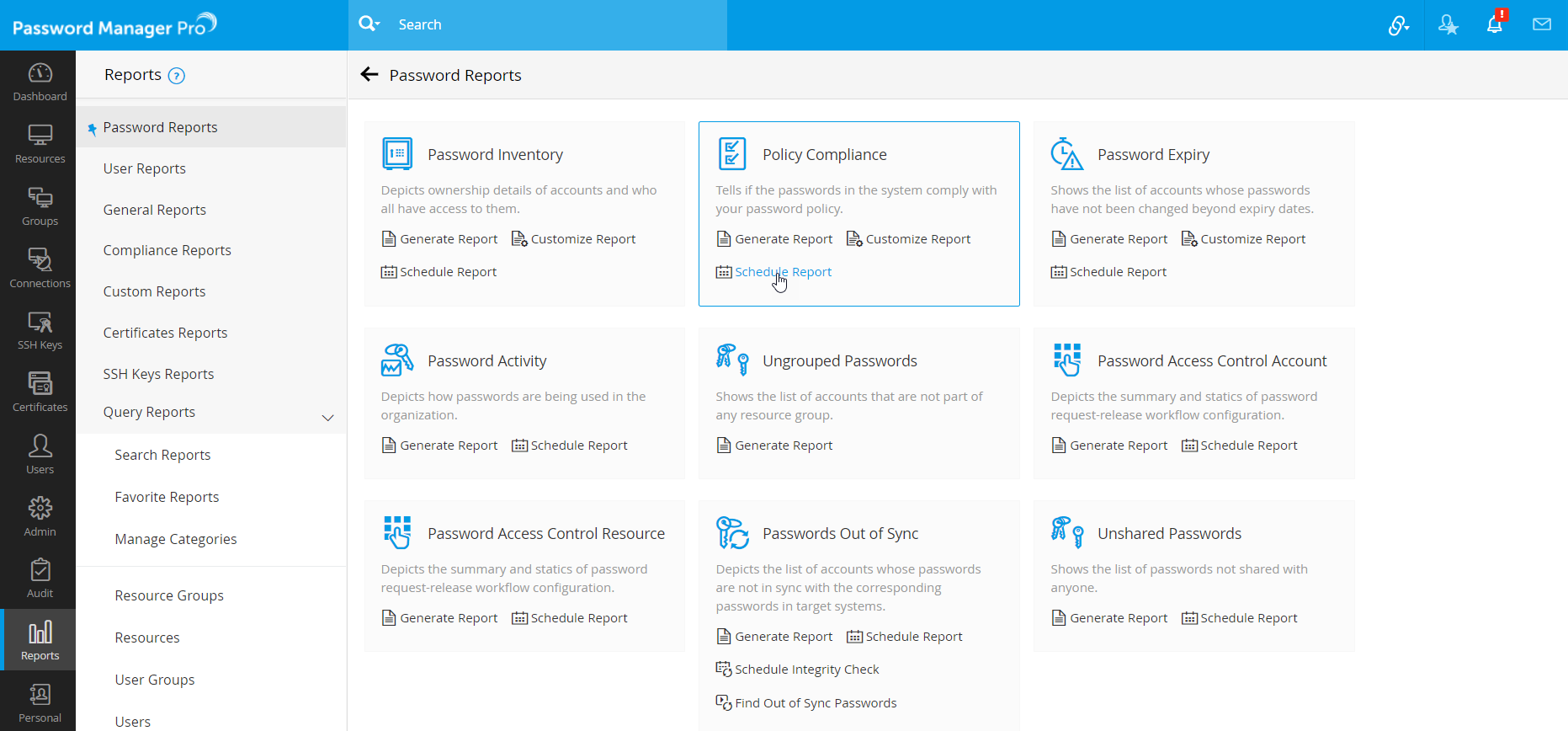
- In the pop-up form that opens, select the required schedule from the provided terms - Days / Monthly / Once / Never.
- Next, enter the date / time at which the schedule has to commence.
- Choose the format in which the report has to be mailed to the recipients, PDF or XLS or both.
- Select the recipients to whom the report should be mailed to, from the given options.
- You can also enter the list of email addresses to which the report has to be emailed.
- Click Schedule.
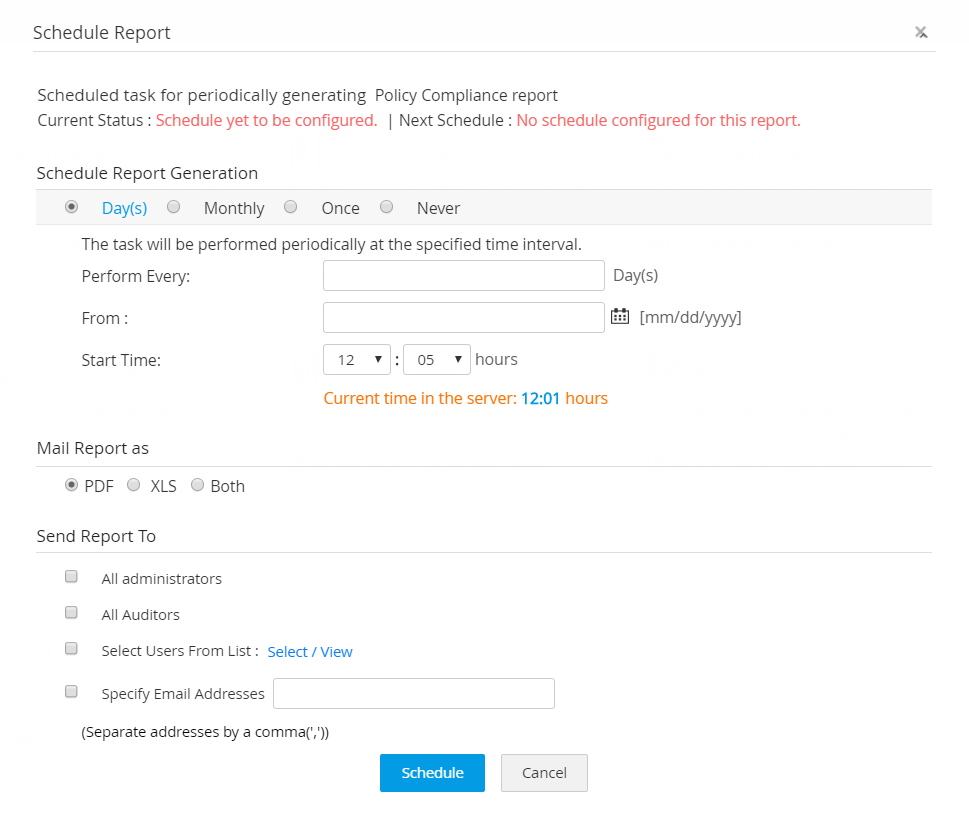
The result of the scheduled task created here are audited and can be viewed from the Task Audit section. Click here to learn more about Task Audits.
3.1 Steps to Terminate an Existing schedule
- Click the Schedule Report option available under the name of report for which the schedule has to be terminated.
- In the window that opens, choose the option Never.
- Click Schedule. Now, the previously set schedule will be terminated.