Admin Module
User
- I have purchased a 10 technician license. What is the maximum number of technicians that can be added ?
- I would like to delete the default administrator account as it takes up a license ? How do I go about it ?
- Is it possible for a requester to view all requests of his/her department without changing him/her as technicians ?
- I would like to delete a technician. But what will happen to the Requests, Problems and Changes associated to him ?
- I have a technician who is no more with the organization. I do not want to delete him as there are some important data associated to him. Since ServiceDesk Plus is taking up a license, is there any way to disable or de-activate his account? That way we can maintain our permitted number of technicians ?
- Can requesters add task ?
- How do I define Access Permissions for my Technicians?
- How do I import Requester Additional Field details from the Active Directory?
- I want to send notifications via SMS to my technicians. How do I configure it in ServiceDesk Plus?
- How do I change a Requester into a Technician?
- How do I change a Technician to a Requester?
- How to reset the Local Admin Password ? (Used in cases where your Domain controller goes down and if you are unable to login to the application with your domain credentials)
- What Happens when the Requester or Technician is deleted from the application and the effect of the same in the modules?
Technician Auto Assign
- How do I automatically assign tickets to technicians?
- How does Technician Auto Assign work for Service Requests?
Technician Groups
Configurations
- There are certain domains listed in 'Log on to' drop down menu in the initial login screen that I do not need. How do I remove these domains ?
- We have enabled Active Directory Authentication and requesters login into ServiceDesk Plus using their AD credentials. Suppose we reset the requester password in AD, then how soon the same will be reflected into ServiceDesk Plus, so that requesters will be able to login through their new AD credentials ?
- We upgraded our Domain Controller and forgot to change it in ServiceDeskPlus. Now, the application will not let me login and I forgot the local admin password. How do I update the domain controller information without logging into the application?
- Our ServiceDesk Plus server is moved to a new domain. The user information has already been migrated to the new domain in AD. How do I change the domain associated with the user account by retaining all other information?
Business Rules
Mail Server Settings
- I do not want some mails to be fetched into SeviceDesk Plus such as, Out of office emails. Can this be enabled?
- If for some reason the mail fetching stops, how do I get to know about the problem immediately?
- What is E-mail Command? How do I configure it in ServiceDesk Plus?
- What are the operations that can be performed with E-mail Command?
- How to stop automatic ticket creation in response to undelivered message notifications from No-reply email addresses that are primarily used to create tickets in ServiceDesk Plus.
Notification Rules
- How do I send self service login details to the user ?
- How do I avoid sending notification to some users or users belonging to a specific domain ? (i.e) I do not want a notification to be sent for Out of Office replies.
- Is it possible to browse solutions without logging into ServiceDesk Plus ?
- What is the purpose of Pass-through authentication ?
- I have problems logging into ServiceDesk Plus on enabling Pass-through Authentication. How do I disable it through the database ?
- Does ServiceDesk Plus support LDAP ? If so, how can it be configured ?
- Can I schedule a periodic import of users from Active Directory ?
- Ever since the upgrade to v 7.6, technicians do not receive notification when they pickup a request. Is this a change in design?
Survey
- Where do I enable Survey in ServiceDesk Plus?
- Is it possible to manually send survey for a request?
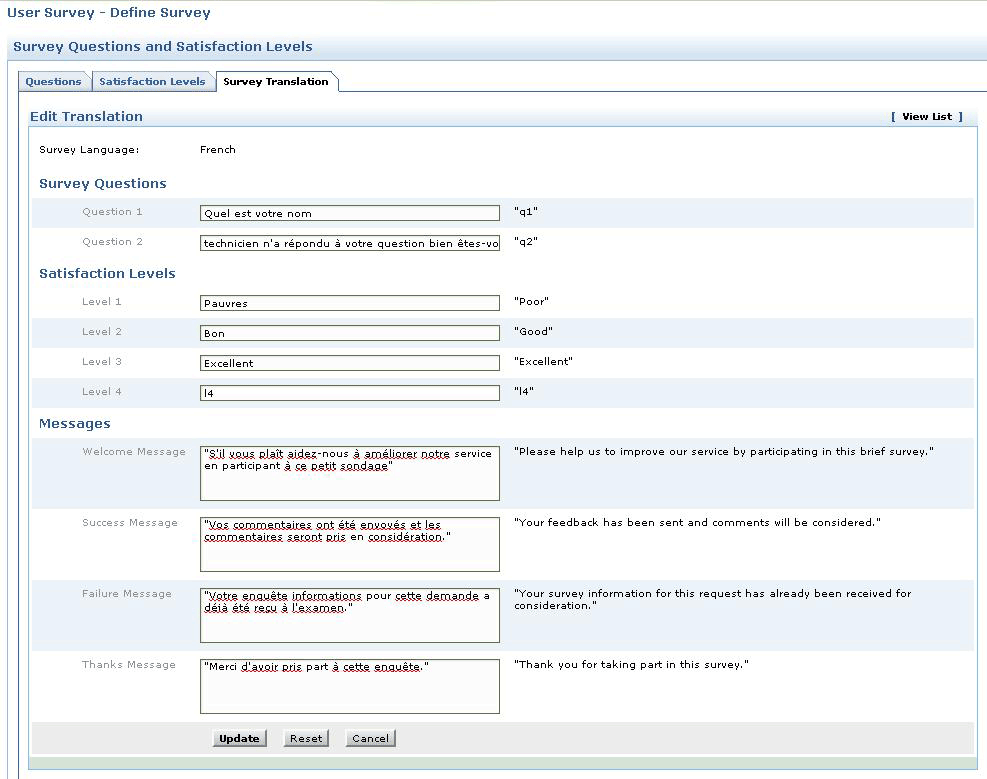
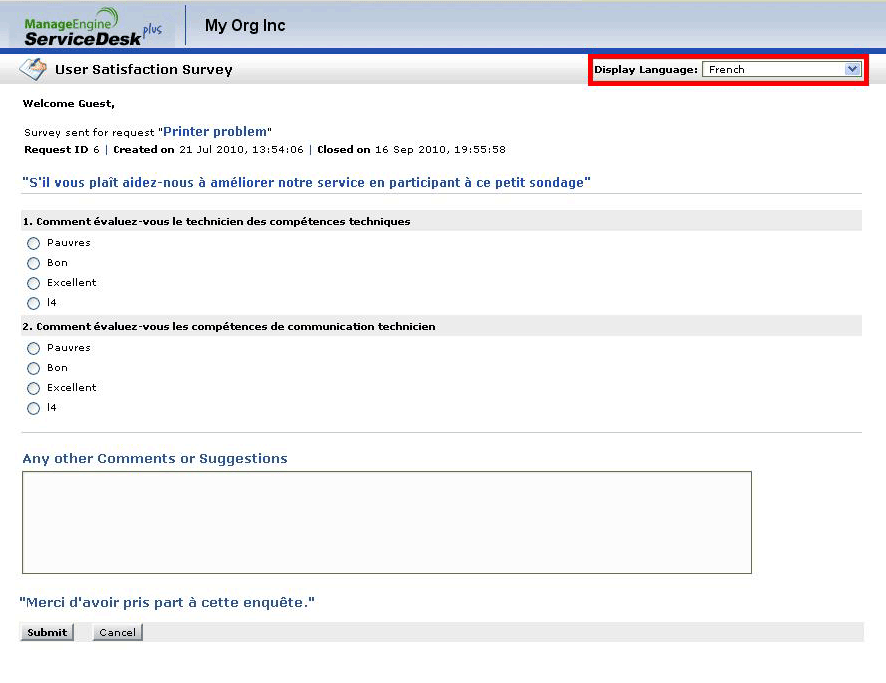
- How does multi-language survey work?
Helpdesk Customizer
- I have deleted a category and it is grayed out now. How do I reactivate this category?
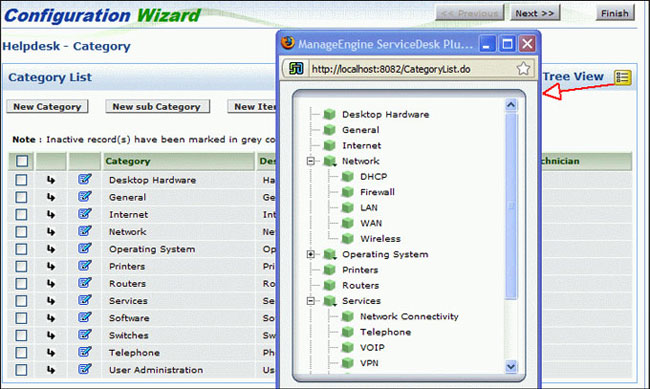
- Where can I view all the Categories, Sub-categories and Items configured in ServiceDesk Plus in a single page?
- Similar to Service Templates, is it possible to organize the Incident Templates by category?
Data Archiving
- What is Data Archiving? How do I configure it in ServiceDesk Plus?
- Where and how are the archived data stored in the database?
- Where can I view the list of archived requests?
- How do I conduct a search for the Archive Requests? Also, is it possible to generate reports on the archived requests?
Self- Service Portal
- How do I remove the Portal Usage video in the Requester Login (Self-Service Portal)?
- I want to change the Portal Usage video in the Self-Service Portal. How do I go about doing it?
- How do I edit the HTML content in the Self-Service Portal?
- How do I remove the HTML section in the Self-Service Portal?
- I'm unable to view the Incident Template menu and the Service Request Template menu after upgrading to version 8.1.
- How do I hide the the Default Request Template from the Requesters?
- What is Dynamic user addition ?
User
I have purchased a 10 technician license. What is the maximum number of technicians that can be added ?
You can add unlimited number of technicians in ServiceDesk Plus. The license is based on the number of technician login (i.e) since you have purchased 10 technician license, only10 technicians will be able to login to ServiceDesk Plus and work with the application. The remaining technicians will be considered as Non-Login technicians.
You may wonder the purpose of these Non-Login technicians ? Login permission cannot be enable to these technicians, but you can configure to send SLA violation emails, group notifications and scheduled reports to these technicians.
A typical case where Non-login technicians can be used is for your Field Technicians who need not log into the application but be notified about the issues which are assigned to them. When a Request is assigned to these technicians they will receive a notification email from ServiceDesk.
Plus in their Blackberries and when they reply to the notification email after completing their job, ServiceDesk Plus appends this email into the original request automatically.I would like to delete the default administrator account as it takes up a license ? How do I go about it ?
You can remove "Administrator" account from the application by following the instructions below.- Login as a technician who has full administrative privileges on all modules of ServiceDesk Plus (i.e. associated to SD-Admin role).
- Go to Admin -> Technicians. You can either delete the Administrator account or you can click on the Administrator and remove the login on selecting Yes.
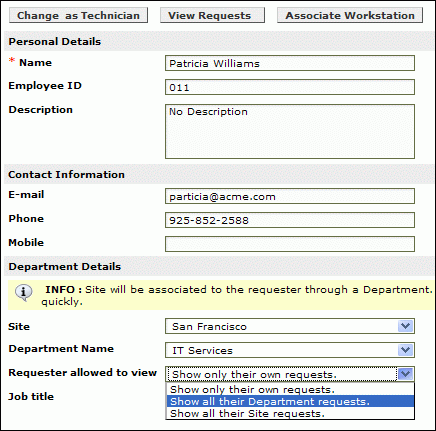
Is it possible for a requester to view all requests of his/her department without changing him/her as technicians ?
Yes it is possible. We call this the Department head role. Go to Admin -> Requesters -> Edit the particular requester -> In Requester allowed to view section, select the option 'Show all their departments requests', which will give the requester the ability to view all the requests of his/her department.
In the latest version of ServiceDesk Plus (v 7.5 and above) we have the Site head role which will allow requesters to view all the requests of the Site they belong. In Requester allowed to view section, select the option 'Show all their Site requests', which will give the requester ability to view all the requests of their Site.
[ Screenshot ]
I would like to delete a technician. But what will happen to the Requests, Problems and Changes associated to him ?
When you delete a technician, all the closed Requests, Problems and Changes will still remain assigned to his name as a historic reference.
Requests, Problems and changes in any other status (resolved, open, etc) except the closed status will move to unassigned status. This is the way ServiceDesk Plus is designed.I have a technician who is no more with the organization. I do not want to delete him as there are some important data associated to him. Since ServiceDesk Plus is taking up a license, is there any way to disable or de-activate his account? That way we can maintain our permitted number of technicians ?
Yes, it is possible to de-activate the technician account. Since ServiceDesk Plus is licensed based on the number of technician login, by removing the login you will be able to achieve your goal.
Go to Admin -> Technicians -> Edit the particular technician and -> remove the login on selecting Yes and save the configuration.
Now the old technician login account is disabled. You can add a new technician with login permission.Can requesters add task?
No, only Technicians and Administrators can add tasks and delegate work accordingly.- How do I define Access Permissions for my Technicians?To know how to define access permissions in ServiceDesk Plus, refer Configuring Roles.
How do I import Requester Additional Field details from the Active Directory?
If you have not configured any requester additional fields, then select Click here to configure link under Admin -> Active Directory -> Import Requesters From Active Directory.
This takes you to the Common Additional Fields page, from where you need to configure the additional fields to be imported from Active Directory. The configured requester additional fields - Text, Numeric and Date / Time fields appear in the Import from Active Directory window indicated in Blue, Green and Red colors respectively.
Enable the check box beside the requester additional fields to import and specify the corresponding attributes in Active Directory beside the selected field, these fields will be imported during the AD import. The unselected fields will not be imported.I want to send notifications via SMS to my technicians. How do I configure it in ServiceDesk Plus?
To send SMS notification to the technician, you first need to get the SMS Mail ID from your service provider.
Then go to Admin -> Technician and edit the technician to whome you want to send SMS notification. Update the mail ID under the SMS Mail ID field. This will send SMS notifications to that technician.
Currently, the SMS will be sent only through e-mail.i.e., the SMS ID for each technician will be configured as his mobile nummber (say 9840842143@serviceprovider.com). The notifications is triggered to the mail ID which will in turn be converted to SMS and sent to the technician's mobile number.
NOTE: For SMS to work, the service provider should have the facility to send SMS from e-mails. Currently, ServiceDesk Plus does not support external SMS server.How do I change a Requester into a Technician?
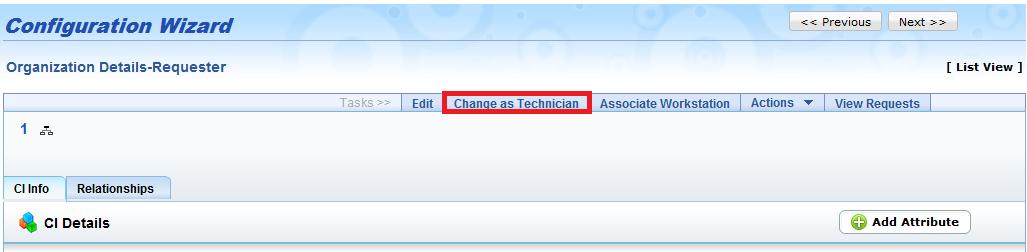
When you import users from the Active Directory, the users ? technicians and requesters ? would be imported under Admin -> Requesters. To change the requesters to technicians, go to Admin -> Requesters. Click on the requester and select Change as Technician. [ Screenshot ] How do I change a Technician to a Requester?
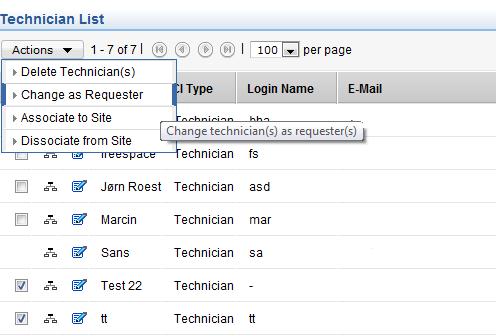
Go to Admin -> Technicians. From the list view, choose the technicians to change as Requesters. Click Actions tab and select Change as Requester. [ Screenshot ] How to reset the Local Admin Password ? (Used in cases where your Domain controller goes down and if you are unable to login to the application with your domain credentials)
Click here for steps.What Happens when the Requester or Technician is deleted from the application and the effect of the same in the modules?
When we import users from AD, CSV or manually add them into the application, they are created as Requesters.
Now when they are changed as Technician or left as Requesters and when they create or assigned with requests, below is what happens when their account is deleted,When a Requester is Deleted?
All the requests that user created will still be on their name and will not get dissociated from the Request.
However that user account will be set to RESIGNED status in the database.When a Technician is Deleted?
All the requests that user created will still be on their name and will not get dissociated from the Request.
Requests that are assigned to that Technician, apart from Closed Requests all the other requests moves to Unassigned Status.When you convert a Technician into a Requester?
Apart from Closed Requests all the other requests moves to Unassigned Status and the Closed Request alone stays in their name.What happens to the deleted users?
They will all be stored in the database in RESIGNED STATUS. The reason we do this is, the requests will have an history stating who was handling the request or who create the request and in-order to maintain them we will have these accounts in the RESIGNED Status.What happens when the same user is re-imported?
When you delete a user account and then re-import the same account, this will create it as a new user and will not update the old account. The User ID mapped to it is different and the once that will be imported will have a new ID and be added as a new entry into the database.
This will not be overwritten as we used to do it for the active users.What are all the parameters on a users profile is checked before updating?
When an import is done, the following are checked to update the users profile.
Login Name + Domain Name (santhoshmahiban + ZOHO)
Email Address (santhoshmahiban@zoho.com)
Login Name (santhoshmahiban + no domain)
So if an account does not match any of the above, then the user will be added as a new user.What happens when the same user is imported from a different domain?
When we import the same user from a different domain, say from example Paul Robert from ZOHO and the same user Paul Robert from ZOHO.COM, even if all the criteria matches the application will create it as a new user.What happens when switch from Active Directory authentication to LDAP?
When you switch the authentication from AD to LDAP, AD authentication will get disabled and when an import is done, this will overwrite all the users as the authentication itself is different.What happens to the reports that are scheduled by a Technician?
If its a Scheduled Report, then the report will be moved to the Admin Technician's account. However their private reports will still remain under their name only.What happens to the Projects when a Technician is deleted?
When the Members are added to a Project, remain associated to the Project even when they are deleted from the application. Also when you go to that Project/Milestones/Tasks and try to associate a Owner the deleted users who were earlier associated to the Projects will be shown.
However they will not be shown in the Requesters or Technicians list.What happens to the Changes and its Approvals when a Technician is deleted?
The associations will still be shown in the Change across that user under every roles, however when the corresponding role is edited, the deleted technician will not be shown anymore.
Since the login is completely removed, the approvals cannot be viewed.What happens to the Problem when the Technician is deleted?
The Closed Problem will alone be associated to that Technician and the others will move to Unassigned Status.What happens to the Assets and CMDB relationships when a Requester or a Technician is deleted?
The Asset will be switched back to In Store status and the Relationship configured in the CMDB will get removed.What happens to the Purchase Orders when the Technician is deleted or changed as Requesters?
The owners will still be retained for all the Purchases irrespective of the status.
 Screenshot
 Screenshot
 Screenshot
Technician Auto Assign
How do I automatically assign tickets to technicians?
With Technician Auto Assign, you can allocate tickets to the technicians automatically. The Technician Auto Assign follows a Round Robin Method or Load Balancing Technique to assign technicians based on their availability. If the technician is not available on the due by date of the request, he will not be assigned to that request.
Technician Auto Assign is executed after the SLA is applied to the request. If the site is specified for a request, then the technicians associated to that site alone are considered. Similarly, if group is specified in a request, the technicians associated to the group are taken into account.
Round Robin Method: In this method, the tickets are assigned equally to all the technicians in an order and starts again from the same order of the list. This way all the incoming tickets are equally distributed among the available technicians.
Load Balancing Technique: Technicians with the least number of requests will be assigned to the request. If more than one technician has the least load, then any one of the technician will be assigned to the request.How does Technician Auto Assign work for Service Requests?
When a service request is created /edited, a check is conducted on the value of the setting "Do not assign technician before service request is approved". If this option is disabled, Technician Auto Assign will be applied to the service request based on the configuration. And, if the option is enabled, then Technician Auto Assign is applied after the service request is approved.
When Technician Auto Assign is applied to the approved service request, the operation is considered as Edit, so the technician is applied only to unassigned service request.
Unassigned service requests denote the requests that are not assigned to technicians even after the application of Business rules, category or default technician from the UI.
Technician Groups
Is it possible to have a single ServiceDesk Plus installation for two different departments? Assume both the departments are not related to IT but require a help desk with unique support e-mail address.
Currently ServiceDesk Plus does not support multiple department help desk. But as a workaround, you can have a single ServiceDesk Plus installation for two different departments through Group based segmentation.
Say you have two departments namely, HR and Admin.
Step 1: You have to create dedicated mail box for both the departments with e-mail address for each (hrhelpdesk@abc.com and adminsupport@abc.com ).
Step 2: Configure your primary help desk e-mail address (helpdesk@abc.com) under Admin -> Mail Server Settings.
Step 3: Setup email forwarding such that any mail sent to hrhelpdesk@abc.com or adminsupport@abc.com is forwarded to your primary help desk e-mail address.
Step 4: Add the two departments as Groups under Admin -> Technician Groups. So you have one group by the name HR and the other by the name Admin.
Step 5: Configure technicians for each group.
Step 6: Configure the Technician Group E-mail Address for group - HR as hrhelpdesk@abc.com and adminsupport@abc.com for group - Admin.
Step 7: Configure the Sender's e-mail address as hrhelpdesk@abc.com and adminsupport@abc.com for the respective groups.
Step 8: Now it looks like the two groups - HR and Admin, have separate e-mail address to which users can send e-mails and receive automated acknowledgement.
Step 9: Configure Roles (Admin -> Roles) for these technicians and set their view permissions such that they can view only their group requests.
The technicians assigned to a group can view only their group requests. So technicians from group - HR will not be able to view requests from group - Admin and vice versa.
Note: Administrators (technician with SDAdmin role) will be able to view requests in all the groups.
Configurations
There are certain domains listed in 'Log on to' drop down menu in the initial login screen that I do not need. How do I remove these domains ?
Try the following configuration.
Click Admin -> Windows Domain Scan -> Edit the domains which you do not want to be shown in the login screen and uncheck the checkbox which says Public Domain. By this you can avoid these domains from showing up in the log in screen.We have enabled Active Directory Authentication and requesters login into ServiceDesk Plus using their AD credentials. Suppose we reset the requester password in AD, then how soon the same will be reflected into ServiceDesk Plus, so that requesters will be able to login through their new AD credentials ?
ServiceDesk Plus does not store the AD password, it just authenticates the password with AD. While performing an AD import, ServiceDesk Plus will import and store the Login information and Domain information from AD (ie) Login name and the domain to which the users belongs. So when the user enters his login name and enters the new password, the password is authenticated with AD and the user is allowed to log into ServiceDesk Plus instantaneously.We upgraded our Domain Controller and forgot to change it in ServiceDeskPlus. Now, the application will not let me login and I forgot the local admin password. How do I update the domain controller information without logging into the application?
Step 1: Find the Domain ID.
mysql> select * from domaininfo;
The list of domains available in ServiceDesk Plus appears. Let's assume that you want to change the domain controller for the domain ZOHO.
Make a note of the Domain ID which is 601.
Step 2: Query the table SdActivedirectory info which stores the Domain Controller information.
mysql> select * from sdactivedirectoryinfo where domain_id=601; br>Step 3: Update the Domain Controller information.
mysql> update sdactivedirectoryinfo set server_name='helpdesk-test1' where domain_id=601;
This should update the Domain Controller in the database after which you should be able to login to ServiceDeskPlus.
For MSSQL Database:
Connect to the query analyzer of the SQL server and follow the same 3 steps.Our ServiceDesk Plus server is moved to a new domain. The user information has already been migrated to the new domain in AD. How do I change the domain associated with the user account by retaining all other information?
To move all the requesters and technicians to the new domain without creating new login accounts for the existing users,- Go to Admin -> Windows Domain Scan.
- Edit and rename the old Domain name to the new one and enter the credentials of the new Domain.
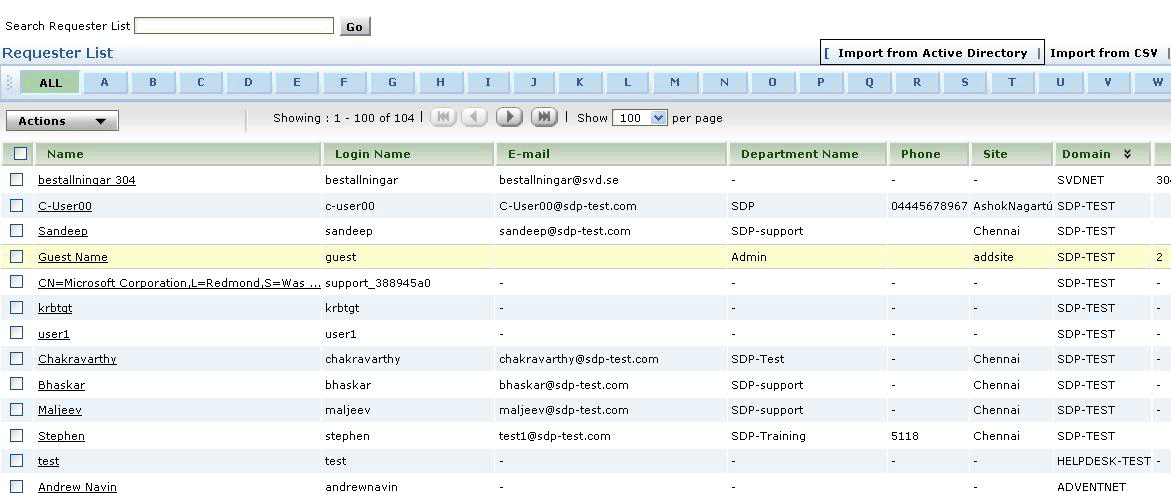
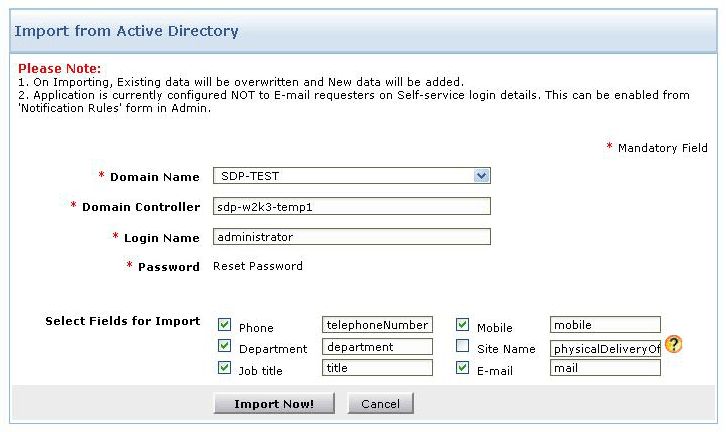
This will change the Domain information for all the user accounts which were associated with the old Domain to the new Domain. - Next, go to Admin -> Requesters -> click Import from Active Directory option. [ Screenshot ]
- Click Import Now [ Screenshot ]
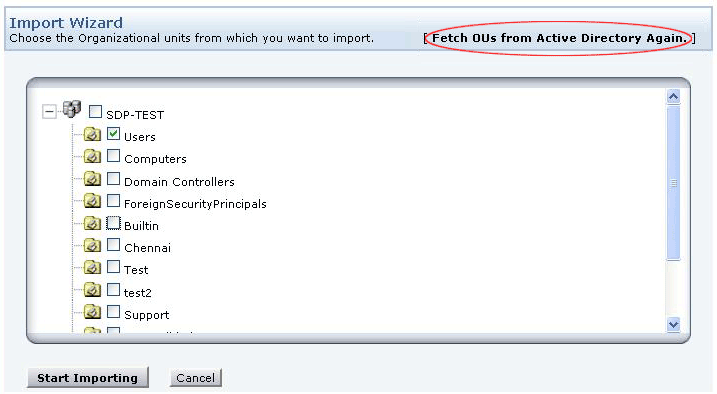
- Click Fetch OUs from Active Directory Again to start importing. [ Screenshot ]
 Screenshot
 Screenshot
 Screenshot
Business Rules
What is the purpose of organizing business rules ?
Organizing business rules will help us in decide the order in which the rules should be applied on the requests that are fetched by the application. Business rules have to be organized in such a way that the rules do not collide with each other (i.e) the criteria of the first rule should not coincide with the second one.
Here is a scenario which will help us understand the process better.
Scenario: The Category HARDWARE has 2 subcategories,
1) Server and 2) Workstation.
3 Business rules are configured as follows,
When a new request comes into ServiceDesk Plus- If the Category is Hardware Assign to Technician C and Group General
- If the Category is Hardware and subcategory is Workstation assign to technician B and Group Desktop support
- If the Category is Hardware and subcategory is Server assign to technician A and Group Servers.
a) 1,2,3
b) 3,2,1
c) 2,1,3
Answer ->b
Mail Server Settings
I do not want some mails to be fetched into SeviceDesk Plus such as, Out of office emails. Can this be enabled ?
You can configure rules in Spam filter (Admin -> Mail server settings -> Spam Filter) in such a way that mails matching certain criteria will be fetched from the mailbox and dropped before it is fetched inside ServiceDesk Plus.If for some reason the mail fetching stops, how do I get to know about the problem immediately ?
Enable the following notification which will alert you when mail fetching stops under Admin -> Notification Rules.
[ Screenshot ]What is E-mail Command? How do I configure it in ServiceDesk Plus?
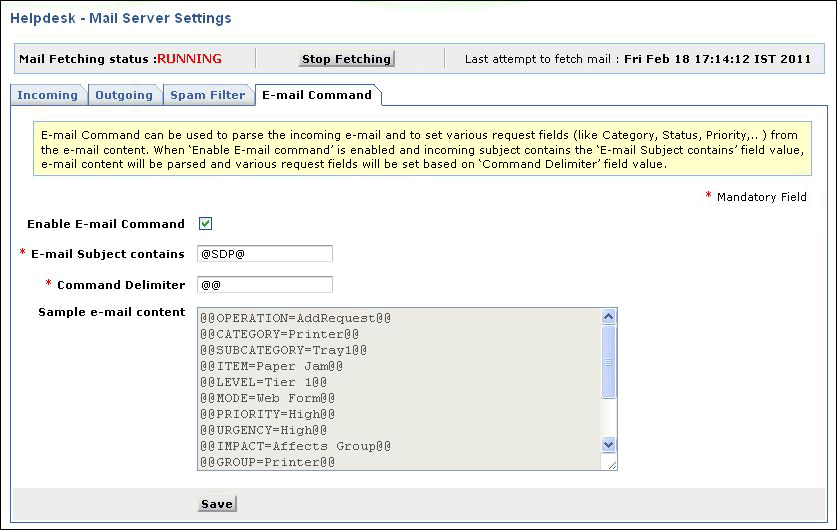
E-Mail Command is used to parse the incoming e-mail and set various request field values like Category, Status, Priority, Level etc, from the e-mail content.
When Enable E-Mail Command check box is enabled and incoming e-mail subject contains the E-mail Subject contains field value, the e-mail content will be parsed and the request fields will be set based on the Command Delimiter field value. [ Screenshot ]
Any special character (@@, ##, $$, %%, &&, so on) can be provided as the Command Delimiter. The field values assigned between these special characters is assigned to the corresponding fields in the request form.
Note: Enable E-mail Command check box should be selected to activate e-mail command feature. If this option is not selected, then the incoming e-mail will be handled as normal e-mail even if the incoming e-mail contains the parsing string in the subject.
The fields that can be parsed on the e-mail are, LEVEL, MODE, PRIORITY, URGENCY, IMPACT, IMPACTDETAILS, CATEGORY, SUBCATEGORY, ITEM, GROUP, TECHNICIAN, TECHNICIANEMAIL, REQUESTER, REQUESTEREMAIL, REQUESTID, REQUESTTEMPLATE, REQUESTTYPE, STATUS, SITE, ASSET, RESOLUTION and additional field label (the field label given in the e-mail must match the field label set in the product).What are the operations that can be performed with E-mail Command?
The operations that can be performed with E-mail Command are, creating requests, updating requests, closing requests and assigning requests to other technicians. The operating string for these operations are "Operation = AddRequest", "Operation = EditRequest", "Operation = CloseRequest" and "Operation = PickupRequest".How to stop automatic ticket creation in response to undelivered message notifications from No-reply email addresses that are primarily used to create tickets in ServiceDesk Plus.
You can do this in one of the following two ways:
Go to Admin>>Notification Rules>>Request and configure the Junk Filter notification to stop sending notifications to specific email addresses, such as no reply email addresses or any other automated systems you may use to create new requests in ServiceDesk Plus.
or
Go to Admin>>Mail Server Settings and configure the Spam Filter with criteria such as containing "undeliverable" or "MAILER-DAEMON." This will ensure that any undelivered email is not used to create a new ticket.
 Screenshot
 Screenshot
Notification Rules
How do I send self service login details to the user ?
Click Admin -> Notification Rules -> Enable the notification which says Send Self-service login details and save the settings.
ServiceDesk Plus will send self service login details to users henceforth. ServiceDesk Plus will not send in the details to users already created in the system.How do I avoid sending notification to some users or users belonging to a specific domain ? (i.e) I do not want a notification to be sent for Out of Office replies.
Click Admin -> Notification Rules -> Click Edit criteria next to the following notification.
[ Screenshot ]
Here you can configure rules which will help you avoid sending unwanted notifications from ServiceDesk Plus.Is it possible to browse solutions without logging into ServiceDesk Plus ?
You can use the link below to access the knowledge base without having to Login to ServiceDesk Plus.
http://servername:portnumber/sd/SolutionsHome.sd
Replace the URL with the corresponding server name and port number.What is the purpose of Pass-through authentication ?
On enabling Pass-through authentication, ServiceDesk Plus directly authenticates your windows system user name and password. Hence you need not login again to enter ServiceDesk plus, just provide the URL for ServiceDesk Plus and authentication is done automatically.
You can enable this under Admin -> Active directory.I have problems logging into ServiceDesk Plus on enabling Pass-through Authentication. How do I disable it through the database ?
If you have issues logging into ServiceDesk Plus after enabling Pass-through Authentication then you can disable it through the data base.
For MSSQL database : connect to the query analyzer of the SQL server and execute the queries.
For PGSQL database : connect to the database following the below steps and then execute the queries.Open command prompt on the application server,connect to the folder ManageEngine\ServiceDesk\pgsql\bin> and use the command psql.exe -U postgres -p 65432 -d servicedesk
- Update globalconfig set PARAMVALUE='false' where CATEGORY='SSO';
- Restart the Manage engine ServiceDesk Plus service.
.,Does ServiceDesk Plus support LDAP ? If so, how can it be configured ?
The latest version of ServiceDesk Plus (v 7.5 and above) supports LDAP.
Login to ServiceDesk Plus, click on the 'Admin' tab, select 'LDAP' under the 'Users' module to setup LDAP authentication.
Please find the details on how we have configured our Test machine to import users using LDAP.Domain Controller : ldap://helpdesk-test1:389 User Name : CN=Administrator,CN=Users,DC=helpdesk-test1,DC=com Password : Password Base DN : CN=Users,DC=helpdesk-test1,DC=com Search Filter : (objectClass=person) LDAP Server Type : Microsoft Active Directory
where 'helpdesk-test1' is the name of our Domain Controller .
In case if you are using Novell e-directory, you could select Novell e-directory from the drop down menu, save the settings and check whether you could import the users.Can I schedule a periodic import of users from Active Directory?
Yes ! You can schedule ServiceDesk Plus to periodically import users from Active directory under Admin -> Active directory.Ever since the upgrade to v 7.6, technicians do not receive notification when they pickup a request. Is this a change in design?
Yes, this is a design change from v 7.6 which we call as Intelligent Notification. Normally, when a technician picks up or assigns a request to him/her self, they do not need to be notified about the request assignment. The idea behind this functionality is to avoid unnecessary notifications thereby improving the performance.
By default self notification will not be sent i.e., Intelligent Notification is disabled. If required, this can be enabled from the database.
To enable self notification, execute the query in the database:
update globalconfig set paramvalue='false' where parameter='IntelligentNotification';
 Screenshot
Survey
Where do I enable Survey in ServiceDesk Plus?
Survey can be enabled under Admin -> Survey settings. You can configure the default values for welcome message, email content, survey success or failure message, and thank you message. You can also schedule the periodicity of conducting the survey.Is it possible to manually send survey for a request?
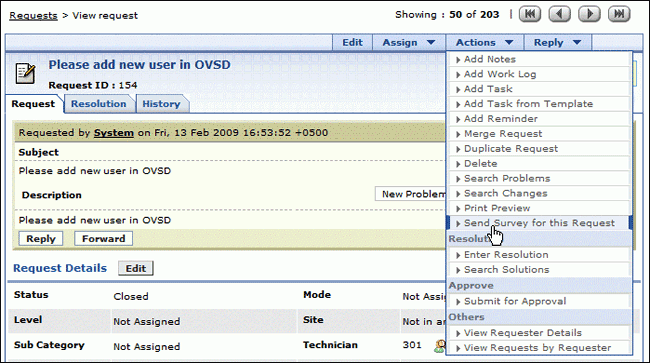
Yes it is possible. Once a request is closed click on the Actions button -> Send Survey for this request.
[ Screenshot ]How does multi-language survey work?
The multi-language feature is applicable only to users who have purchased the multi-language license.
First, you need to configure the survey in the various languages you require to send to the end users. This is achieved from Admin -> Define Survey -> Survey Translator -> New Translation. Select the language and define the survey with relevant questions. [ Screenshot ]
So the next time a survey is triggered to an end user, the user will have options to choose the preferred language from the Display Language drop down, after which he can answer the survey according to the language selected. [ Screenshot ]
 Screenshot
 Screenshot
 Screenshot
Helpdesk Customizer
I have deleted a category and it is grayed out now. How do I reactivate this category ?
Click on Edit button beside the grayed out category -> Uncheck the checkbox 'Category not for further usage' and save the configuration. This will reactivate the category.
The same procedure can be followed to reactivate a Subcategory or an Item.Where can I view all the Categories, Sub-categories and Items configured in ServiceDesk Plus in a single page ?
The Category Tree View helps you accomplish this goal ! You can view all Categories, Sub-Categories and Items configured in ServiceDesk Plus.
Go to Admin -> Helpdesk Customizer -> Category -> at the extreme right corner of this screen you have the Tree view icon -> click on this icon to display all the Category, Sub category and Item in ServiceDesk Plus.
[ Screenshot ]Similar to Service Templates, is it possible to organize the Incident Templates by category?
Yes, it is possible to organize the Incident Templates by category. Go to Admin -> Incident Templates. Edit a template and choose the appropriate Service Category from the Service Category field. This will sort the Incident Templates based on the Service Category and list them when you click on Incident Category drop-down menu.
 Screenshot
Data Archiving
What is Data Archiving? How do I configure it in ServiceDesk Plus?
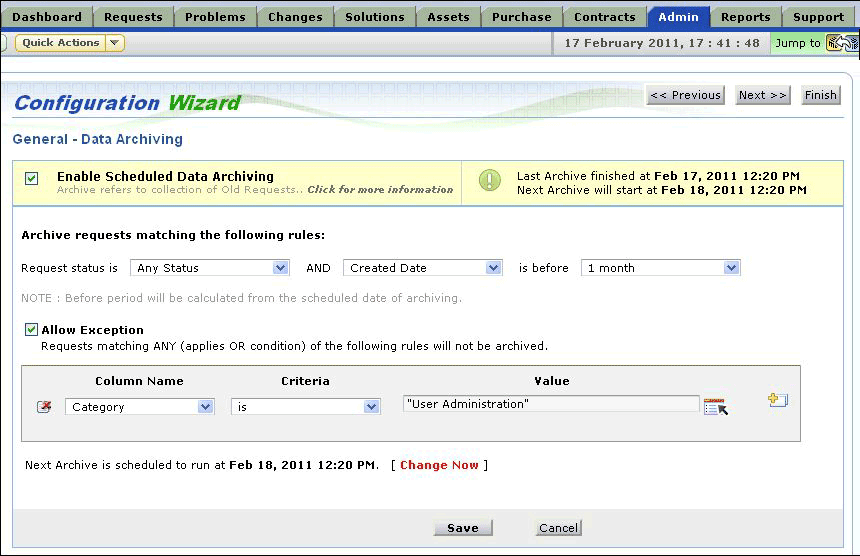
Data Archiving is a process of moving old unused requests from the active database into a separate storage state on a routine basis. It is most useful since the application accumulates large volume of closed/resolved requests that may be required for further reference, which, in the long run, hinders the performance of your system.
In ServiceDesk Plus, Data Archiving is found in the Admin tab under General block.- Select the check box Enable Schedule Data Archiving.
- Set the parameters of the requests that needs to be archived.
- The Status of the requests.
- Time of creation/closure of the requests.
- If there are any specific requests that need to be retained in the active requests list, select the check box Allow Exception. Set the rules by choosing the parameters (Column Name, Criteria and Value) from the available drop-down boxes. All requests that satisfy the rules will be held within the active list.
- Select the schedule data and time for the archive process. The archiving process will be executed everyday at the scheduled time.
- Save the settings. [
Screenshot ]
 Screenshot
Where and how are the archived data stored in the database?
When the data archiving process is executed, the archived data is moved into a separate list of tables in the database. These tables can be identified easily as they have a prefix "arc_" to their table name. For example: arc_workorder, arc_taskdetails, arc_workorderhistory and so on.The description, conversations and notifications of the archived requests are stored separately as html files under the folder ManageEngine\ME\ServiceDesk\archive folder. The file attachments for the archived requests remain in the same folder as that of active requests, ManageEngine\ME\ServiceDesk\fileattachments
Where can I view the list of archived requests?
Once the requests are archived, you can view the archived requests from the Request tab. Click Archived Requests link to view the list of archived requests. [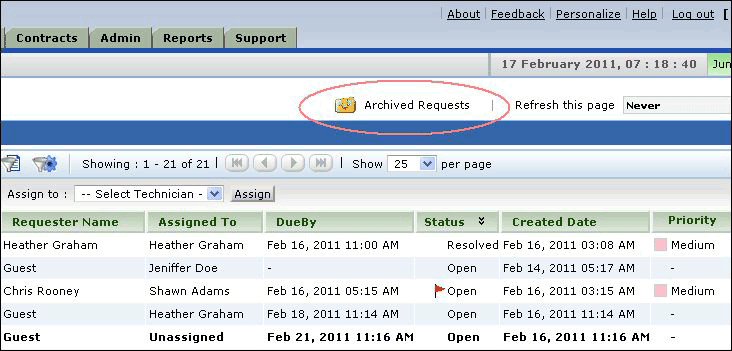 Screenshot ]
 You can also view the archived requests by clicking on Quick Actions at the top left side and selecting Archived Requests from the drop down menu. [
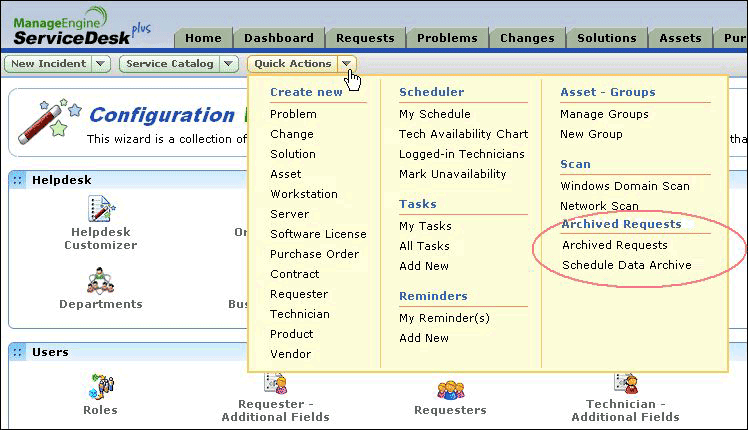 Screenshot ]
How do I conduct a search for the Archive Requests? Also, is it possible to generate reports on the archived requests?
You can conduct a search for the archived requests by using the Search option in the Request module. Select Archived Requests and enter the keyword to search for a particular request. [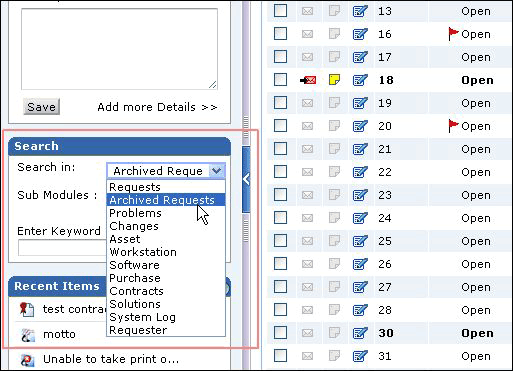 Screenshot ]
 You can create custom reports on the archived requests. To do so, click Reports tab ->New Custom Reports, select the module as Archived Requests. You can also generate reports by executing a query on the query editor under Reports -> New Query Report. [
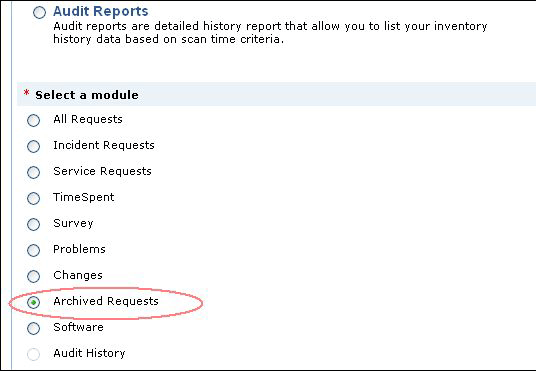 Screenshot ]
 Self- Service Portal
How do I remove the Portal Usage video in the Requester Login (Self-Service Portal)?
Please connect to the database and execute the query,
update globalconfig set paramvalue='false' where parameter='show_video_to_user';
Refer to the link given below to connect to the Database:
https://www.manageengine.com/products/service-desk/faq-general-modules.html#database2
On executing the query, restart ManageEngine ServiceDesk Plus service.I want to change the Portal Usage video in the Self-Service Portal. How do I go about doing it?
To change the URL for the Portal Usage video, please login as a user in the ServiceDesk Plus application. Right-click on the video link and select Copy Link location. Open a Note Pad and Paste the URL content. The original URL is:
https://www.manageengine.com/products/service-desk/itsm-videos/
Next, login as a Technician in ServiceDesk Plus. Go to Admin -> Translation and search for the above URL. When you get the URL, change it to the your required name. For example: http://www.xyz.com . Save it and restart ManageEngine ServiceDesk Plus Service.How do I edit the HTML content in the Self-Service Portal?
You can change the content on the HTML section by editing the file SelfServiceHelp.html under [ServiceDesk Home\Custom] folder.How do I remove the HTML section in the Self-Service Portal?
To remove the HTML section of the Self-Service Portal, rename the file under [ServiceDesk Home\Custom] SelfServiceHelp.html to SelfServiceHelp_old.html.I'm unable to view the Incident Template menu and the Service Request Template menu after upgrading to version 8.1.
After upgrading to version 8.1, by default, the Incident Catalog and Service Catalog will be merged as Request Catalog.
In order to split this into Incident Catalog and Service Catalog, go to Admin-> Self-Service Portal Settings and set the "Combine incident and service templates listing for the service" option to 'No', and save the settings.How do I hide the the Default Request Template from the Requesters?
To disable the default request template, go to the Admin-> Self-Service Portal Settings and set the "Disable default request template for requesters" to 'Yes', and save the settings.What is Dynamic user addition?
Assume there is a new employee joining your organization, you have created an account for him in the Active directory. But you have not imported him from AD into ServiceDesk Plus, so he is not in the system yet.
All you have to do is to provide this user with the URL for ServiceDesk Plus login screen. The moment the user enters his domain username, password, selects the domain he belongs to and clicks login he will be automatically added into ServiceDesk Plus as a requester. This is called Dynamic user addition.
By using the Dynamic user addition feature new users are automatically added into ServiceDesk Plus without performing an AD import. You can enabled or disabled this feature under Admin -> Self-Service Portal Settings.
Check the other FAQ modules or you can contact our support team at servicedeskplus-support@manageengine.com