Frequently Asked Questions (FAQ)
General
Application Control secures endpoints by governing which applications can run and their permissions. It starts by discovering and categorizing all installed applications using agent-based scanning. Administrators then create allowlists or blocklists based on defined criteria like vendor or file hash, which are then deployed to specific computer groups under either Audit or Strict Modes. A kernel mode driver enforces the policies. It filters newly created processes to allow authorized applications and block others.
Application Control application groups can target Windows or macOS. Create the group for the matching platform and complete the Mac prerequisites before enforcement on Mac endpoints. Privilege Management and JIT options have their own platform and scope conditions; do not assume that every security feature has the same platform coverage.
To implement Application Control, create computer groups based on specific enterprise requirements and group applications by department or functionality to simplify management. Review application usage in Audit Mode to make informed access-control decisions. Once allowlists are defined, enforcing a Strict Mode zero-trust model minimizes the attack surface by only allowing pre-approved applications. Also, let users request access to unmanaged, business-critical applications to maintain productivity and security.
To block an application, create an Application Blocklist by going to Application Control → Application Groups and selecting Create Blocklist. In this module, add applications to the blocklist using filters based on criteria such as vendor, product name, file hash, or folder path. After deployment, applications on this blocklist cannot run on target machines.
About Application Groups
A list of applications that are the only ones allowed to run is an application allowlist . Application Control enables allowlist creation using policies such as vendor, product name, file hash and executables with valid digital signatures. Applications are automatically added to the lists when discovered if they match the configured policies. This simplifies list management.
Creating a list of applications and blocking only those from running is called application blocklisting . Application Control enables blocklist creation using policies such as vendor, product name, file hash and executables with valid digital signatures. Applications are automatically added to the lists when discovered if they match the configured policies. This simplifies list management.
Applications grouped into an allowlist or a blocklist form an application group. Groups are built automatically based on the rules you configure for each group.
No. It displays the discovered applications. Group creation still requires a selection of applications or matching rules. Review the selected entries before saving; a broad Vendor rule can cover more applications than intended.
You can maintain a group for that business purpose by selecting the relevant applications or identity rules. The group rules match entries such as Vendor, Product, Executable, File Hash, Folder Path or Store Apps; they do not infer that every application belongs to an administrator’s business category. Review and maintain the products you intend to include as that set changes.
Use Vendor Rule for broader control. Add selected vendors to the allowlist/blocklist, reducing access issues and simplifying management. The list includes all applications owned by the selected vendor(s). This supports broad, parameter-based lists and improves administrative control.
If you want to allowlist/blocklist only certain products or applications, use the Product rule instead of the Vendor rule. Product Rule is more specific — it allows only the selected product from that vendor. For example: selecting 'Google' via Vendor Rule includes multiple Google products whereas selecting 'Google Chrome' via Product Rule includes only Chrome.
These rules match application identity, not your entitlement to use the software. A matching product name or publisher is not proof of a valid software licence. A modified executable can have a different hash, but that does not make File Hash a licence-compliance check. Verify software entitlement through your licensing records and the appropriate inventory/licence-management workflow.
No. Adding a Product rule does not remove the Vendor rule. If your intent is to match only one product, review and remove the broader Vendor rule rather than expecting the Product selection to restrict it. Check other applicable policies and rule precedence before confirming the effective result.
Applications are made of multiple executable files, with vendors assigning a digital certificate to each executable to vouch for its authenticity. Application Control Plus displays verified executable files. Select the EXE files to be allowlisted/blocklisted. This policy helps secure the network by blocking files whose digital certificates have been tampered with. Even EXEs added to applications in the form of updates will not be allowed to run if they aren't allowlisted.
This is the most secure policy because it uses the executable file's hash value. All EXEs of the running processes, including those that don't have a valid digital certificate, will be displayed. Choose the files to allowlist/blocklist; even a small change, such as a file version revision, changes the hash value. The file is then removed from the list. Use this policy to run only specific executable revisions.
Use a File Hash rule for the exact executable rather than relying on a broad Product or Vendor rule. If the executable content changes after an update, review and add its new hash. A product version label alone is not the matching criterion. See File Hash rules.
To add an application that has not run yet to an allowlist/blocklist, manually add its files.
Application Control provides comprehensive application allowlisting and blocklisting. With built-in Endpoint Privilege Management capabilities, it helps protect organizations from most application-related threats. Endpoint Central's Block Executable feature on the contrary is rudimentary and is aimed to help organizations with maintaining their levels of productivity.
Application Control instantly discovers and displays all running applications and categorizes them based on their vendor, product name, folder path and digital certificates. Applications running specific to a group of users can also be filtered and viewed. Select the required applications from the displayed list and add them to allowlists/blocklists as needed. The Block Executable feature has no options to filter and categorize applications; the IT administrator must manually enter the application and executable names to block.
Use predefined Application Control rules to create broad or specific Allowlists and Blocklists. Rules based on Vendor, Product Name and Folder Path can be used when organizations start implementing application control, as they are flexible with the changes that occur during patching. The Verified Executable and File Hash rule can be chosen by experienced networks that prefer complete security. The Block Executable feature, however, allows blocklisting based only on two rules, Path and Hash. With no added capabilities to manage patching changes, IT administrators will have to manually update these lists after every patching cycle.
After selecting the rule of your choice, navigate to the Filters tab on the right. Check whether the Vendor/Product/EXE is verified using the Publisher Credibility filter.
Allowlisting with the Product rule will take precedence over the blocklist. Refer here for the order of application conflict precedence. In this case, the specific product will be allowlisted while the other products of the blocklisted vendor will be blocked.
Adding a single rule that is satisfied by the application is sufficient.
Yes, by allowlisting a Vendor you will allowlist all Products from them.
The launched executable can be evaluated separately. Review its Access Event and the policies applying to the device, then inspect Child Process Control. Missing vendor information is not enough to identify the cause.
Use this rule to allowlist/blocklist all files in a specific folder or folder path.
To restrict Windows components like PowerShell or Command Prompt, you can create a blocklist using either the Folder Path rule or the File Hash rule. This allows you to block execution by specifying the application's installation path or its file hash.
Check these default PowerShell installation locations when configuring a rule:
- Windows PowerShell (64-bit):
C:\Windows\System32\WindowsPowerShell\ - Windows PowerShell (32-bit):
C:\Windows\SysWOW64\WindowsPowerShell\ - PowerShell 7 (64-bit):
C:\Program Files\PowerShell\7\ - PowerShell 7 (32-bit):
C:\Program Files (x86)\PowerShell\7\
Check the actual installation path and applicable subfolders on the endpoint. After changing an existing blocklist application group, redeploy its policy to the required custom group for the new entries to take effect.
The Store app variant can also appear under C:\Users\<USERNAME>\AppData\Local\Microsoft\WindowsApps\. This is a shared location: identify the PowerShell executable rather than adding the entire WindowsApps folder to a Folder Path blocklist.
Note: Since Application Control does not natively recognize Windows components such as PowerShell and Command Prompt, these applications will not be visible in the console.
No. Application groups created for macOS apply only to macOS endpoints. Only macOS application groups are deployed to those endpoints.
To restrict Terminal on macOS, you can create a blocklist using either the Folder Path rule or the File Hash rule. This allows you to block execution by specifying the application's installation path or its file hash.
Note: Since Application Control does not natively recognize macOS components such as Terminal, these applications will not be visible in the console. You can get the HASH value of the Terminal application by running the following command in the Terminal: shasum -a 256 /path/to/your/file
Applications with dynamic or frequently changing file paths cannot be reliably allowlisted using path-based rules. Instead, use the following rule types:
- Vendor-based rules: Allowlist applications signed by a specific software vendor.
- Product name rules: Allowlist based on the application's product name.
- Verified executables: Allowlist using digital signature verification.
Note: Folder path rules are not effective for dynamic paths. If the application is not listed under Unmanaged Applications, manually define it using a custom rule.
When a changing executable cannot be identified by the recommended stable rules, review Request Access for unmanaged applications or time-bound Application Allowlisting JIT. These are separate approval workflows, not automatic trust for every generated executable. Select the narrowest appropriate scope and verify the effective result.
Policy Deployment
Regular policies are associated with computer custom groups. This association selects computers, not an individual logged-in user account. Application Allowlisting JIT also grants temporary execution access to the selected computer rather than one named user. User selection in Application Elevation JIT is a separate Windows workflow; it does not provide Mac elevation.
Group computers whose users need similar applications into Custom Groups. Base groups on roles, departments, or other required criteria.
The two flexibility modes available are audit mode and strict mode. Start by deploying policies in audit mode. Unmanaged applications can run alongside allowlisted applications in this mode. Once the admin has a clear picture of the applications their users actually require, they can move all of them to an allowlist and shift to the strict mode. In strict mode, unmanaged applications cannot run.
Note: By default blocklisted applications will not run in any of the modes.
To deploy an Application Control policy, administrators first create an Allowlist or Blocklist within the Application Groups section. Then navigate to Deploy Policy , where they can associate and deploy the prepared application group to the target machines. During deployment, choose Audit Mode or Strict Mode for enforcement. If required, enable user requests for unmanaged applications. Deploy immediately or schedule deployment for a future refresh cycle.
Review all policies associated with the computer. To revoke a deployed policy from that computer, remove it from the relevant custom group as described under Revoking Application Policy. Check for other group policies that still apply and verify the result after the agent receives the change. Removing one association does not override a block from another policy.
If the same application is present in different allowlist and blocklist policies deployed to the same target group, here is the order of precedence that will be followed:
Blocklisting using Filehash Rule > Allowlisting using Filehash Rule > Blocklisting using Verified EXE Rule > Allowlisting using Verified EXE Rule > Blocklisting using Product Name Rule > Allowlisting using Product Name Rule > Blocklisting using Vendor Rule > Allowlisting using Vendor Rule > Blocklisting using Folder Path Rule > Allowlisting using Folder Path Rule.
Distinguish Windows components from Store-packaged applications. Some system Store applications are allowed by default, but a matching explicit StoreApps block decision can override that default handling. Use the StoreApps rule for the packaged application you intend to control. Check the actual package and effective policy; do not infer that every application included with Windows is either always blocked or always exempt.
If an endpoint belongs to multiple custom groups with different policies, those policies are merged into a single consolidated policy. In case of conflicts, blocklisted applications take precedence over allowlisted ones. The precedence order is as follows:
Blocklisting using Filehash Rule > Allowlisting using Filehash Rule > Blocklisting using Verified EXE Rule > Allowlisting using Verified EXE Rule > Blocklisting using Product Name Rule > Allowlisting using Product Name Rule > Blocklisting using Vendor Rule > Allowlisting using Vendor Rule > Blocklisting using Folder Path Rule > Allowlisting using Folder Path Rule.
If one policy is deployed in Audit Mode and another in Strict Mode, the machine will be deployed in Strict Mode .
Only one custom notification is applied at a time. The notification from the most recently deployed policy overrides earlier custom notifications. The same notification appears for all blocked applications.
Note: If more than one policy is deployed to a single machine, it will be merged as one.
Unmanaged Applications
Unmanaged applications are those that exist in a network without being a part of any of the allowlists or blocklists created. This essentially means that these applications are unmonitored, as they have no policies associated to them. Their execution depends on the selected flexibility mode. They can run in audit mode but are blocked in strict mode. Minimize the number of unmanaged applications to improve security. Learn more .
The report can reflect older discovery information or observations from other computers. Check the affected agent’s communication and current discovery data, and whether the same product remains installed elsewhere.
Review Unmanaged Applications for freshness checks. If the record remains stale, provide the server and agent builds, affected computer and latest scan/contact details to support. Do not assume a universal 90-day interval after uninstall.
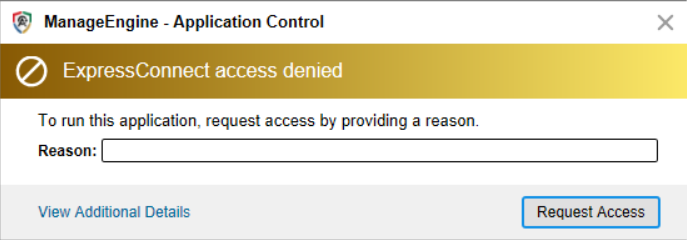
While deploying a policy in strict mode, it can be configured to permit user requests by enabling the option 'Allow users to request applications which are unmanaged'.
Just-in-Time Access
No. Just-in-Time Access policies can target only one machine. Custom group scoping is not currently supported.
No. You cannot currently select a specific user on a machine for JIT Access Allowlisting. You can choose a specific user only in JIT Access elevation policies. The JIT Access allowlist policy will be applied to all the users in that machine.
Audit and Reports
Use the policy audit/Action Log to review creation, modification and deletion actions and the administrator responsible. This log is not a field-by-field before-and-after snapshot of the policy settings. Application Access Events answer a different question: what application access was reported on the endpoint. Do not use an audit action alone to reconstruct a previous allowlist, blocklist or enforcement mode.
Open Application Control, go to Systems, select the affected computer and review Events > Access Events. Compare the event with all policies and application groups applying to that device. Check both explicit blocklist rules and unmanaged applications blocked by Strict Mode. The wording of a Windows block dialog alone does not identify the enforcing product. If no matching evidence is available, investigate other applicable controls with the responsible administrator rather than assuming a cause.
Yes, you can view the applications associated with the policy for a specific custom group. Go to Policy Deployment tab and click on the particular custom group. Select Allowed Apps to view the allowlisted applications and Blocked Apps to view the blocked applications. You can also view the unmanaged applications by clicking on Unmanaged Apps. You can also export the list of applications in each category to a PDF, CSV, or Excel file for further analysis.
Use the policy group’s Allowed Apps, Blocked Apps and Unmanaged Apps views to inspect that group’s selection. Discovered Products provides discovery and policy-association information. These views answer different questions; do not treat a discovered-product row as a complete explanation of every matching rule on every computer. If you need a consolidated mapping, describe the required fields to support so the available reporting data can be checked.
No. Application Control does not track or report application usage frequency. It only discovers installed applications and logs allow/block enforcement events.
What Application Control Does Track
- Discovery: Which applications are installed across your endpoints.
- Enforcement: When an application is blocked (blocklist) or allowed (allowlist) and who attempted to access it.
- Audit Events: Blocked application access attempts, Just-In-Time Access events, successful launches, and administrator actions.