How to Elevate Administrative Tools for Standard Users
Key Points
Elevation Using CLS-ID Rule
Creating a Custom Rule for COM Elevation
Temporary Elevation via Just-In-Time (JIT) Access
Overview
Elevating certain Control Panel items allows standard users to perform specific administrative tasks (e.g., change network settings, add printers) without granting them full administrative privileges—improving security while preserving productivity.
Standard user accounts by default lack permission to open or modify many Control Panel applets. Granting selective elevation ensures users can access needed tools without becoming full administrators—a principle of least privilege. This document explains how to elevate administrative tools for standard users via the EPM policy. To learn how to elevate administrative tools for standard users using ManageEngine Application Control Plus, refer to the video guide.
Safely elevate essential COM objects with Application Control Plus!
Elevate NowElevation Using CLS-ID Rule
In Application Control Plus' Privilege Management, you can target Control Panel items by their COM Class ID (CLSID) rather than executable paths. The CLSID rule type allows you to define elevation for a registered COM object or system component directly, offering more precision and stability. Follow the steps below to configure the policy and elevate COM objects:
- Navigate in Application Control Plus console -> Privilege Management. Click on Create Policy/Modify.
- Enable the toggle for 'Configure specific application to run with elevated privileges'. The option 'Allow users to elevate all applications' can also be enabled for end-users to self-elevate applications by providing a justification. Refer here to learn more about configuring the Privileged Application List.
- Choose to add specific applications for elevation. Under selecting specific applications, select the rule type CLSID.
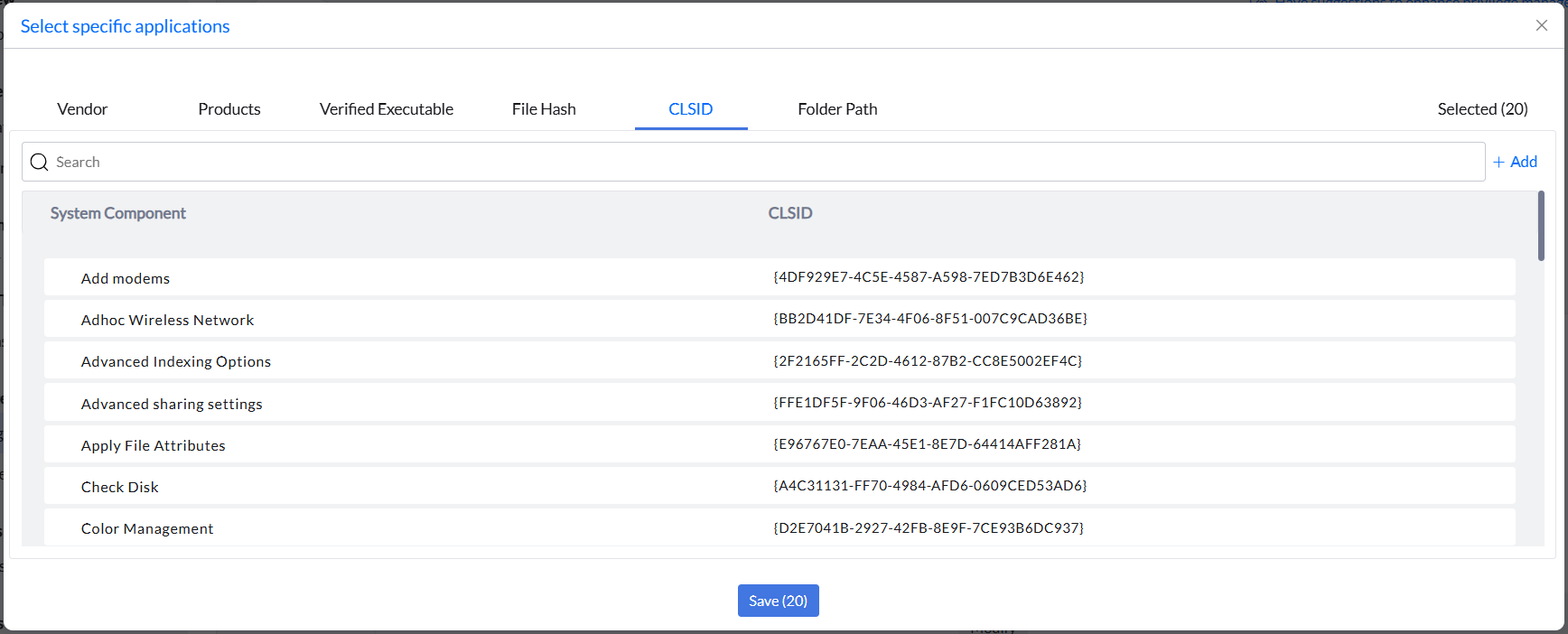
- Select the Control Panel item you want to elevate (for example, a registered COM class for “Network Connections” or “Add/Remove Programs”). You can also search for the Control Panel item using its CLSID or the system component name.
- Save the list and deploy it to the target devices that should receive this elevated access.
Creating a Custom Rule for COM Elevation
If the Control Panel item you wish to elevate is not present in the pre-populated list in Endpoint Central, you will need to create a custom rule manually. Follow the steps below to create a custom rule with CLS-ID:
- Create the Privileged Application List as mentioned in the steps above.
- In the Select Specific Applications section, click Add under the rule type CLSID.
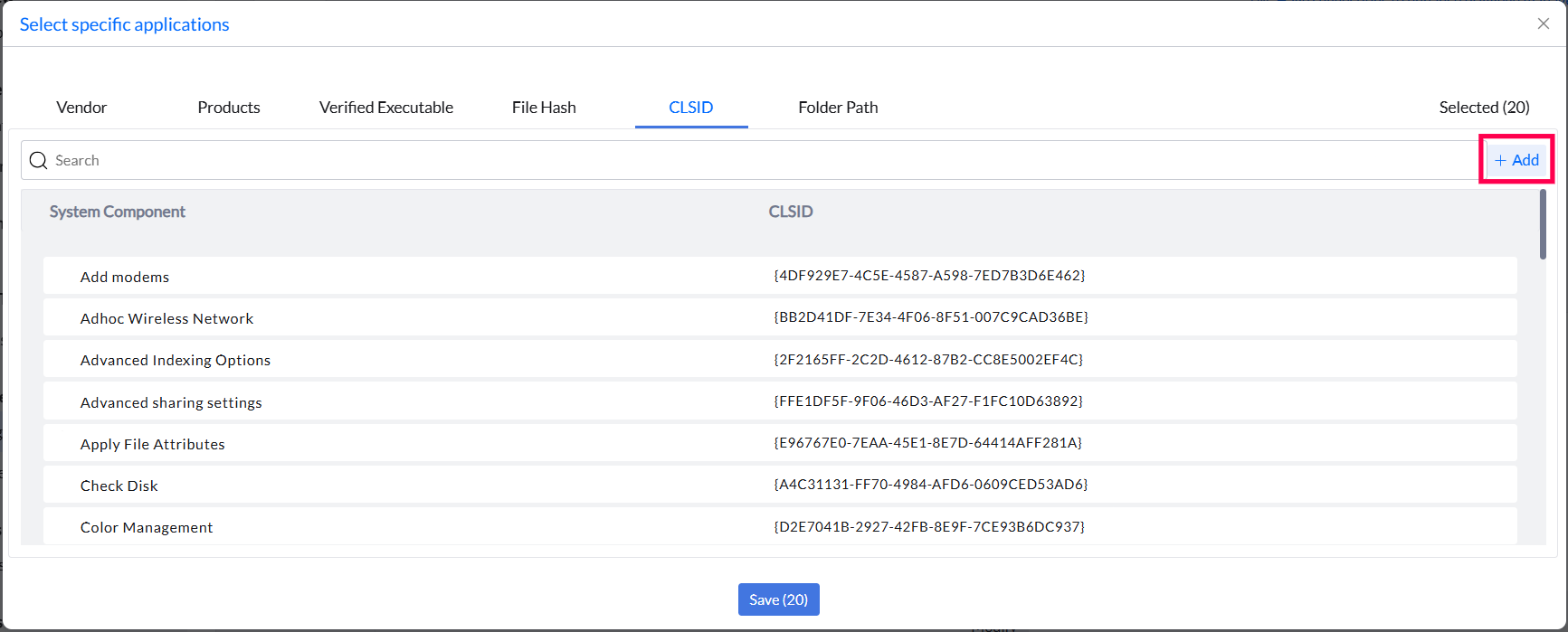
- Enter the System Component name and its CLSID.
Note: You may obtain this by inspecting the registry under HKEY_CLASSES_ROOT\CLSID, by viewing the properties of the COM object, or through the UAC prompt while trying to elevate a COM object.
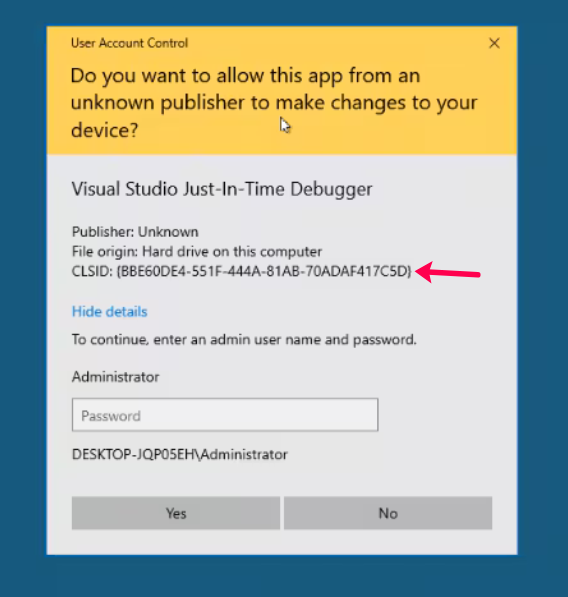
- Click Add and the component will be added. Save the list and deploy it to the target devices that should receive this elevated access.
Temporary Elevation via Just-In-Time (JIT) Access
JIT Access ensures that if a standard user needs elevated rights only for a short period (for example, to run a special tool or make a change), you don’t permanently grant broad privileges. Instead, you give access only when needed, for only that time, thereby maintaining the principle of least privilege. Follow the steps below to elevate a COM object using JIT Access:
- In the Application Control Plus console, navigate to Policies -> Just-In-Time Access.
- Click Create to delegate a new JIT access policy and select Application Elevation. Provide the Name and Description for the policy.
- Provide the details specified. Refer here on configuring the policy.
- Click on Specific Applications under Access Type and go to CLSID rule for selecting COM objects.
- Select the system components that require temporary elevation or leverage the Custom Rule for adding a component not present in the list.
- Deploy the policy immediately to the selected users/endpoints.
Points to Note:
- Only elevate those Control Panel items that are absolutely necessary for standard user workflows.
- Test the policy on a small group of machines/users before full roll-out to ensure the desired item is elevated and no unintended side-effects occur.
- Periodically review elevated items and remove any that are no longer required (reducing attack surface).
Start your 30-day free trial and manage unlimited endpoints — secure and protected!