
Installing a playbook from library
Last updated on:
In this page
- Overview
- Installing and managing playbooks
- Prerequisite checks
- Post-import behavior
- Managing playbooks installed from the library
- Version selection for sub-playbooks
- Importing the same playbook multiple times
- Managing updates
- Key notes
- Best practices
Overview
This page explains how to install and manage playbooks after selecting them from the Playbook Library. It covers the full import process, including prerequisite validation, installation steps for built-in and extension-based playbooks, post-import behavior, editing workflows, version selection, deleting imported playbooks, and best practices for organizing and maintaining automation logic in your environment.
Installing and managing playbooks
Installing a playbook brings it from the library into your workspace. A playbook can only be imported when all required extensions, functions, and sub-playbooks are validated.
Steps to install a playbook
- Open the Playbook Library.
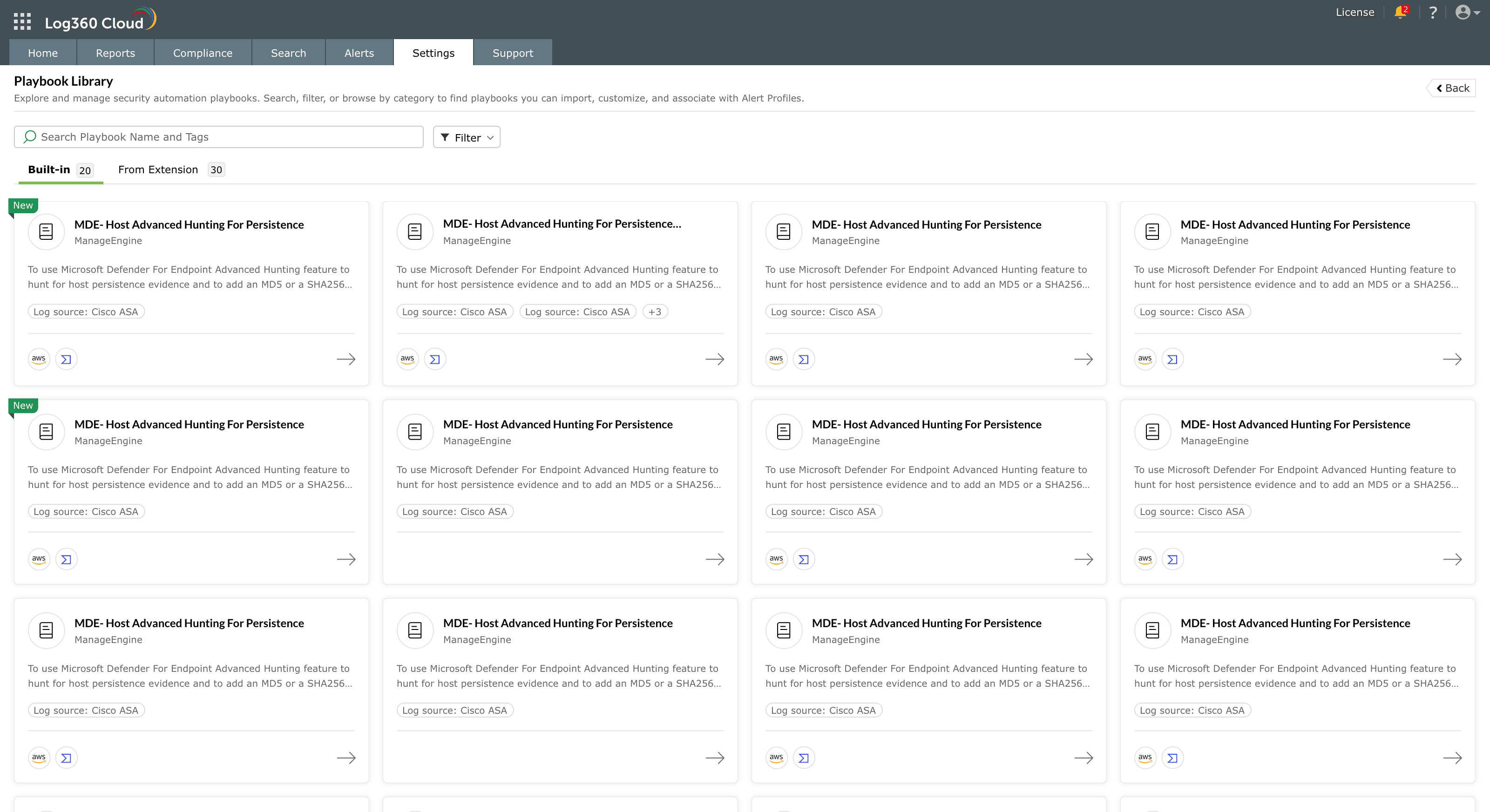
Image : Playbook Library in ManageEngine Log360 Cloud - Choose the type of playbook you want to install:
- Built-in playbooks - Navigate to the Built-in tab.
- Extension playbooks - Navigate to the Extensions tab.
- Use search or filters to locate the required playbook.
- Click the playbook to open its details panel.
- Review the Description, Applies to, Tags, and Preview sections.
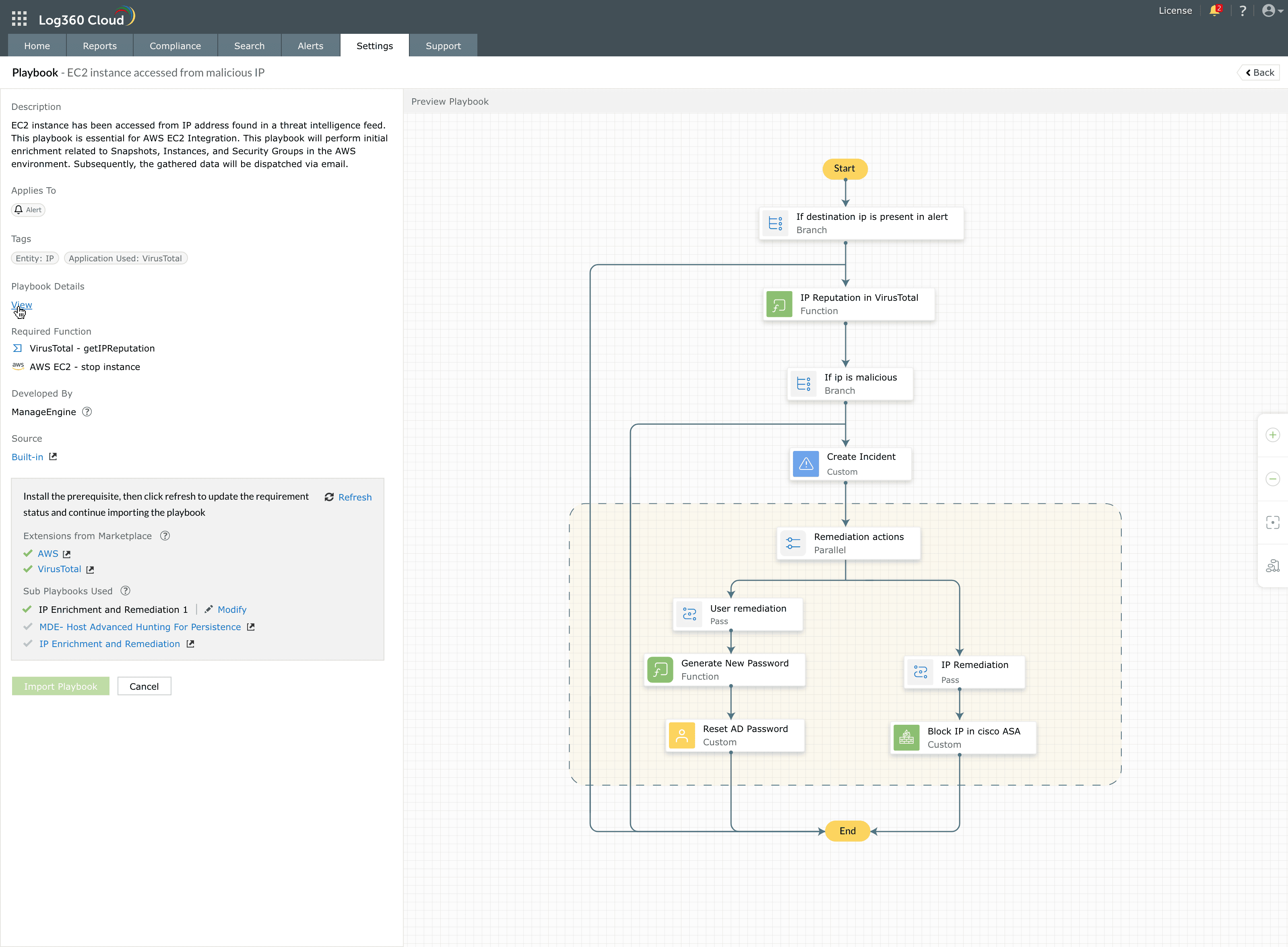
Image : Playbook information in Log360 Cloud Playbook Library - Navigate to the Prerequisites section.
- Verify that all required extensions, functions, and sub-playbooks are available.
- If the playbook requires an extension:
- Ensure the extension is installed from the Marketplace.
- If required, update the extension to the supported version.
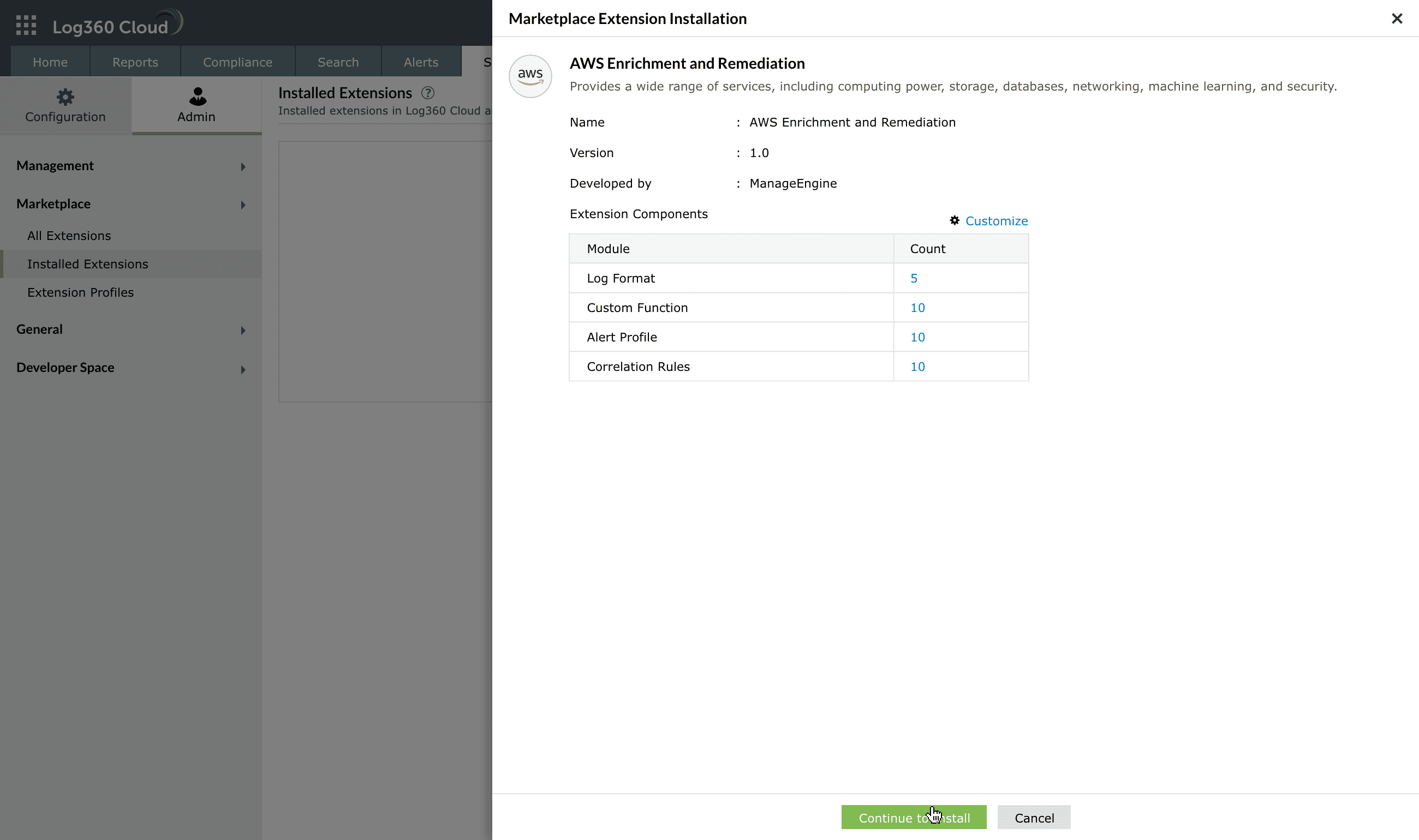
Image : Marketplace Extensions in ManageEngine Log360 Cloud - Review additional prerequisites such as API keys or permissions in the Playbook Details view, if applicable.
- Once all requirements are satisfied, click Import playbook.
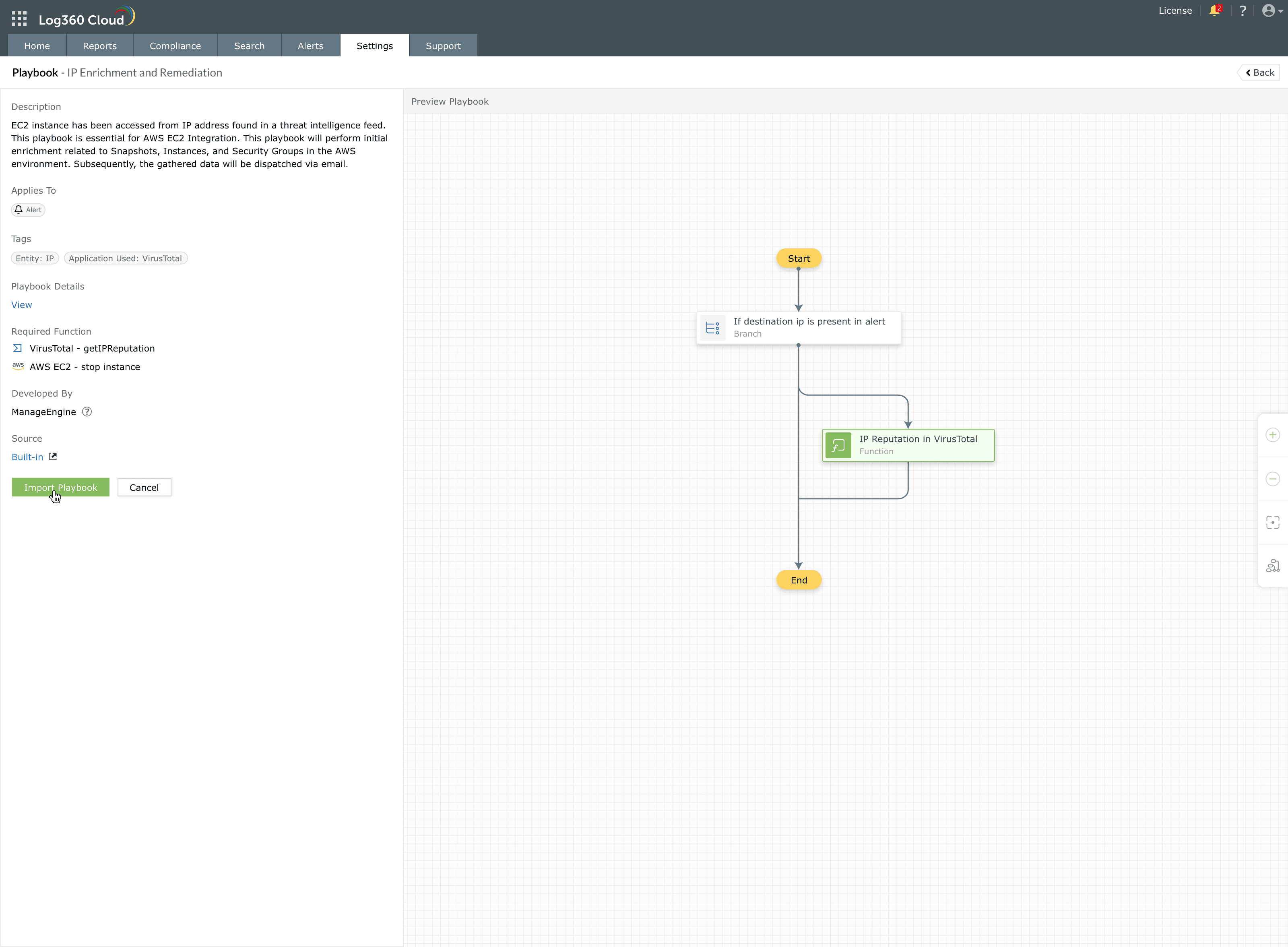
Image : Importing playbook from Playbook Library in Log360 Cloud - Provide a unique name if a playbook with the same name already exists, or modify the name as required.
- Review the playbook flow and blocks, modify them based on your use case, and provide inputs if required.
- Click Create to import the playbook.
The imported playbook will appear under the Manage Playbooks tab in the user workspace.
Prerequisite checks
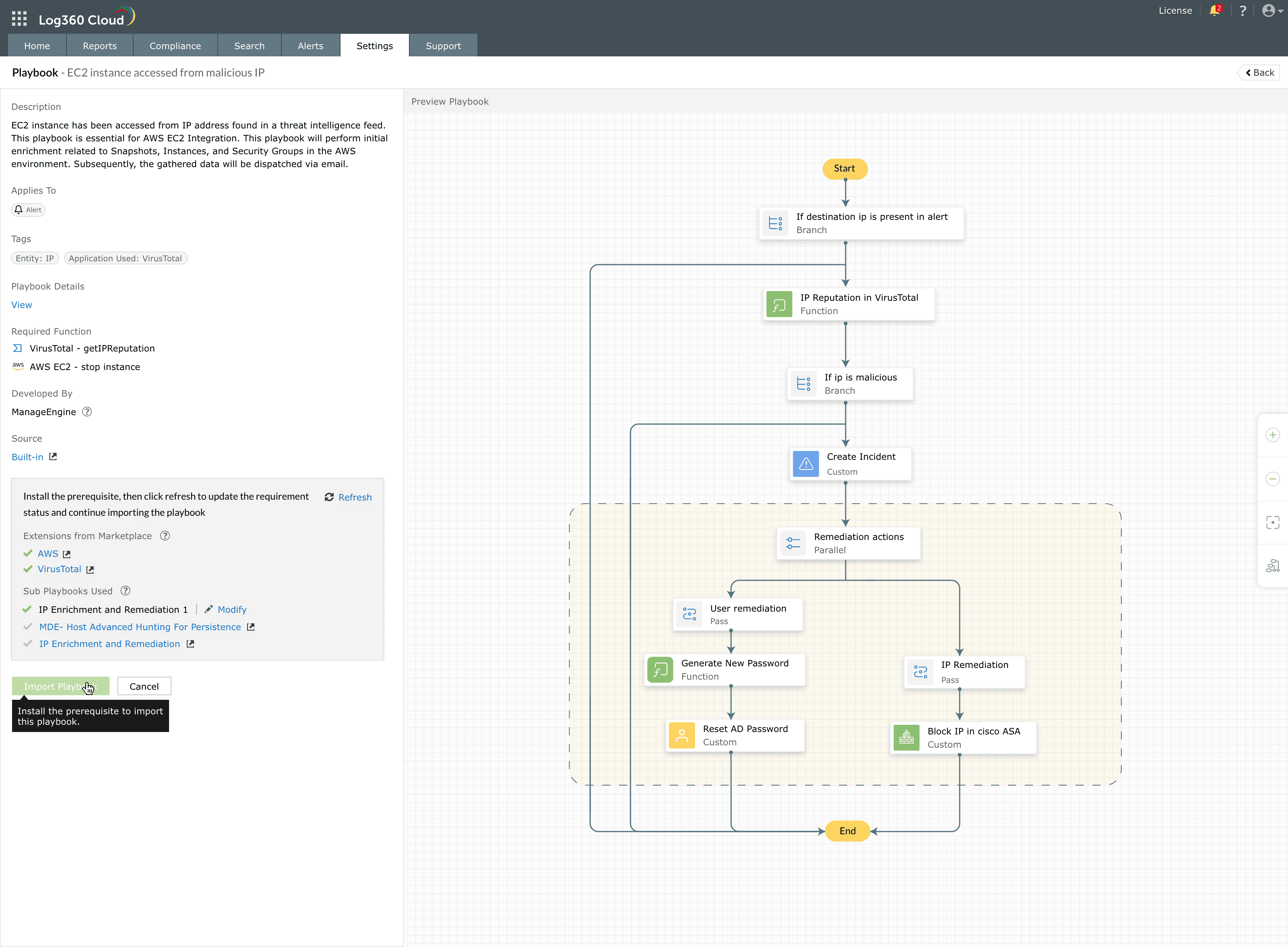
Before import, the requirement section validates the following:
Functions used by the playbook
Within each playbook, individual steps may call functions supplied either by the core product or by extensions (for example, a function that queries a reputation service, or one that performs an EC2 instance action). The requirement section summarizes which of these functions are required, and validates that they are available in your installation.
This makes it clear that the playbook is not just a conceptual workflow, but depends on specific function definitions being available in the environment. The required functions are listed under the prerequisites section and are automatically installed if they are not already present.
Extensions:
- Confirms whether all required extensions are installed.
- Checks if the installed version contains the functions used by the playbook.
- Prompts to install or update an extension if the requirement is not met.
Sub-playbooks:
- Identifies if the playbook depends on reusable sub-playbooks.
- Automatically selects the correct version if only one is available.
- Allows version selection if multiple are available.
- Displays a requirement if no compatible sub-playbook exists.
The Import playbook button remains disabled until all prerequisites are complete. The required functions are automatically created during playbook import.
Post-import behavior
Playbooks appear under the Imported category in filters only after they are created.
- Each imported playbook is independent of the original library version.
- A single playbook can be imported multiple times, allowing different variations.
- Imported playbooks do not update automatically even if new versions appear in the library.
Managing playbooks installed from the library
Editing a playbook
- Imported playbooks are fully editable and can be customized to meet specific response requirements.
- All entities of these playbooks can be edited, except the Applies to field configuration.
Editing workflow of the playbook
- Open the imported playbook in the Playbook Builder.
- Rearrange or replace steps as required.
- Integrate custom functions if needed.
- Modify branching logic to match the organization's environment.
Edits apply only to the imported instance and do not affect other versions.
Deleting a playbook
If an imported playbook is no longer needed, it can be deleted from the workspace.
Steps
- Navigate to the workspace that lists imported playbooks.
- Select the playbook you want to remove.
- Click Delete and confirm the action.
Deleting an imported playbook does not remove the original version from the library.
Version selection for sub-playbooks
If a playbook uses sub-playbooks and more than one version exists, the system displays a version selection option during the import.
- You can choose which sub-playbook version should be associated.
- After import, the playbook continues to use that version unless manually changed later.
- If no compatible version exists, the requirement section displays a missing dependency.
Importing the same playbook multiple times
The library allows multiple imports of the same playbook.
- Each import becomes a separate instance.
- Each instance can have different configurations, workflows, or naming.
- This supports modular usage across different teams, severities, or environments.
Managing updates
Built-in playbooks
- New versions arrive via CDN updates.
- Imported copies remain unchanged even if newer versions exist.
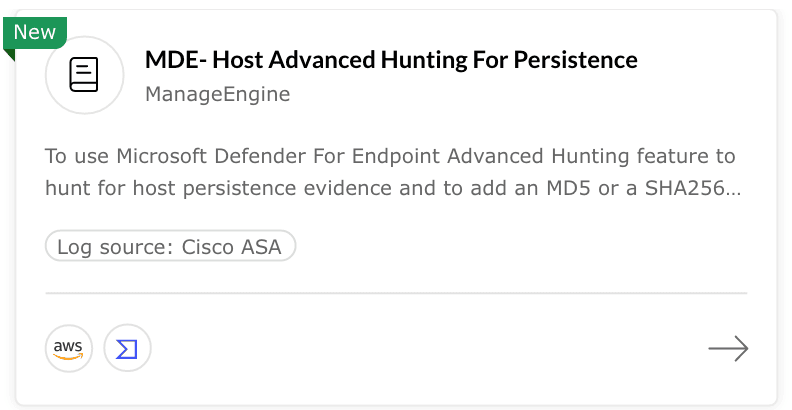
- Newly added items appear under the New label.
Extension-based playbooks
- When an extension is updated, new or updated playbooks may appear.
- If the installed extension version is incompatible with a playbook requirement, the system prompts for an update.
- After updating the extension, newly available playbooks appear under the Extensions tab, and the extension name is listed under the Installed Extensions filter.
Key notes
- Imported playbooks are self-contained and not linked back to the library.
- All playbooks are developed by ManageEngine and follow standard security controls.
- Templates should be customized to meet environment-specific needs.
- Prerequisites must be resolved before import is permitted.
Best practices
- Review all details and prerequisites before importing.
- Test playbooks in a staging environment before deployment.
- Document any edits made to imported playbooks.
- Periodically review imported playbooks for continued relevance.
- Use tags to categorize and organize playbooks for easier management.
Read also
This page outlined how to install, customize, and maintain playbooks imported from the library. For additional information, you can refer to the below help documents: