
Managing compliance regulations
Last updated on:
In this page
Overview
This page elaborates on managing compliance regulations within the product console. It covers key actions such as searching for specific mandates, editing their configurations, enabling or disabling them, and deleting custom compliance mandates. These options help ensure that your compliance framework remains current, relevant, and aligned with your business requirements.
Searching compliance regulations
- In the Manage Compliance page, click the
 icon in the top-left corner.
 - Type the name of the compliance regulation.
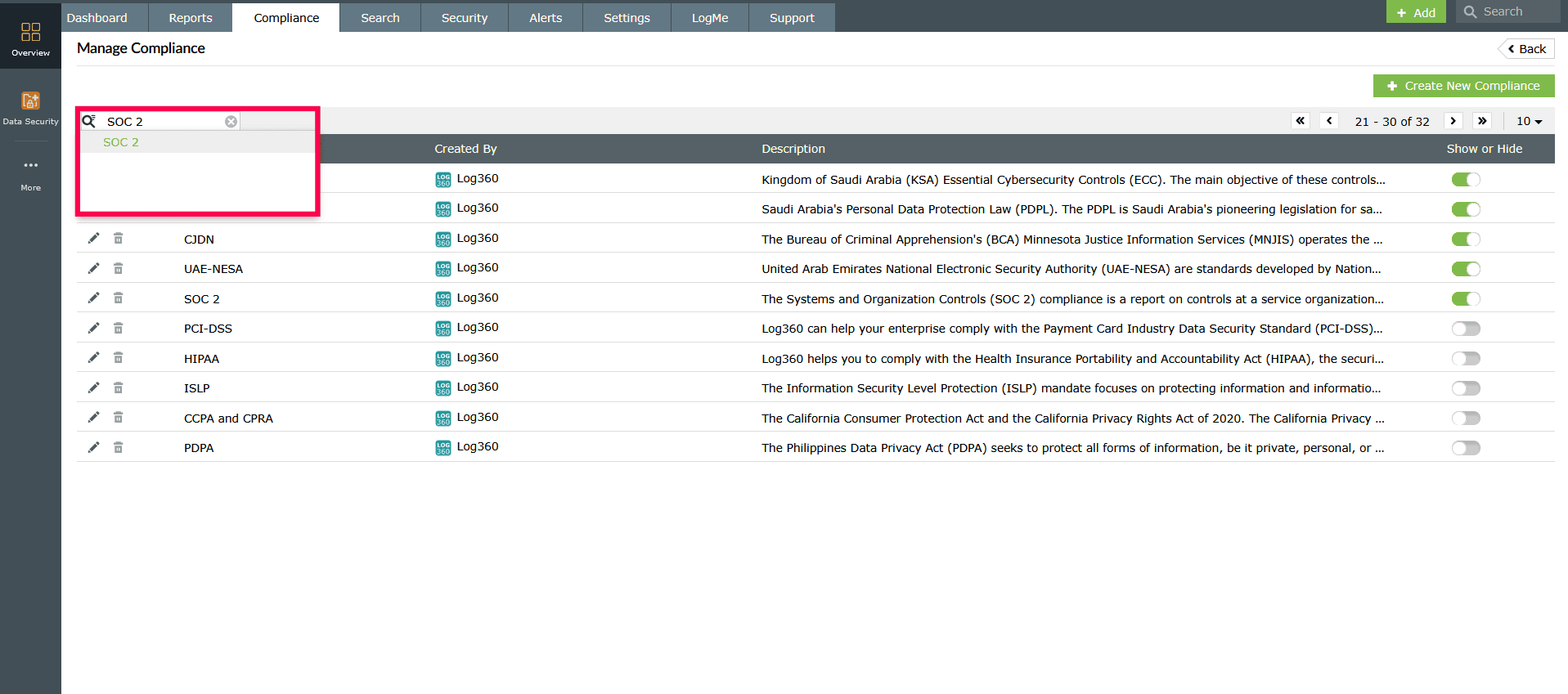
Figure 1: Searching for a compliance mandate - Matching results will appear in a dropdown. Select the desired regulation from the list.
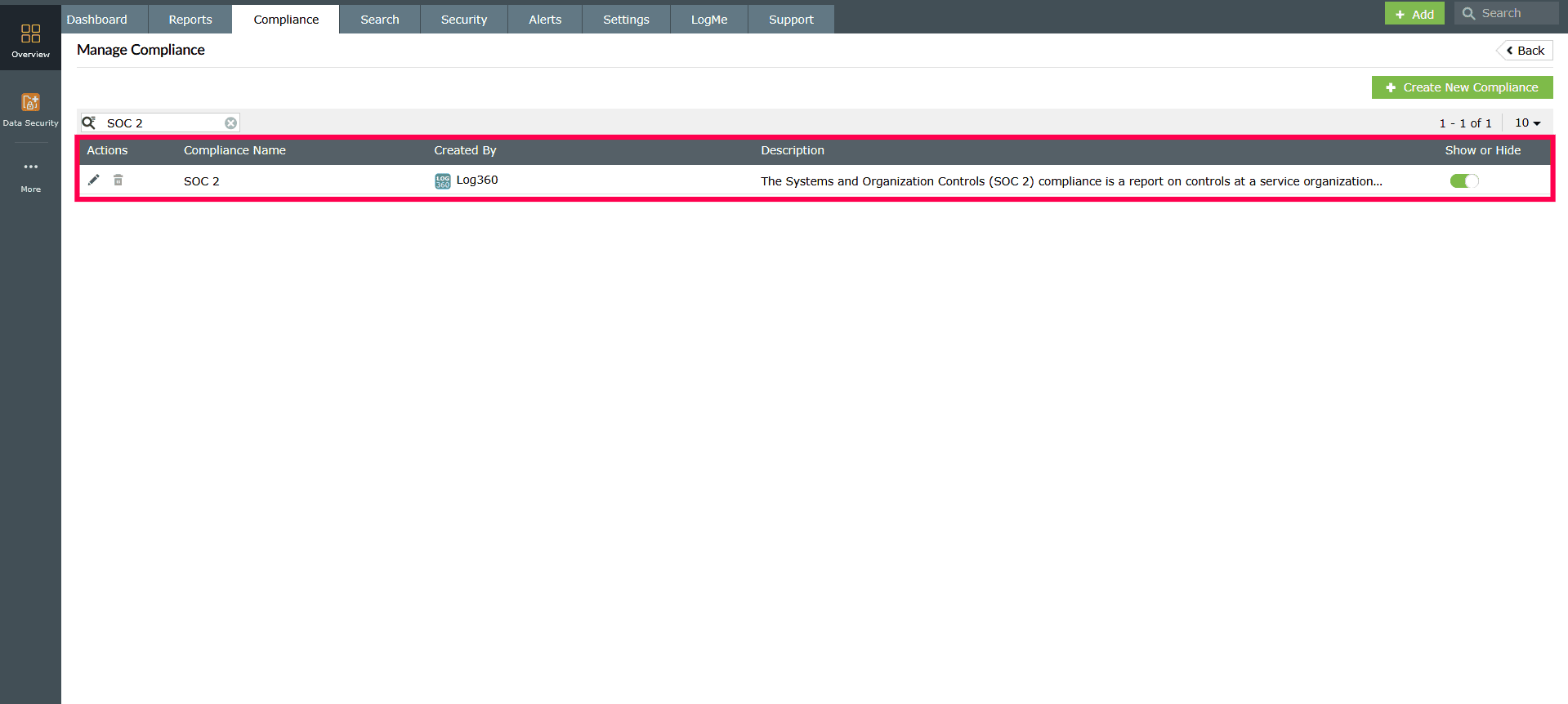
Figure 2: Searching for a compliance mandate
Editing compliance regulations
- In the Manage Compliance page, click the
 icon next to the compliance mandate you want to update.
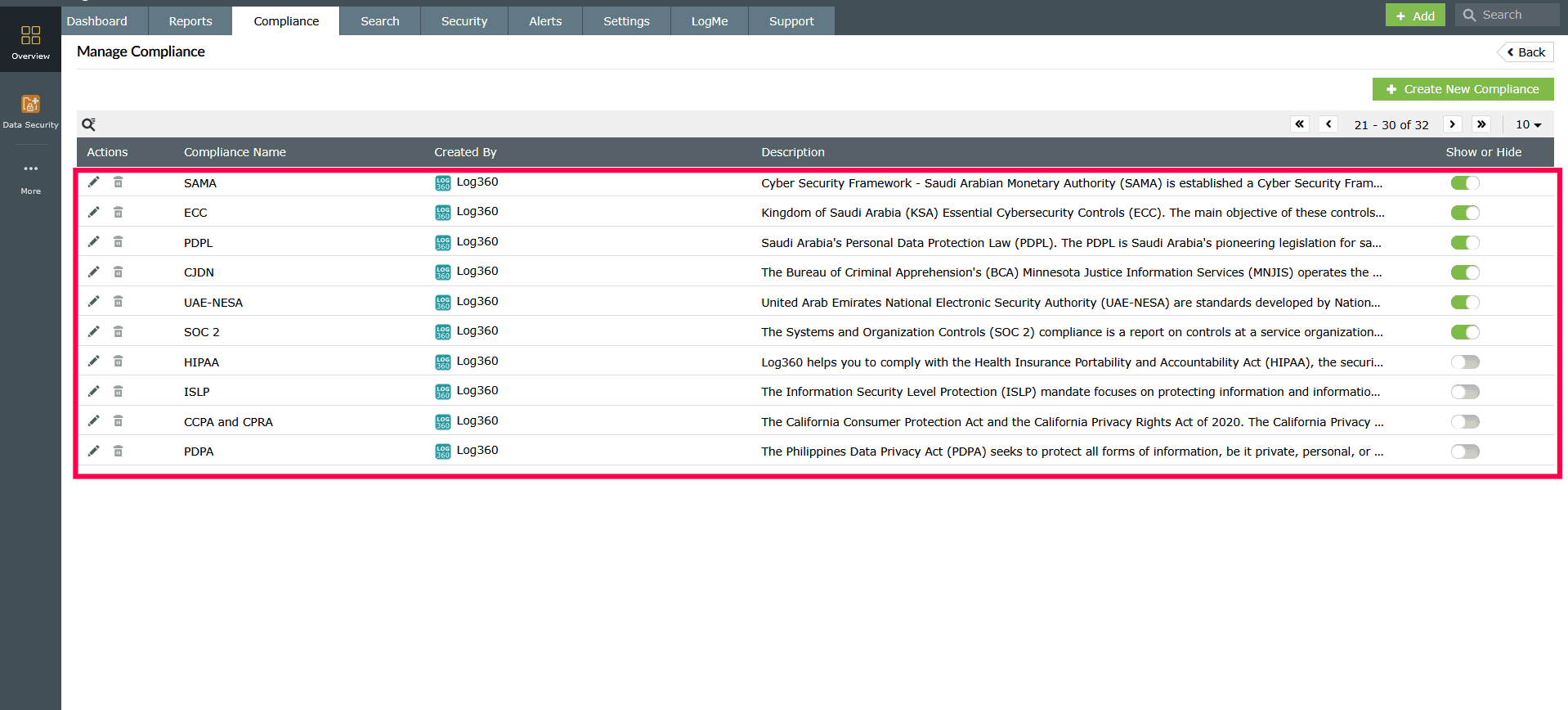
Figure 3: Editing a compliance mandate - In the Edit Compliance page, make the required changes.
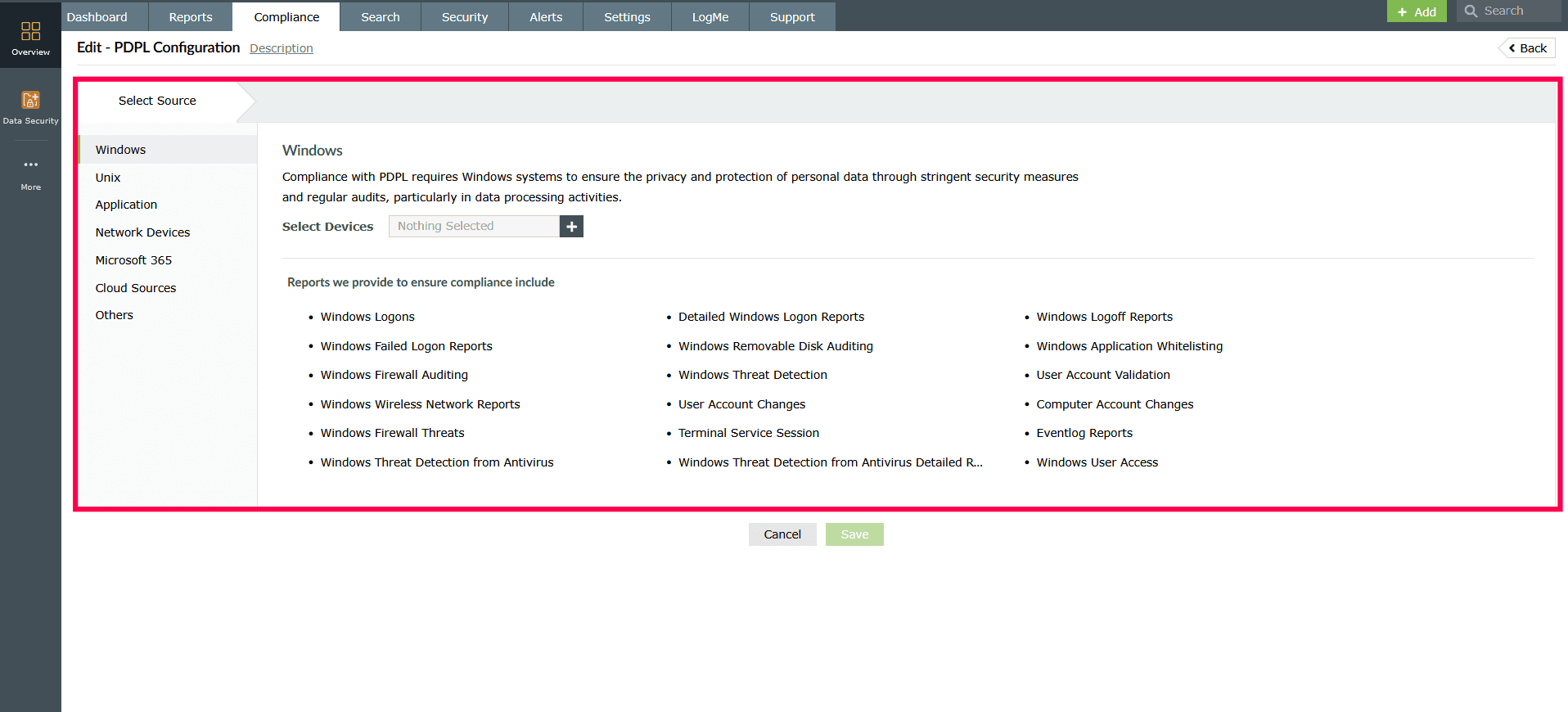
Figure 4: Editing a compliance mandate - Click Save to apply the changes.
Deleting compliance regulations
NOTE The Default Compliance cannot be deleted.
- In the Manage Compliance page, locate the compliance mandate you want to remove.
- Click the
 icon next to it.
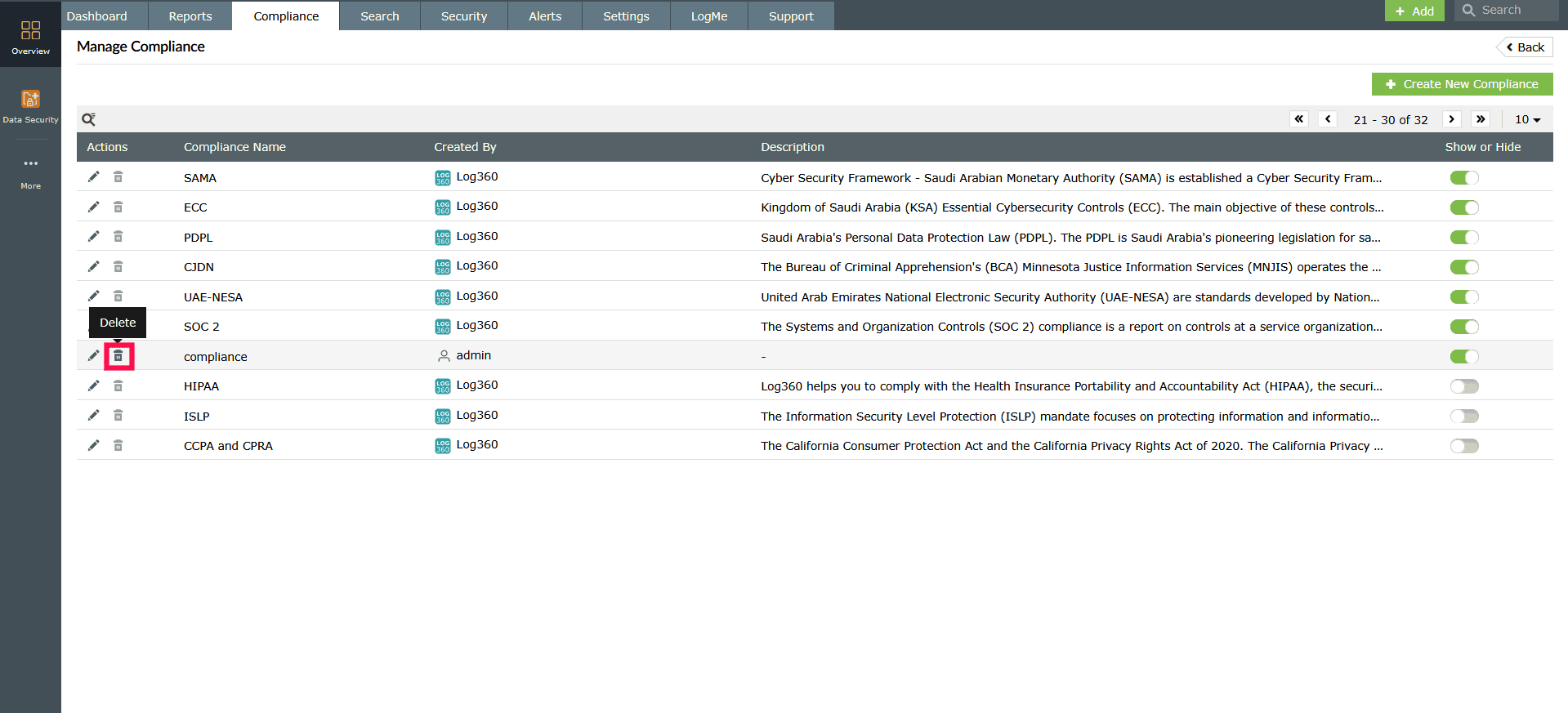
Figure 5: Deleting a compliance mandate - In the confirmation dialog, click Yes to proceed.
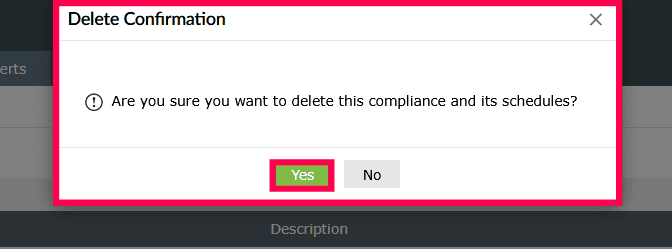
Figure 6: Deleting a compliance mandate
NOTE: Predefined compliance mandates cannot be deleted.
Enabling or disabling a compliance mandate
- In the Manage Compliance page, use the toggle button next to each compliance mandate to enable or disable it as required.
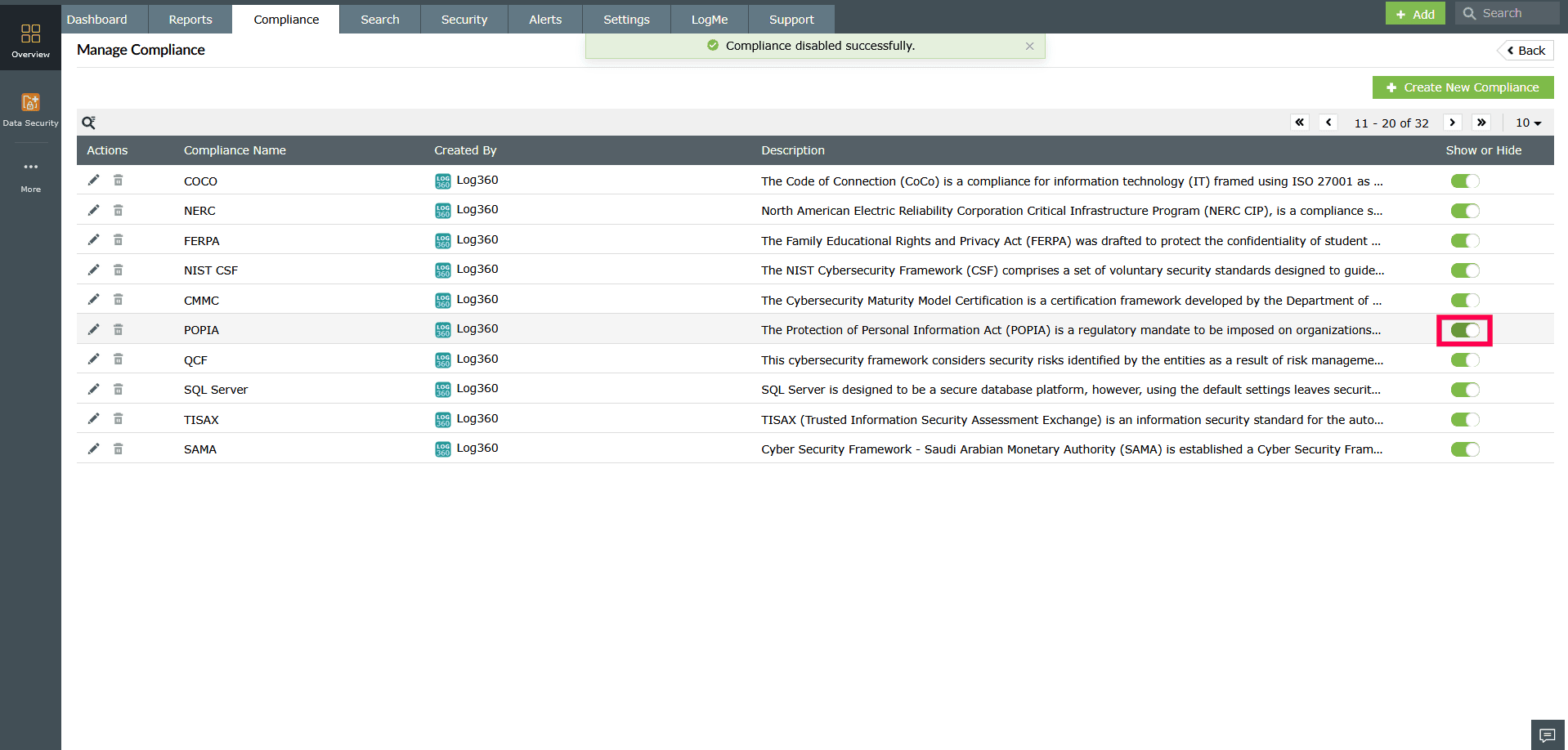
Figure 7: Disabling a compliance mandate
Read also
This page detailed how to manage compliance regulations. To learn how to schedule compliance and manage compliance schedulers, refer to the following articles: