How to add bulk custom monitors through device template?
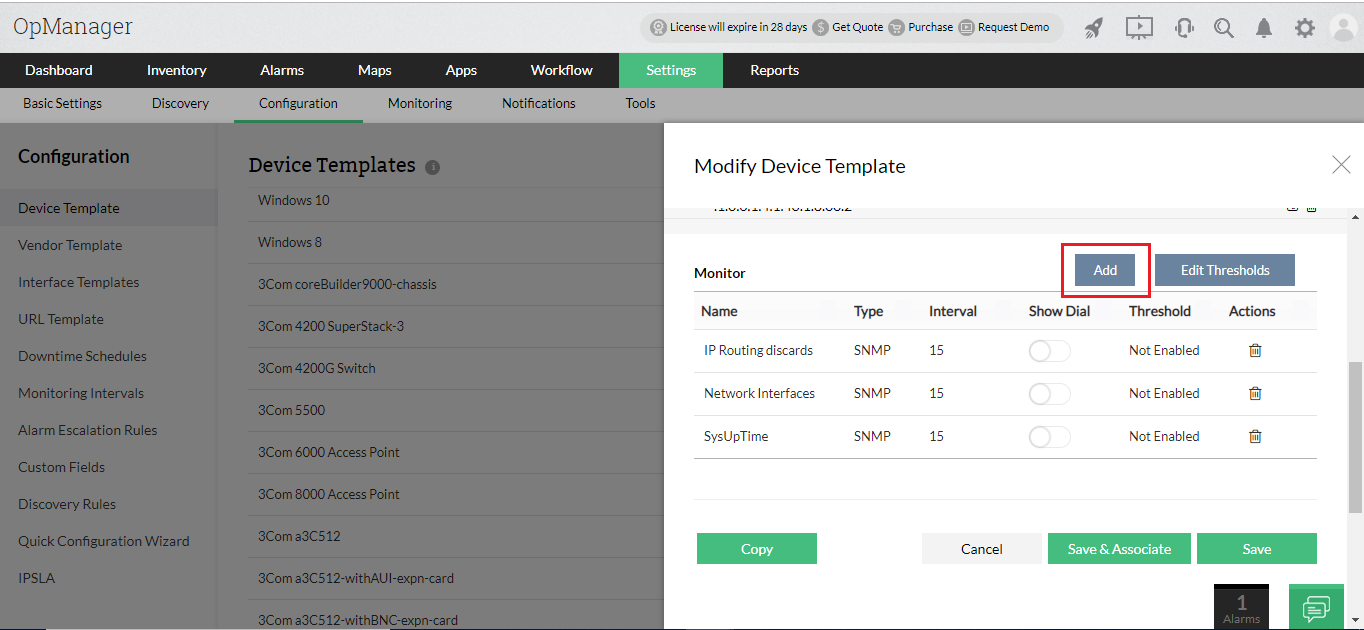
- Go to Settings → Configuration → Device Templates.
- Select the template in which you want to add a new monitor.
- Click on the Add button near Monitor header.
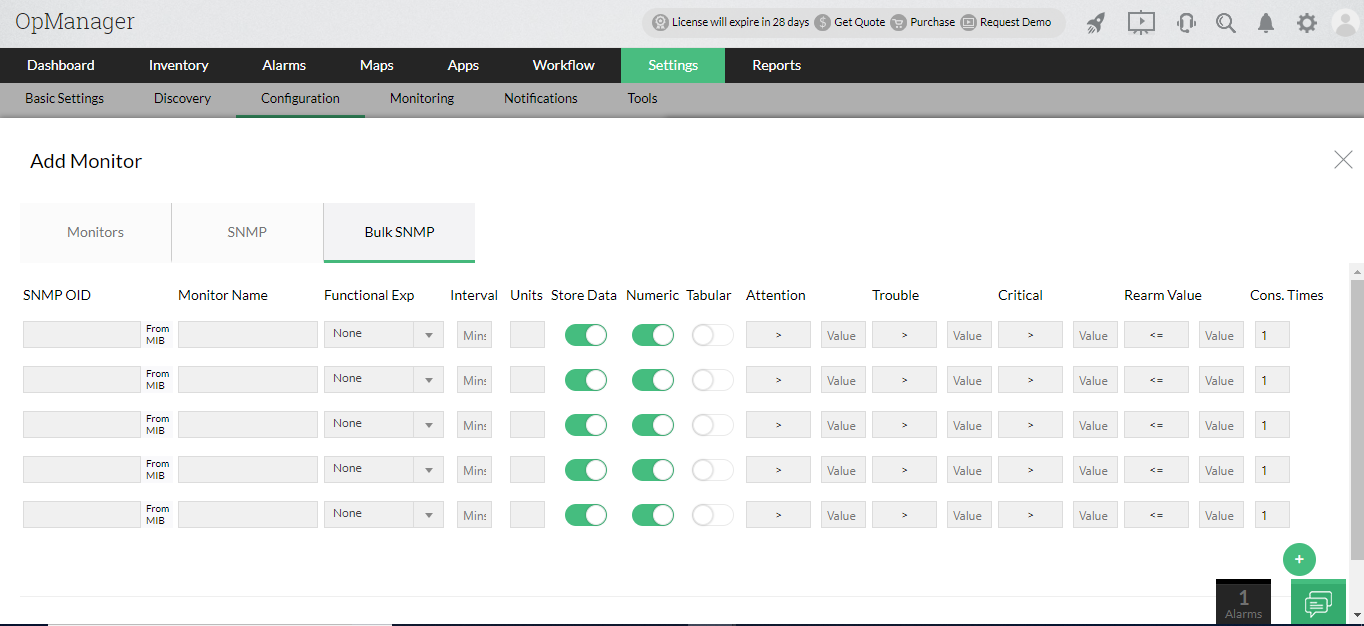
- Click on Bulk SNMP tab.
- Enter the SNMP OID, Monitor Name, Functional Expression(optional), interval, units and the threshold values.
- If the OID value is numeric, enable the Numeric radio button. Also, if you would like to store the data, enable the Store Data radio button,. If the OID value is tabular, enable the Tabular radio button.
- Now the monitors are added to the template.
- Click on Save and Associate.
- In the next screen, choose the required devices and click on Associate to apply this template to the devices.
Frequently asked questions:
- How do I configure device templates?
- When should I create a device template?
- How to classify two devices having same SysOID's into two separate Device Templates?
- Why the discovered device is categorized as Unknown?
- How do vendor templates differ from device templates?
- How can I associate device templates to a newly discovered device?
- Why are some monitors not associated to the device while manually associating a device template?
- What is the difference between a device type and category?
- How to import a new template obtained from ManageEngine Support or Community or a OpManager setup in different location?
- How to display custom monitor value in dial via Show Dial option?