Device Templates

A Device Template is a set of pre-loaded device details such as device type, category, monitoring interval, unique SysObject ID and performance monitors.
What is the purpose of a device template?
- Device templates help in automatically classifying the device under a specific device type (device model) and associate the necessary performance monitors during the process of device discovery.
- It enables you to effect a configuration once and apply it to several devices at a time whenever there is a change.
OpManager includes over 18,500+ device templates device templates that provide the initial configurations required to classify devices into predefined types, significantly reducing deployment time. Out of these 18,500 templates, some are dynamically created and displayed by OpManager for certain devices based on the model information obtained during device discovery. However, you can further define custom templates or modify the existing ones to meet your environmental needs.
Initial configuration
If you are looking just to classify your device based on device type and category upon initial device discovery,
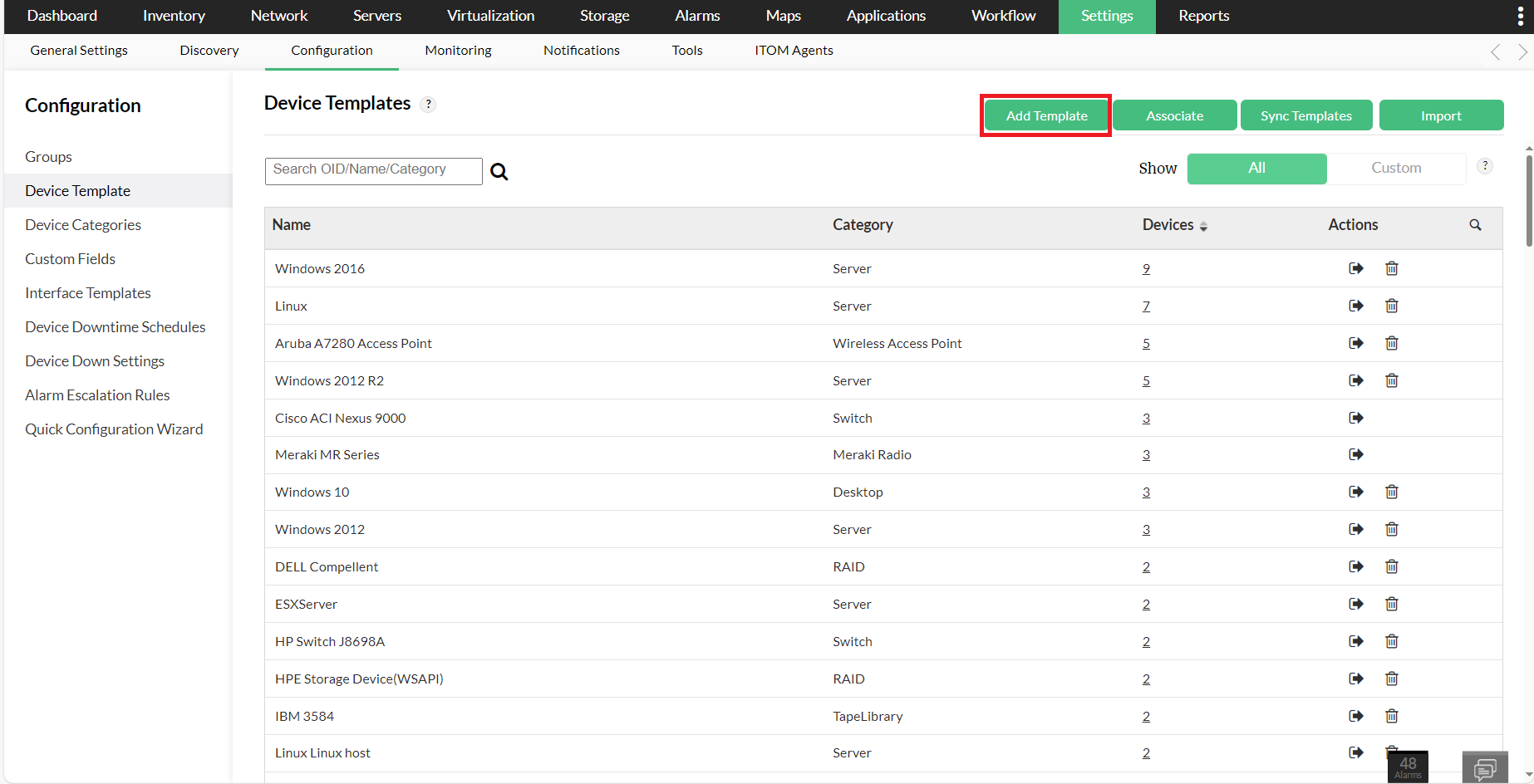
- Go to Settings → Configuration → Device Template.
Click on the Add Template option.
- Enter the mandatory fields - Device template name, vendor, category, availability monitoring interval and device image.
Define a unique device identifier either by providing the SysObject ID (via SNMP) or by selecting a CLI command from Device Identifiers drop down (via CLI) and specify a matching condition that compares the provided value with the command output.
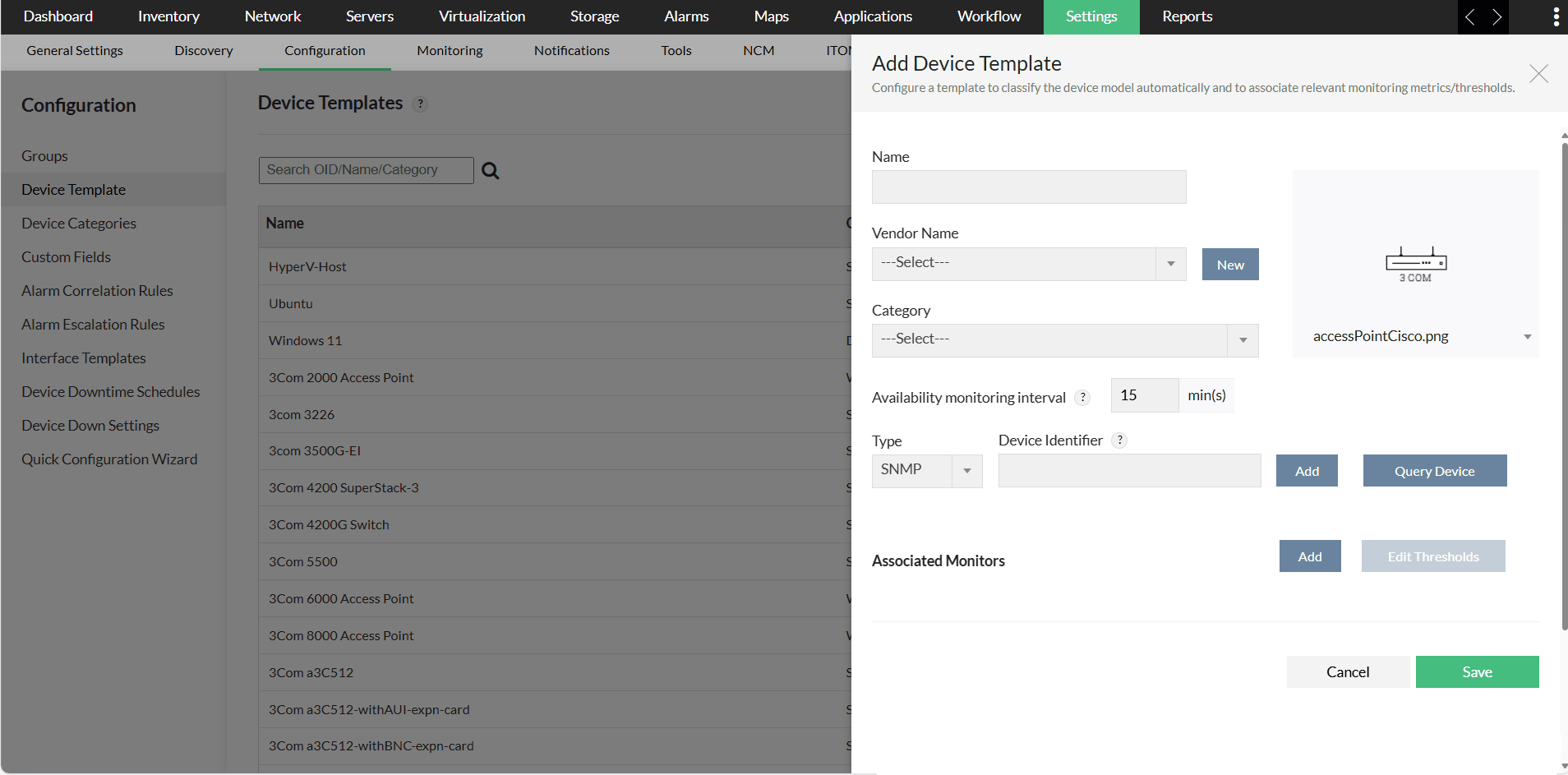
- Click on Save.
Once the discovery is initiated, OpManager automatically classifies the discovered devices based on the matching device type, and starts monitoring the devices for its availability or uptime and generates device Up/Down alarms.
Advanced configuration
You can add multiple device identifiers, either SNMP-based (using SysOID) or CLI-based (using a CLI command), you can also modify existing ones to allow for more precise device classification.
These changes will be automatically applied to devices that match the specified identifiers during subsequent discoveries or rediscoveries. Additionally, the changes can be manually associated with devices after the template is saved.
Properties required to create a new device template
- Device Template Name: The device model name. This will be determined as the device model in the inventory list.
- Vendor Name: The vendor name of device. You can either select from the existing list of vendors or add a new vendor.
- Category: The category your device belongs in (server, desktop, WLC, storage devices, etc). This helps OpManager categorize similar device types together and organize better. You can either select from the existing list of categories or add a new one. Learn more about device categories.
- Monitoring Interval: The interval at which OpManager contacts the device for availability monitoring. You can also edit the monitoring interval of devices in bulk or category wise from the Quick Configuration Wizard under Settings. Learn more.
- Device Image: An image or icon that represents a particular device type. You can either select from the available set of icons or create a customized image.
- Device Identifier: A Device Identifier in OpManager is used to accurately determine the model or type of a device enabling effective monitoring. The SNMP Device Identifier uses the device's system Object Identifier (sysOID), a unique value retrieved via the SNMP protocol. OpManager obtains this value by querying the sysObjectID OID .1.3.6.1.2.1.1.2, as defined in the RFC1213 MIB. Users may either manually input the sysOID or allow OpManager to automatically retrieve it, provided the device is already added and reachable. If the device has not yet been added, the sysOID can be identified using the MIB Browser by querying the device directly. How to query sysOID using MIB browser?
In addition to SNMP-based identifiers, OpManager supports CLI-based Device Identifiers, offering an alternative method for identifying devices. It is particularly useful in environments where CLI offers more precise or device-specific identification. A CLI device identifier consists of a CLI command and a matching condition that compares the provided value with the command output to identify the device uniquely.
Likewise, it is recommended to add unique criteria when defining CLI identifiers to ensure accurate device classification. To differentiate similar devices with different templates, you can specify multiple criteria in the CLI identifier. For example, if the same matching criteria are met by two different device templates, you can still classify them separately by adding additional criteria through other CLI commands or by applying different matching conditions. Learn more about CLI identifiers.
- Associated Monitors:A set of monitors that are automatically associated with the devices during discovery. You can either
- Associate existing vendor based and performance monitors.
- Create a new custom SNMP or WMI monitor. Learn more.
- Edit Thresholds: Helps you edit the thresholds values of the associated monitors. Select the monitor and edit thresholds to receive alerts and notifications accordingly.
- Associating templates: Once monitors are assigned and thresholds are set, you can further customize how it should reflect. The 'Associate' option lets you apply the changes to monitors added in the future. The 'Associate and Overwrite' option lets you overwrite the changes to all the existing monitors.
What does the Sync Device Template option do?
Note:
- Device templates are automatically associated to devices upon discovery. However, it can also be carried out manually post discovery if valid credentials are associated. Click here to learn more.
- Device templates can also be imported from ManageEngine Support and Community Forums or from a different instance of OpManager. Click here to learn how.
- During discovery, if none of the device template match with the discovered device, OpManager creates a custom template by matching sysOID with the vendor template. This will only help in the availability monitoring of the device. No default monitors or device category will be associated and performance monitoring will not be initiated, unless done manually.
Frequently asked questions:
- When should I create a device template?
- How to classify two devices having same SysOIDs into two separate Device Templates?
- Why the discovered device is categorized as Unknown?
- How do vendor templates differ from device templates?
- How can I associate device templates to a newly discovered device?
- Why are some monitors not associated to the device while manually associating a device template?
- What is the difference between a device type and category?
- How to import a new template obtained from ManageEngine Support or Community or a OpManager setup in different location?
- How to display custom monitor value in dial via Show Dial option?
- How to add bulk monitors to the Device Template?
- How to add device templates using CLI identifiers?