Before resolving this issue, make sure that you know which license you're currently using.
Oracle Patch Download Failure
Description
In certain cases, the Oracle JRE 6, JRE 7, JRE 8, JDK 8, JDK 11, JDK 13, JDK 14, JDK 17, JDK 19, JDK 20, JDK 21, JDK 22, JDK 23, JDK 24, and JDK 25 for Windows and JRE 8 for Mac patches download fails. This is because you're not logged in to Oracle. To download you need to provide your login credentials.
Refer this document to know how to upload patches using the Upload Patches option.
Steps
Follow the steps given below to resolve this issue:
- These are the download links of the Oracle applications: JRE 6, JRE 7, JRE 8, JDK 8, JDK 11 , JDK 13 , JDK 14, JDK 17, JDK 19, JDK 20, JDK 21, JDK 22, JDK 23, JDK 24 and JDK 25 for Windows and JRE 8 for Mac. Click on any application which you want to download and provide your login credentials. Once you login to the application, the installer file will automatically be downloaded.
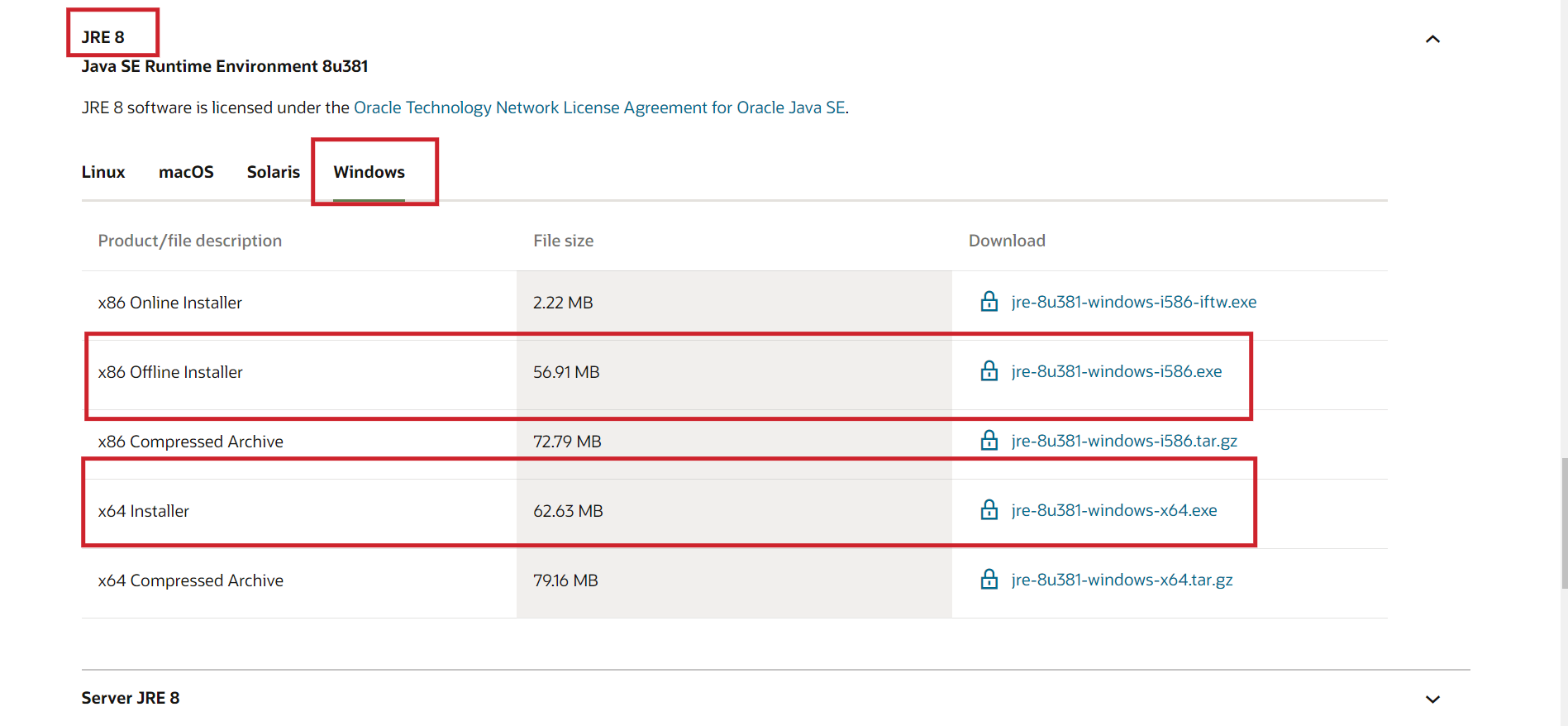
- Click on Upload near the Download failed error message. Using the Upload option you can install this patch.
- Otherwise, navigate to Patches -> Downloaded Patches -> Upload Patches ->Search for the Bulletin ID of the application which you want to install and click on Upload under Action.
- Then select Install Patches to deploy.
Here are the Bulletin IDs for Oracle applications:
- JRE 6 - TU-011
- JRE 7 - TU-030
- JRE 8 - TU-053
- JDK 8 - TU-160
- JDK 11 - TU-802
- JDK 13 - TU-1000
- JDK 14 - TU-1139
- JDK 17 - TU-1282
- JDK 19 - TU-1512
- JDK 20 - TU-1482
- JDK 21 - TU-1553
- JDK 22 - TU-1656
- JDK 23 - TU-1819
- JDK 24 - TU-1952
- JDK 25 - TU-2128
- JRE 8 for Mac - MAC-033
If the patch is successfully downloaded automatically from the vendor, there is no need for manually uploading the patches. However, in instances where automatic download fails, you can proceed to manually upload the patches by following the above mentioned methods.
If the issue persists even after following above-mentioned resolution, kindly contact support.