Windows 11 21H2 Feature Pack Deployment Cloud
Deploy the Windows 11 21H2 feature pack for cloud-managed agents, including roaming users and agents under a Distribution Server.
Steps to deploy Windows 11 21H2 update
Prerequisites to deploy Windows 11 21H2 updates
- Before deployment, run through the Compatibility Check available under the Important Notes section to find if you meet all the minimum requirements that impact upgradability.
- Ensure that feature pack option is enabled under Patch database settings.
- Navigate to: Admin → Settings → Patch Database Settings → click on the Windows tab and enable the Optional Updates option.
- Ensure that you have not declined the feature pack updates under decline patches section.
- Microsoft has recommended upgrading to the latest version of Windows. You shall directly upgrade to the Windows 11 21H2 version from your existing version of Windows and, you do not have to deploy any versions in between.
Downloading the dependency patch (ISO file) and adding/uploading
Windows 11 21H2 Enterprise Edition
Follow the below steps to download the ISO image.
Method 1:
- Download Windows 11 21H2 ISO file from the Microsoft 365 Admin Center or by referring to this page.
- Navigate to distribution store in the Distribution Server: to find the distribution store location, go to <DS_INSTALL_DIR> → Replication → Store.
- Copy the downloaded ISO file manually into the distribution store directory, and rename the ISO file as given below:
Language-English:
- 64 Bit: 109023-Win11_21H2_en_enterprisex64.iso
Patch Manager Plus supports the deployment of feature packs for multiple languages. Click here to view the ISO setup file for the language of your choice.
Method 2:
- Download Windows 11 21H2 ISO file from the Microsoft 365 Admin Center or by referring to this page.
- Click on Upload near the Download failed error message.
- In the pop-up window, browse and select the file to upload.
- Choose between the Checksum types (MD5 and SHA256).
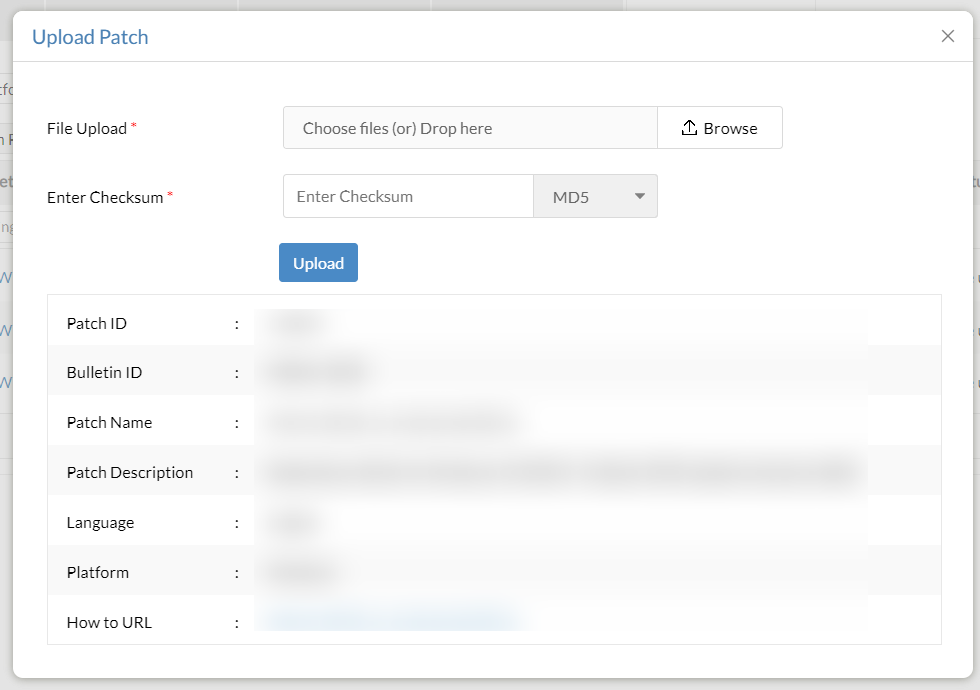
- Enter the checksum and wait for it to be validated.
- Once validated, click on Upload.
- Once the patch has been uploaded, it can be installed.
Windows 11 21H2 Professional Edition
Follow the below steps to download the ISO image.
Method 1:
- Download Windows 11 21H2 ISO file from the Microsoft 365 Admin Center or by referring to this page.
- Navigate to distribution store in the Distribution Server: to find the distribution store location, go to <DS_INSTALL_DIR> → Replication → Store.
- Copy the downloaded ISO file manually into the distribution store directory, and rename the ISO file as given below:
Language-English:
- 64 Bit: 109021-Win11_21H2_enx64.iso
Patch Manager Plus supports the deployment of feature packs for multiple languages. Click here to view the ISO setup file for the language of your choice.
Method 2:
- Download Windows 11 21H2 ISO file from the Microsoft 365 Admin Center or by referring to this page.
- Click on Upload near the Download failed error message.
- In the pop-up window, browse and select the file to upload.
- Choose between the Checksum types (MD5 and SHA256).
- Enter the checksum and wait for it to be validated.
- Once validated, click on Upload.
- Once the patch has been uploaded, it can be installed.
Other Windows 11 Editions
For roaming agents
If upgrading within Windows 11 versions, you can deploy Windows 11 21H2 patches from the Missing Patches view.
If upgrading from Windows 10 version to Windows 11 21H2, you can deploy the patches from the Supported Patches view.
For agents under Distribution Server
Method 1:
- Download Windows 11 21H2 ISO file from the Microsoft 365 Admin Center or by referring to this page.
- Navigate to distribution store in the Distribution Server: to find the distribution store location, go to <DS_INSTALL_DIR> → Replication → Store.
- Copy the downloaded ISO file manually into the distribution store directory, and rename the ISO file as given below:
Language - English
- 64 Bit: 109021-Win11_21H2_enx64.iso
Patch Manager Plus and Patch Manager Plus support the deployment of feature packs for multiple languages. Click here to view the ISO setup file for the language of your choice.
Method 2:
- Download Windows 11 21H2 ISO file from the Microsoft 365 Admin Center or by referring to this page.
- Click on Upload near the Download failed error message.
- In the pop-up window, browse and select the file to upload.
- Choose between the Checksum types (MD5 and SHA256).
- Enter the checksum and wait for it to be validated.
- Once validated, click on Upload.
- Once the patch has been uploaded, it can be installed.
Deploy the Windows 11 21H2 Feature Pack
Manual deployment
- In the server web console, navigate to supported patches view.
- Choose the Windows 11 21H2 feature pack patches you wish to deploy.
Patch ID details:
- 109024 - Windows 11 21H2 Enterprise Edition - 64 Bit
- 109022 - Other Windows 11 21H2 Editions - 64 Bit
Click Install Patch to deploy them.
Are you facing issues while installing or upgrading to Windows 11? Refer knowledge base for resolution.
Language-wise ISO file name table
Below table contains the language wise ISO file name. Rename the ISO file name based on the language of your choice before deployment.