Managing PAM360 Application Gateways
Application Gateways in PAM360 serve as secure intermediaries between the PAM360 server and privileged resources in your environment that are not directly connected to the network where the PAM360 server is deployed, ensuring seamless management of privileged resources without compromising security. This help document provides a complete guide to managing Application Gateways in PAM360, reconfiguring them, managing resources through them, monitoring tasks and audit logs, deleting Application Gateways, handling emergency scenarios, and troubleshooting common issues.
- Managing the Application Gateways
- Managing Resources With Application Gateway
- Task Monitoring and Audit Logs
- Deleting Application Gateway Servers
- Emergency Measures
- Troubleshooting Tips
1. Managing the Application Gateways
From the PAM360 Application Gateway page, you can efficiently manage the deployed Application Gateways in your environment. You can add or remove their configurations, associate or dissociate resources with them, edit the configuration details, and monitor the status of the tasks executed by the Application Gateways. Additionally, you can view the hostname or IP address of the machines where the Application Gateways are deployed, the resource type of host machines, and the description. This centralized configuration ensures seamless management of all the Application Gateways within your environment, enhancing usability and simplifying resource management. To access the PAM360 Application Gateway page, navigate to Admin >> PAM360 Gateways >> Application Gateway. You will see the list of Application Gateways deployed in your environment on the PAM360 Application Gateway page.
Follow these steps to manage the configured Application Gateways in your environment:
- Hover over the Application Gateway name to view key details, including its status, last sync time, and the number of ongoing tasks.
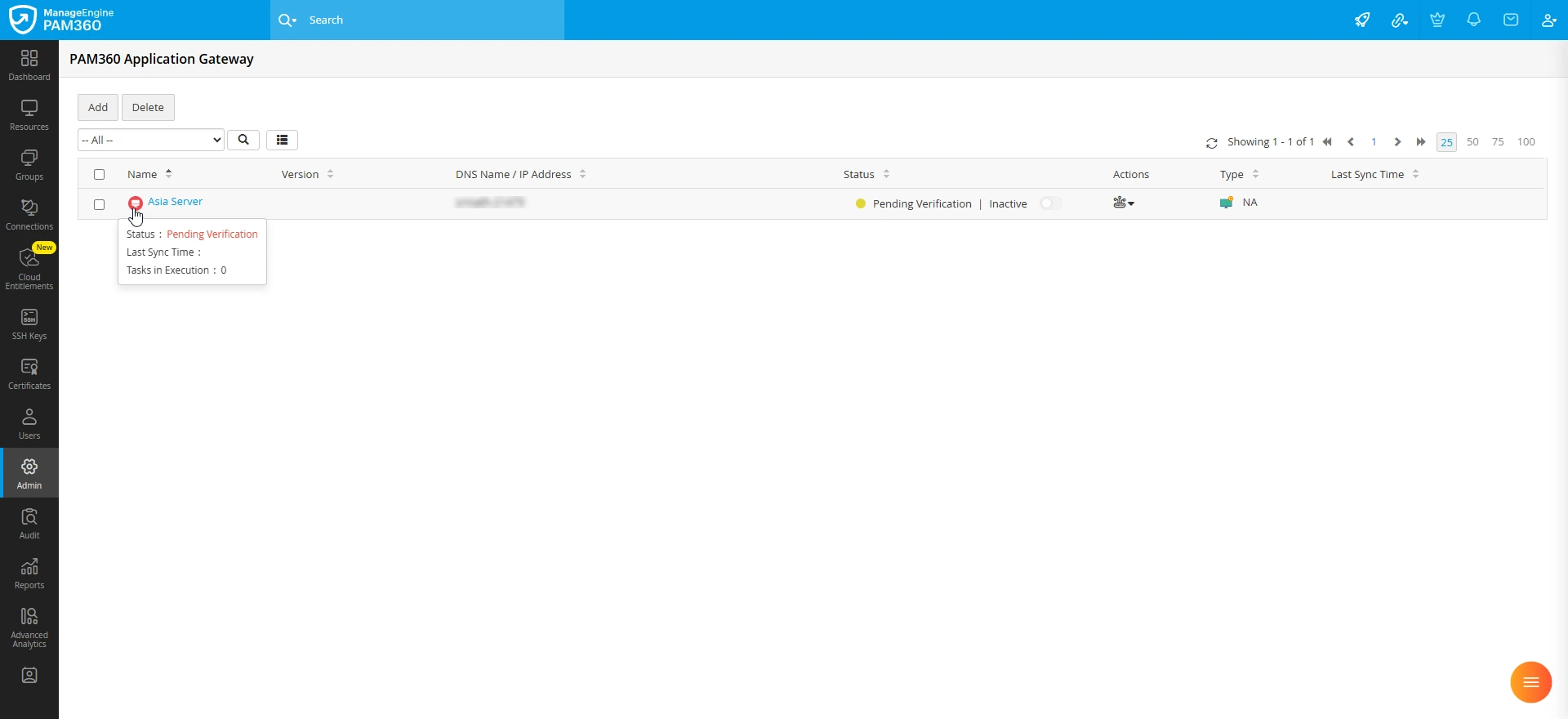
- Click the Settings icon under the Actions column and choose from the following options:
- Manage Resources - Associate or dissociate resources individually or in bulk with the selected Application Gateway.
- Task monitor - View the status of tasks executed or pending execution by the Application Gateway.
- Edit Application Gateway - Modify Application Gateway details such as the name, the hostname or IP address of the machine where it is deployed, and its description.
- While adding an Application Gateway configuration in the PAM360 interface, you can either copy the Configuration Key and save it manually as a text file with the file name applicationgateway.config, or simply use the Download Configuration File option to download the applicationgateway.config file to your machine.
- Copy Configuration Key - Copy the configuration key required to configure the Application Gateway on the desired machine and enable secure communication with the PAM360 server.
- Download Configuration File - Download the applicationgateway.config file containing the configuration file necessary for the Application Gateway setup.
- Toggle the switch under the Status column beside the desired Application Gateway to enable or disable it as required.
To add an Application Gateway on the PAM360 Application Gateway page, explore the detailed steps provided in section 4.1. To delete an Application Gateway configuration, follow the steps detailed in this section.
Additional Detail
Application Gateway configurations can be deleted only when all the resources associated with that Application Gateway have been dissociated.
1.1 Managing Session Recording Storage
The session playback option in the audit is available only for sessions whose recording files are stored in the destination path set under Session Recording Storage in the Session Configuration window. For remote sessions launched via Application Gateways, recording files are saved in <PAM360ApplicationGateway_Installation_Directory>/recorded_files folder by default. To enable playback for such sessions, you can perform either of the following:
- Configure a network path accessible to both the PAM360 server and the Application Gateway servers as the session recording directory. This allows files to be saved directly in the configured path and makes them immediately available for playback without manual intervention.
- Manually move the files from the default directory to the storage location configured under Session Recording Storage.
If you are configuring a common network path in the Session Configuration window, follow these steps to set it as the default directory for the Application Gateway:
- Stop the ManageEngine PAM360 - ApplicationGateway service.
- Navigate to the <PAM360ApplicationGateway_Installation_Directory>/conf folder, open the application.properties file using any text editor, and add the following entries:
- ag.session.recorded_files_primary_path=<Destination_Path>
- ag.session.recorded_files_secondary_path=<Destination_Path>
- Save the file and restart the ManageEngine PAM360 - ApplicationGateway service.
Caution
- While specifying the destination directory, replace <Destination_Path> with the actual directory path. For example, ag.session.recorded_files_primary_path=/opt/ManageEngine/PAM360.
- While specifying the destination directory in Windows environments, always use double backslashes (\\) instead of single backslashes (\). For example, ag.session.recorded_files_primary_path=C:\\Program Files\\ManageEngine\\PAM360.
- While specifying the network path, if the directory where you wish to store the session recordings is \\JOHN-1234\recordings\primary, then the destination directory should be specified as \\\\JOHN-1234\\recordings\\primary.
1.2 Reconfigure Application Gateway
Follow these steps to reconfigure the Application Gateway setup:
- Navigate to the PAM360 Application Gateway page and click the Settings icon under the Actions column beside the desired Application Gateway you want to reconfigure.
- Select Edit Application Gateway from the displayed options.
- On the window that appears, click the Download button beside the Application Gateway Configuration File field to download the applicationgateway.config file to your machine.
- After downloading the applicationgateway.config file, you can update it using any of the following methods as applicable:
- Common (via Command Line Interface): Copy and replace the applicationgateway.config to the <PAM360ApplicationGateway-Installation-Directory>/conf folder on the machine where the Application Gateway is installed and execute the following commands:
systemctl restart pam360ApplicationGateway.service
systemctl start pam360ApplicationGateway.service
- Windows-Specific Method: Navigate to the <PAM360ApplicationGateway-installation-Directory>\bin folder and execute the following command:Now, browse and upload the applicationgateway.config file downloaded from the PAM360 server and restart the ManageEngine PAM360 - ApplicationGateway service.
AGConfiguration.bat
- Linux-Specific Method: Navigate to the <PAM360ApplicationGateway-installation-Directory>/bin folder and execute the following command:Now, browse and upload the applicationgateway.config file downloaded from the PAM360 server and restart the ManageEngine PAM360 - ApplicationGateway service by executing the following command:
AGConfiguration.sh
systemctl restart pam360ApplicationGateway.service
- Common (via Command Line Interface): Copy and replace the applicationgateway.config to the <PAM360ApplicationGateway-Installation-Directory>/conf folder on the machine where the Application Gateway is installed and execute the following commands:
1.3 Managing Application Gateway Encryption Keys
All communication between the PAM360 server and the Application Gateway is encrypted using AES-256 to secure sensitive information. Additionally, authentication tokens are used to authenticate and authorize communication between PAM360 and the Application Gateway, ensuring secure access and preventing unauthorized connections. These authentication tokens are automatically generated and unique to each Application Gateway installation. By default, these authentication tokens are stored in the appgateway.key and authed.keystore files within the <PAM360ApplicationGateway-Installation-Directory>/conf folder. Follow these steps if you want to store these files outside the machine where the Application Gateway is installed:
- Stop the Application Gateway service on the machine where it is deployed.
- Move the files to the desired location.
- After moving these files, open the application.properties file using any text editor, and enter the full path to the new file locations in the key-value format, as shown below:
- Add a new entry as ag.ed.keypath and specify the full path to the appgateway.key file as its value. E.g., ag.ed.keypath=<Full-Path-to-appgateway.key-file>
- Add a new entry as ag.default.auth.keystore.path and specify the full path to the authed.keystore file as its value. E.g., ag.default.auth.keystore.path=<Full-Path-to-authed.keystore-file>
- Restart the Application Gateway service.
You can move these files to another machine within the network, a network drive, or an external USB device. Ensure that the Application Gateway server has read access to the specified paths every time the service is started.
2. Managing Resources with Application Gateway
Before you can manage the privileged resources that are not directly accessible from the PAM360 server, you should first associate them with the deployed Application Gateways. Conversely, you can dissociate a resource from an Application Gateway if you do not wish to manage that resource using that specific gateway. This section covers the detailed steps to associate or dissociate the privileged resources available within your environment with the deployed Application Gateways.
Caution
- A resource can be mapped with only one Application Gateway.
- Resources managed using the PAM360 agent or a landing server cannot be associated with an Application Gateway.
2.1 Mapping Individual Resources
PAM360 allows you to associate individual resources with an Application Gateway in two different ways: from the Resources tab and the PAM360 Application Gateway page.
Follows these steps to associate a resource with an Application Gateway from the Resources tab:
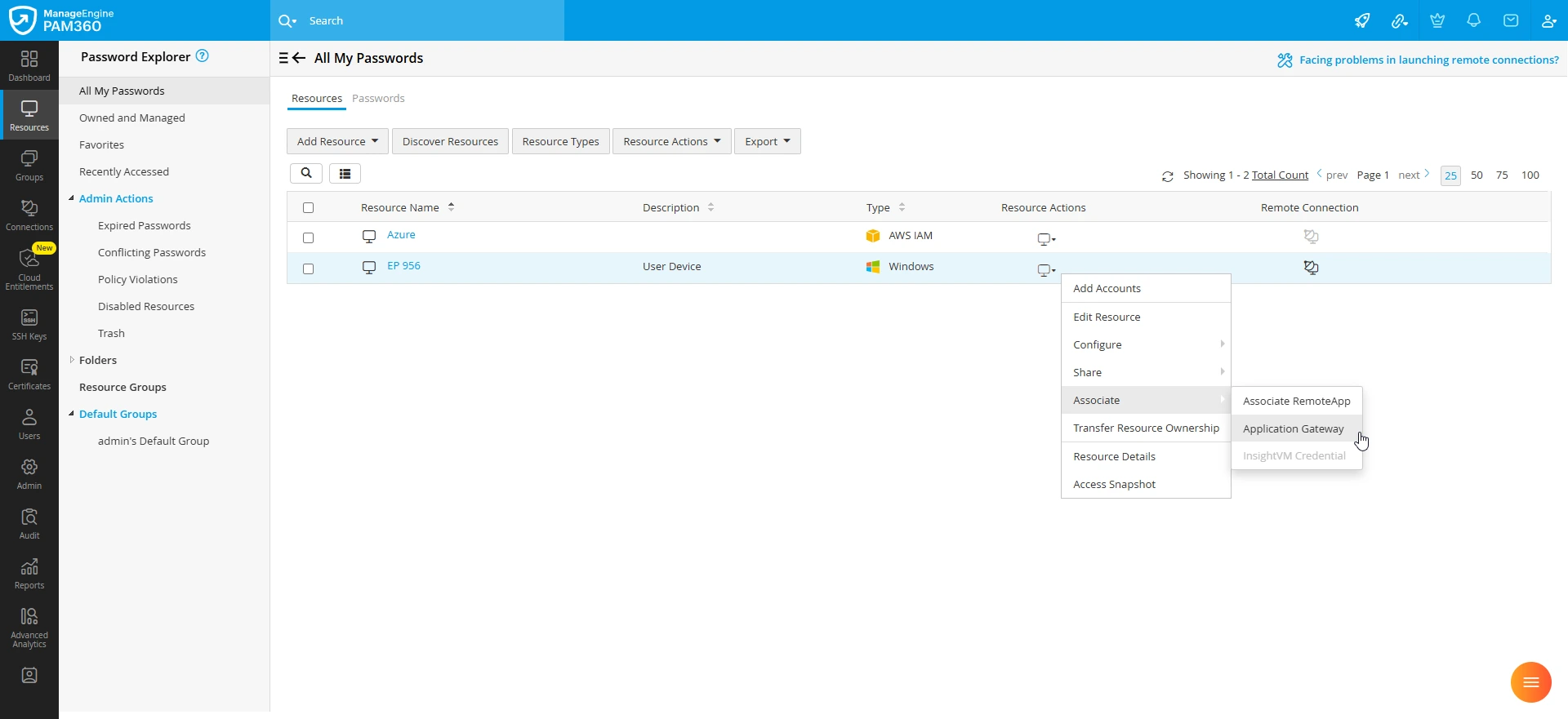
- Navigate to the Resources tab and click the Resource Actions icon beside the desired resource you wish to associate with an Application Gateway.
- From the displayed options, select Associate >> Application Gateway.
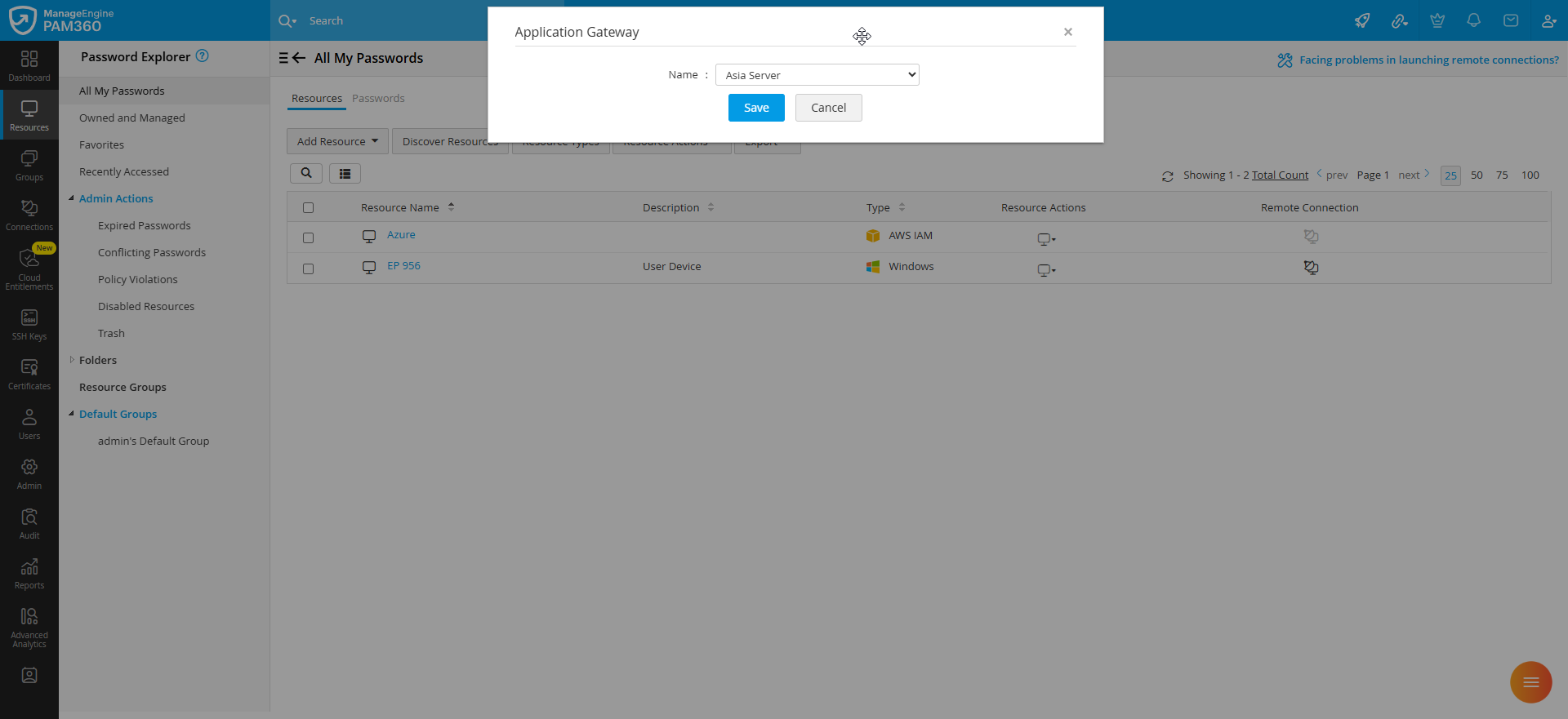
- On the Associate Resource window, select the desired Application Gateway from the drop-down field and click Save.
Follow these steps to associate a resource with an Application Gateway from the PAM360 Application Gateway page:
- Navigate to Admin >> PAM360 Gateways >> Application Gateway.
- You will see the list of Application Gateways deployed in your environment on the PAM360 Application Gateway page.
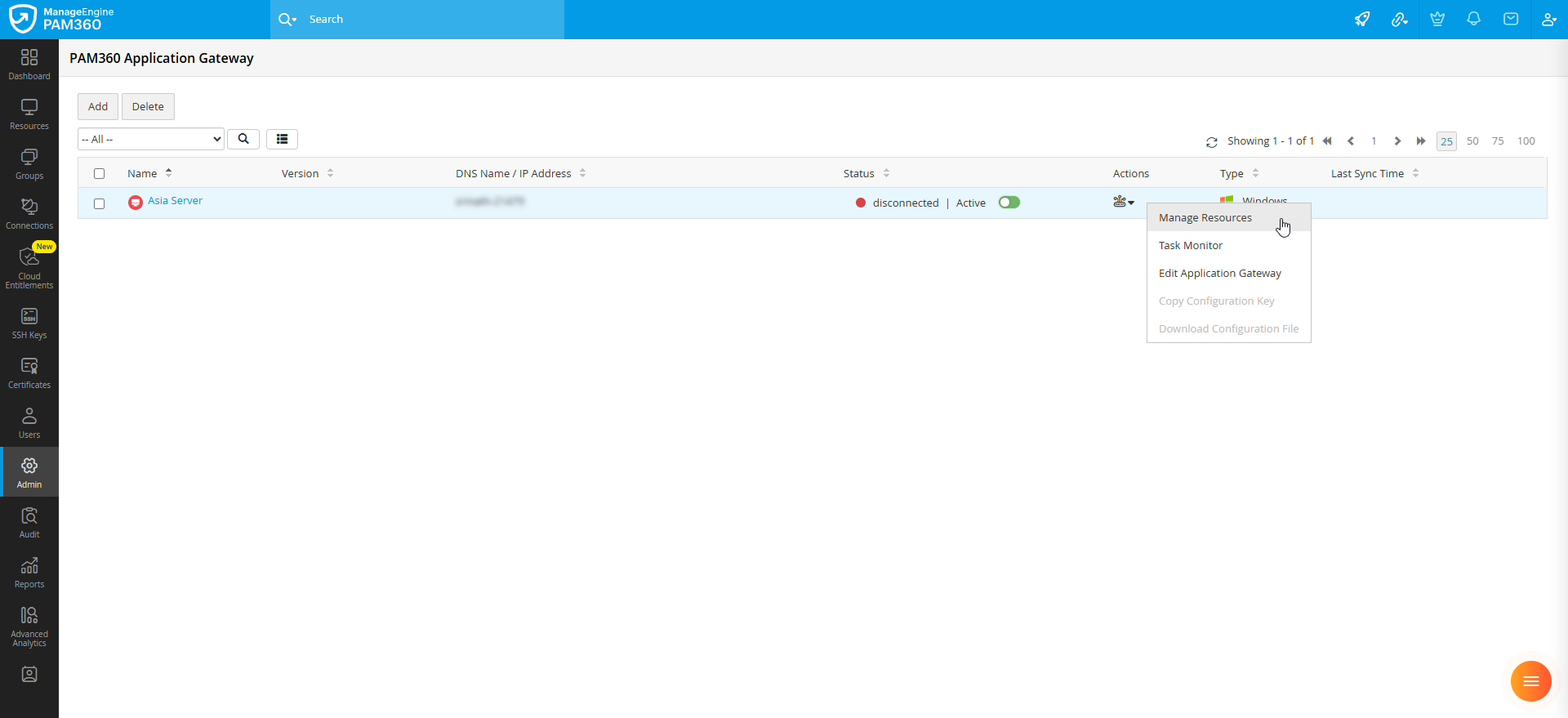
- Click the Settings icon under the Actions column beside the desired Application Gateway to which you wish to associate resources.
- Select Manage Resources from the displayed options.
- In the Manage Resources window, you will see the list of all the resources available in your environment. You can use the filter option to view all resources, resources already associated with the selected Application Gateway, or unassociated resources, making it easier to identify the desired resources for association.
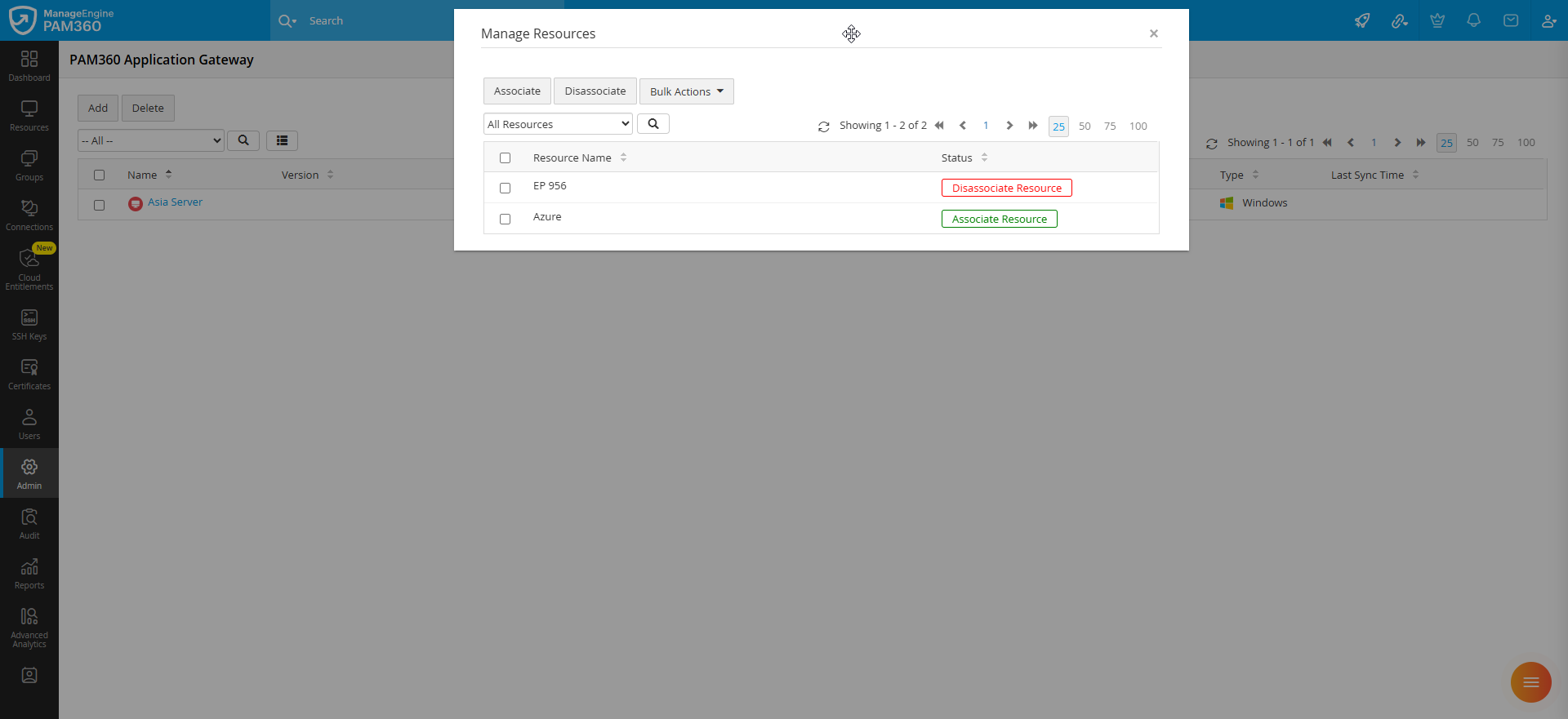
- Click the Associate Resource or Dissociate Resource button beside the desired resource to associate or dissociate them with the selected Application Gateway.
- Alternatively, select the desired resources you wish to associate or dissociate from the Application Gateway and click the Associate or Dissociate button on the Top pane.
2.2 Managing Resources in Bulk
PAM360 provides the flexibility to associate or dissociate the resources available in your environment with the desired Application Gateway in a single operation. The bulk mapping feature simplifies the process by allowing administrators to associate or dissociate all the resources to an Application Gateway or based on criteria. Follow these steps to associate or dissociate resources in bulk with an Application Gateway:
- On the PAM360 Application Gateway page, click the Settings icon under the Actions column beside the desired Application Gateway to which you wish to associate resources.
- Select Manage Resources from the displayed options.
- In the Manage Resources window that appears, click the Bulk Actions drop-down button on the top pane, and select the Associate or Dissociate option based on your requirement. From the displayed options, choose one of the following:
- All - Choose this option to associate all the resources in your environment to the selected Application Gateway server.
- Criteria - Choose this option to associate resources with the selected Application Gateway based on specific criteria.
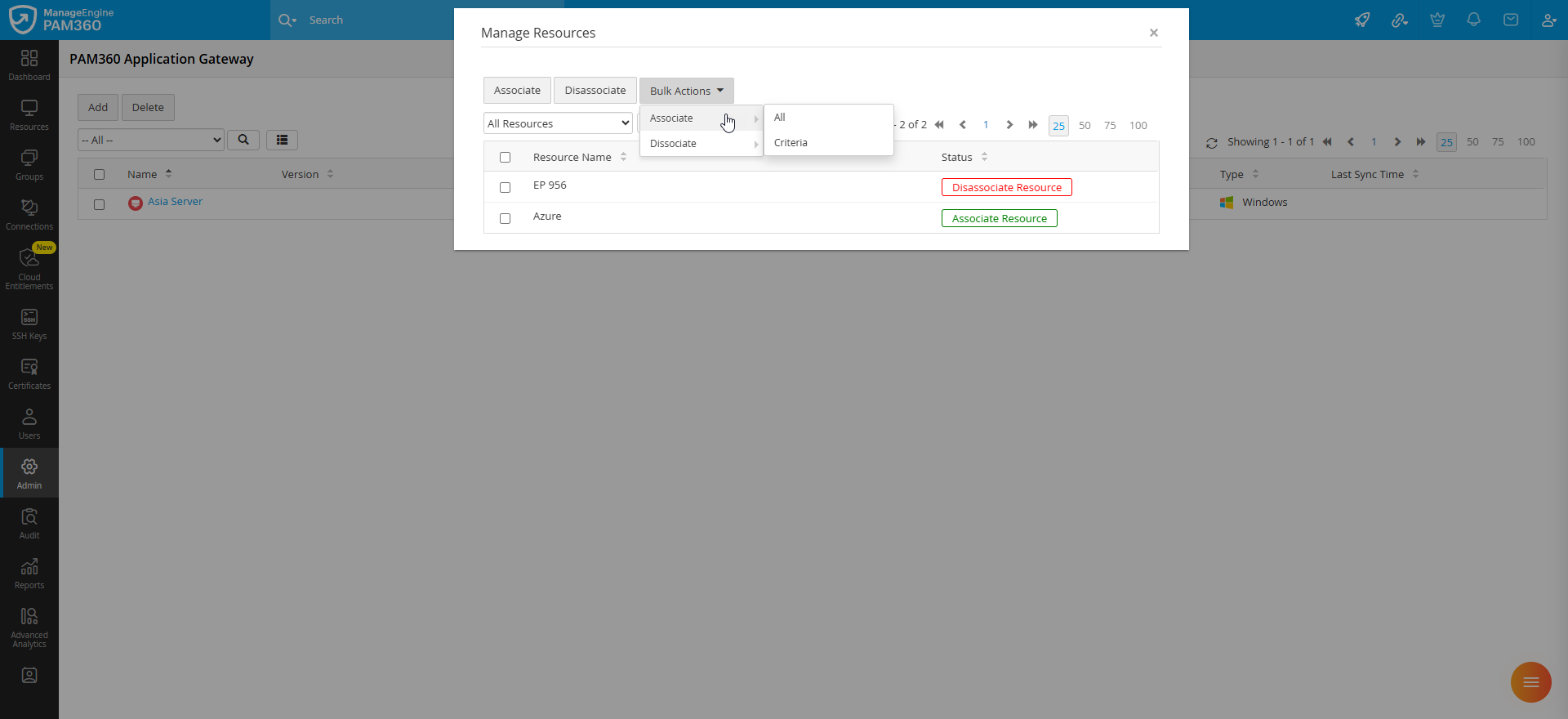
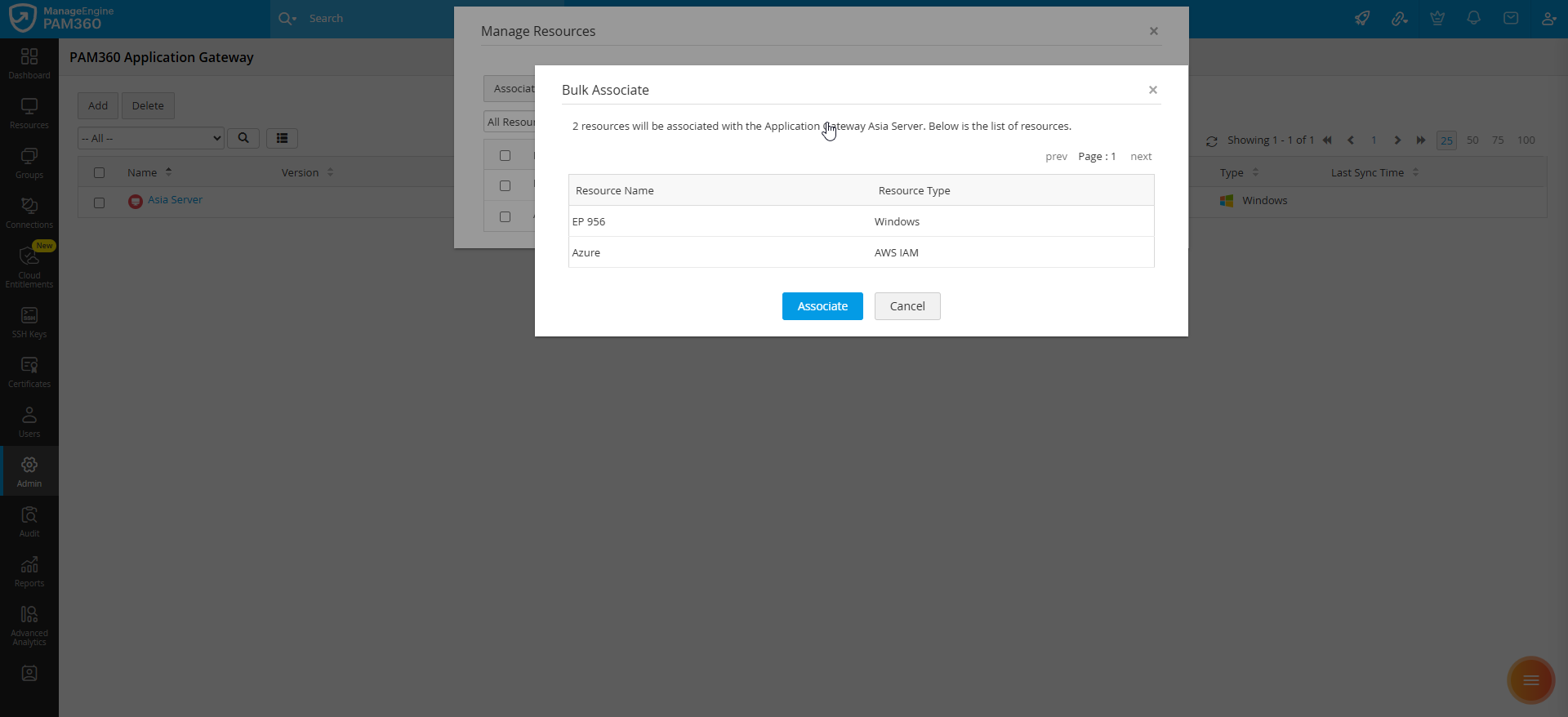
- To associate all resources with the selected Application Gateway, select Bulk >> Associate >> All Resources. You will see the Bulk Associate window with the list of all the resources in your environment that will be associated with the selected Application Gateway. Verify the resources and click the Associate button to associate all the resources in your environment.
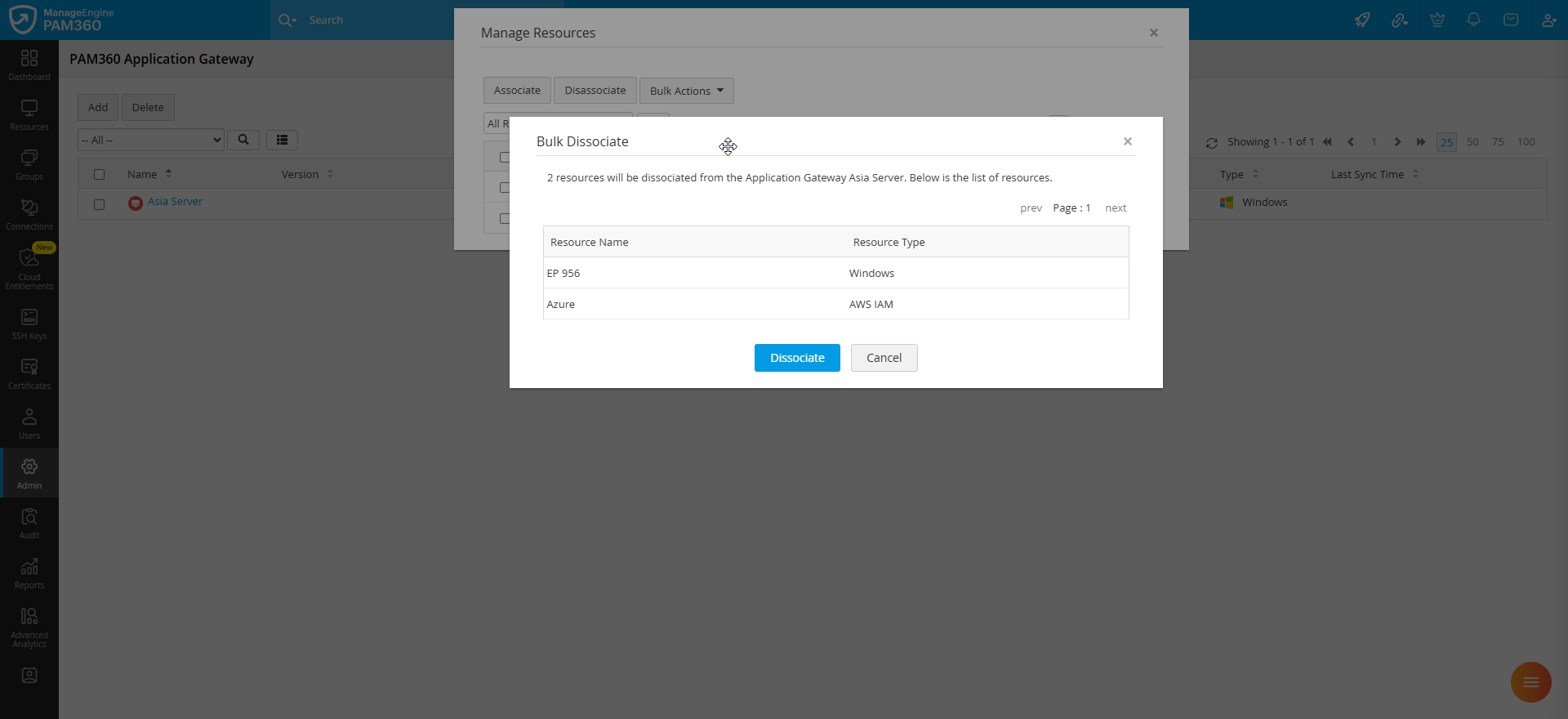
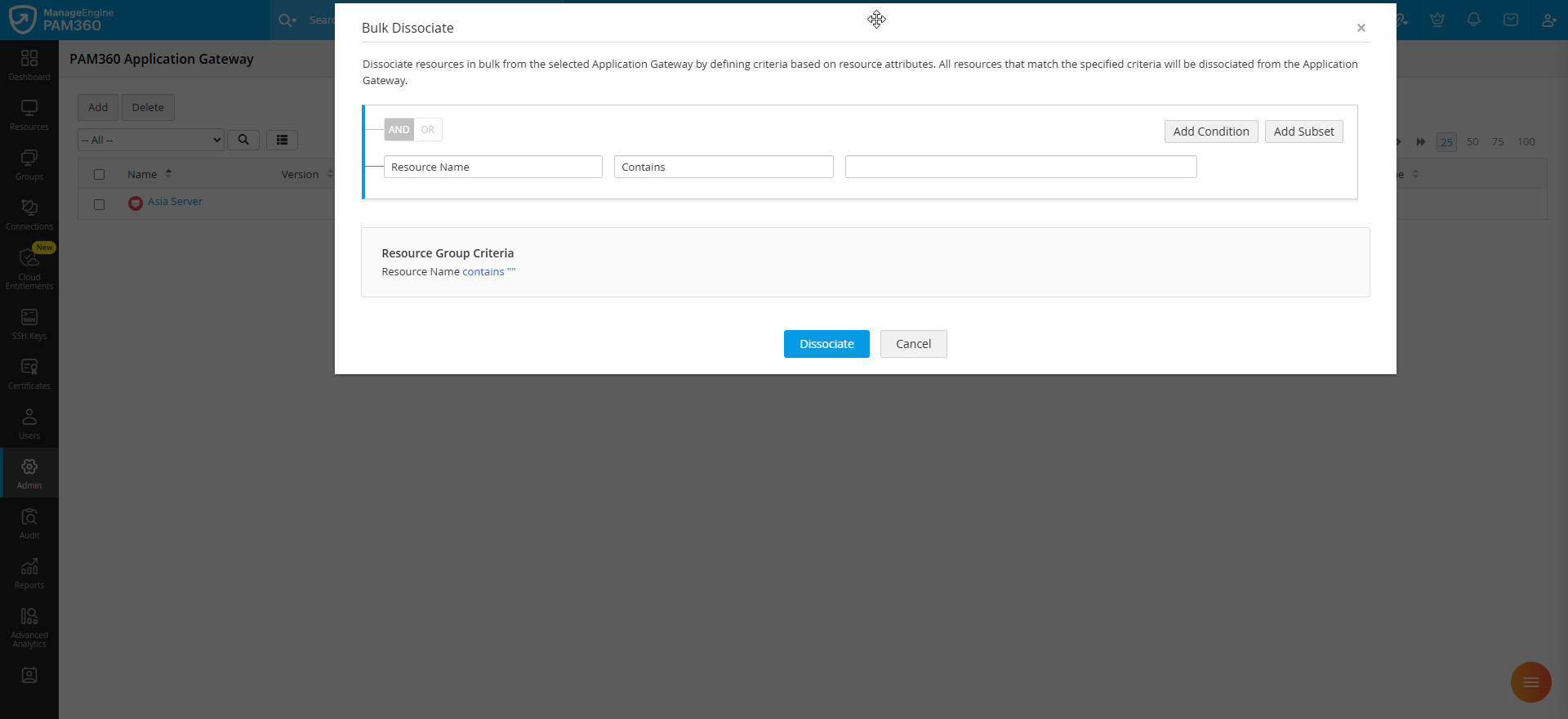
- To dissociate resources, select Bulk >> Dissociate >> All on the Manage Resources window, and the list of resources currently associated with the selected Application Gateway will be displayed on the Bulk Dissociate window. Click the Dissociate button to dissociate all the resources from the selected Application Gateway.
- Alternatively, if you choose to associate or dissociate resources based on a criteria, you can define a criteria based on various resource parameters such as resource name, resource type, DNS name, resource description, and domain name. After defining the criteria, click the Associate or Dissociate button. The resources matching the specified criteria will be associated or dissociated from the selected Application Gateway.
3. Task Monitoring and Audit Logs
PAM360 provides comprehensive visibility into tasks executed by the Application Gateways. Administrators can track the task status from the Task Monitor window and configure resource audits for all the operations performed by Application Gateways. The Task Monitor provides real-time visibility into resource discovery, account discovery, and password management activities executed via the deployed Application Gateway. In addition, a detailed audit trail is maintained on the Resource Audits page, capturing all gateway-related events. Administrators can also fine-tune the audit preferences to log only specific gateway-related operations and set up email notifications for critical events. This section covers the Task Monitor window, detailed steps to review audit records, and the detailed steps to configure audit settings specific to Application Gateway-related operations.
3.1 Application Gateway Task Monitor
The status of all the tasks executed by the Application Gateways can be tracked from the Task Monitor window available on the PAM360 Application Gateway page. Follow these steps to access the Task Monitor window:
- Navigate to Admin >> PAM360 Gateways >> Application Gateway.
- On the PAM360 Application Gateway page, click the settings icon under the Actions column beside the desired Application Gateway.
- On the drop-down menu that appears, select Task Monitor from the displayed options.
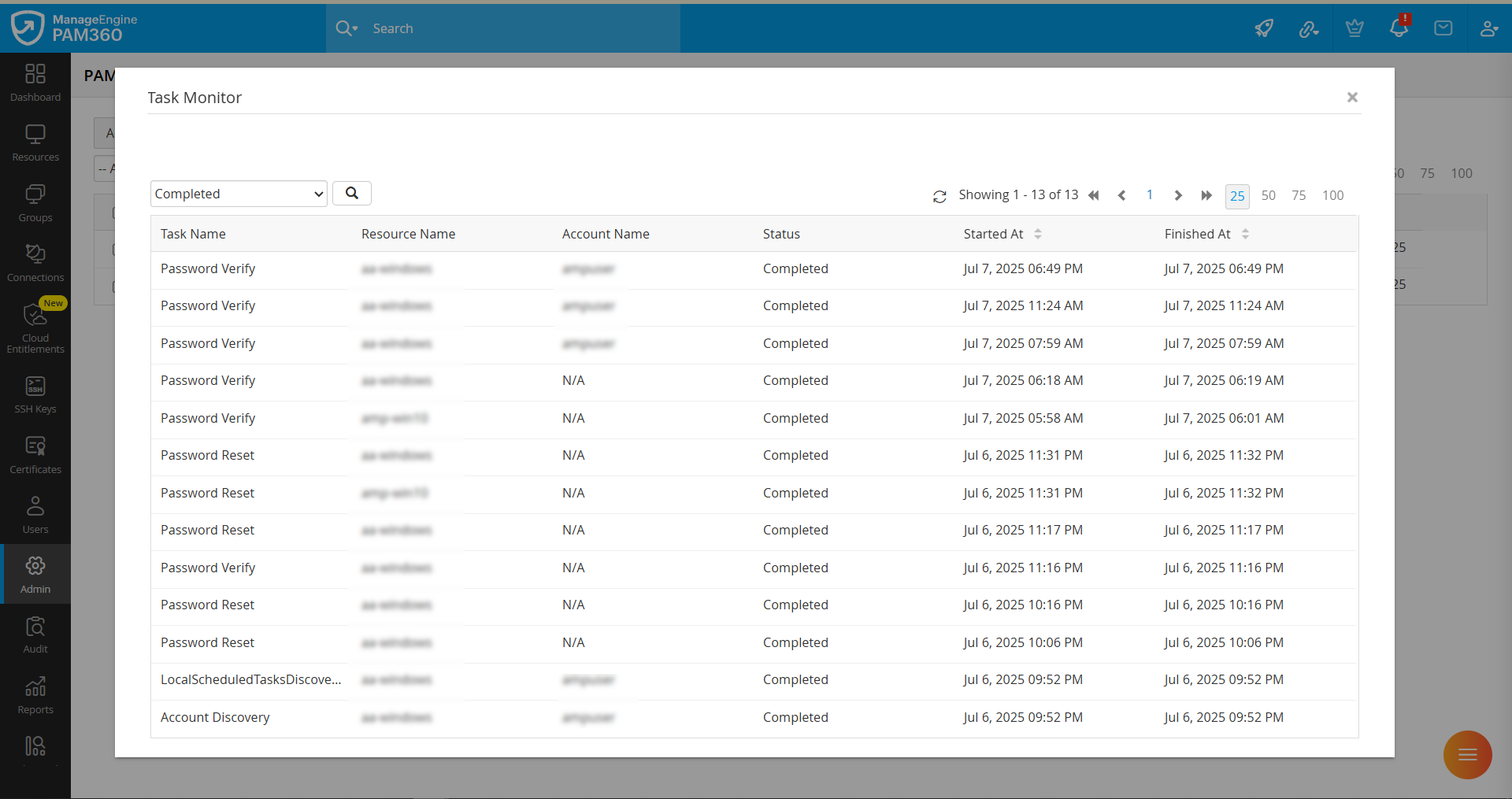
- The Task Monitor window provides a detailed list of all the tasks executed by the selected Application Gateway, including the following details: Task Name, Resource Name, Account Name, Status, Start Time, and End Time. The window also includes Search and Filter options to help you locate specific tasks efficiently.
3.2 Viewing Executed Tasks in Resource Audits
All operations executed by the Application Gateway, including password resets, verifications, and periodic tasks, are recorded on the Resource Audits page, providing a comprehensive log with relevant information. The resource audits will include a new column titled Executed By, which the administrators can add to the Resource Audits page using the Custom Column Chooser. This column indicates whether the task was executed by the PAM360 server or by a deployed Application gateway, along with the name of the gateway that performed the action. Administrators can use the Search and Filter options on the Resource Audits page to find the specific tasks executed by an Application gateway. Explore this link for more details about resource audits in PAM360.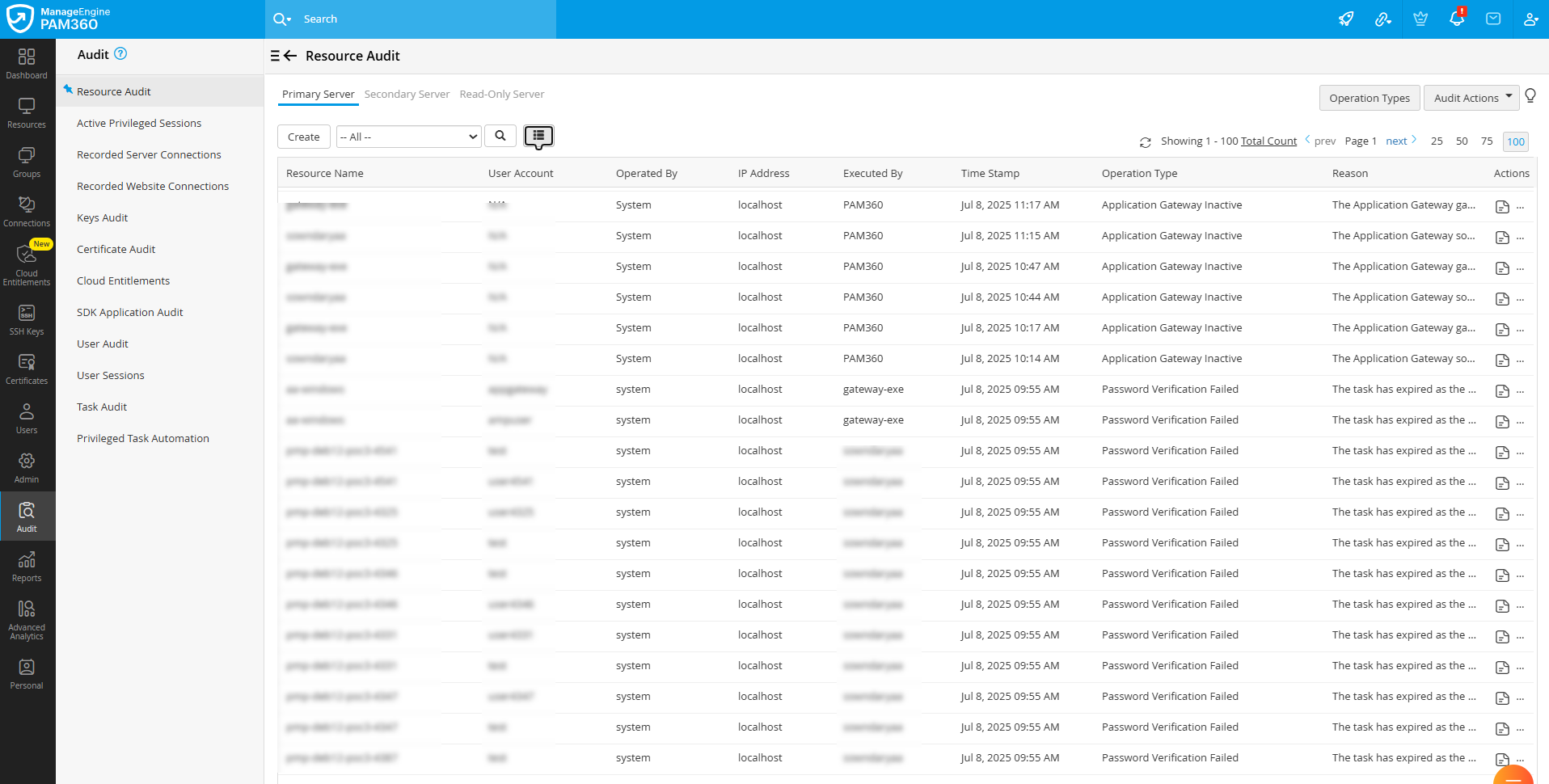
3.3 Configuring Resource Audits for Application Gateway
PAM360 offers the flexibility to record audit trails only for specific events related to the Application Gateways, such as when an Application Gateway is added, deleted, enabled, disabled, modified, or down, based on your requirements. By default, the audit trails for all these events are enabled. Explore this link for more details about managing resource audits and notifications.
4. Deleting Application Gateway Servers
Caution
- If there are resources associated with an Application Gateway, you must dissociate them before attempting to delete the Application Gateway. Application Gateways with associated resources cannot be deleted from the PAM360 console.
- Deleting the Application Gateway from the PAM360 console only removes its configuration from the application. You must manually uninstall the Application Gateway from the machine where it was originally installed.
PAM360 allows you to remove an existing Application Gateway configuration when it is no longer required for managing remote resources. Follow these steps to delete an Application Gateway configuration from the PAM360 console:
- Navigate to Admin >> PAM360 Gateways >> Application Gateway.
- On the PAM360 Application Gateway page, select the desired Application Gateway configuration you wish to delete and click the Delete button on the top pane.
- In the Delete Application Gateway window, review the Application Gateway details and click the Delete button to delete the selected Application Gateway.
5. Emergency Measures
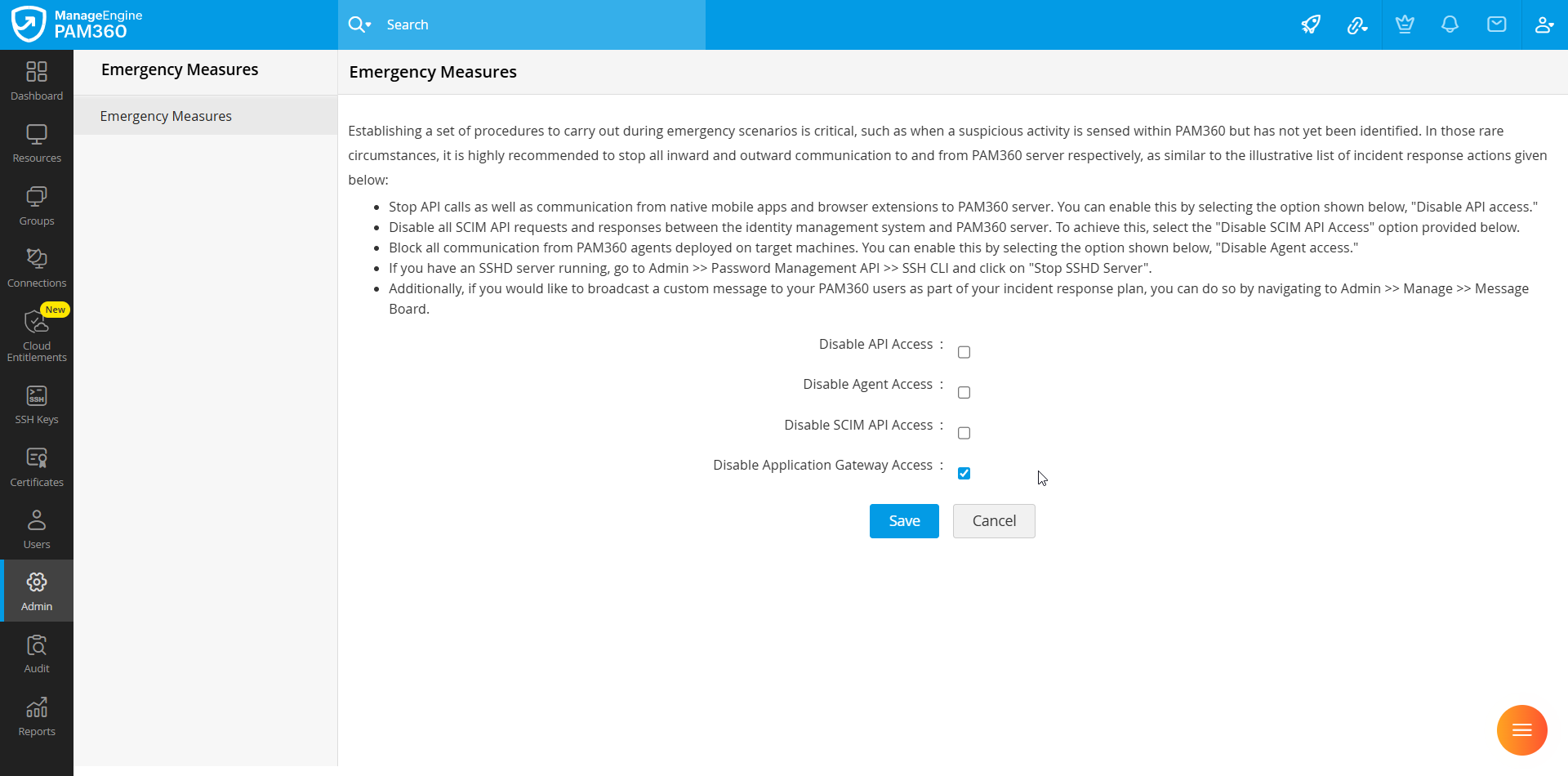
To protect against potential attack vectors, administrators can restrict the Application Gateway's access to the PAM360 server by disabling it. This measure is especially useful if the server or network where the Application Gateway is deployed is compromised, as it helps prevent unauthorized communication with the PAM360 server. Follow these steps to disable the Application Gateway's access to the PAM360 server:
- Navigate to Admin >> Server Hardening >> Emergency Measures.
- In the Emergency Measures page, tick the checkbox beside the Disable Application Gateway Access field to disable all the Application Gateways deployed in your environment from communicating with the PAM360 server.
6. Troubleshooting Tips
1. Why do I see the Setup Interrupted error message during the Application Gateway configuration?
The Setup Interrupted error message is displayed when an invalid PAM360 server certificate is uploaded during the Application Gateway configuration. Follow the steps given below to resolve this issue:
- Click the Show Hidden Icons option in the bottom right corner of the Taskbar.
- Right-click on the Application Gateway tray icon and select Edit Application Gateway Configuration from the displayed options. You will see the Application Gateway configuration window.
- Click the Browse button beside the PAM360 Server Certificate field and upload a valid certificate from the machine.
- Click Save and complete the setup.
2. Why is the Application Gateway in an inactive state?
- If there is no active network connection between the PAM360 server and the Application Gateway, the status may show as inactive. To resolve this issue:
- Ensure that the machine where the Application Gateway is installed has a stable network connection.
- Verify that the PAM360 server is reachable from the Application Gateway host (you can use the ping or telnet command to test connectivity on the required port).
- Confirm that no firewall or proxy is blocking the communication between the two components.
- If the service associated with the Application Gateway is stopped or not responding, it will be marked as inactive. To resolve this issue:
- Click the Show Hidden Icons option in the bottom-right corner of the Taskbar.
- Locate the Application Gateway tray icon, right-click it, and select Start Application Gateway.
- If the tray icon is not visible, open the Services console (services.msc), search for the ManageEngine PAM360 - ApplicationGateway service, and start it manually.
- If the Application Gateway is installed on a Linux machine, execute the following commands:To check the status of the Application Gateway service.
systemctl status pam360ApplicationGateway.service
To start the Application Gateway service.systemctl start pam360ApplicationGateway.service