Secondary Server Model using PostgreSQL Database
Caution
- The PostgreSQL High Availability model using Rubyrep for database replication in earlier setups has reached its end-of-life and is no longer maintained. Continuing to rely on Rubyrep may expose your environment to security risks and upgrade issues.
- It is mandatory to use the new High Availability model based on PostgreSQL’s native streaming replication for builds 8400 and above. For more details, refer to this new PostgreSQL High Availability document.
- Procedure applies to builds 8310 and below
PAM360's secondary server model provides a foundational approach to tackle downtime and ensure continual access to privileged accounts. By deploying a PAM360 instance on a secondary server, organizations establish a solution that facilitates smooth transitions in the event of service interruptions on the primary server.
Additional Detail
The High Availability configuration using the secondary server model is exclusively compatible with the PostgreSQL database bundled with the PAM360 product.
Initially, a PAM360 instance is installed on a server and connected to a primary database, serving as the primary PAM360 server. Subsequently, another instance is established on a separate server, linked to a new secondary database, serving as the secondary server. In the event of the primary server's inactivity, operations are seamlessly transferred to the secondary server. Once the primary server resumes operation, database synchronization occurs using the merge replication methodology, restoring it as the primary server.
- How Does the Secondary Server Model Works?
- Secondary Server Architecture in PAM360
- Network Scenarios for Secondary Server
- Setting up High Availability in the Server Running with PostgreSQL
- Monitoring Secondary Server Model
1. How Does the Secondary Server Model Work?
In PAM360, the secondary server model ensures redundancy of both servers and database instances. Key characteristics of the model include:
- Primary and Secondary Instances: The primary instance handles read/write access for all users. The secondary instance remains synchronized with the primary instance.
- Data Synchronization: Data between the primary and secondary databases is continuously synchronized via server's data replication over a secure, encrypted channel.
- Failover: When the primary server becomes unavailable, the secondary server automatically provides read/write access to users (except for password reset functionality) until the primary server is back online. Once the primary server is restored, any changes made to the secondary database during the downtime are automatically synchronized with the primary database.
2. Secondary Server Architecture in PAM360
The architecture consists of redundant PAM360 servers - one primary server and one secondary server. The secondary server is kept in synchronization with the primary server through server replication.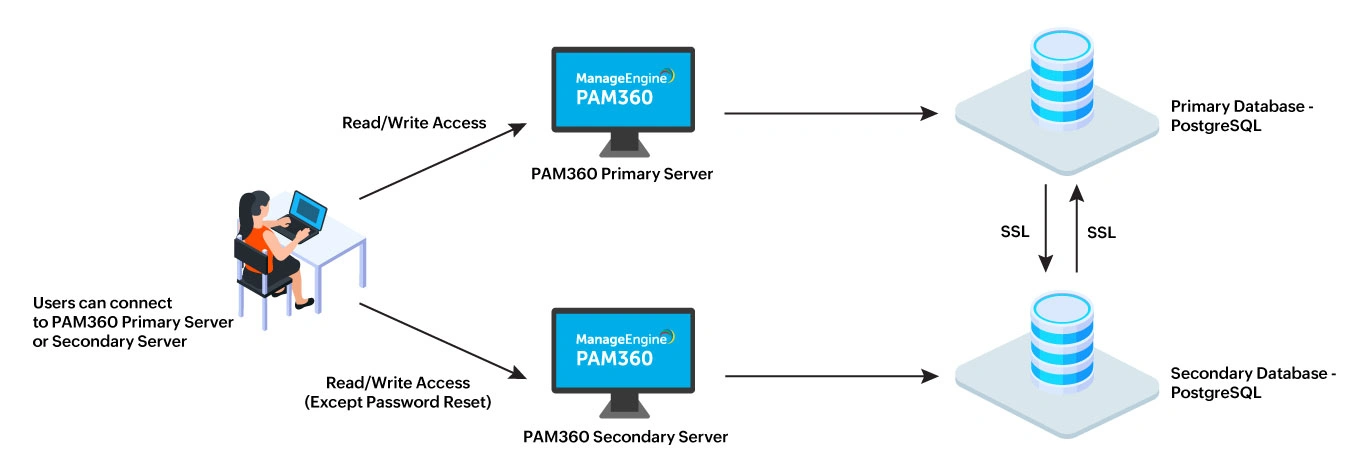
3. Network Scenarios for Secondary Servers
The secondary server architecture in PAM360 supports two network scenarios:
| Scenario 1 | |
|---|---|
Primary and Secondary Servers on the Same Network | In this scenario, both the primary and secondary servers are hosted within the same network. If the primary server fails, the secondary server assumes read/write responsibility, except for password resets. |
Example | Both servers are deployed in the same location. If the primary server goes down, users can still retrieve passwords and perform relevant operations from the secondary server within the same network. Once the primary server becomes active, the data in both the servers' database will be synchronized. |
| Scenario 2 | |
Primary and Secondary Servers on Different Networks | In this scenario, the primary and secondary servers are hosted in different geographical locations, connected via a WAN link. If the WAN link fails, the secondary server can continue to serve users in its network by providing read/write access (except password resets). |
Example | If the primary server is located in location A and the secondary server in location B, and the WAN link between them fails, both servers will operate independently. Users in location B will access the secondary server until the link is restored, after which both servers' database will synchronize. |
3.1 Audit Trail Management
In both scenarios, audit trails are recorded as usual. If users access the secondary server during a primary server failure, actions such as password retrieval, login, and logout will be logged on the secondary server. Once network connectivity is restored, the audit data between the primary and secondary servers is synchronized.
Caution
Make sure that the ports 3456 (database port) and 8282 (web server port) are open between the primary and the secondary application servers.
4. Setting up the Secondary Server Model for PAM360 with PostgreSQL Database
To establish High Availability for a server running PostgreSQL in PAM360, follow these four essential steps:
- Use your existing PAM360 installation as the primary server.
- Install a new instance of PAM360 on a separate machine to act as the secondary server. During installation, select Configure this server as High Availability Secondary server. Upon completing the installation, do not start the PAM360 service.
- Ensure both the primary and secondary servers, as well as the PostgreSQL process for PAM360, are not running.
- Open the command prompt and navigate to the <PAM360-Primary-Installation-Directory>/bin folder and execute the following appropriate command depending on your operating system:
Windows:
HASetup.bat <Primary_Server_FQDN> <Secondary_Server_FQDN>
Linux:
Replace <Primary_Server_FQDN> and <Secondary_Server_FQDN> with the fully qualified domain names of the primary and secondary servers. For example: HASetup.bat primary-server.zohocorpin.com secondary-server.zohocorpin.com or sh HASetup.sh primary-server.zohocorpin.com secondary-server.zohocorpin.comsh HASetup.sh <Primary_Server_FQDN> <Secondary_Server_FQDN>
- Running the script will generate a replication package named HAPack.zip in the <PAM360-Primary-Installation-Directory>/replication folder. This package contains the database package required for the secondary server.
- Start the PAM360 primary server once the replication package has been created.
- Copy HAPack.zip and place it on the machine where the PAM360 secondary server is installed.
- Move HAPack.zip into the<PAM360-Secondary-Installation-Directory> on the secondary server and unzip it. Ensure you extract files directly under <PAM360-Secondary-Installation-Directory> to overwrite the existing data files properly.
- Upon extracting HAPack.zip on the secondary server, navigate to the conf folder, and open the manage_key.conf file and specify the full path to pam360_key.key (encryption master key).
Additional Detail
PAM360 requires the pam360_key.key file to be accessible with its full path when it starts up every time. After a successful start-up, it does not need the key anymore so the device with the key file can be taken offline.
Caution
From PAM360 build 8000 onwards, it is mandatory to retain the pam360_key.key file in the file path specified in the manage_key.conf file for a seamless operation. PAM360 continuously accesses this file to ensure uninterrupted operation. If the pam360_key.key file is not available in the specified path, the service may not startup or certain features such as database backup will not function.
The secondary server configuration for HA is now complete. Start the PAM360 secondary server followed by primary server to activate the HA setup.
Caution
By default, PAM360 uses a self-signed SSL certificate. If you have replaced this with a certificate from an internal CA (other than well-known CAs like Verisign, Thawte, RapidSSL, etc) on the secondary server, follow these extra steps to add the certificate to the primary server’s certificate store:
- Stop the primary server if it is running.
- Copy the secondary server's SSL certificate and paste it in the <PAM360-Primary-Installation-Directory>/bin folder.
- From the <PAM360-Primary-Installation-Directory>/bin folder, open the command prompt and execute the following command:Replace <Absolute-Path-of-the-Certificate> with the path of the secondary server’s certificate. For example, importCert.bat D:\Builds\PAM\7200\bin\ha-server.crt This command adds the server certificate to the PAM360 certificate store.
importCert.bat <Absolute-Path-of-the-Certificate>
- Restart the primary server to apply the SSL certificate configuration.
Your HA configuration for PAM360 with PostgreSQL is now fully set up and secured.
5. Monitoring Secondary Server Model
PAM360 supports monitoring the high availability of your servers to anticipate failures, thereby avoiding costly downtimes. Refer to this help document to learn more about monitoring HA in detail.