Monitoring High Availability of Secondary Server Model using PAM360
Continuous monitoring of endpoints and associated database operations enables early problem detection and efficient resolution, enhancing the overall user experience. By capturing critical system metrics, monitoring facilitates trend analysis in server performance and the identification of recurring issues. For database servers, reliable monitoring is essential as it ensures availability, promptly detects potential issues that could disrupt operations, and sends immediate notifications to relevant stakeholders about critical failures. An effective monitoring system is highly accessible, stable, and capable of capturing diagnostic data while notifying administrators of any encountered issues.
PAM360 supports High Availability (HA) monitoring for servers to anticipate failures, reducing costly downtimes. It features built-in HA management and monitoring capabilities for secondary server model along with multiple notification options. This document will cover the following topics:
- High Availability Console for Secondary Server Model with PostgreSQL Database Server
- Server or Database Status on High Availability
- Alerting Mechanism for Status Failure
- Modifying Server Details in PAM360
To begin HA monitoring, you must firstset up HA by configuring the secondary server model with PostgreSQL. If HA is not yet configured, the console will display an empty view with a prompt, as shown in the image below.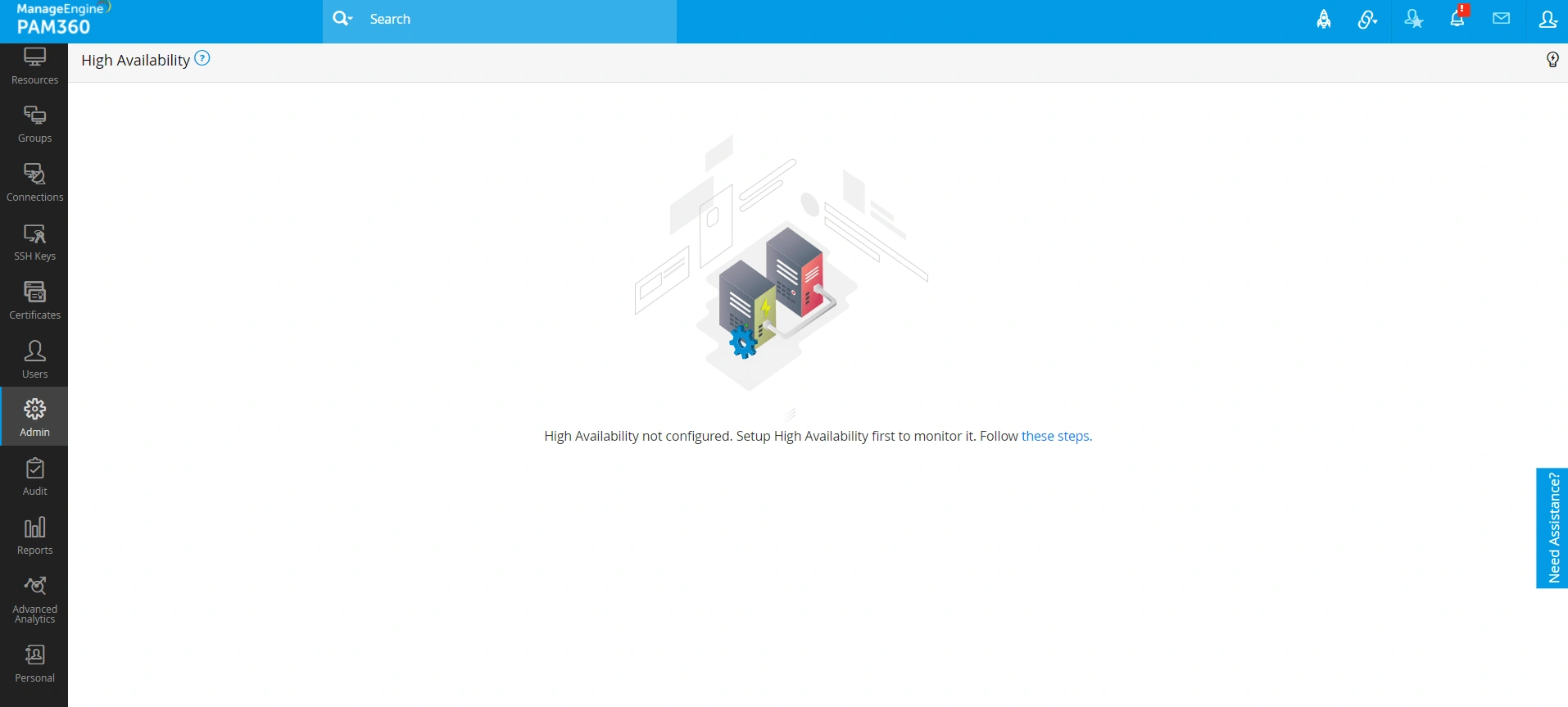
After setting up HA, you can monitor the PostgreSQL HA setup directly from the PAM360 console. To access this, navigate to Admin >> Business Continuity >> High Availability of the Primary or Secondary server.
1. High Availability Console for Secondary Server Model PostgreSQL Database Server
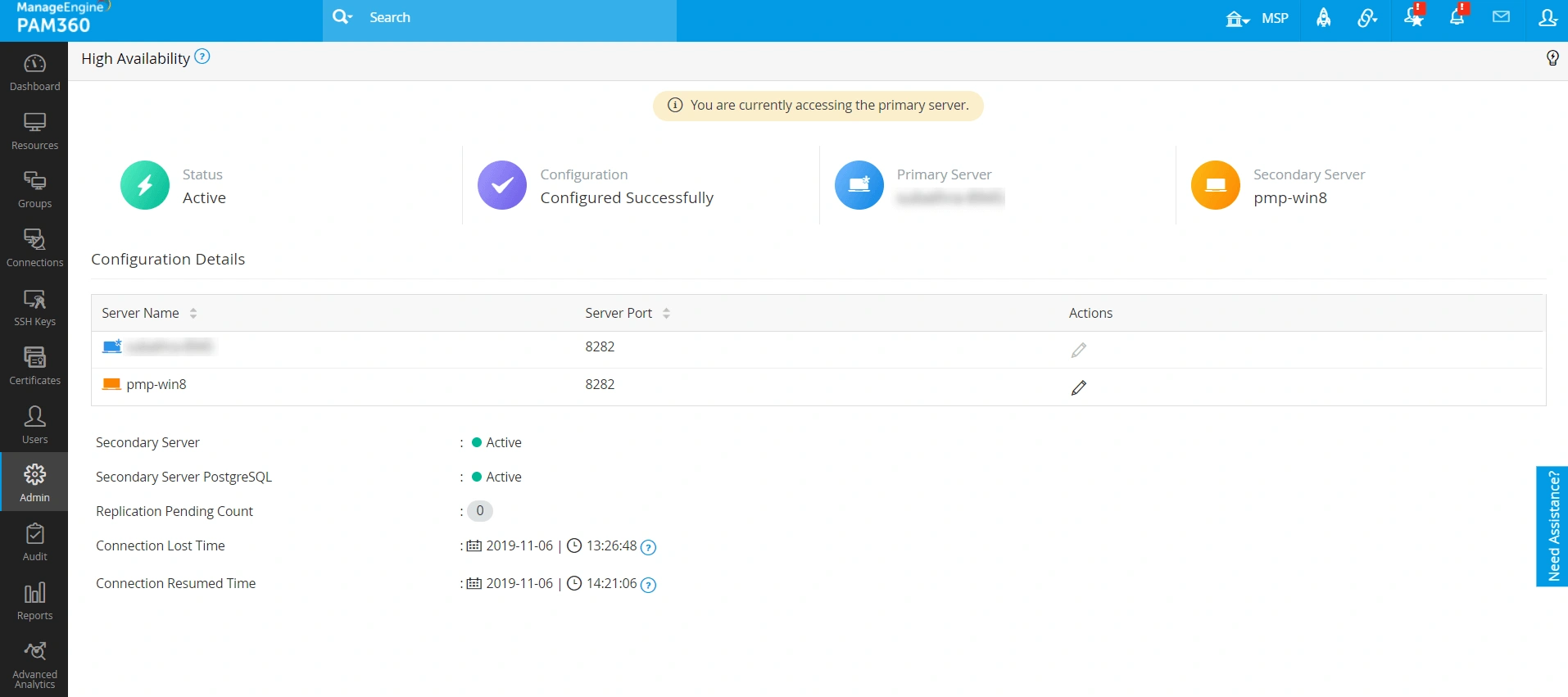
The HA console in PAM360 serves as a comprehensive, dashboard-style interface for monitoring the availability of both primary and secondary servers, as well as their associated databases. With the console, you can seamlessly switch views between the primary and secondary servers. The HA Console allows you to:
- Access an HA summary, including the status and configuration details
- Monitor the status of both servers and their associated databases
- Track the replication pending count
- Review connection lost and resumed timestamps
- Modify server details as needed
1.1 UI Elements and Definitions
The PAM360 HA monitoring console includes various elements each of which corresponds to a specific detail as explained below:
| Sl. No | UI Element/Icon | Status | Definition |
|---|---|---|---|
1 |
| Active | This blinking icon indicates that the HA is actively running in the server (primary/secondary) which you are viewing right now. |
2 |
| Inactive | This blinking icon indicates that the HA is down in the server (primary/secondary) which you are viewing right now. |
3 |
| Success | This icon indicates that HA is configured successfully in your server. In the case of HA configuration failure, this screen will be shown. |
4 |
| - | This icon denotes the primary server. |
5 |
| - | This icon denotes the secondary server. |
6 | Configuration Details | - | This is a table listing the following details of primary and secondary servers; Server Name, Server Port and Actions. You can modify the secondary server details from here. (Please note that you cannot edit the primary server details) |
7 | Primary/Secondary Server |
| This icon indicates that the primary/secondary server is up and running. |
| This icon indicates that the primary/secondary server is down and stopped running. | ||
8 | Primary/Secondary Server PostgreSQL |
| This icon indicates that the PostgreSQL database of primary/secondary server is up and running. |
| This icon indicates that the PostgreSQL database of primary/secondary server is down and stopped running. | ||
9 | Replication Pending Count | - | This indicates the total number of pending replications. If this value is zero, it means that there are no replications pending and the primary and secondary server are continuously in sync with each other. |
10 | Connection Lost Time | - | This indicates the time when the connectivity between the primary and secondary servers was lost. |
11 | Connection Resumed Time | - | This indicates the time when the connectivity between the primary and secondary servers was regained. |


2. Server and Database Status on High Availability
The core principle of HA is the continuous replication of data between primary and secondary servers. The Status reflects the state of the connection and communication between the primary and secondary servers/databases. HA status is categorized into two types:
- Active: Indicates successful data replication and synchronization between the primary and secondary servers.
- Inactive - Signifies a connectivity disruption between the primary and secondary servers, often caused by issues such as network interruptions. This break in communication halts data replication and synchronization between the servers’ databases.
However, once the connection is restored, synchronization resumes seamlessly. During this period of disconnection, users connected to either the primary or secondary server will not experience any service disruption.
3. Alerting Mechanism for Status Failure
Given the significance of the Active and Inactive statuses in HA secondary server model setups, receiving real-time alerts when the status changes is essential. To configure these alerts, navigate to Audit >> Resource Audit >> Configure User Audit >> General Operations, and select your preferred alert mode (email, SNMP trap, or Syslog message) for the events High Availability Alive and High Availability Failed.
Caution
- If the primary server port is changed after configuring the secondary server, the high availability setup will be disrupted. You must reconfigure the secondary server with the updated port.
- If you enable or change the TFA type (PhoneFactor, RSA SecurID, One-time password, etc.) in an HA-configured setup, you must restart the PAM360 Secondary server.
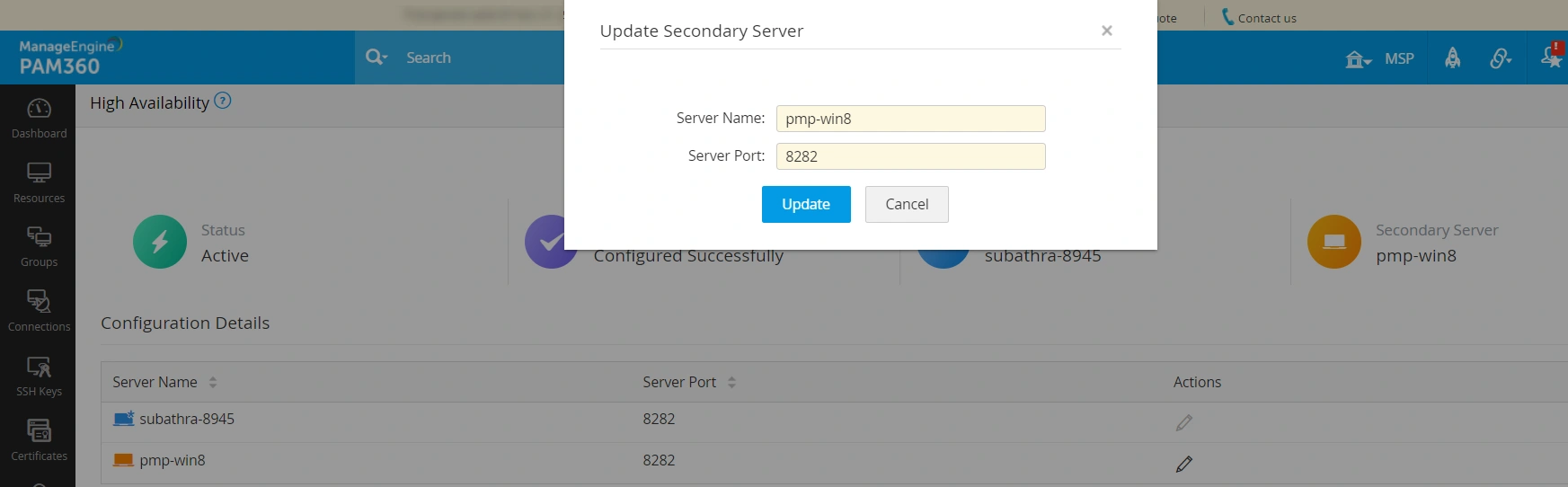
4. Modifying Server Details in PAM360
To modify server details, click the edit icon under Actions next to the secondary server you wish to edit. In the popup window, make the necessary changes and click Update. This flexible interface enhances server management by allowing quick and straightforward adjustments to server configurations.