Install APM Insight Java Agent via system Environment
Note:
- This approach is suitable for monitoring a single Java application on a machine using our APM Insight Java Agent.
- Ensure that the specified host, port, application name, license key, and server port are configured correctly based on your APM Insight account details. Adjust the examples accordingly.
- For monitoring multiple applications or additional configurations, consult the appropriate Application servers documentation.
- Download latest the APM Insight java agent zip file (apminsight-javaagent.zip) here.
- Extract the zip file contents to the below appropriate path to find agent jar.
- For Windows: C:\ManageEngine\
- For Linux: \opt\ManageEngine\
- Configure the following agent configuration keys with appropriate value
- For Windows: Open System properties → Advanced → Environment Variables → Add System variables like below.
- Variable Name: JAVA_TOOL_OPTIONS
- Variable Value:-javaagent:C:\ManageEngine\apminsight-javaagent\apminsight-javaagent.jar -Dapminsight.apm.host=http://HOST]:[PORT] -
Dapminsight.application.name="[APPLICATION NAME]" -Dapminsight.license.key=[LICENSE KEY] -Dapminsight.agent.server.port=8080 - Example:-javaagent:C:\ManageEngine\apminsight-javaagent\apminsight-javaagent.jar -Dapminsight.apm.host=http://apmuser:9090 -
Dapminsight.application.name="My Application" -
Dapminsight.license.key=APMI_d04e6cf87bc6e4b9429c03426c485dd4f1edd1f813bd332b45955c6b0ef70d59 -
Dapminsight.agent.server.port=8080
- For Windows: Open System properties → Advanced → Environment Variables → Add System variables like below.


- For Linux: Open ~/.bashrc and add below variables like given in the last line.
- export JAVA_TOOL_OPTIONS="-javaagent:/opt/ManageEngine/apminsight-javaagent/apminsight-javaagent.jar -
Dapminsight.apm.host=http://HOST]:[PORT] -Dapminsight.application.name='[APPLICATION NAME]' -Dapminsight.license.key=[LICENSE KEY] -
Dapminsight.agent.server.port=8080" - Example:export JAVA_TOOL_OPTIONS="-javaagent:/opt/ManageEngine/apminsight-javaagent/apminsight-javaagent.jar -
Dapminsight.apm.host=http://apmuser-9771-t:9100 -Dapminsight.application.name='My Application' -
Dapminsight.license.key=APMI_d04e6cf87bc6e4b9429c03426c485dd4f1edd1f813bd332b45955c6b0ef70d59 -
Dapminsight.agent.server.port=8080" - Execute "source ~/.bashrc" to apply changes.

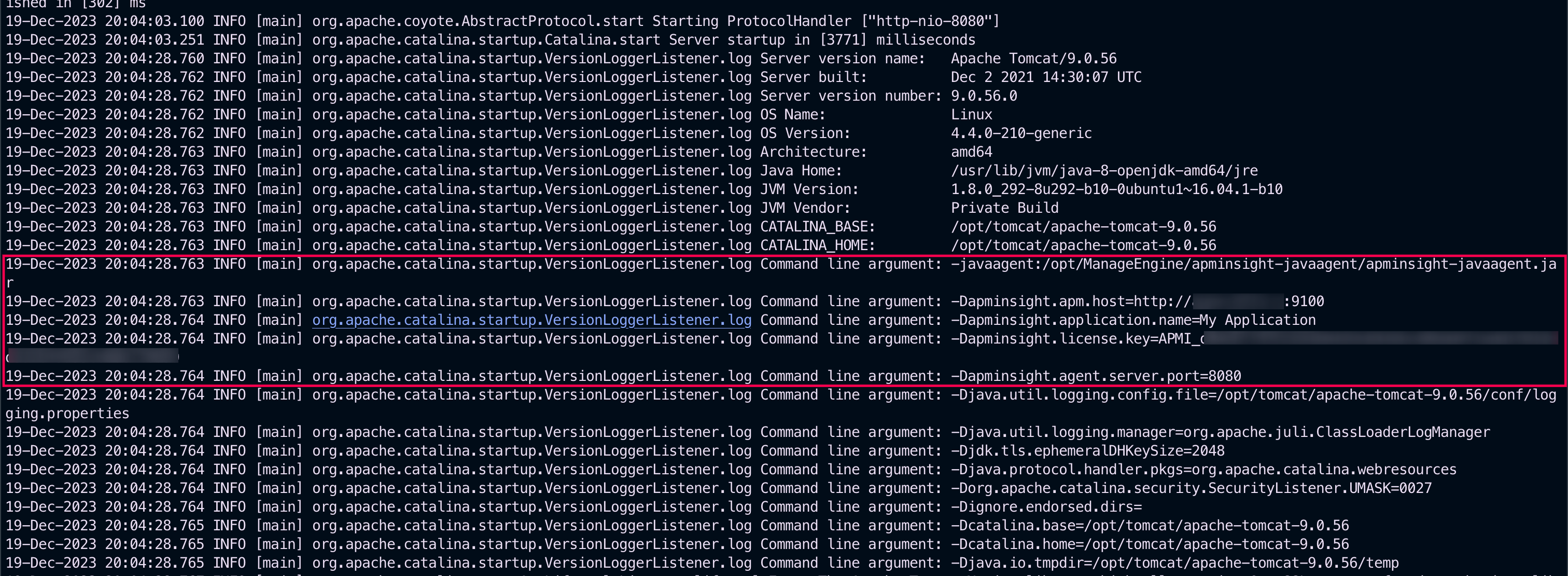
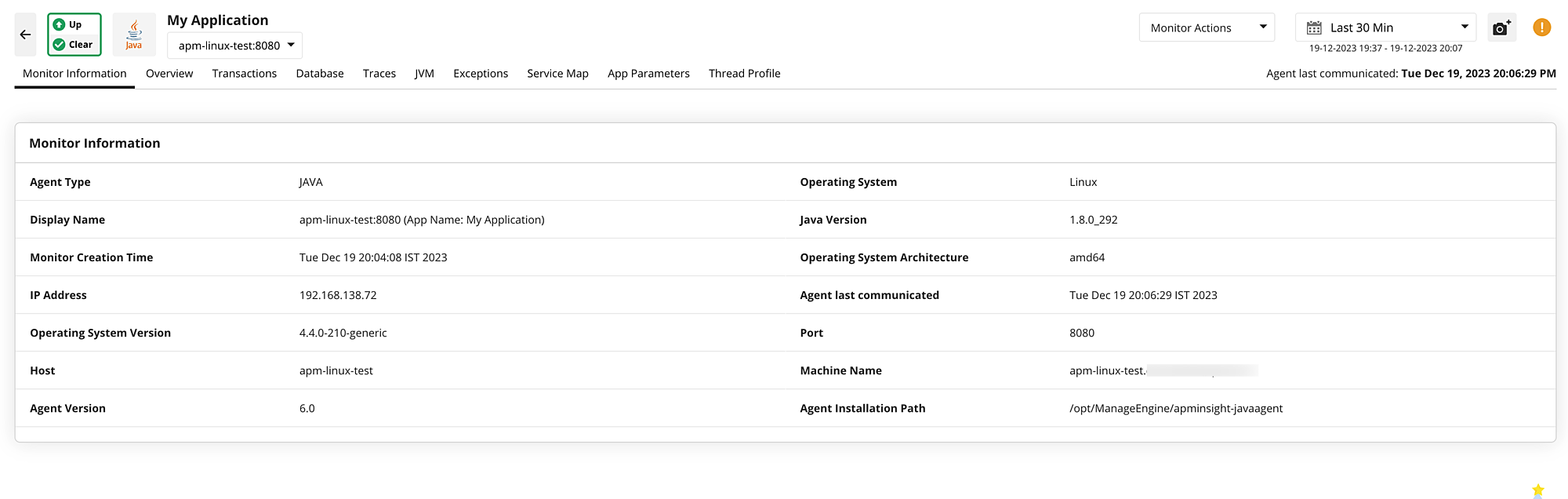
- Restart the appropriate Java Application to take effect