Downtime Scheduler Settings
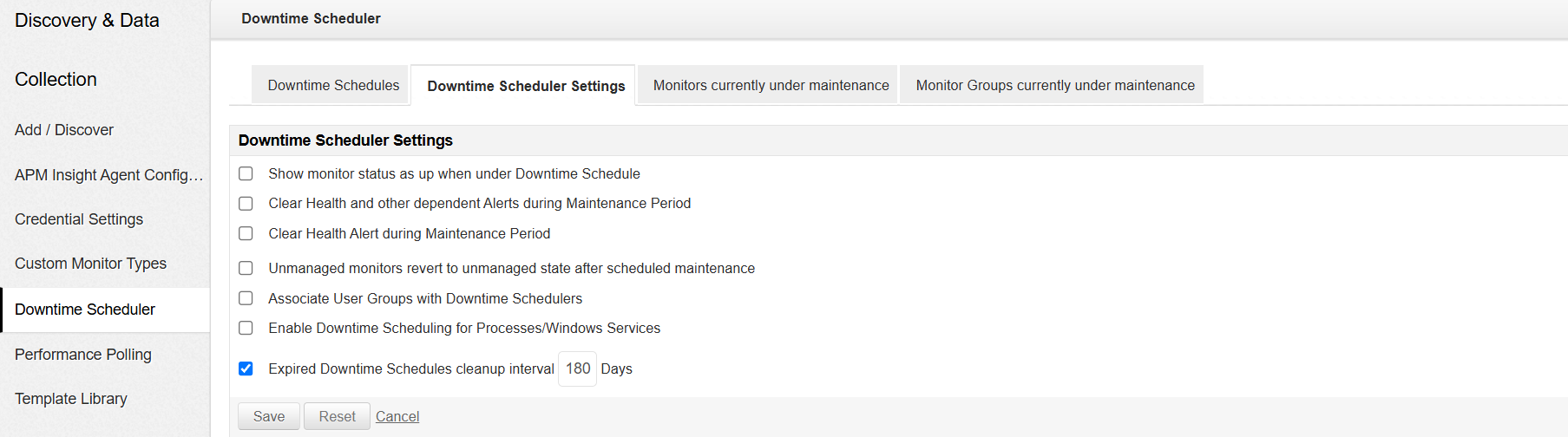
You can change the following settings under the Downtime Scheduler Settings tab by enabling the respective checkboxes:
- Show the status of a monitor as up when under Downtime Schedule.
- Clear Health and other dependent Alerts during Maintenance Period. Choosing this option will help to clear alerts of all the dependent attributes for monitors undergoing maintenance.
- Clear the health alert during Maintenance Period.
- Automatically revert unmanaged monitors to unmanaged state after scheduled maintenance.
- Allow a user group to be associated with the Downtime Scheduler. If a user group is linked to a downtime schedule, all the users within that group will have the ability to edit the associated downtime.Note: The Downtime Schedule owner retains control over the schedule, regardless of user group changes, such as:
- Being removed from the associated group
- Modifications or removal of the selected group
- Enable Downtime Scheduling for Processes/Windows Services.
The cleanup scheduler will run with a delay of 30 minutes after the completion of the APM startup process. Once the cleanup is completed, subsequent cleanup processes will execute at a 24-hour interval. By default, the cleanup interval is 180 days. The cleanup process will delete all expired downtime schedules that exceed the configured cleanup interval in the Downtime Scheduler settings page.