Configure Application Groups
Organize applications into allowlists and blocklists using rule-based groups, then apply them across your managed endpoints.
When you use Application Control as an Endpoint Central add-on, target computers must also be included in the Endpoint Security add-on's Managed Computers list. Being managed by Endpoint Central or belonging to a custom group does not by itself include a computer in this add-on scope.
- Go to Admin > Global Settings > Endpoint Security.
- Click Manage next to Managed Computers and add the required computers, individually or through a static custom group.
- Wait for the next agent refresh while the computers are online and communicating with the server. The computers can then appear in Application Control and its deployment counts.
- If a policy was already deployed but remains pending, redeploy it after the add-on components have been installed.
Check this scope if a custom group shows fewer computers than its Endpoint Central membership, or if deployment remains at 0%. These symptoms can have other causes; verify the scope before redeploying.
For macOS application groups, complete the Mac prerequisites before creating a group.
Overview
Application Groups
Understand the two listing types and how Endpoint Central discovers the apps available to group.
Application group definition
An application group is a named collection of applications. Create it once and reference it in policies. Groups can be scoped by department, role, function, or any classification that fits your environment. All application control policies target groups rather than individual apps.
Endpoint Central's agents scan every managed endpoint and build an inventory of installed applications and their executables. That inventory is the source for everything you add to a group.
Allowlists and Blocklists
Every group is either an allowlist or a blocklist.
- Allowlist — only the applications in this group are permitted to run. Everything else is blocked. Use allowlisting to restrict endpoints to a known-good set of software and prevent unauthorized installations or malware from executing.
- Blocklist — the applications in this group are explicitly prevented from running. Use blocklisting to ban specific known-malicious or unauthorized programs while leaving everything else unrestricted.
In the Application Control Dashboard, the Unregulated Computers count indicates computers without an associated Application Control policy. Click Associate Application Group(s) to open the policy-association workflow. Moving a computer into a custom group alone is not the same as associating and deploying a policy.
Setup
Create Application Groups
Start from the Endpoint Central console and build a group using filters and custom rules.
Basic setup
- Go to Application Groups in the console.
- Click Create Allowlist or Create Blocklist depending on the type of group you need.
- Select Windows or Mac OS to specify which platform the group applies to.
- Enter a name for the group and, optionally, a description.
If a Windows component is absent from the discovered-application picker, identify the executable that actually runs it and review the Windows component guidance. Use the executable path or hash as appropriate. For a management console or snap-in, verify the host executable before creating a rule.
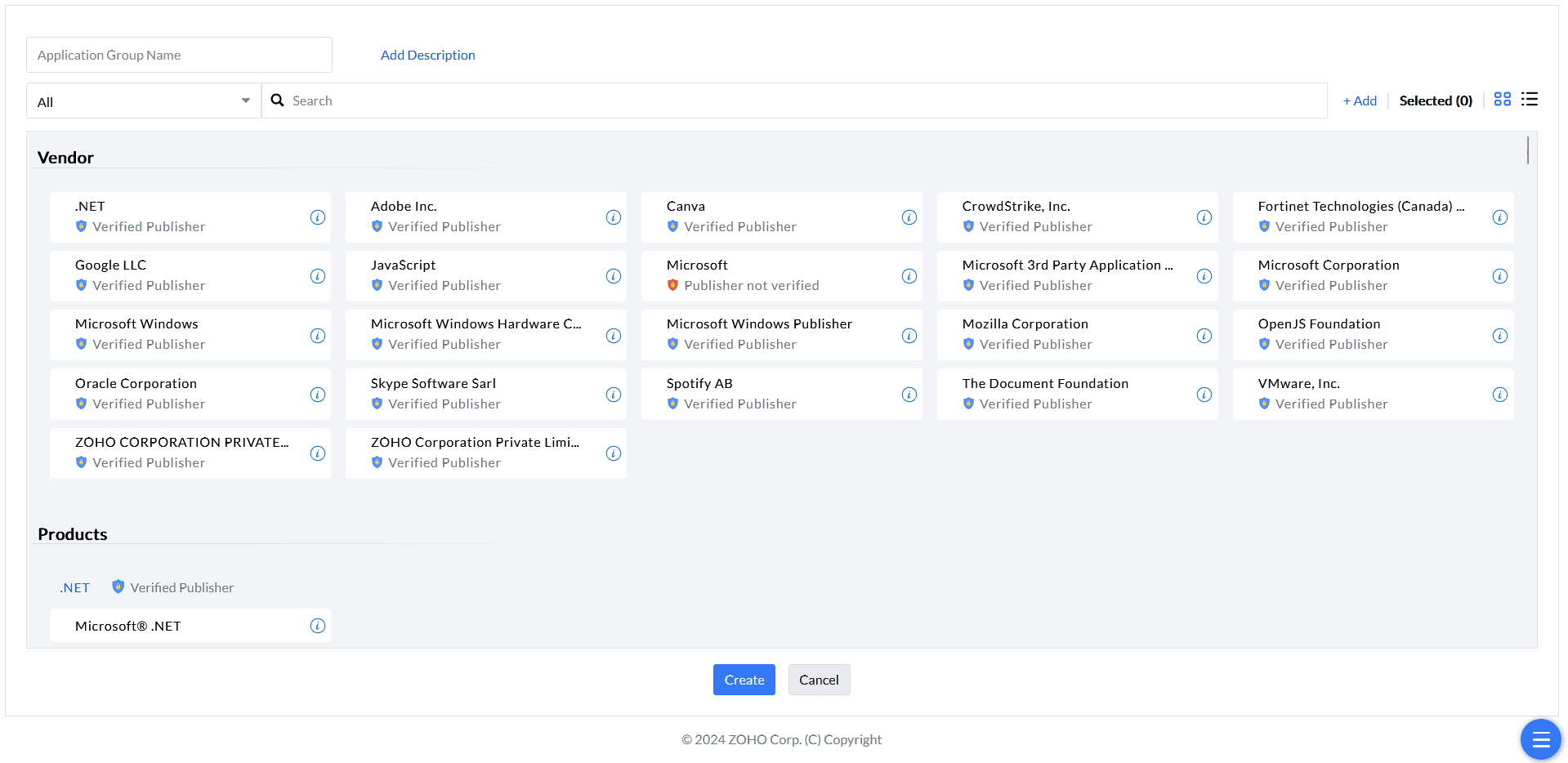
The 'All' filter displays discovered applications; viewing this list does not select them for the group. Select the required application entries or add matching rules, then click Save (called Create in some versions). If the console reports that no applications were selected, return to the selection and choose at least one entry or rule before saving.
A group is subject to the configured application/rule selection limit. If saving reports that the limit is exceeded, reduce the selected entries or split the intended selection into suitable groups. The default is 30,000 rule selections, but a customer-specific value can override it; use the limit reported by the console rather than assuming that every environment has the same ceiling.
Filters
Filter application groups for Windows
Six rule types let you precisely control which applications are added to a Windows group.
Available filter rules
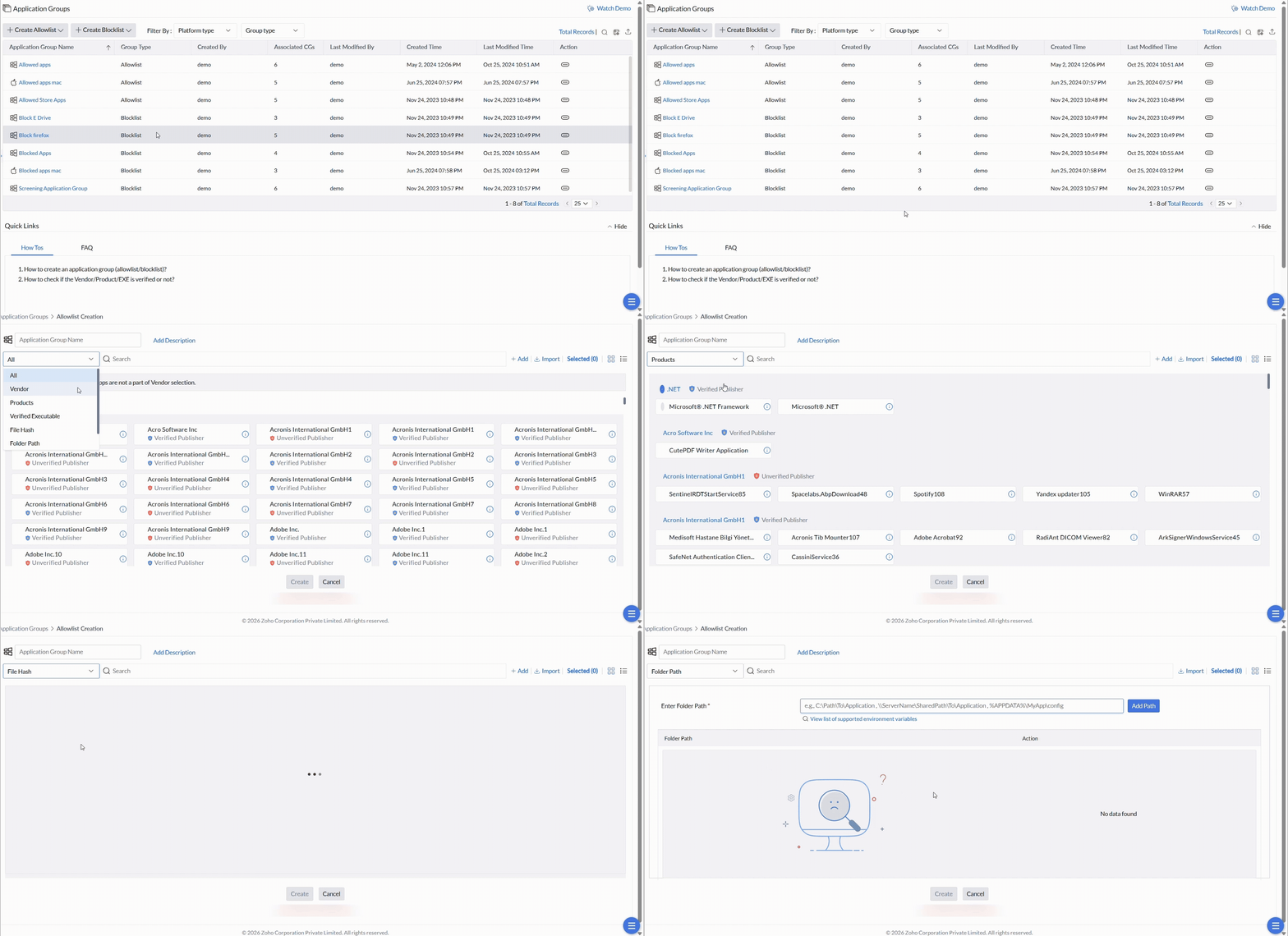
Click the drop-down next to All to switch to a specific rule type. All discovered applications are evaluated against the rules you set, and those that match are added to the group.
Vendor
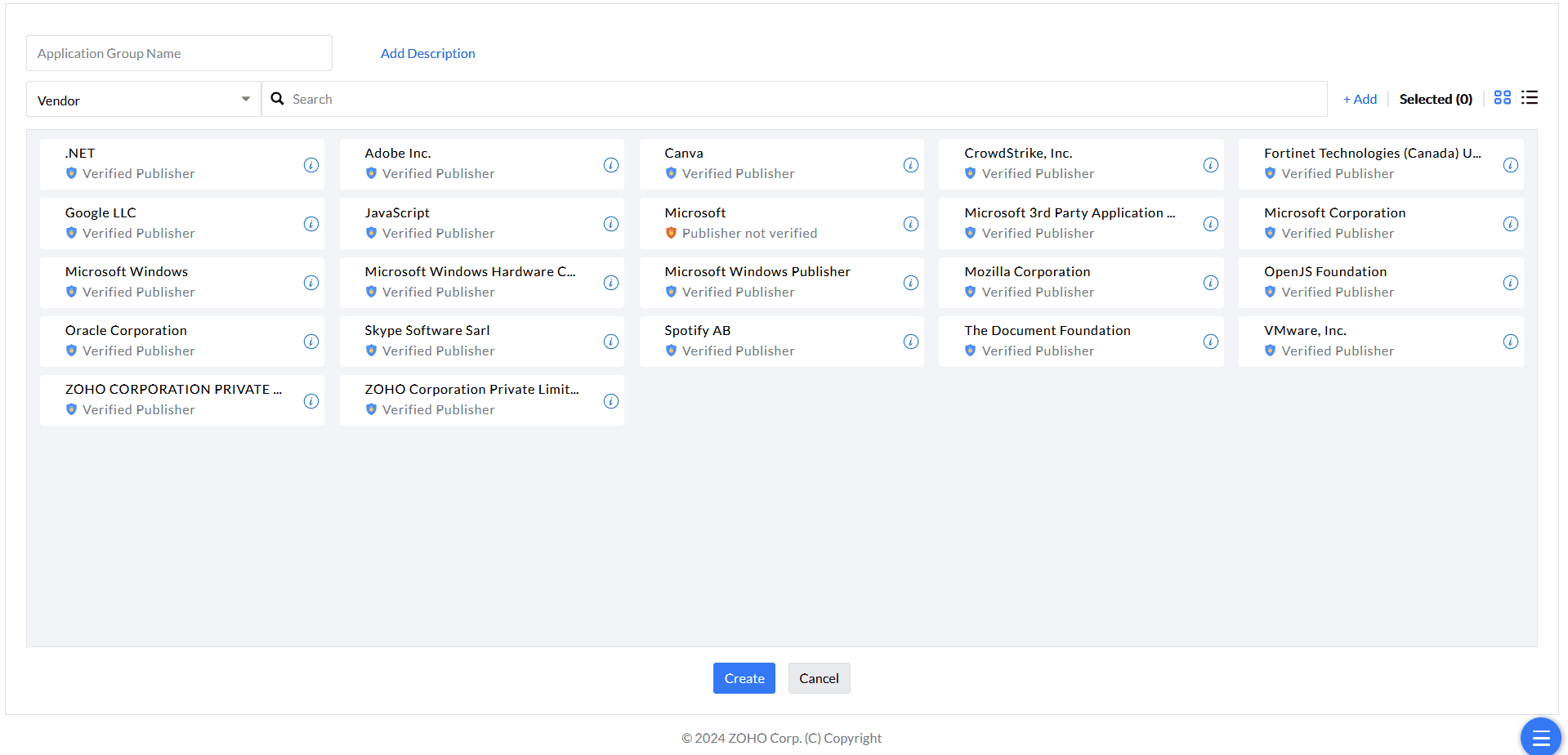
Vendor Rule includes verified and unverified published vendors. Verified are software publishers that have digitally signed their products with a code-signing certificate, confirming the publisher's identity and the software's integrity. Trusting vendors without valid certificates exposes the network to backdoor attacks.
When you pick one or more vendors, all applications published by those vendors are included in the group.
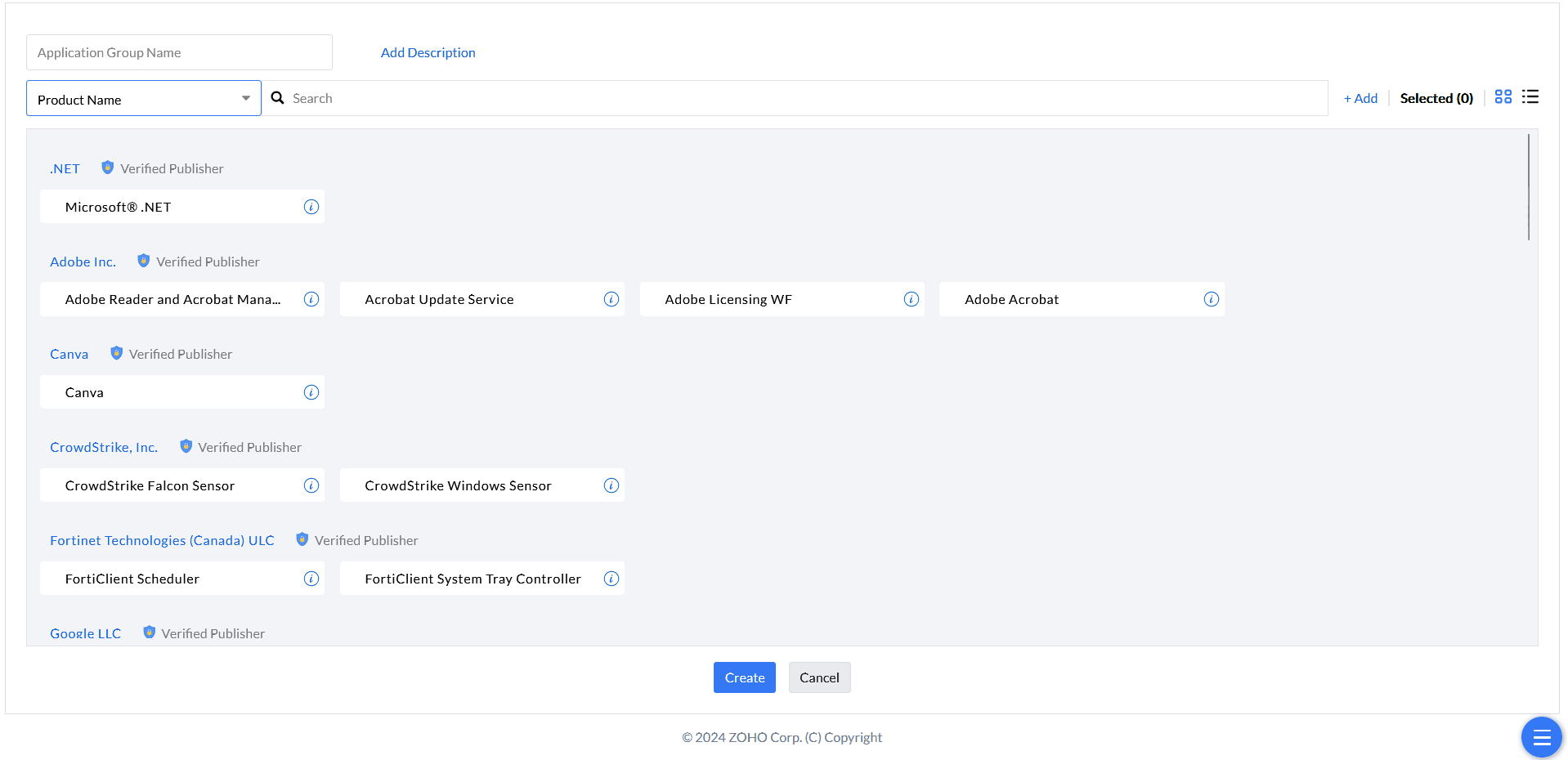
Products
Filter by Products' Name to target specific applications from any vendor. Discovered applications are listed by product name for you to select.
Review the publisher and verification details of the selected product entry. A product shown under a different publisher or identity may not match the rule already selected, even when its displayed product name is similar. After a product update, verify the matching entry and effective policy rather than assuming that every version or publisher variant is automatically included.
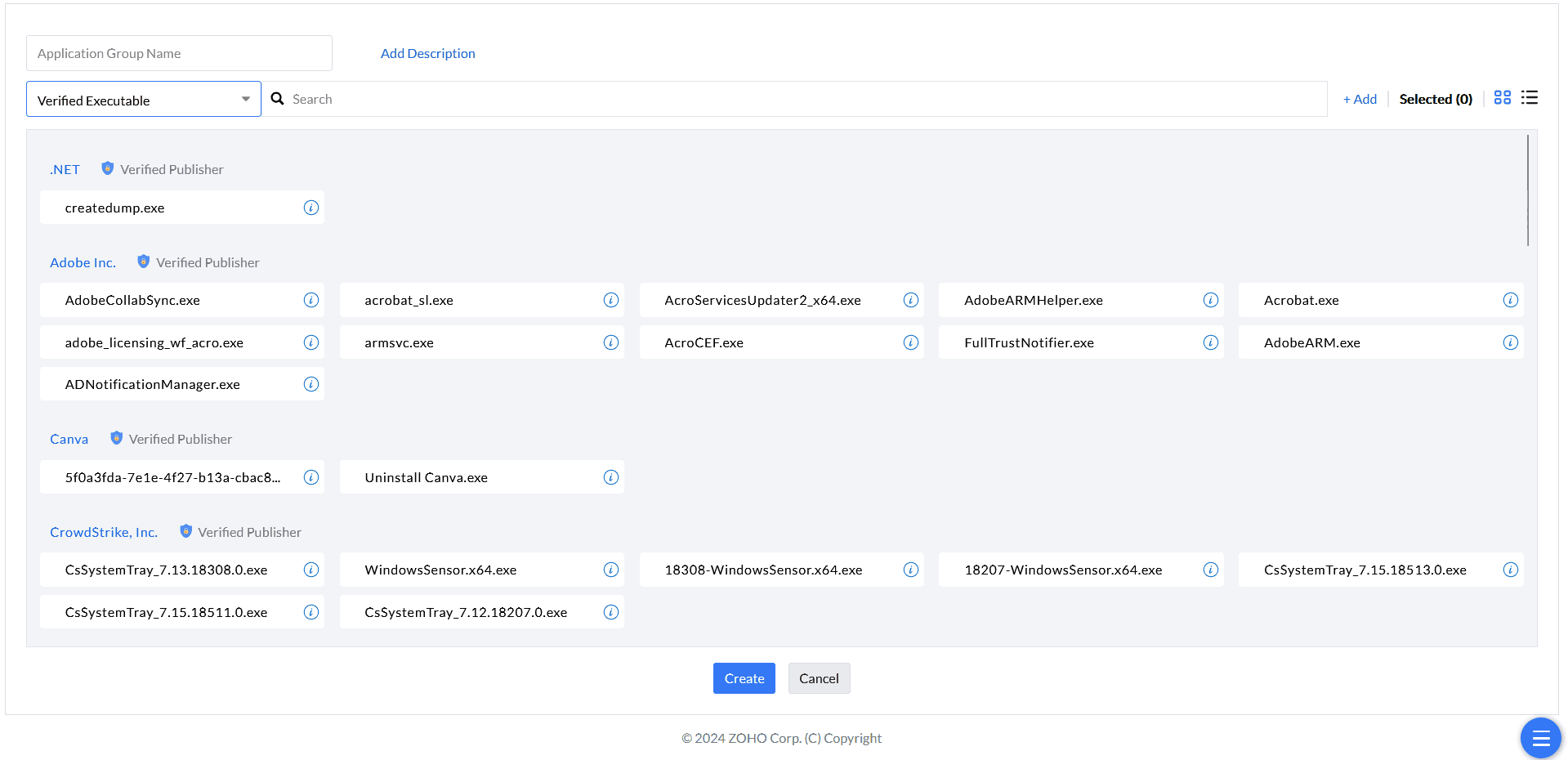
Verified Executables
Applications consist of multiple executable files, each typically signed by the vendor. The Verified Executables rule lists signed files so you can select which executables to allow or block.
An executable with a tampered digital signature is prevented from running — this rule is especially useful for tightening control below the application level.
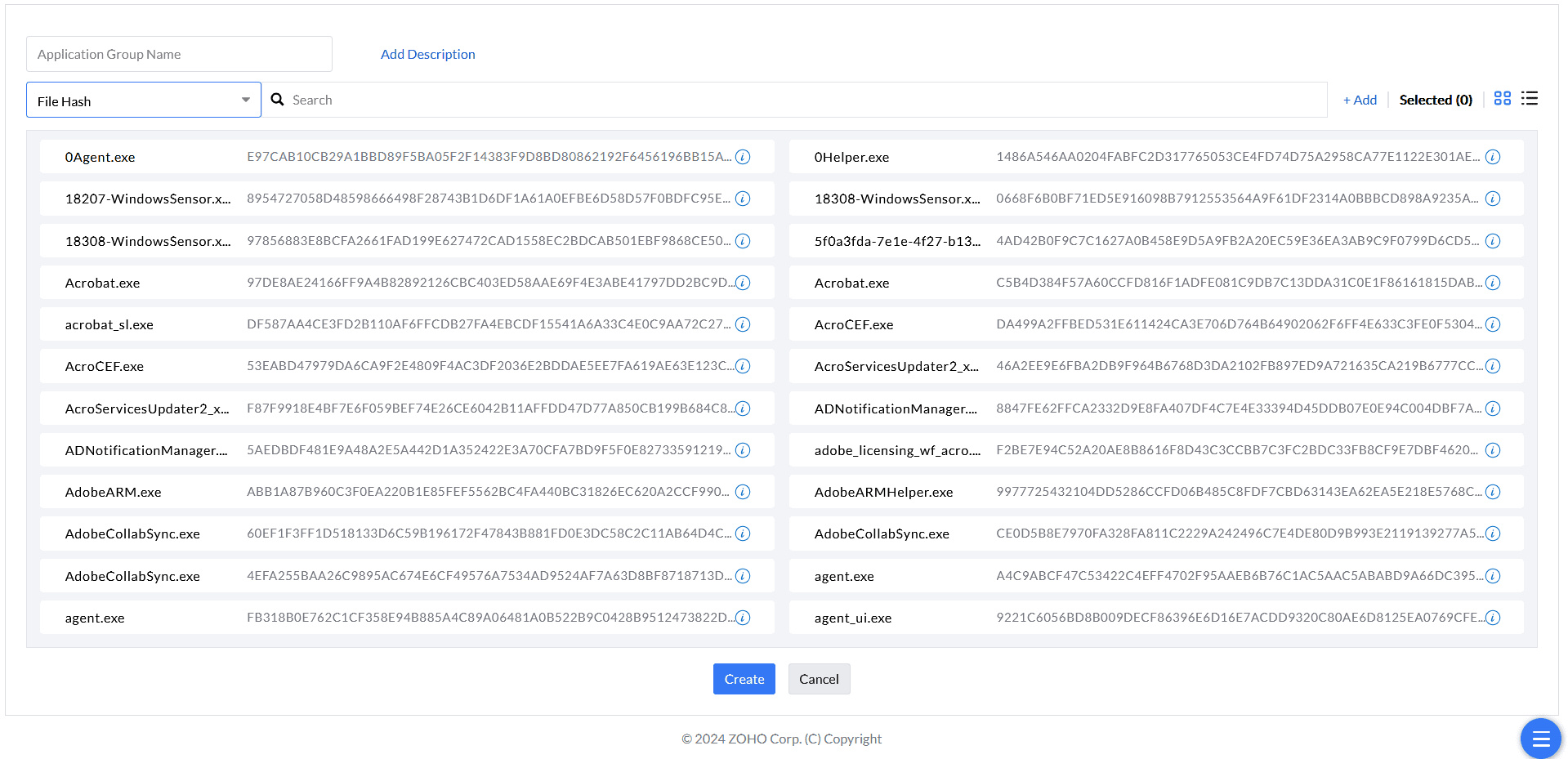
File Hash
The File Hash rule identifies executables by their unique cryptographic hash rather than by a certificate. This means unsigned processes — those without valid digital certificates — are also surfaced for review and can be included in a group.
A File Hash rule matches the recorded executable content. If an update changes that content, its hash changes and the original hash rule no longer matches. Review and add the new executable hash when you intend to allow or block it. Product or Vendor rules are broader identity rules; they are not version selectors. Check the effective rule precedence when combining rules.
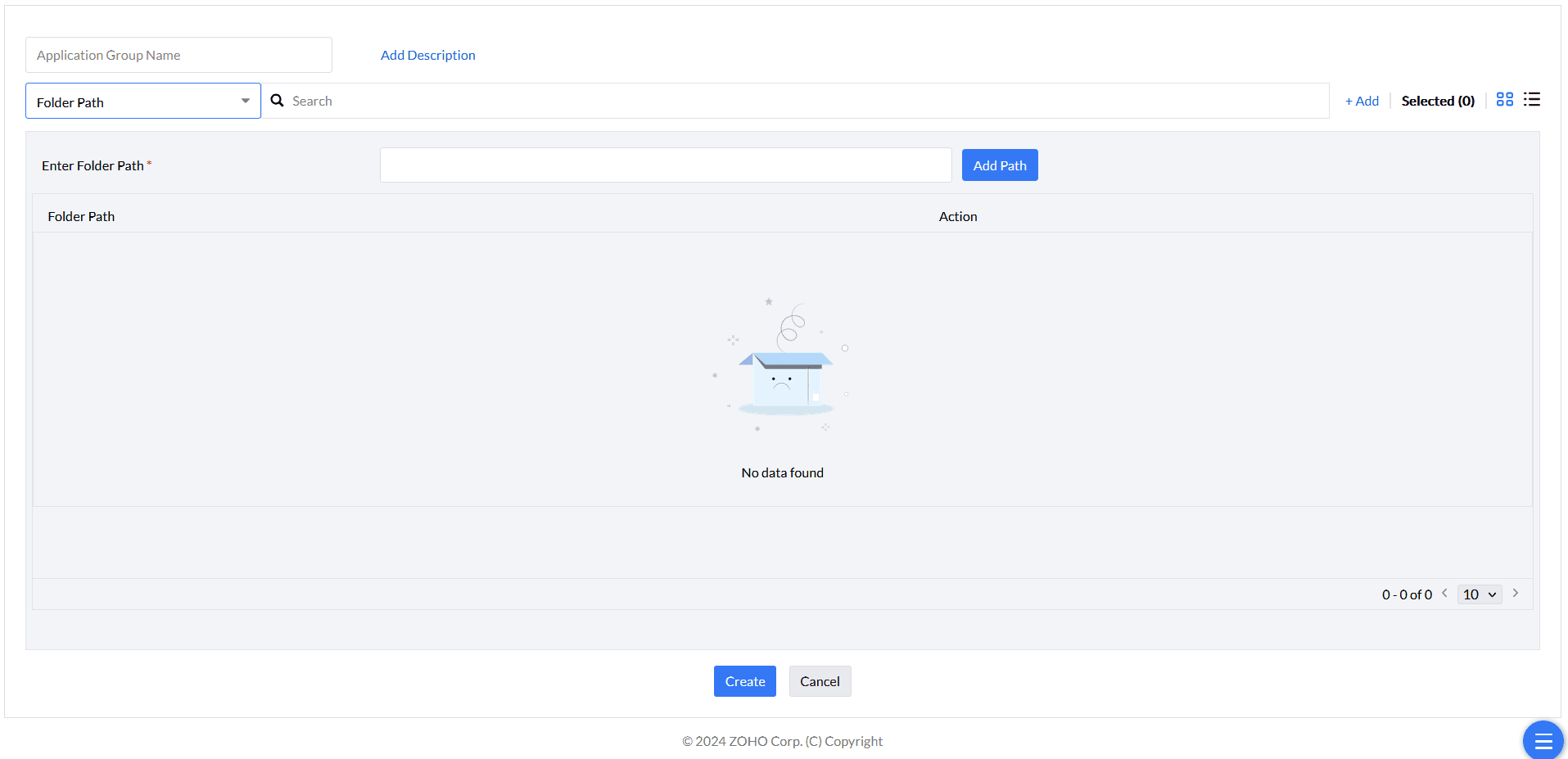
Folder Path
The Folder Path rule includes all applications under a specified directory, including items in sub-folders. Use this rule to group applications already organized in a trusted folder.
The Folder Path rule on this page belongs to Application Control application groups. It is separate from the Path Rule under Inventory > Block Executable. Check which console workflow you are using before following its instructions. See the Block Executable guide for that feature’s Path Rule, Hash Rule and prerequisites.
Windows environment variables are supported in the path. For the full list of supported system variables, see the supported system variables reference.
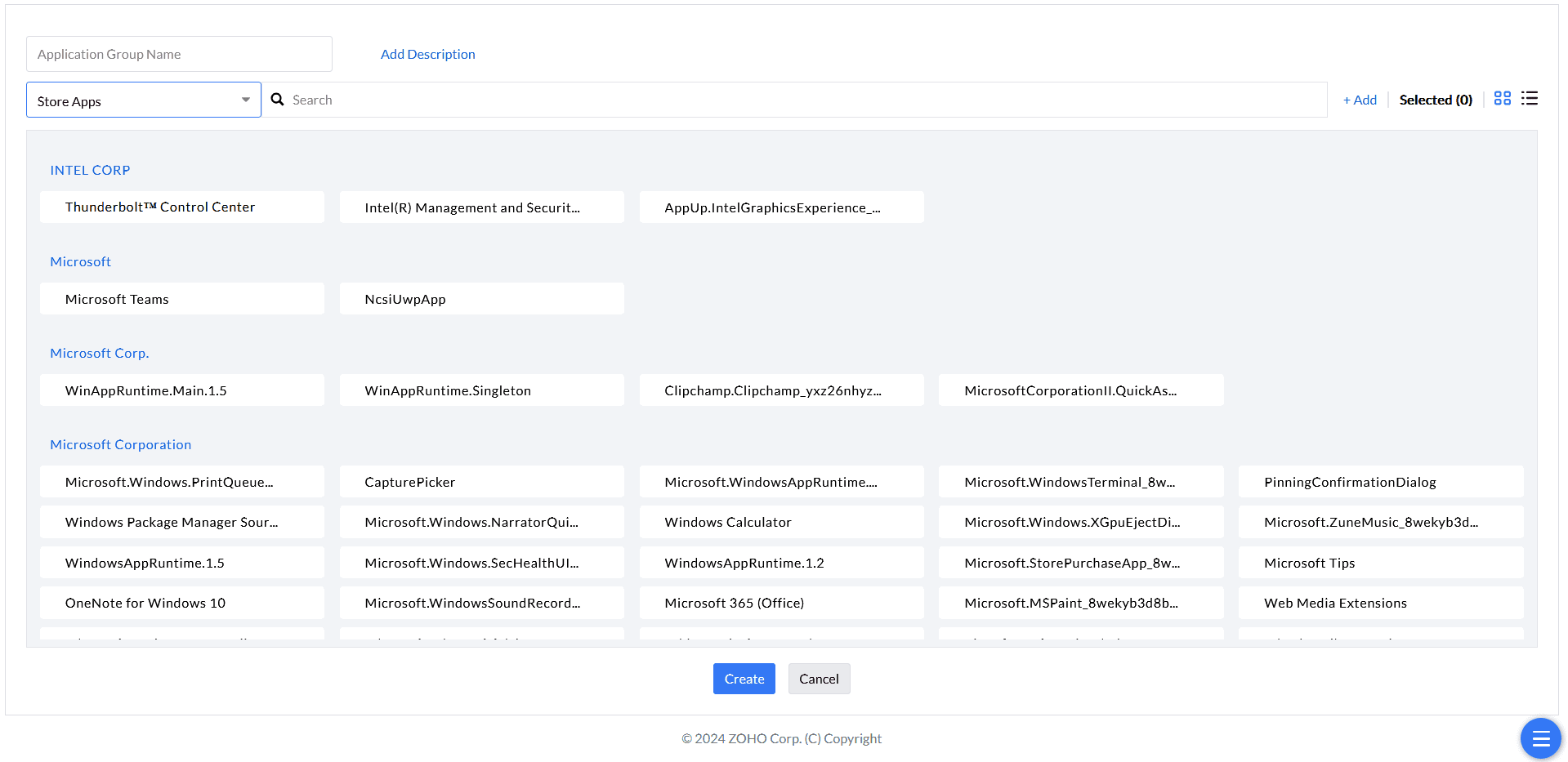
StoreApps Rule
The StoreApps rule discovers all Windows 10 and Windows 11 Store applications running on managed endpoints, letting you group modern Store apps alongside legacy desktop software.
A Store-packaged application is evaluated by its package identity, separately from a conventional desktop executable. Allowlisting a desktop product or publisher does not automatically select a separately packaged Store variant. If both forms are installed, review the applicable StoreApps entry as well, then verify the endpoint result after deployment.
Custom Rule
Use a Custom Rule when an application has not been detected in your network. Define criteria manually — vendor, product name, verified executable, or file hash — to create a rule for it.
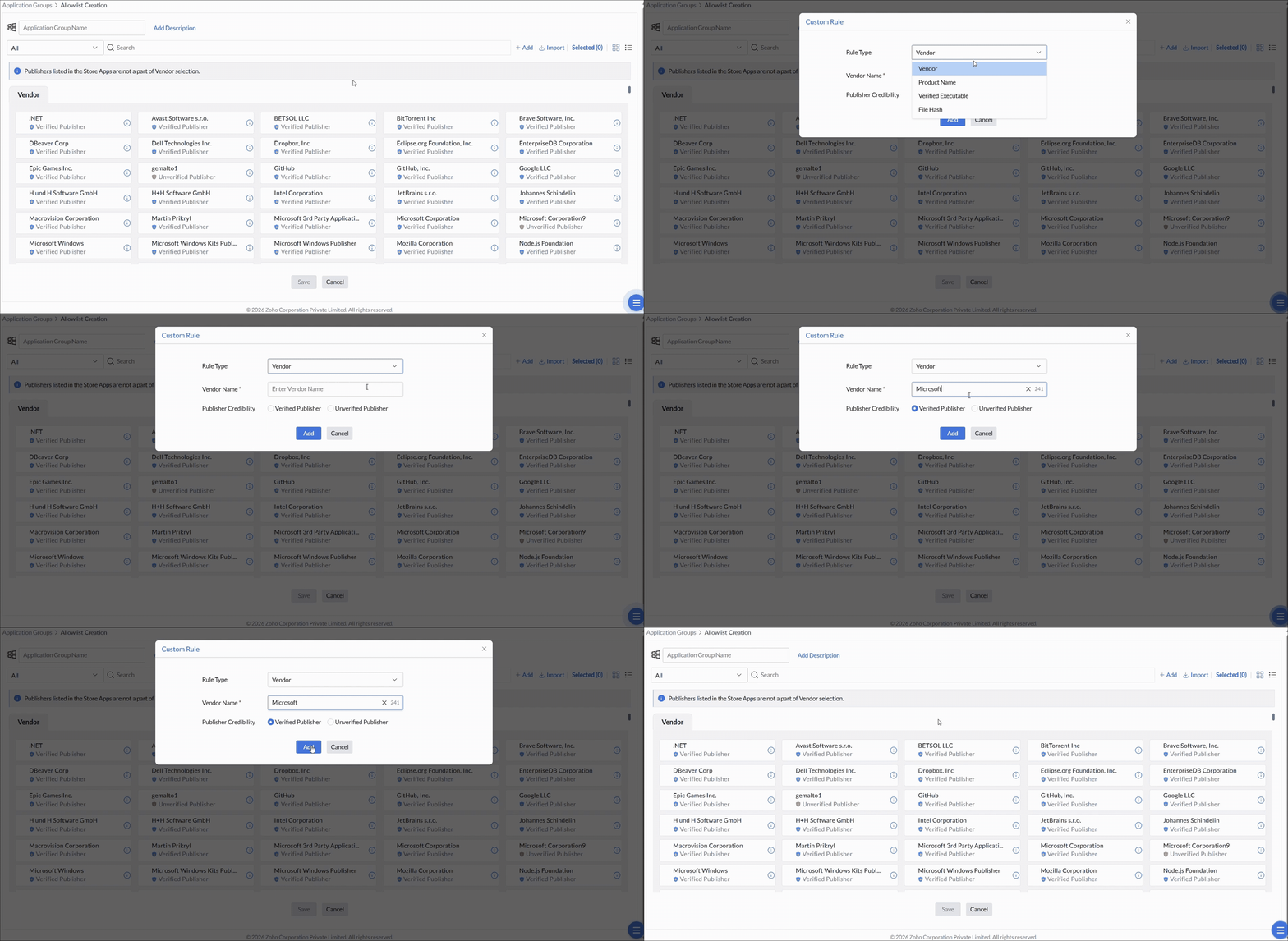
Once a custom rule is created, it cannot be modified or deleted. If you need to change it, you must:
- Create a new custom rule with the corrected details.
- Remove the incorrect rule from your application group.
- Add the new rule to the group.
Filters
Filter application groups for Mac
Five filter types let you control which applications are included in a macOS group.
Available filter rules
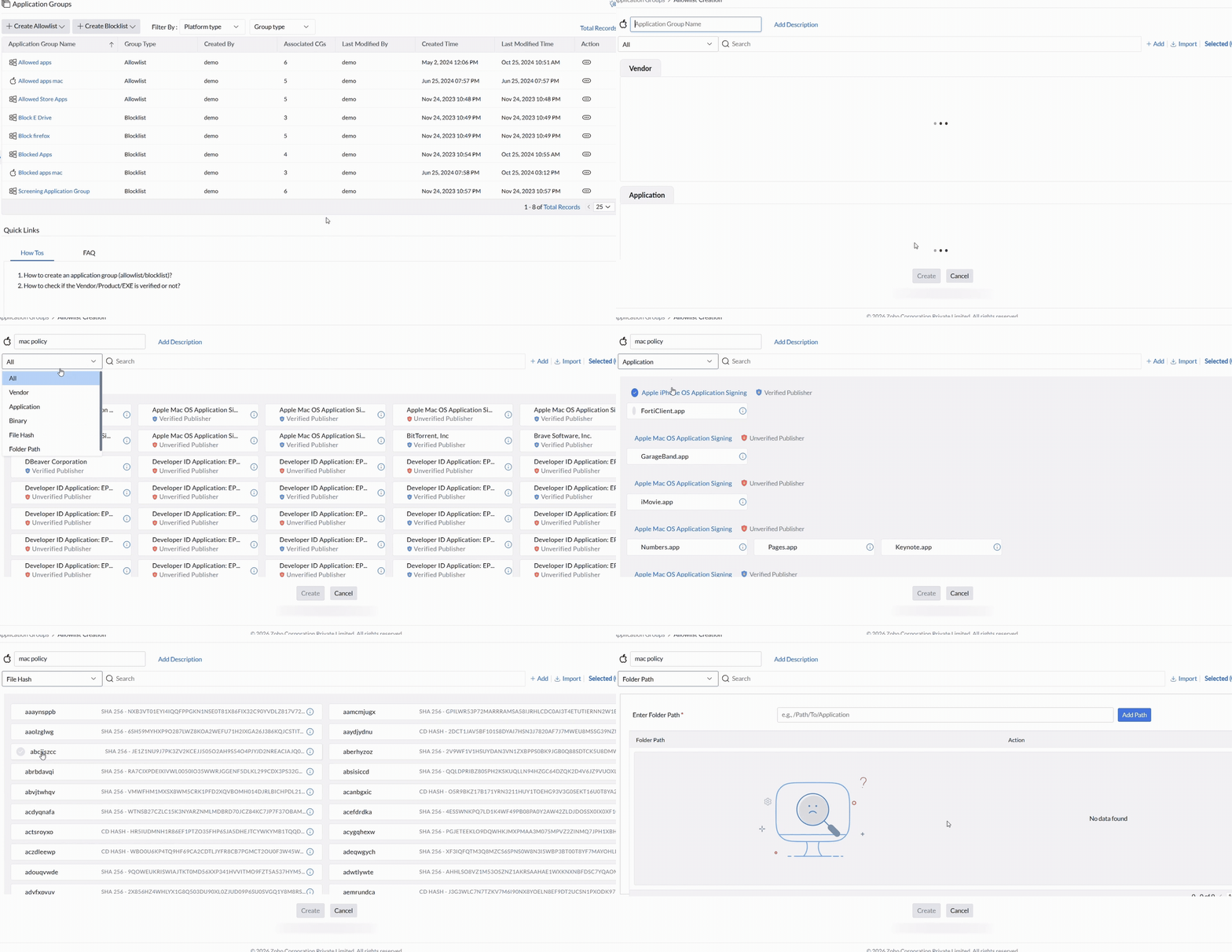
As on Windows, all discovered applications are evaluated against your criteria. Matching applications are added to the group. Click the drop-down next to All to select a specific rule type.
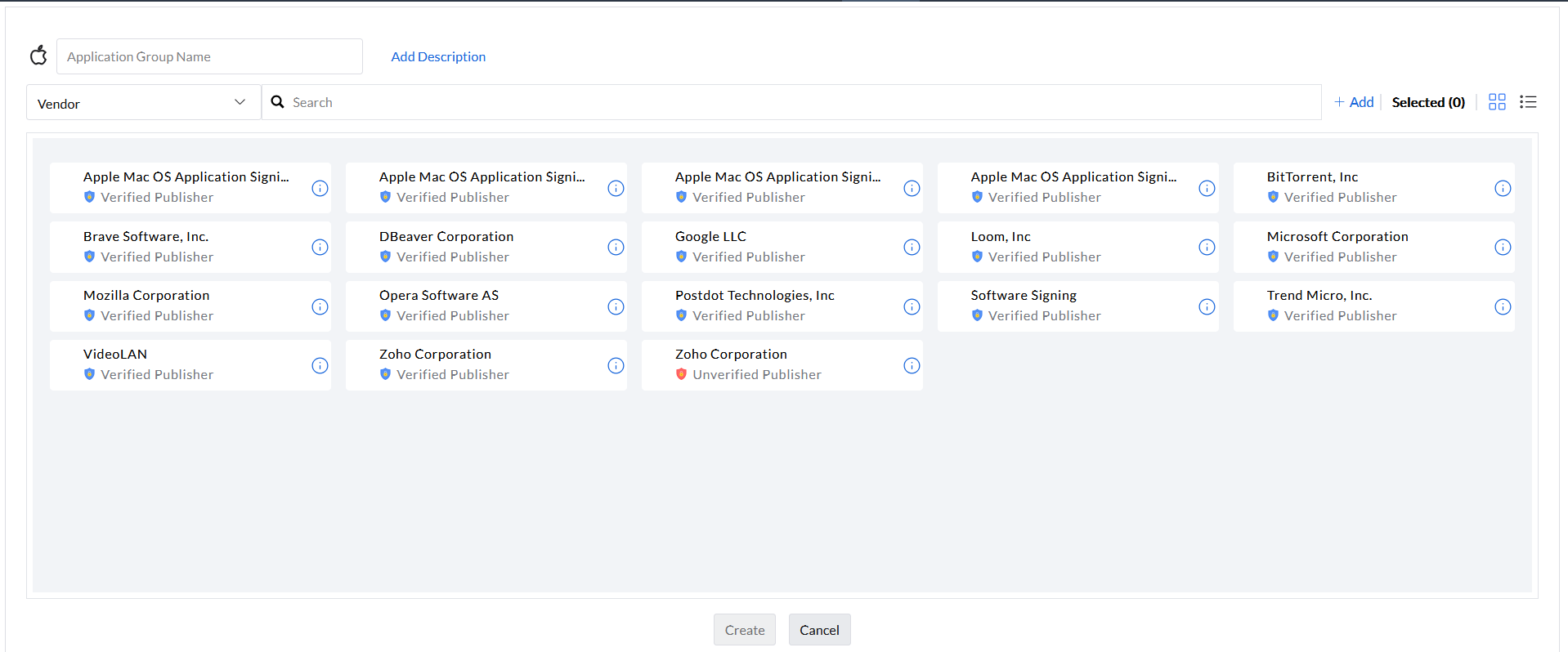
Vendor
Publisher verification confirms that the organization distributing an app is genuine. When you select one or more vendors, every application from those publishers is included in the group.
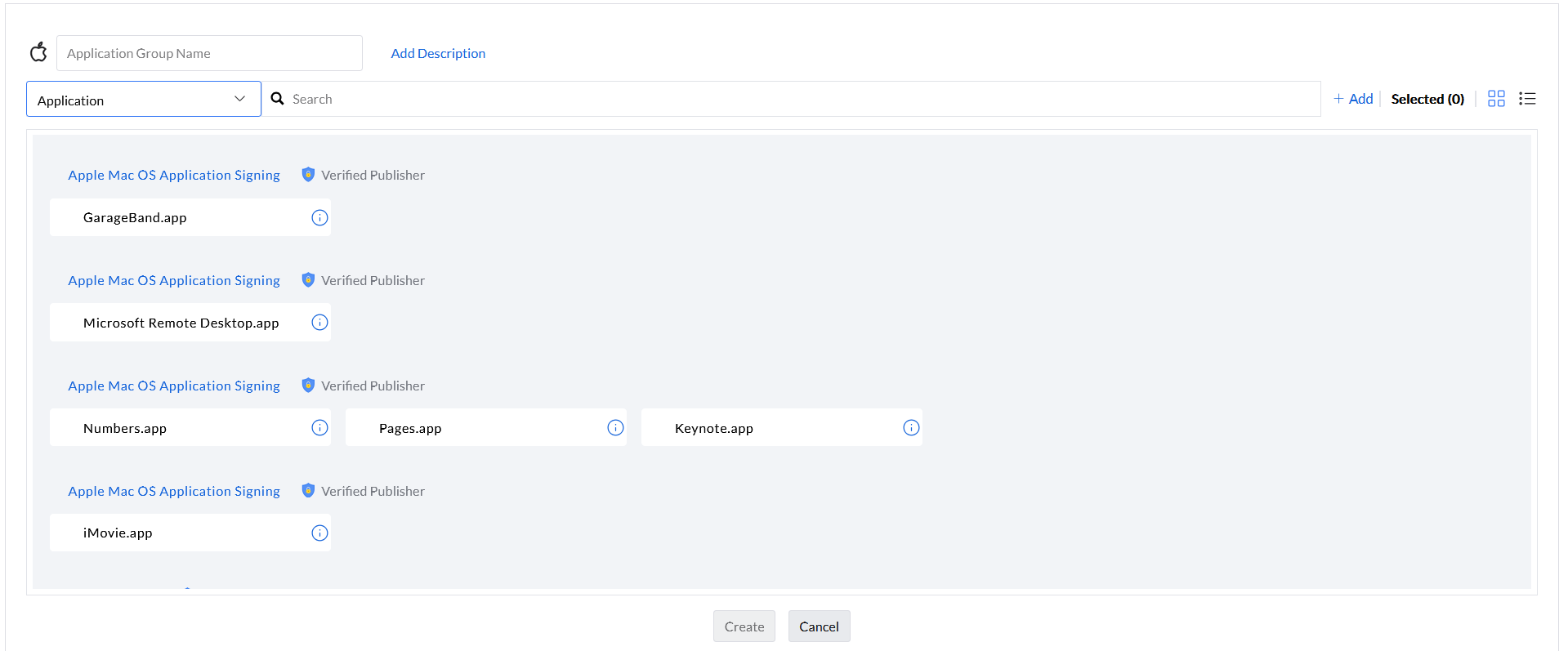
Application
The Application filter lists discovered apps by name, letting you pick specific applications from any vendor.
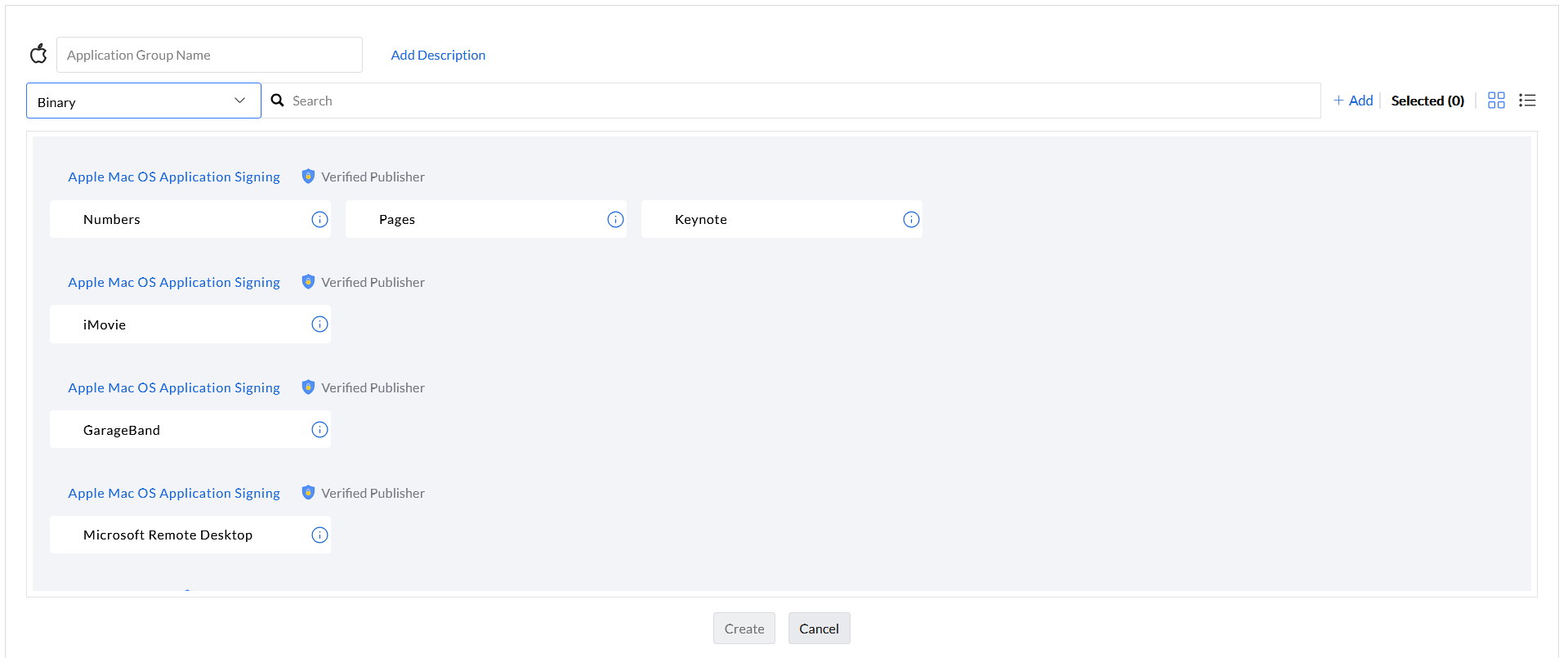
Binary
On macOS, executable files are called binaries. This filter lists binary files for discovered applications so you can allow or block individual executables.
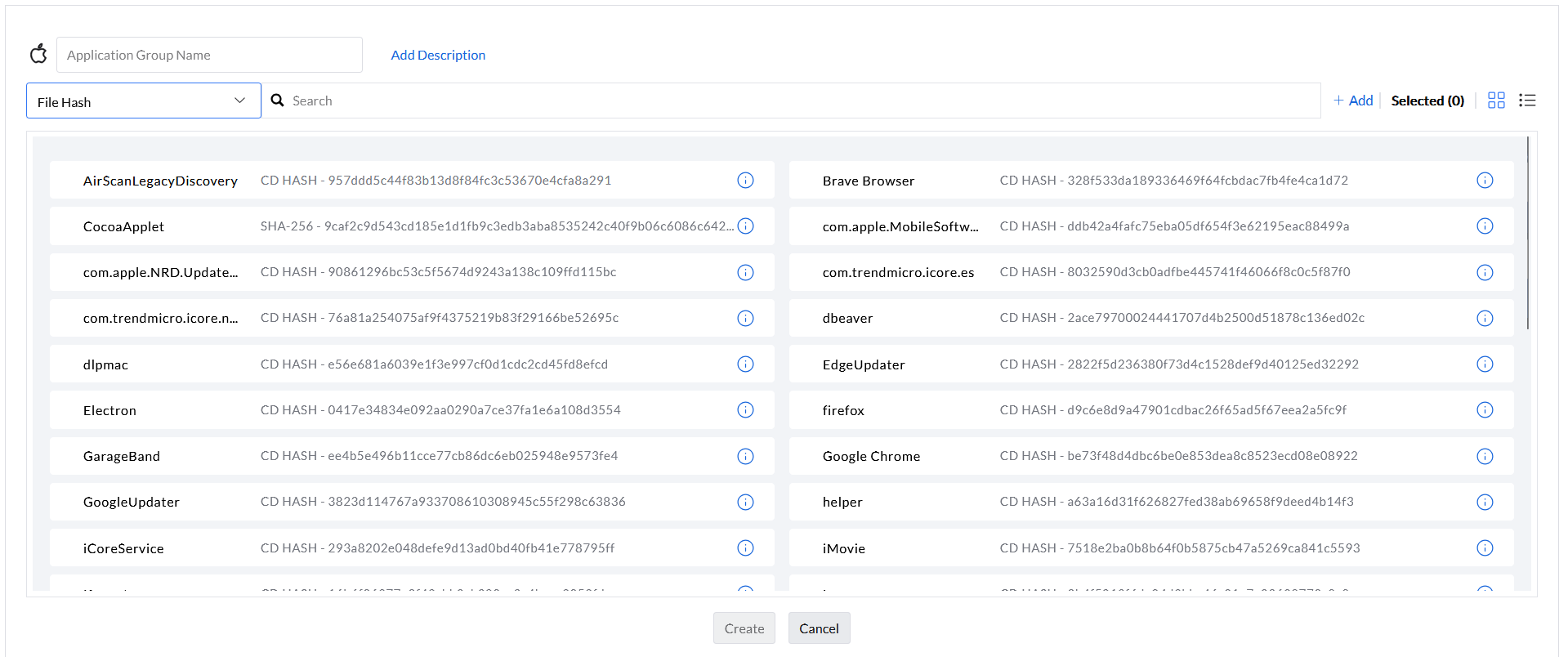
File Hash
Identical in behavior to the Windows version: the File Hash rule identifies executables by their cryptographic hash, covering unsigned processes that other rules would miss.
A File Hash rule matches the recorded executable content. If an update changes that content, its hash changes and the original hash rule no longer matches. Review and add the new executable hash when you intend to allow or block it. Product or Vendor rules are broader identity rules; they are not version selectors. Check the effective rule precedence when combining rules.
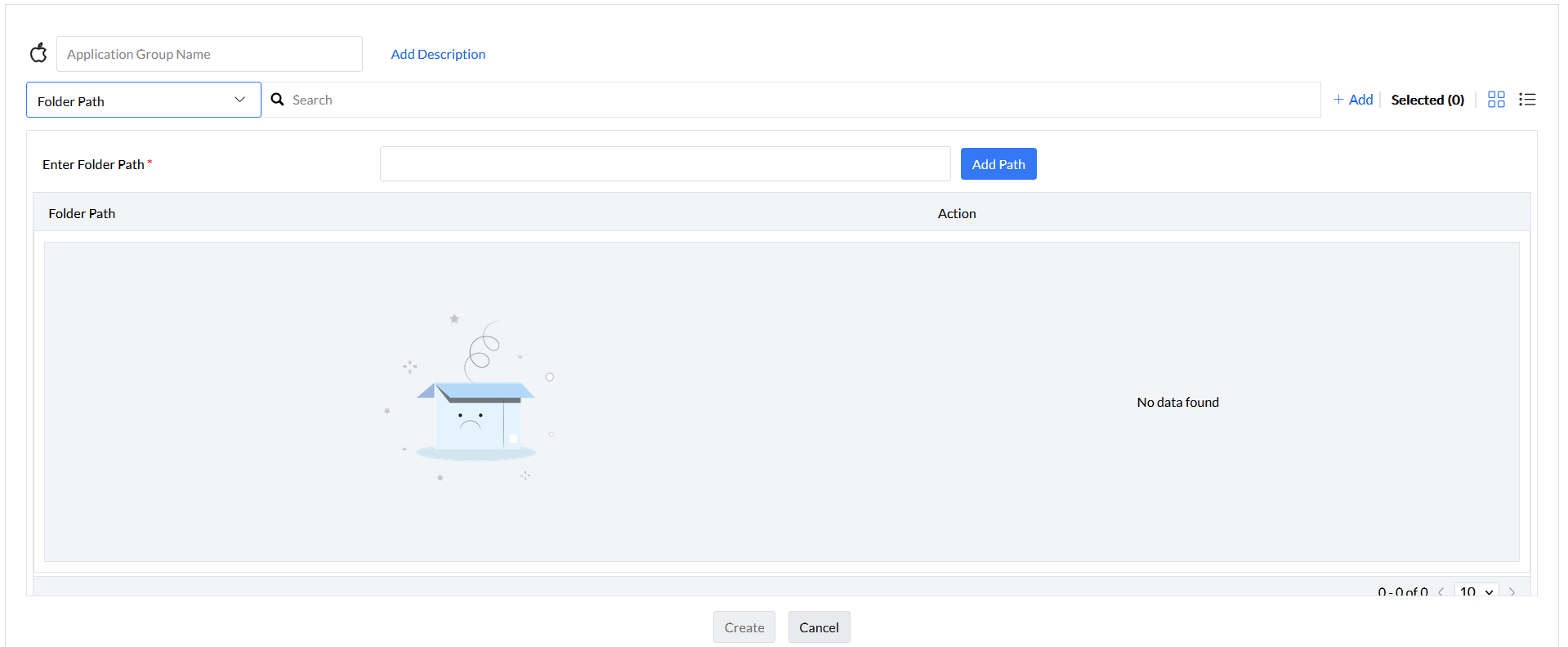
Folder Path
Specify a directory path to include all applications stored in that folder. Collecting trusted apps into a single folder and using this rule is an efficient way to group them all at once.
Custom Rule
Define a Custom Rule for any application not yet discovered in your network by specifying its vendor, product name, verified executable, or file hash manually.
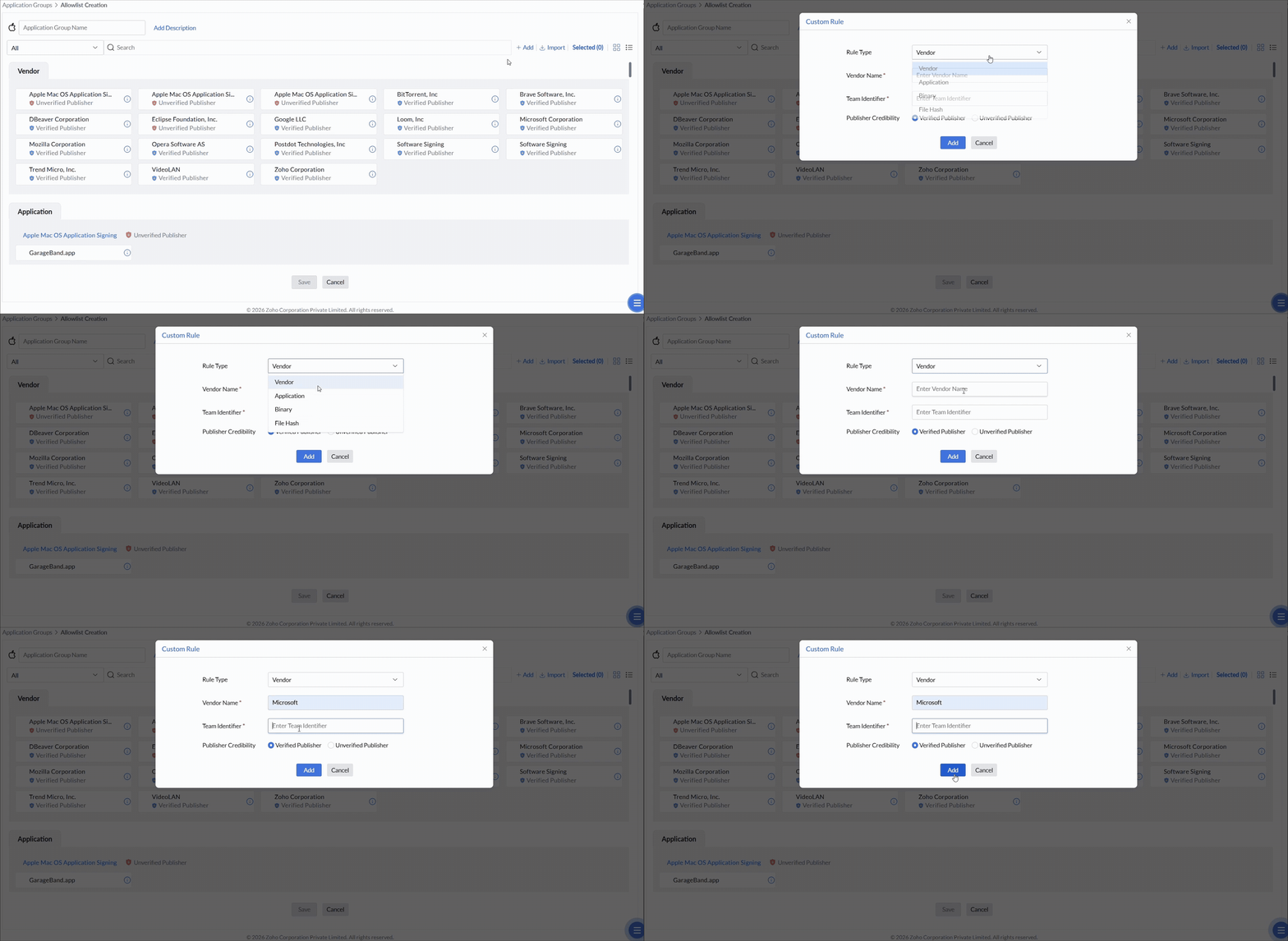
Add built-in macOS applications to custom rules
Some built-in or pre-installed macOS applications may not appear in the discovered applications list. These applications must be added manually using a Custom Rule with their Bundle Identifier or binary name. Common Built-in macOS Applications include Safari (web browser), Migration Assistant (system utility), Terminal (command-line tool), System Settings (system preferences), Mail (email client), and Maps, Calendar, Contacts (Apple system apps).
Find the Bundle Identifier
- Open Terminal on the macOS endpoint.
- Run:
mdls -name kMDItemCFBundleIdentifier -r /Applications/[AppName].app(replace [AppName] with the application name, e.g., "Safari") - The output will show the Bundle Identifier (e.g., "com.apple.Safari"). Copy this Bundle Identifier and use it in the Custom Rule.
Example:
- Safari:
com.apple.Safari - Migration Assistant:
com.apple.MigrationAssistant - Terminal:
com.apple.Terminal
After obtaining the Bundle Identifier, create an application group and a custom rule with that identifier.
Find the Team Identifier
On the Mac, open Terminal and inspect the actual application bundle:
codesign -dvvv "/Applications/Example.app"Replace the example path with the installed application’s .app path. Read TeamIdentifier for the Team Identifier and Identifier for the Bundle Identifier. To inspect a specific architecture, use codesign -a x86_64 -dvvv or codesign -a arm64 -dvvv with the same bundle path.
If TeamIdentifier is not set and the output includes a Platform Identifier, the official custom-rule guide specifies APPLE, in uppercase. This condition does not supply a Team Identifier for an arbitrary unsigned application. See the custom-rule information guide for the remaining application and hash details.
If you don't know the Bundle Identifier: On a managed macOS endpoint, look up installed applications in the Application Control → Discovered Apps list if agent scanning is enabled. You can also contact Apple support for official documentation on the application's Bundle Identifier.
Once a custom rule is created, it cannot be modified or deleted. Learn More.
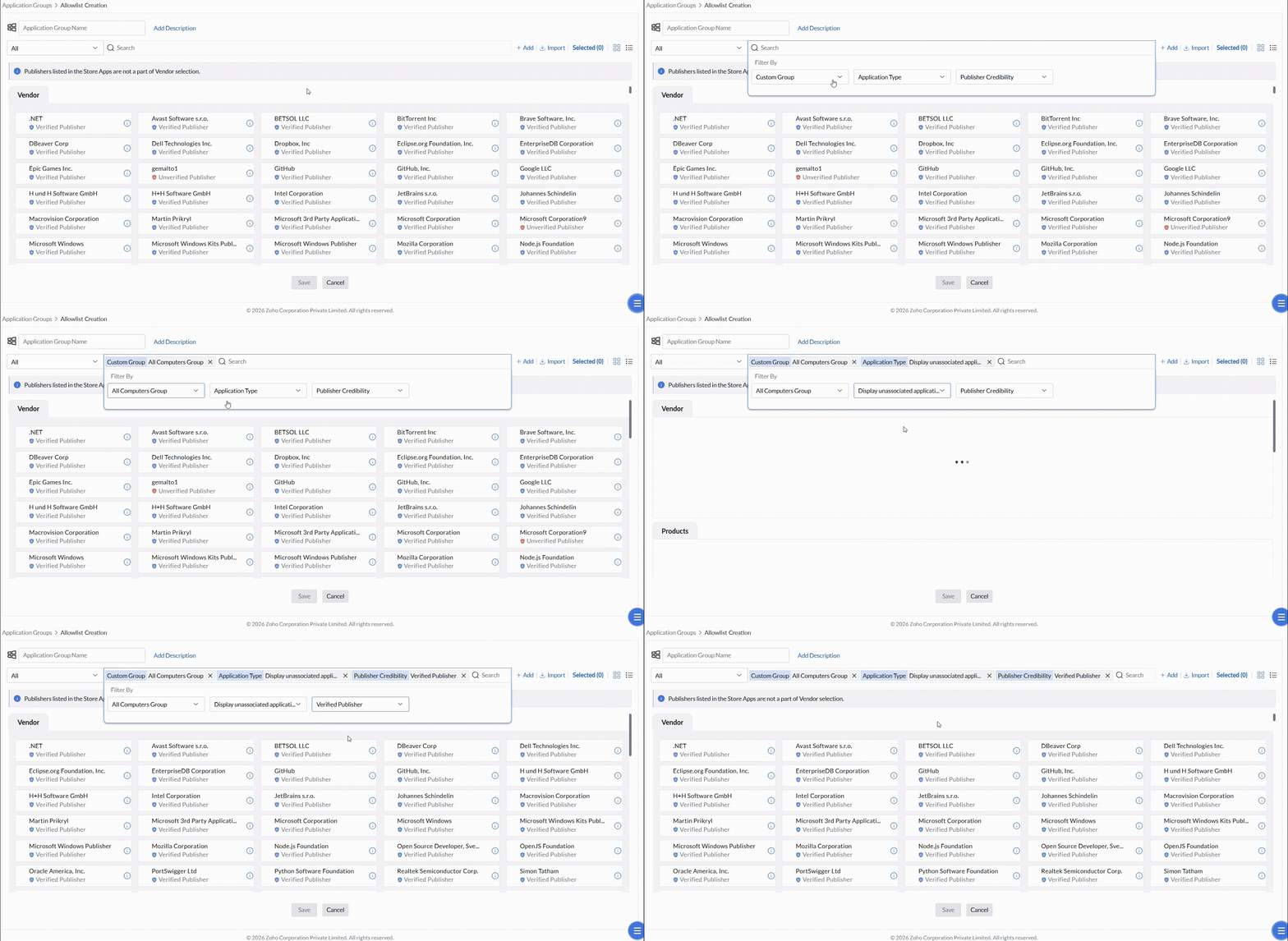
Search Bar Filters
Beyond the rule types above, the search bar lets you filter the application list by custom group, application type, and publisher credibility to narrow your selection further.
Management
Manage application groups
Review a group's rules, export it for sharing, and import groups from a file.
Application Group Summary
Select any application group to open its summary view. The summary lists all rule details and associated custom groups.
Some policy-specific entries use server-generated names beginning with Default_Allowlist_CG_ or Default_Blocklist_CG_. These are different from the reusable application groups you explicitly create. Review the relevant deployment summary and policy-specific entries when investigating an Access Event referencing such a name; do not infer a supported direct-edit or deletion procedure from the name alone.
You cannot remove an individual custom group by modifying an already deployed policy. The custom-group selection on the Associate Group page is disabled for this change.
To change the target custom groups, delete the deployed policy and deploy it again to the required groups. Deleting a policy revokes it at the next agent refresh, approximately 90 minutes. Plan the change with this interval in mind.
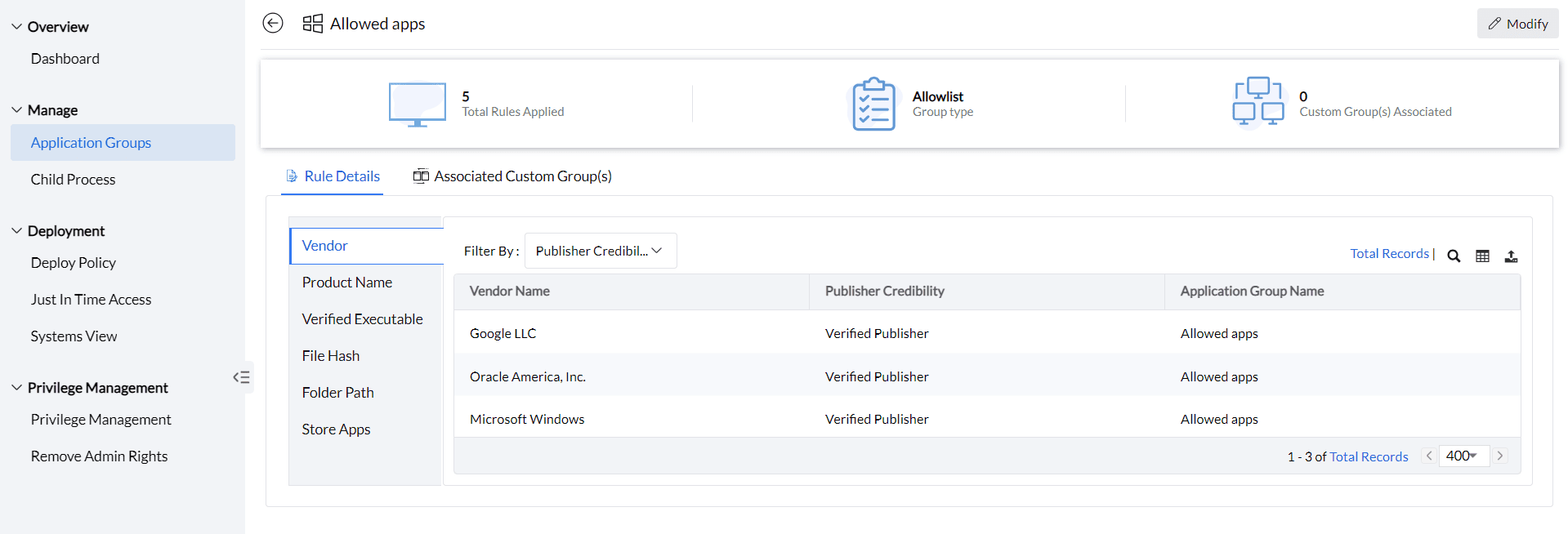
Import and export application groups
Export or import groups as .xlsx files to back up configurations or replicate them across environments.
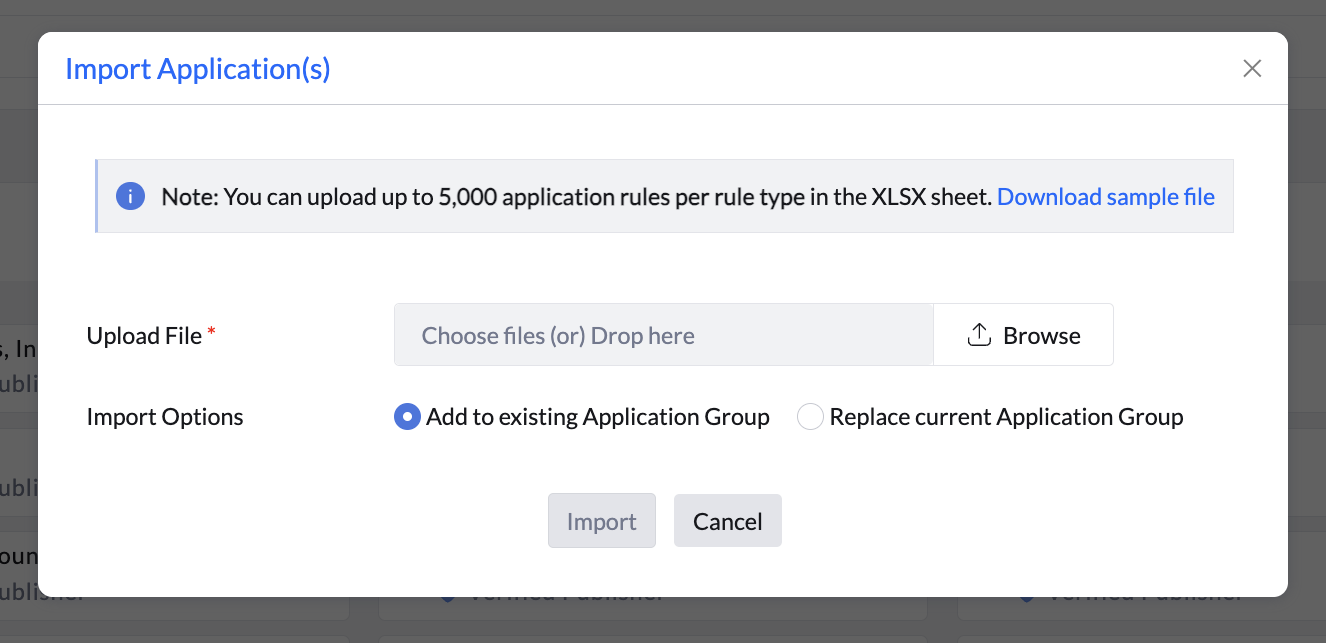
Publisher Credibility records whether the selected publisher entry is verified. Use the sample/export values Verified Publisher or Unverified Publisher in that column and preserve the publisher details for the selected rule. This describes publisher verification, not a verdict that an application is safe or properly licensed.
- To export, click the Export option next to the group. The file is downloaded as an .xlsx file with each filter rule in a separate sheet.
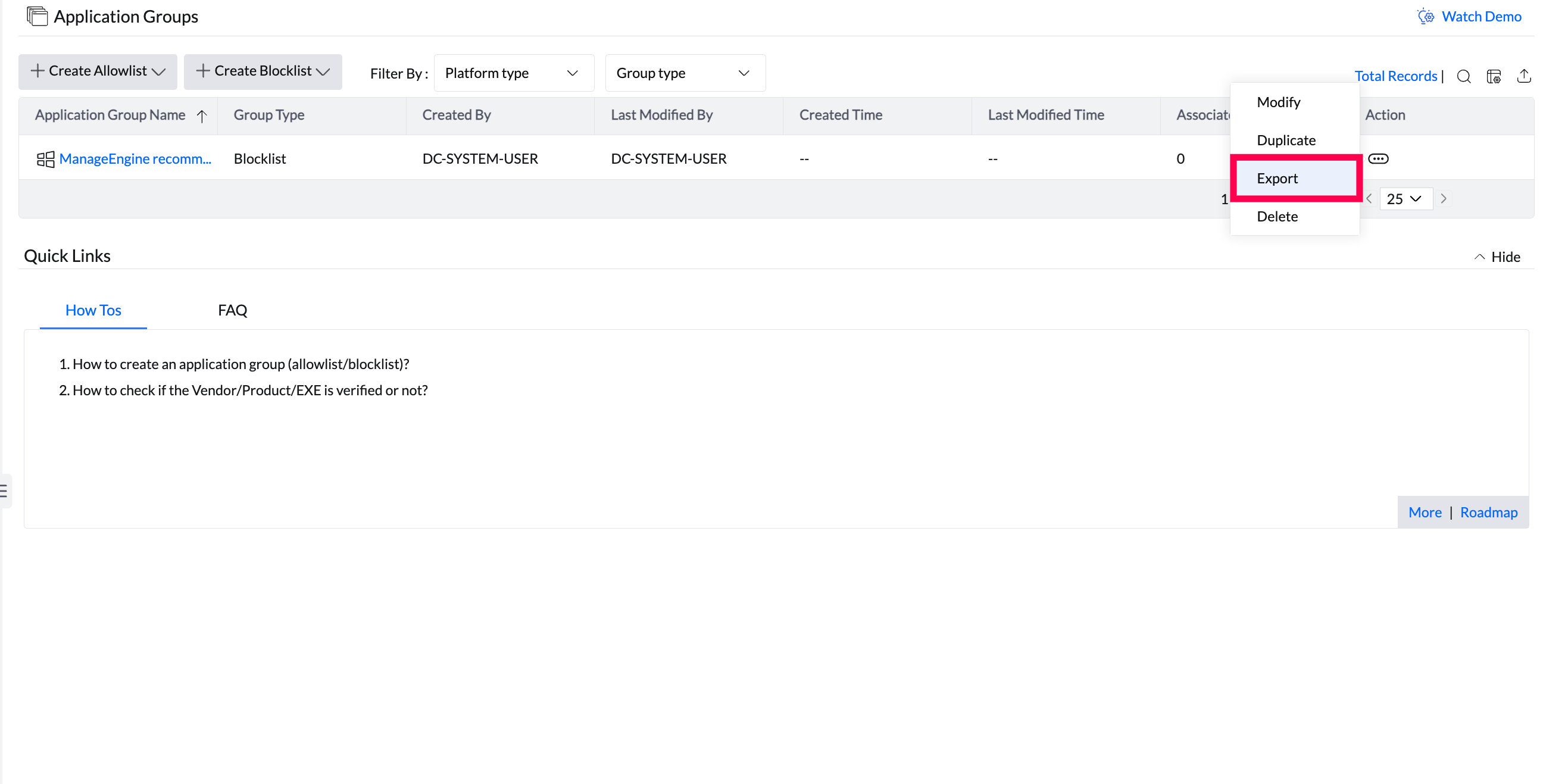
Export an application group as an .xlsx file. NoteThe exported list only contains applications that you have explicitly added to the Application Group. It does not include applications that are merely discovered or installed across your endpoints. If you need a complete inventory of all installed software, use Inventory Reports instead.If you maintain an application group for a reviewed set of business-critical applications, its export can document that configured selection for an assessment. It is not an automatically classified business-critical inventory or a complete export of installed software.
- To import, open the group creation or editing view, click Import, and then select your .xlsx file.
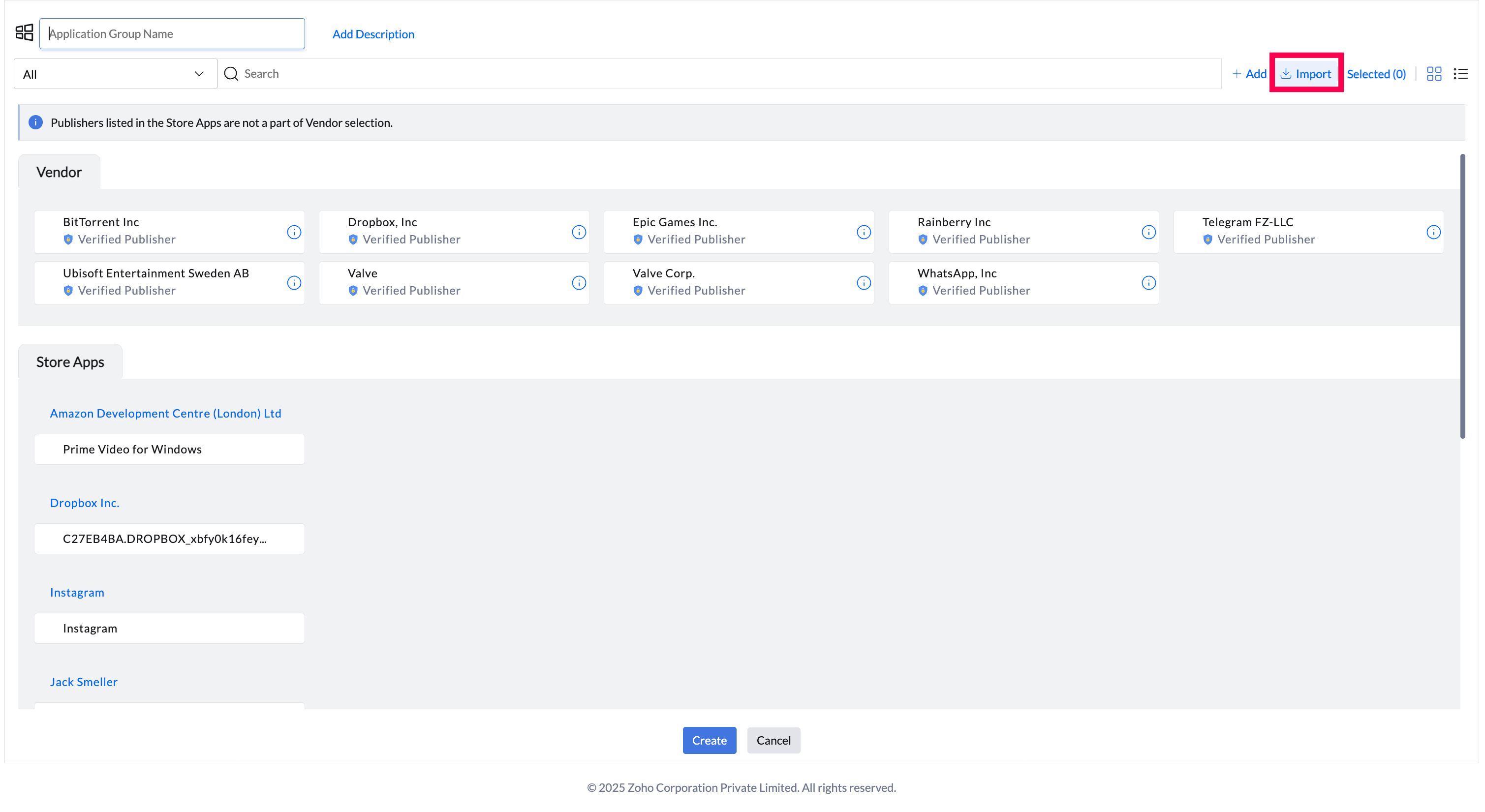
Import an .xlsx file while creating or modifying a group.
When importing, you can choose to add the rules to the existing group or replace the current rules entirely. All rules in the file are incorporated on success. Any rule not already in the database is created automatically and marked as selected.
Allow All Child Processes
Grant trusted applications the ability to spawn child processes without being blocked.
Child process definition
Child processes are processes launched by a running application. They can be a security risk, but many legitimate applications depend on them. Use this setting to select trusted applications that can create child processes. This reduces the attack surface while preserving functionality.
Child Process Control applies when an application launches another process. If an allowed application starts a child executable that is blocked, inspect the child executable and its Access Event before changing rules. An unidentified publisher or hash alone does not prove the cause. After confirming that the parent and child are trusted, review Global Child Process Configuration; do not use it as a blanket exception for unknown applications.
Configure child process permissions
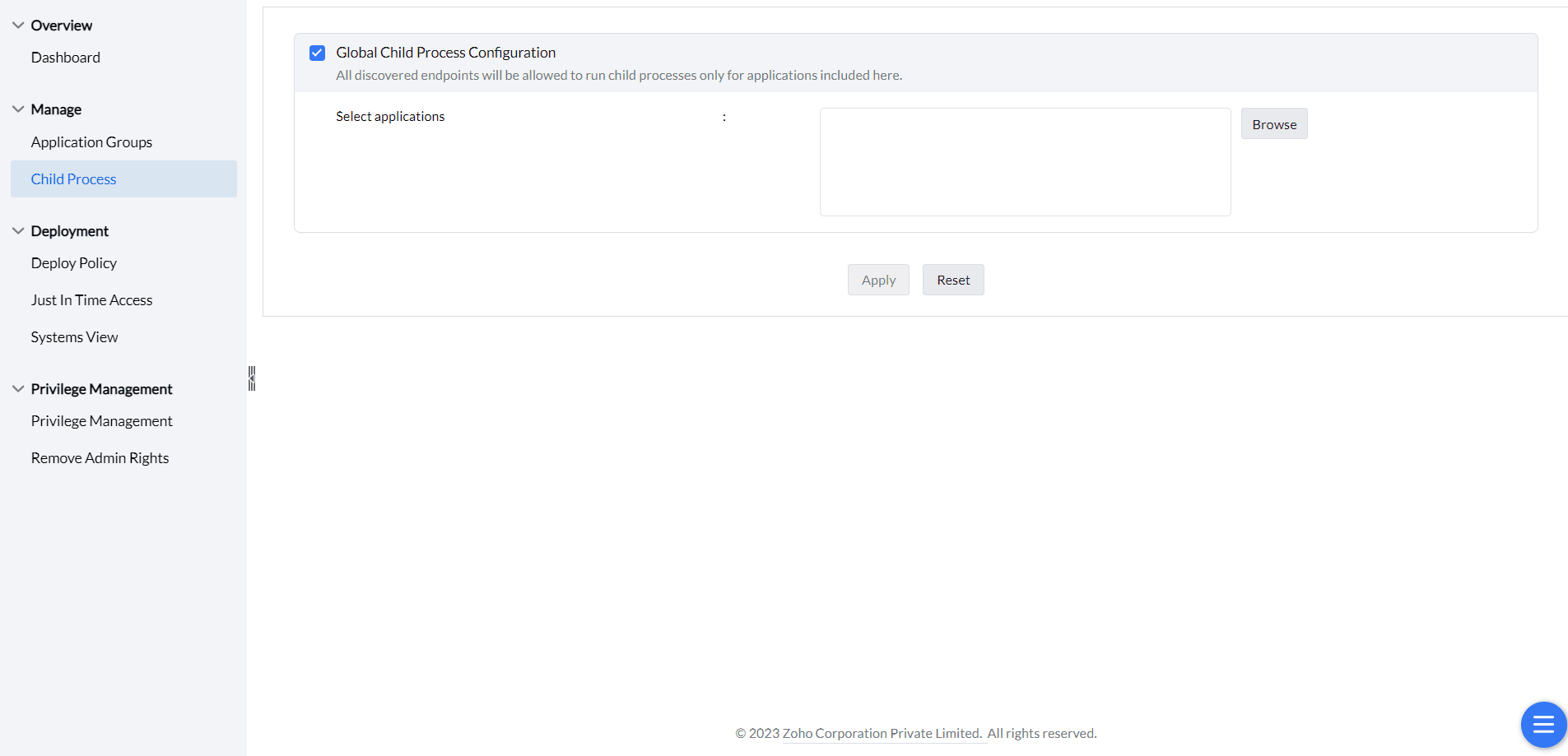
- Go to Child Process under Application Groups in the console.
- In Global Child Process Configuration, select the applications that should be permitted to run child processes.
- Click Apply.