How to deploy Manual Linux Software Packages using Custom Script configuration in Endpoint Central?
Description
This document provides you with steps to deploy manual Linux software packages using Custom Script configuration in Endpoint Central.
Table of contents
Deploying manual Linux packages to target computer
In the Endpoint Central console, navigate to Configurations > Configuration > Linux > Custom Script > Computer Configuration.
To deploy a .deb package follow the steps below:
- Enter the name and description for the configuration.
- Choose Command line to execute the script.
In the Command Line field enter the following command
dpkg -i filename.deb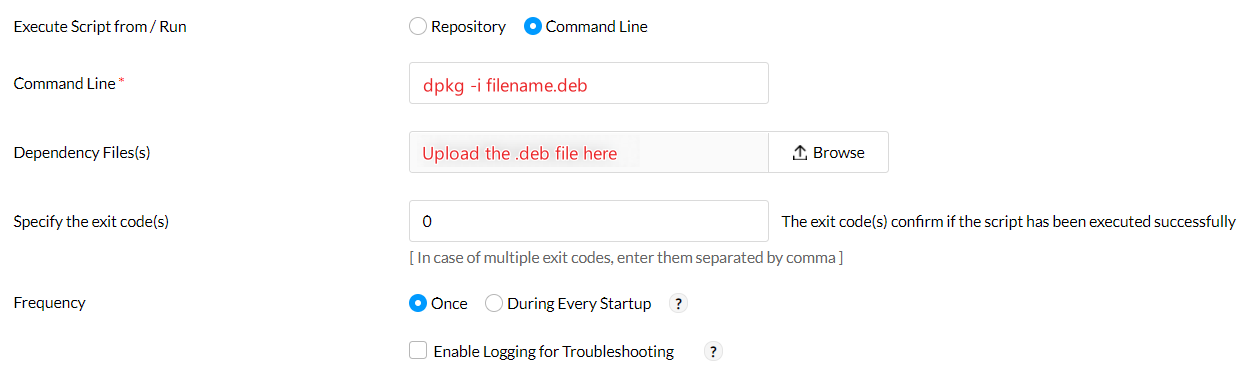
- Upload the .deb installation file in the Dependency Files field.
- Exit codes confirm if the script has been executed successfully. By default, it is 0. If you have any exit codes, you can specify them here. If there are multiple exit codes, separate them with commas [,].
- Specify the Frequency at which the configuration should be deployed.
- If you select Enable logging for troubleshooting, the executed script output will be logged and it will be displayed under the Remarks section.
- Define the Target for the deployment.
- Specify the execution settings and select the enable notifications option if you want to receive any notifications.
- Click Deploy/Deploy Immediately to deploy the configuration.
- To save the configuration as a draft or template for later use, click Save as
To deploy a .rpm package follow the steps below:
- Enter the name and description for the configuration.
- Choose Command Line to execute the script.
In the Command Line field enter the following command
rpm -i filename.rpm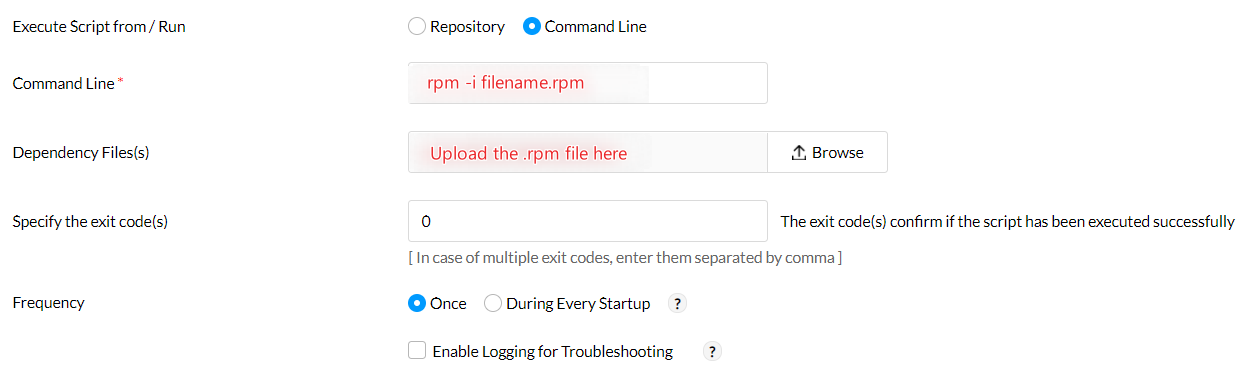
- Upload the .rpm installation file in the Dependency files field.
- Exit codes confirm if the script has been executed successfully. By default, it is 0. If you have any exit codes, you can specify them here. If there are multiple exit codes, separate them with commas [,].
- Also specify the Frequency at which the configuration should be deployed.
- If you select Enable logging for troubleshooting, the executed script output will be logged and it will be displayed under the Remarks section
- Define the Target for the deployment.
- Specify the execution settings and select the enable notifications option if you want to receive any notifications.
- Click Deploy/Deploy Immediately to deploy the configuration.
- To save the configuration as a draft or template for later use, click Save as
Note:
- To deploy any other installation files, provide the suitable extraction and installation commands manually as command lines or scripts.
- The command or script will be executed in the same directory as the dependent files. so, please provide the respective commands for that location.
You have successfully deployed a manual Linux software package using Endpoint Central.