Free Edition
With single sign-on (SSO), users don't need to remember each of their different passwords—instead, they can access multiple applications without logging into them every time . Most cloud applications have built-in support for SSO, but what about your custom enterprise applications? How do you enable SSO for these applications?
ADSelfService Plus, an integrated self-service password management and single sign-on solution, lets you provide Active Directory-based SSO for any SAML-enabled application. If your in-house application supports SAML, then you can use ADSelfService Plus to enable SSO for that application. With SSO enabled, users can automatically log into the custom application without having to enter their username and password. And, if you have enabled NTLM SSO in ADSelfService Plus, simply logging into Windows is enough for users to access all their applications in just one click.
The steps given below will guide you through setting up the single sign-on functionality between ADSelfService Plus and your custom SAML applications.
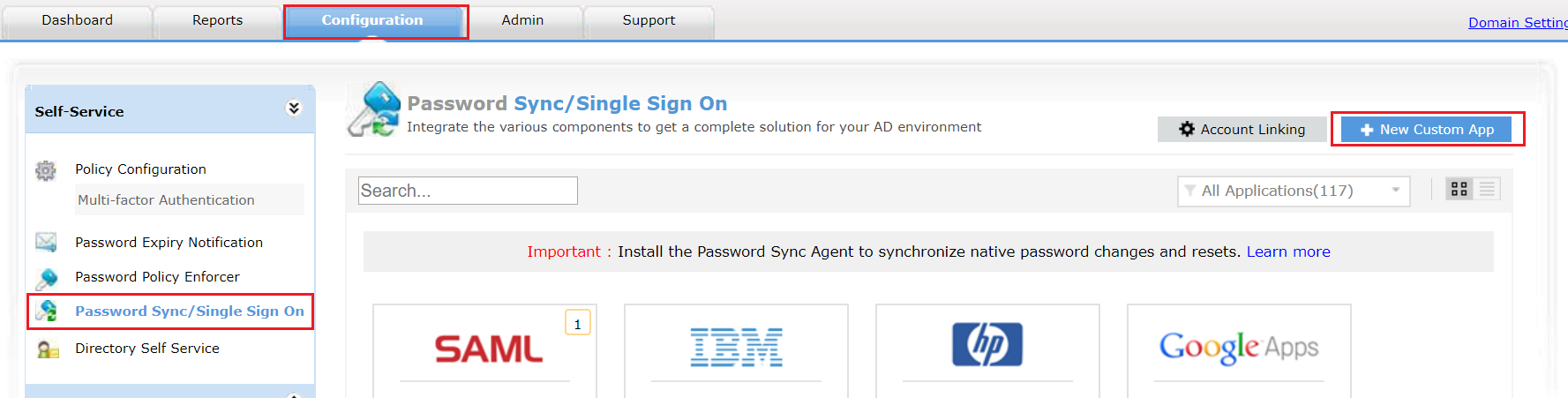
Custom saml apps single sign on configuration
Note: Please check with the application service provider to know the supported SSO flow.
The advanced configuration section is not mandatory. But if the application supports a particular RSA-SHA algorithm or you want the SAML response to be unsigned, then click Advanced Configuration and update the settings.
This section allows you to configure settings specific to your application.
Note: By default, the SAML Assertion will always be signed.
Note: After saving the configuration, click the Download Certificate link at the top right corner. In the SSO/SAML Details pop-up screen that appears, copy the Login URL, Logout URL, Help URL, and SHA fingeprint value or download the required certificate based on the application's requirement. These will be needed to complete the configuration at the application’s end.
Once the configuration is completed, users who have logged into ADSelfService Plus can automatically log into the custom enterprise application without entering their username and password.
Note: To add a new domain of the same application, locate the application from the app list and follow the Configuring SSO settings for the custom application steps.
Need further assistance? Fill this form, and we'll contact you rightaway.
Allow Active Directory users to self-service their password resets and account unlock tasks, freeing them from lengthy help desk calls.
Get seamless one-click access to 100+ cloud applications. With enterprise single sign-on, users can access all their cloud applications using their Active Directory credentials.
Intimate Active Directory users of their impending password and account expiry via email and SMS notifications.
Synchronize Windows Active Directory user passwords and account changes across multiple systems automatically, including Microsoft 365, Google Workspace, IBM iSeries, and more.
Strong passwords resist various hacking threats. Enforce Active Directory users to adhere to compliant passwords by displaying password complexity requirements.
Enable Active Directory users to update their latest information themselves. Quick search features help admins scout for information using search keys like contact numbers.