- Free Edition
- Quick Links
- MFA
- Microsoft Entra ID Security
- Self-Service Password Management
- Single Sign-On
- Password Synchronizer
- Password Policy Enforcer
- Employee Self-Service
- Reporting and auditing
- Integrations
- Related Products
- ADManager Plus Active Directory Management & Reporting
- ADAudit Plus Real-time Active Directory Auditing and UBA
- Exchange Reporter Plus Exchange Server Auditing & Reporting
- EventLog Analyzer Real-time Log Analysis & Reporting
- M365 Manager Plus Microsoft 365 Management & Reporting Tool
- DataSecurity Plus File server auditing & data discovery
- RecoveryManager Plus Enterprise backup and recovery tool
- SharePoint Manager Plus SharePoint Reporting and Auditing
- AD360 Integrated Identity & Access Management
- Log360 (On-Premise | Cloud) Comprehensive SIEM and UEBA
- AD Free Tools Active Directory FREE Tools
Multi-factor authentication (MFA) enrollment is a one-time process where users register additional verification methods or authenticators, such as email address, mobile number, security questions, TOTP apps, or hardware tokens, that may be used alongside passwords. MFA requires enrollment because authenticators have to be captured, verified, and stored before MFA can protect logins.
Why MFA enrollment is crucial for an enterprise
An MFA policy is only as effective as its enrollment process. Without proper enrollment, user identities cannot be secured, nor can organizations meet compliance requirements. By guiding end users through a structured MFA enrollment workflow, organizations can:
- Ensure consistent security coverage by verifying every user with an additional layer of protection beyond passwords.
- Reduce help desk workload by encouraging users to enroll themselves instead of depending on the admin.
- Eliminate security gaps by enforcing enrollment across all users instead of leaving adoption optional.
- Simplify large-scale rollouts with automated enrollment through CSV imports or external databases.
- Encourage user adoption by providing clear MFA enrollment instructions and a dedicated MFA enrollment link for quick, user-friendly setup.
With ADSelfService Plus, admins can tailor enrollment methods to balance user convenience with organizational security needs.
Common MFA enrollment challenges
While MFA enrollment is essential for securing access, organizations often face hurdles when rolling it out at scale. Common challenges include:
- User resistance: Employees may perceive MFA enrollment as inconvenient or unnecessary, delaying adoption.
- Data availability issues: Not all organizations have complete or accurate user information (like mobile numbers or email addresses) needed for authenticators.
- Scalability concerns: Enrolling thousands of users manually can overwhelm IT teams and increase help desk tickets.
- Communication gaps: A lack of clear instructions or accessible MFA enrollment links can confuse end users and slow down rollout.
ADSelfService Plus addresses these challenges by offering multiple enrollment options, such as automated imports, logon prompts, and scheduled reminders, so admins can ensure smooth, organization-wide adoption.
MFA enrollment methods
Admins have several ways to enable and enforce MFA enrollment. Depending on your domain size, device policy, and compliance requirements, you can use one or more of the following enrollment methods in ADSelfService Plus:
| Method | Process | Usage |
| Force enrollment via logon script | Prompts unenrolled users during login to complete MFA setup. Enrollment can be mandatory or skippable. | Enforce MFA adoption organization-wide with no user bypass. |
| Enrollment notifications | Sends scheduled or on-demand reminders via email, SMS, or push with the MFA enrollment link. | Ideal when gradual rollout and user communication are priorities. |
| Auto-enrollment via CSV import | Automatically enrolls users by importing data such as email, phone number, or TOTP keys. | Useful for bulk onboarding and migration with minimal user effort. |
| Auto-enrollment via external database | Syncs data directly from databases into ADSelfService Plus. | Best for enterprises that maintain user information in a centralized database. |
Step-by-step MFA enrollment instructions
Here’s how admins can set up MFA enrollment in ADSelfService Plus using each method. Use these MFA enrollment instructions to configure the method that suits your environment.
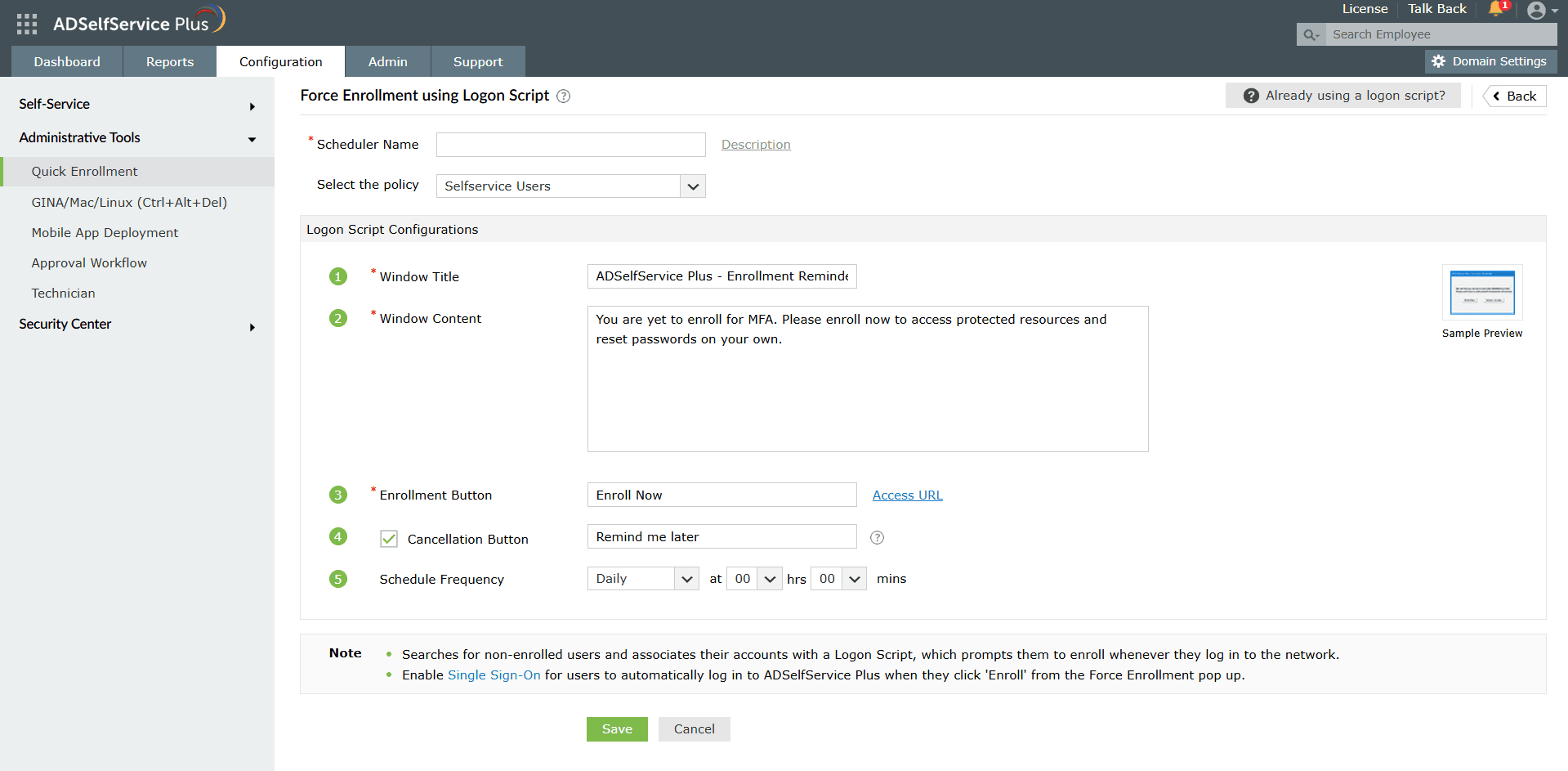
Force enrollment via logon script
- Log in to the ADSelfService Plus admin portal.
- Go to Configuration > Administrative Tools > Quick Enrollment.
- Click Force Enrollment using Logon Script.
- Enter the scheduler name and description, and select a user policy to determine the domains, groups, and OUs to which this applies.
- Set the window title, message content, and text for the Enroll Now button. If you want users to have the option to skip, enable a cancellation option via the Cancellation Button option. If you want stricter control, disable skipping so that users cannot avoid enrollment.
- Configure scheduling by choosing how often the logon script applies to new or existing users.
- Ensure the logon script file (e.g., ADSelfService_Enroll.hta) is placed in SYSVOL or a shared path,
with correct permissions, so it applies via Group Policy.

Send enrollment notifications
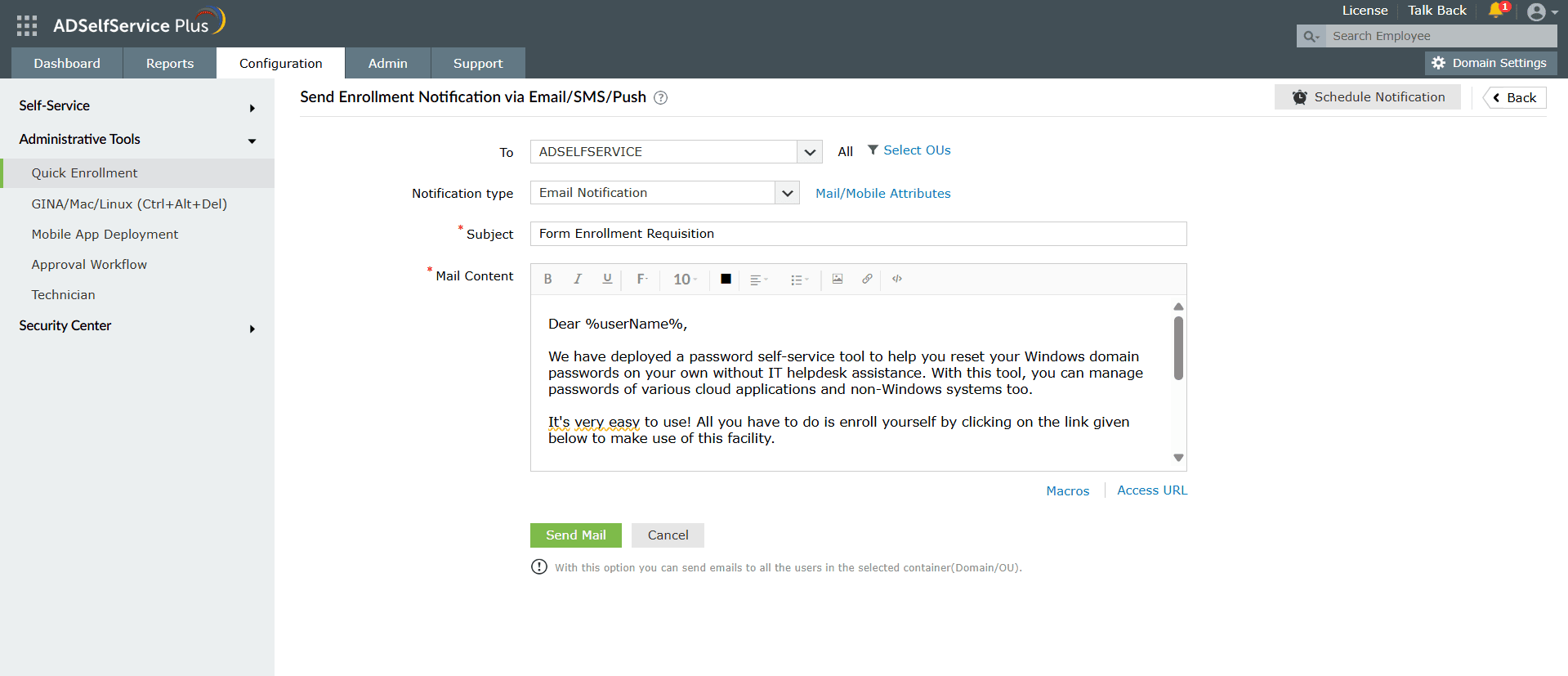
- Log in as an administrator. Navigate to Configuration > Administrative Tools > Quick Enrollment > Enrollment Notification via Email/SMS/Push.
- Choose who should be notified by selecting domains, groups, or OUs.
- Choose the notification type from email, SMS, or push.
- Customize the email subject and message content. You can include macros like %userName% and %accessURL%.
- Send the notification immediately, or schedule notifications to be sent at intervals (hourly, daily, weekly, or
monthly).

Auto-enrollment via CSV File
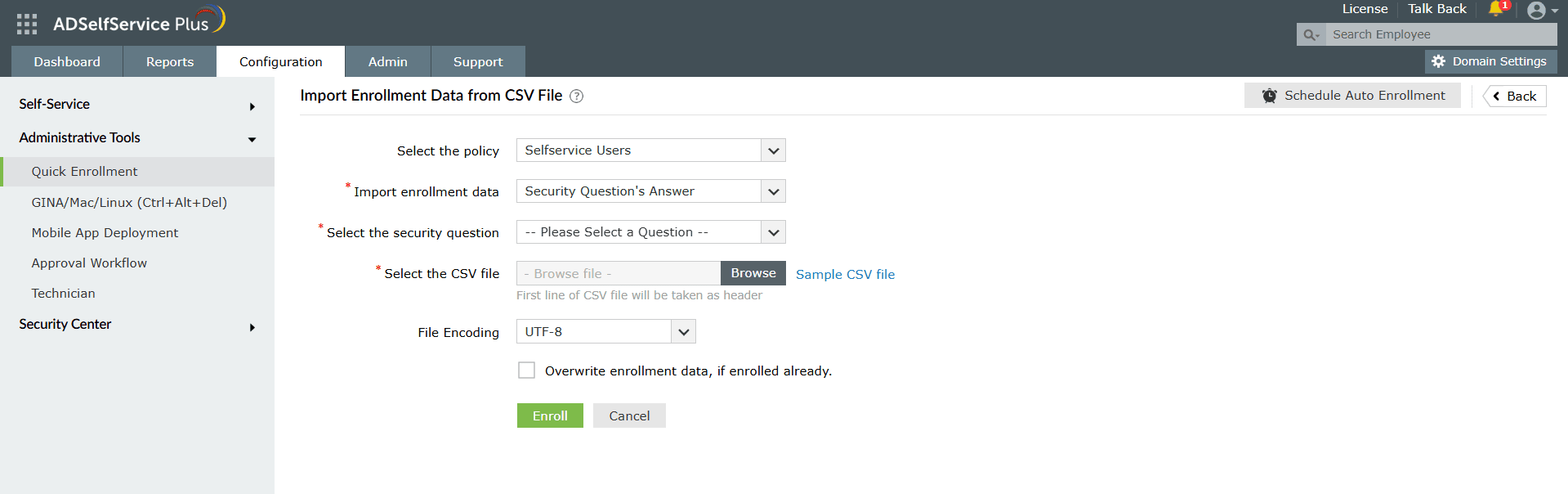
- Log in with administrative credentials. Go to Configuration > Administrative Tools > Quick Enrollment > Import Enrollment Data from CSV File.
- Select the policy that applies (e.g., domain users or local users).
- Prepare a CSV file with required fields for the authenticators you intend to enroll, including email address, mobile number, security questions, TOTP authenticators, and hardware token serials. Ensure correct formats.
- Decide whether to overwrite existing enrollment data for users already enrolled.
- Upload the file, select file encoding, and click Enroll.
- You can schedule this import so that new users are auto-enrolled whenever their data appears.

Auto-enrollment via external database
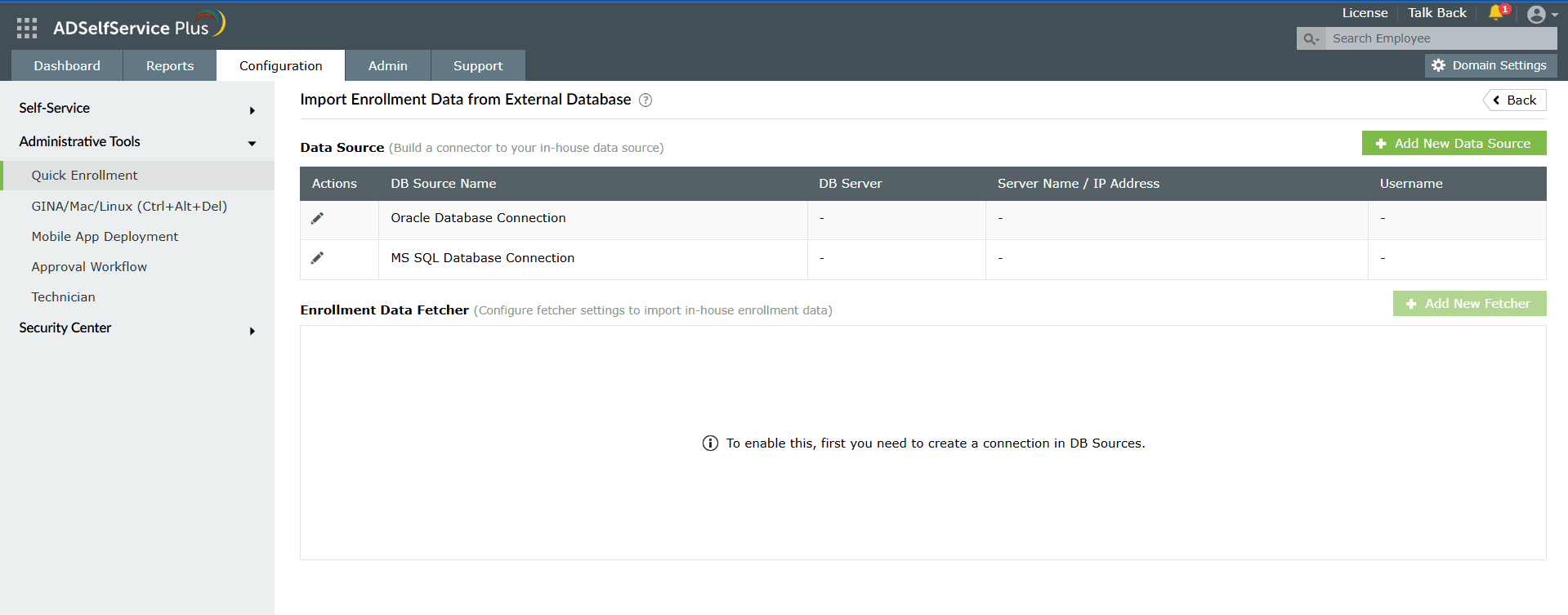
- Log in as an administrator. Go to Configuration > Administrative Tools > Quick Enrollment > Import Enrollment Data from External Database.
- Add a new data source. Provide its name and specify the database type (e.g., SQL, MySQL, or Oracle), host, port, database name, and credentials.
- Configure the data fetcher. Select the connection and policy, and choose the authenticators and data you want to import. Supply a SQL query that matches the required fields (e.g., username, secret keys, or email).
- Save, then either manually fetch the data or schedule the fetcher so that enrollment is updated regularly.

Tips for MFA enrollment
- Choose authenticators based on context: Select authenticators according to organizational security policies, end-user job roles, and data sensitivity.
- Communicate ahead of enforcement: Send notifications in advance so users know they will need to enroll in MFA.
- Use scheduling wisely: Scheduled reminders or imports help keep enrollment up to date without manual effort.
- Security of enrollment data: When importing data (either via CSV or database) ensure secret keys are sent securely and that only authorized admins have access.
- End-user support: Provide instructions or help desk guidance for users who may have trouble installing authenticator apps, retrieving secret keys, etc.