How to move a distribution server from one location to another?
This document provides steps required to move a distribution server from one computer to another. You may want to move a distribution server from one location to another in the following scenarios:
- Moving the server from a test environment to a production environment
- Installing the server in a computer with a higher configuration
- Moving the distribution server to another location because of low disk space in the current drive
- Renaming a remote office (with a distribution server): It is not possible to rename a distribution server. However, you can move the distribution server from one location to another and give it a new name.
Steps
To move a distribution server from one location to another in the following scenarios, follow the steps given below:
- Move Distribution Server from one to drive to another in the same computer
- Move Distribution Server from one computer to another
Move Distribution Server from one to drive to another in the same computer
- Navigate to Agent tab > Remote Offices.
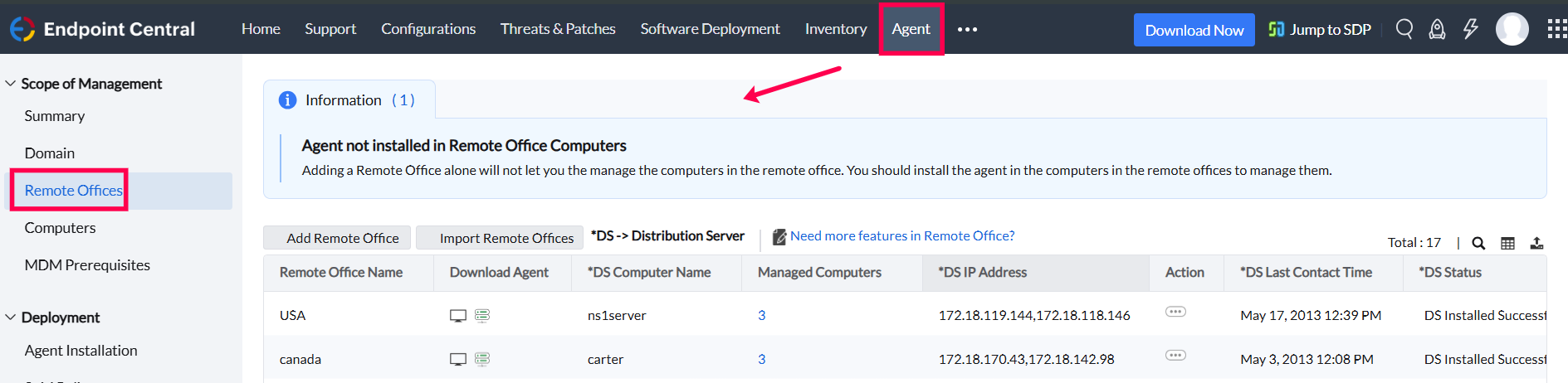
- Select the remote office, then in the Download Agent column, click on Distribution Server Icon to download the distribution server.
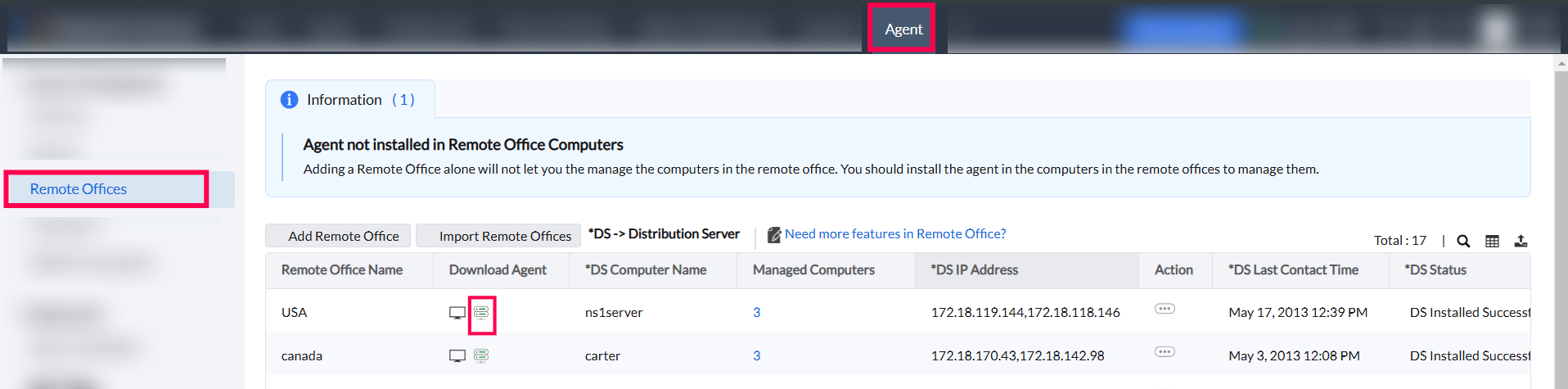
- After ensuring that the download is completed, Uninstall the existing distribution server from the Control panel > Add/Remove Programs.
- Now, install the distribution server on the same computer. While prompted for the location, specify the new location where you wanted to move the Distribution server.
- Stop 'ManageEngine UEMS-Distribution Server' service from services.msc
- Copy only the "replication" folder from the previous location and paste in the new drive location.
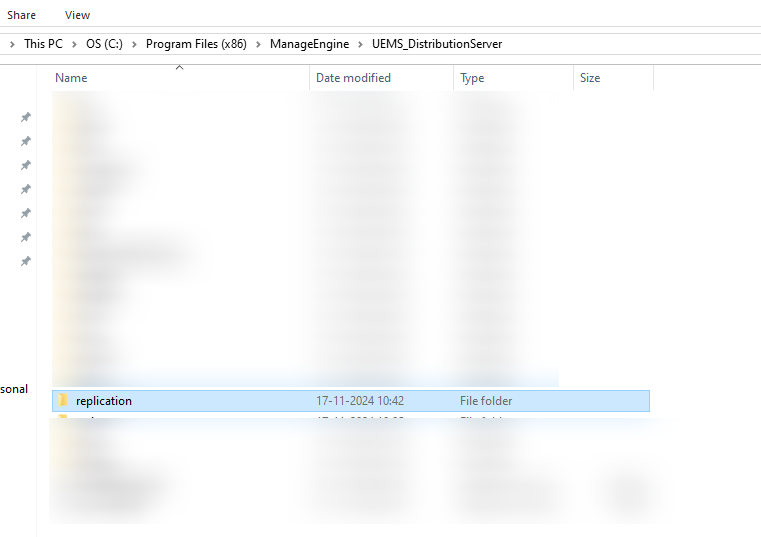
Example : If the old Distribution server is located in the C: drive, you can find the replication folder in this location <Program files>\UEMS_DistributionServer\replication. You need to copy this folder and replace this folder under the same Distribution server location in the new drive.
Note: If you skip step 5, the Distribution Server will have to download all the existing data again from the Browser Security Plus Server. - Start the 'ManageEngine UEMS-Distribution Server' service.
- You have successfully moved the Distribution server from one drive to another in the same computer.
Move Distribution Server from one computer to another
- Login to the web console of Browser Security Plus.
- Navigate to Agent tab > Remote Offices tab.
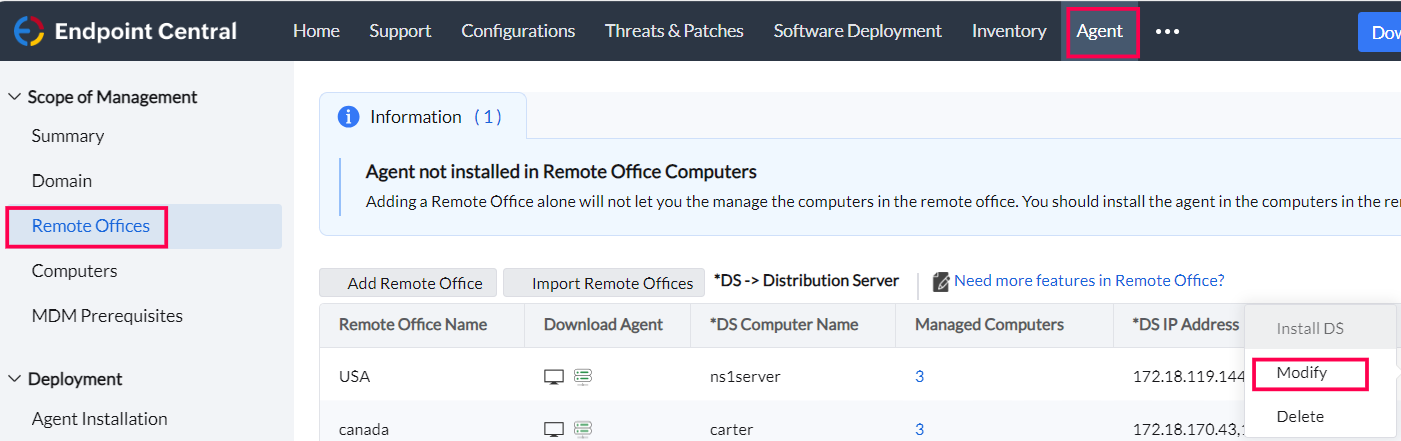
- Click the Modify option under the Action column for the respective remote office.
- Update the details of the computer in which the distribution server is installed with the details of the new computer in which you are installing the distribution server.
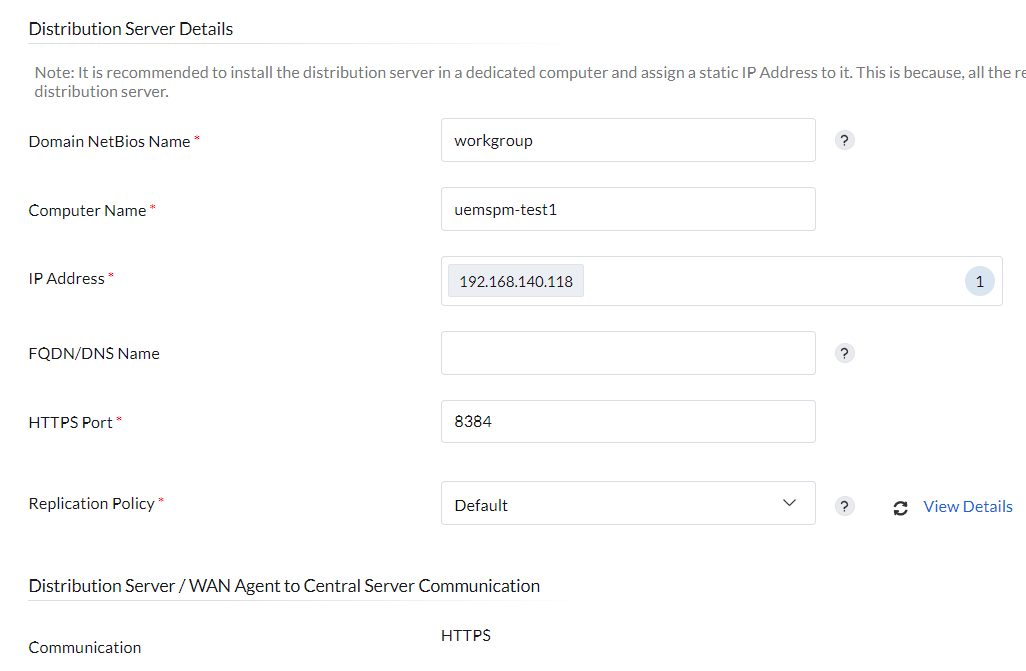
- Now click on the Modified Remote Office's Distribution Server Icon to download the distribution server.
- Uninstall the old distribution server installation from Control panel > Add/ Remove Programs.
- Install the distribution server on the new computer.
- Stop 'ManageEngine UEMS-Distribution Server' service from services.msc
- Copy only the "replication" folder from the previous location and paste in the new computer.
Example: If the old Distribution server is located in the C: drive, you can find the replication folder in this location <Program files>\UEMS_DistributionServer\replication. You need to copy this folder and replace this folder under the same Distribution server location in the new computer.
Note: If you skip step 12, the new Distribution Server will have to download all the existing data again from the Browser Security Plus Server. - Start the 'ManageEngine UEMS-Distribution Server' service in the new computer.
- You have moved the distribution server from one computer to another. While the agents try to reach the old distribution server and find that it is not reachable ,they will contact the Browser Security Plus server. Agents will get the new distribution server details from the Browser Security Plus server.