Incremental Fetch
Most of the datasets include transactional data that gets frequently updated, and importing all the data in each schedule can slow down the process of providing real-time insights. Incremental fetch for databases enables you to import only the new and updated records into Analytics Plus.
To import data using incremental fetch, Analytics Plus needs the following details:
- A column or field that helps in identifying the new records or rows in the table. This could be a sequential number column like ID, date, or a date and time column.
- How to import the new records into the table. You can append the new records to the table, or add records and replace them if the records already exist.
Supported Plans
Incremental fetch is available for all plans. Click here to know more about Analytics Plus Pricing.
Supported Data Sources
Incremental fetch is currently supported only for databases.
Configuring Incremental Fetch
You can configure incremental fetch while scheduling an import. Follow the below steps to configure incremental fetch.
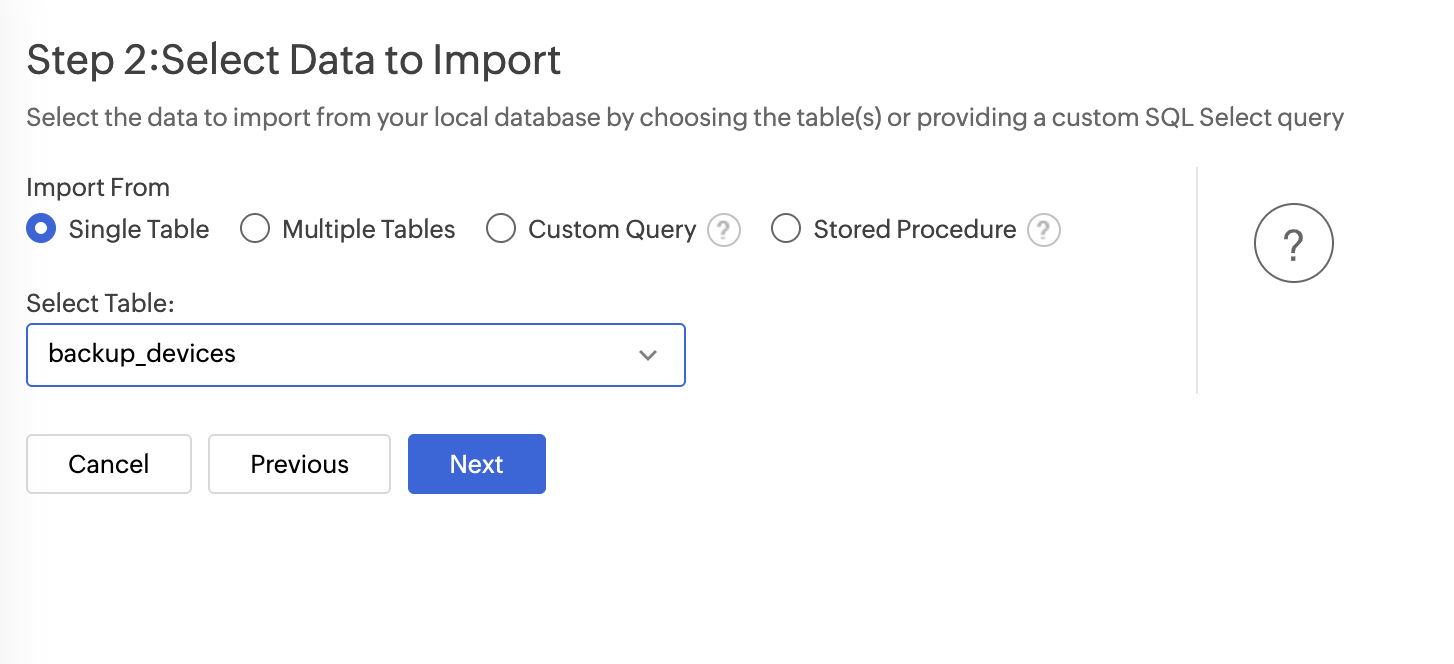
- Choose your preferred import option — Single Table, Multiple Tables, or Custom Query — to select the data you wish to import from your cloud database.
- The Import Settings and Preview wizard will open.
- You can edit the Workspace Name, Table Name, and add a Description if needed.
- The Data Preview section displays the first few records of your data; you can verify the column name and the data type.
- Unselect the checkbox adjacent to the column header to remove a column from importing.
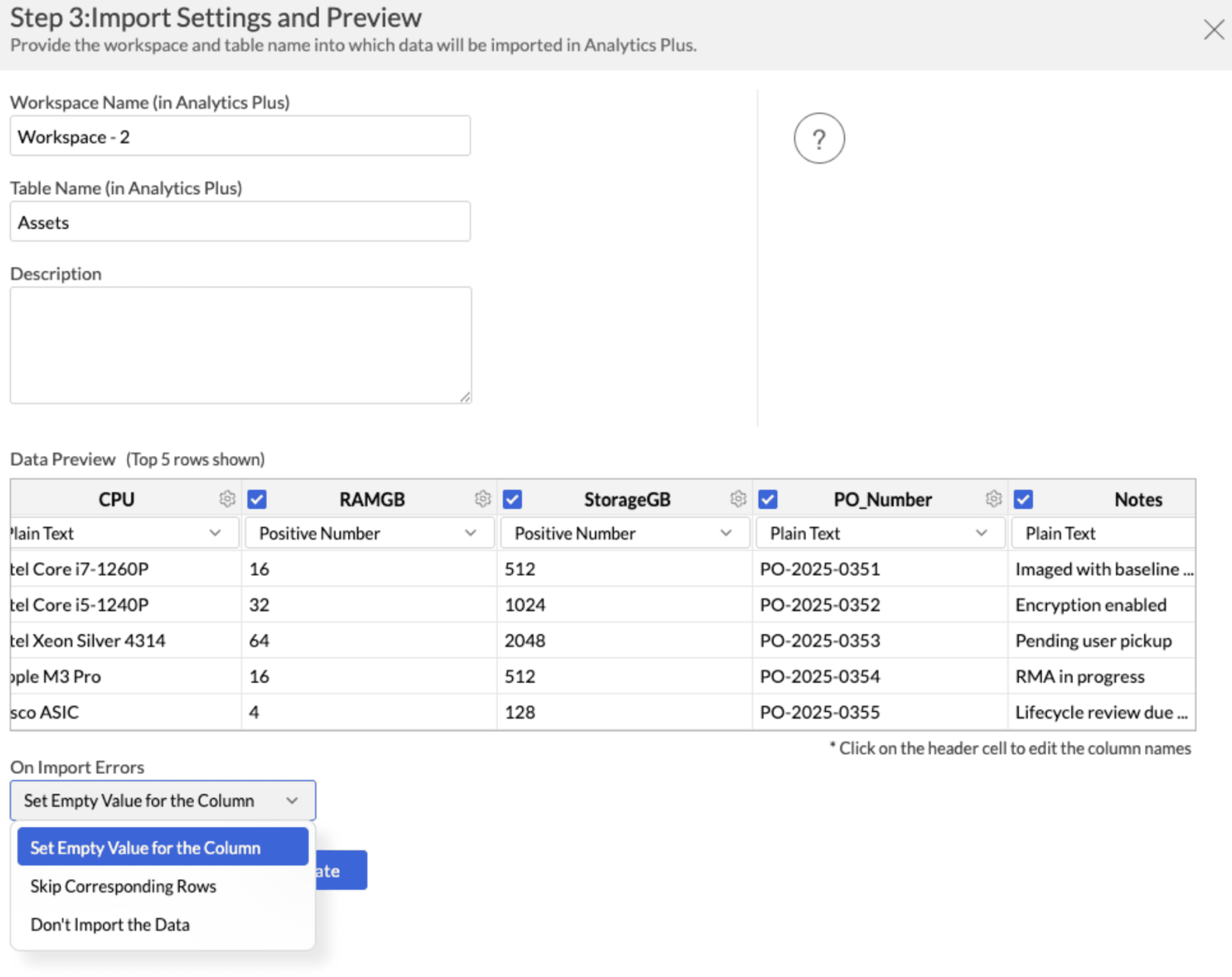
- The Import Errors section allows you to specify how to handle error conditions in case they occur while importing data. The following are the possible options:
- Set Empty Value for the Column (default): Sets an empty value to the corresponding column value which had problems while importing.
- Skip Corresponding Rows: Skips the corresponding rows in which an error occurs while importing.
- Don't Import the Data: Aborts the import process if any error occurs during importing.
- Click Create. Data import will be initiated, and you can also choose to schedule the import.
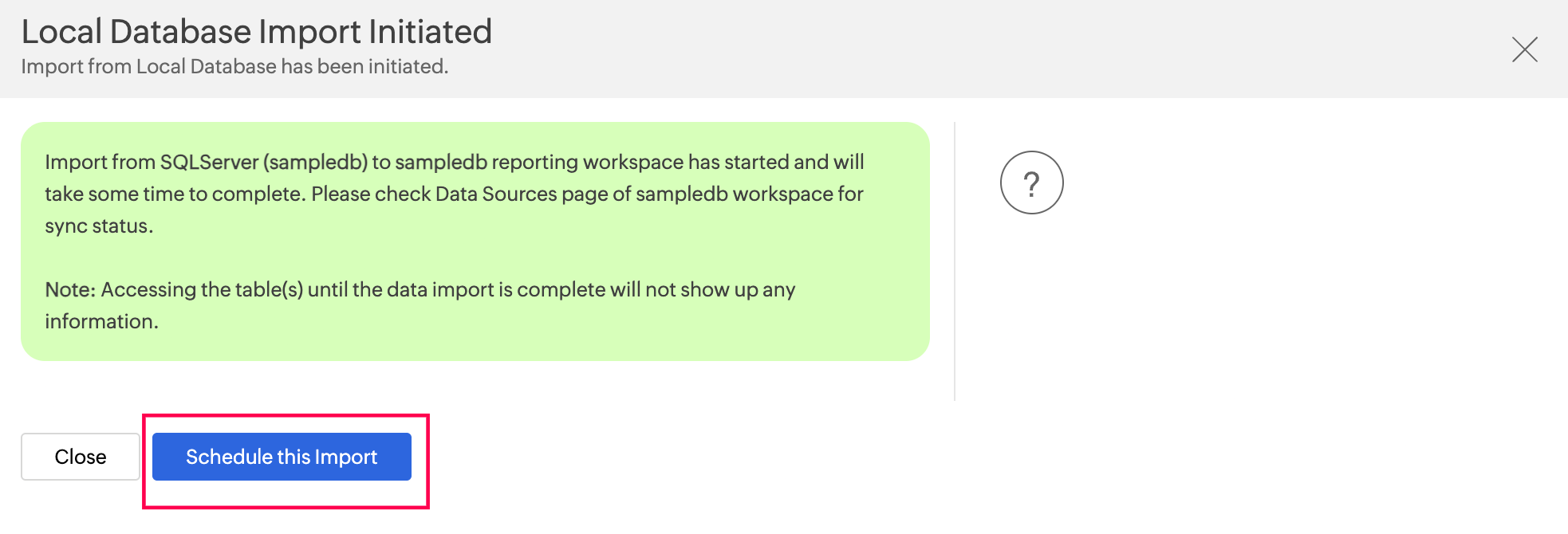
Schedule Data Import
Analytics Plus offers flexible sync schedules to ensure that the data is always up-to-date for effective analysis. You can choose to import all the records in each schedule or only the new or modified records based on your requirement.
- Select Only new/modified records from the What data to fetch in each schedule drop-down menu.
- All the numeric data type columns will be listed. Select the column that helps in identifying the new records.
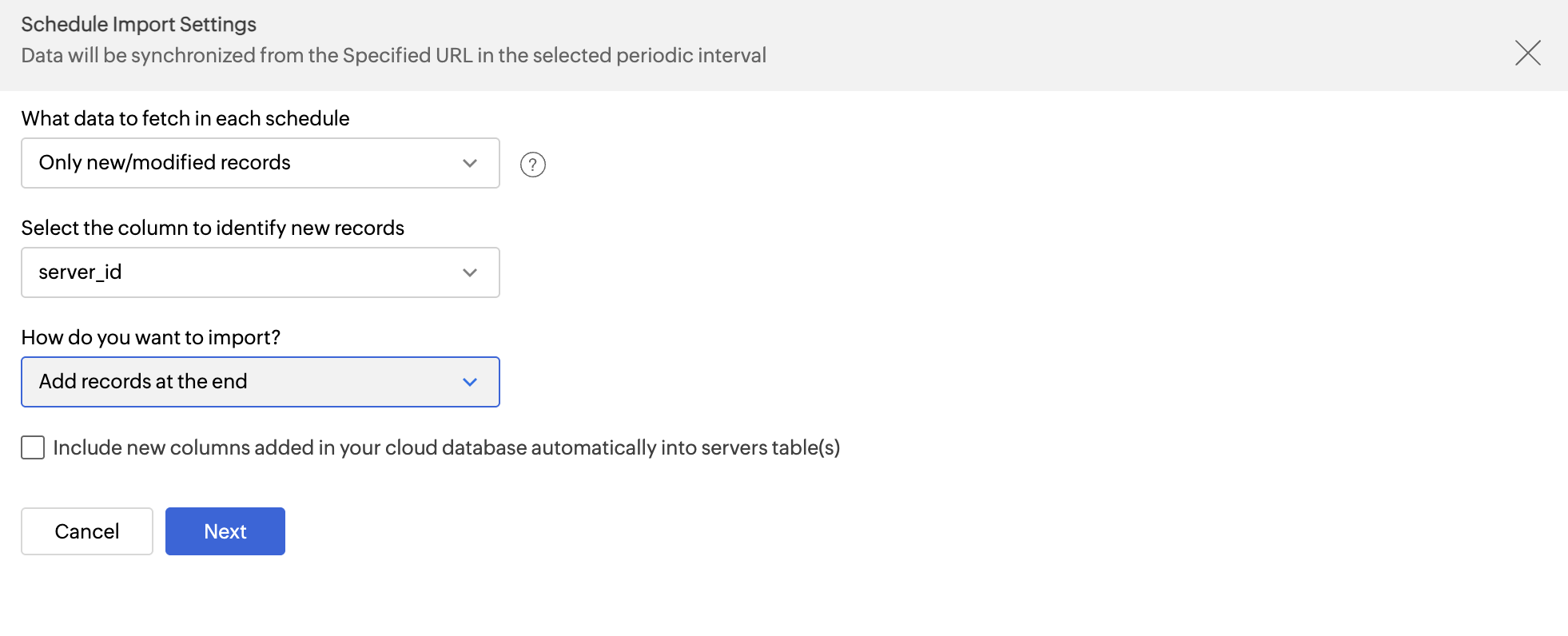
- Choose one of the below options under How do you want to import the data?
- Add records at the end: Appends the records to the end of the table.
- Delete existing records and add: Deletes all existing records in the Analytics Plus table and adds the new records.
- Add records and replace if already exists: Updates the existing records in the table and appends the new records at the end of the table. For this option, select the column(s) to match existing records.
- Select Include new columns added in your cloud database automatically into Analytics Plus table(s) to import data from newly created columns in the subsequent imports.
- Click Next.
- In the Schedule Settings pane, choose the interval at which you would like to synchronize the data. You can choose to synchronize your data at one of the intervals mentioned below.
- Every 'N' Hour
- Everyday
- Weekly Once (Standard plan and above)
- Monthly Once (Standard plan and above)
- Selecting Not Scheduled will import the data only once, i.e., at the time of import.
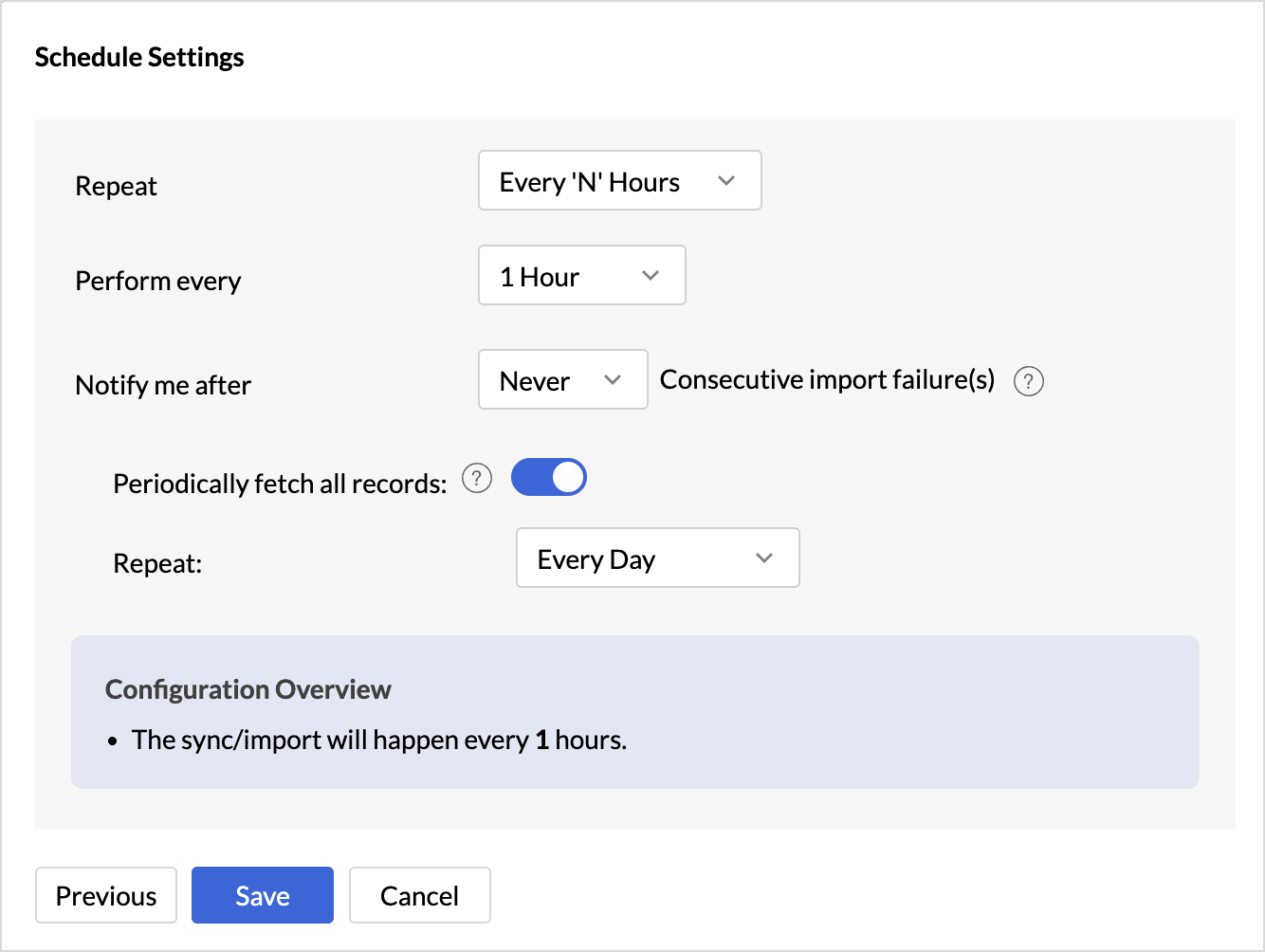
- In the case of continuous import errors, you can choose to be notified via email. To get notifications, select the interval at which you need to be notified from the Notify me after every drop-down menu.
- You can also choose to notify the Account Admin, All Workspace Admins, All Organization Admins, or any Custom User.
With incremental fetch set up, Analytics Plus will automatically import only new and modified records on your preferred schedule — keeping your data fresh, your imports fast, and your insights up to date.