Troubleshoot keystore file not found error
From version 5200 onwards, Analytics Plus automatically downloads a certificate from the ManageEngine servers to check the integrity of the upgrade (.ppm) file. In case of network connectivity issue or no internet connection on the Analytics Plus server, the upgrade process will fail with the "keystore file not found" error.
To resolve this issue, you can either check the network connection and re-install the upgrade (.ppm) file or import the certificate manually. Follow the steps below to download the certificate and import it manually.
Upload the certificate manually
For Windows and Linux (Graphical mode) installation
Analytics Plus displays the following error when there is an issue in downloading the certificate automatically.
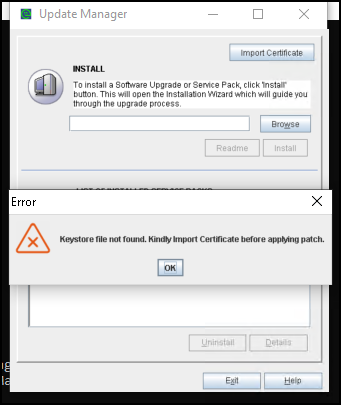
- Click OK.
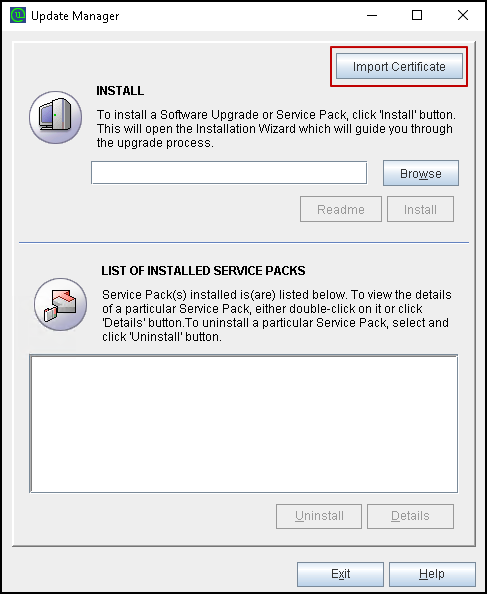
Click Import Certificate from the Update Manager dialog.
In the dialog that appears, click Browse. You can download the certificate from here.
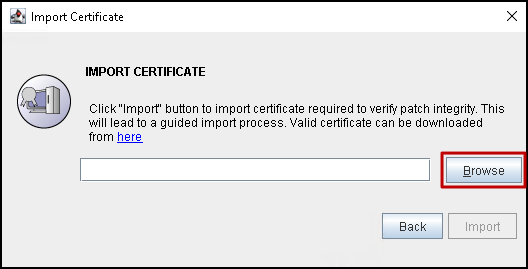
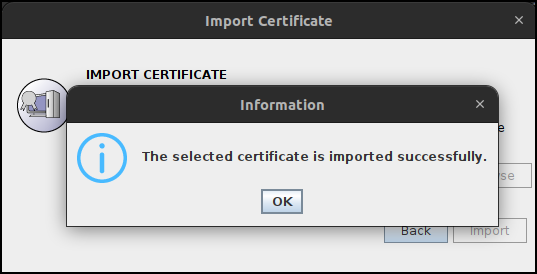
Browse and upload the downloaded certificate and click Import. Once the certificate upload is successful, click OK and follow the .ppm installation steps for Windows or Linux (graphical mode).
For Linux (Console mode) installation
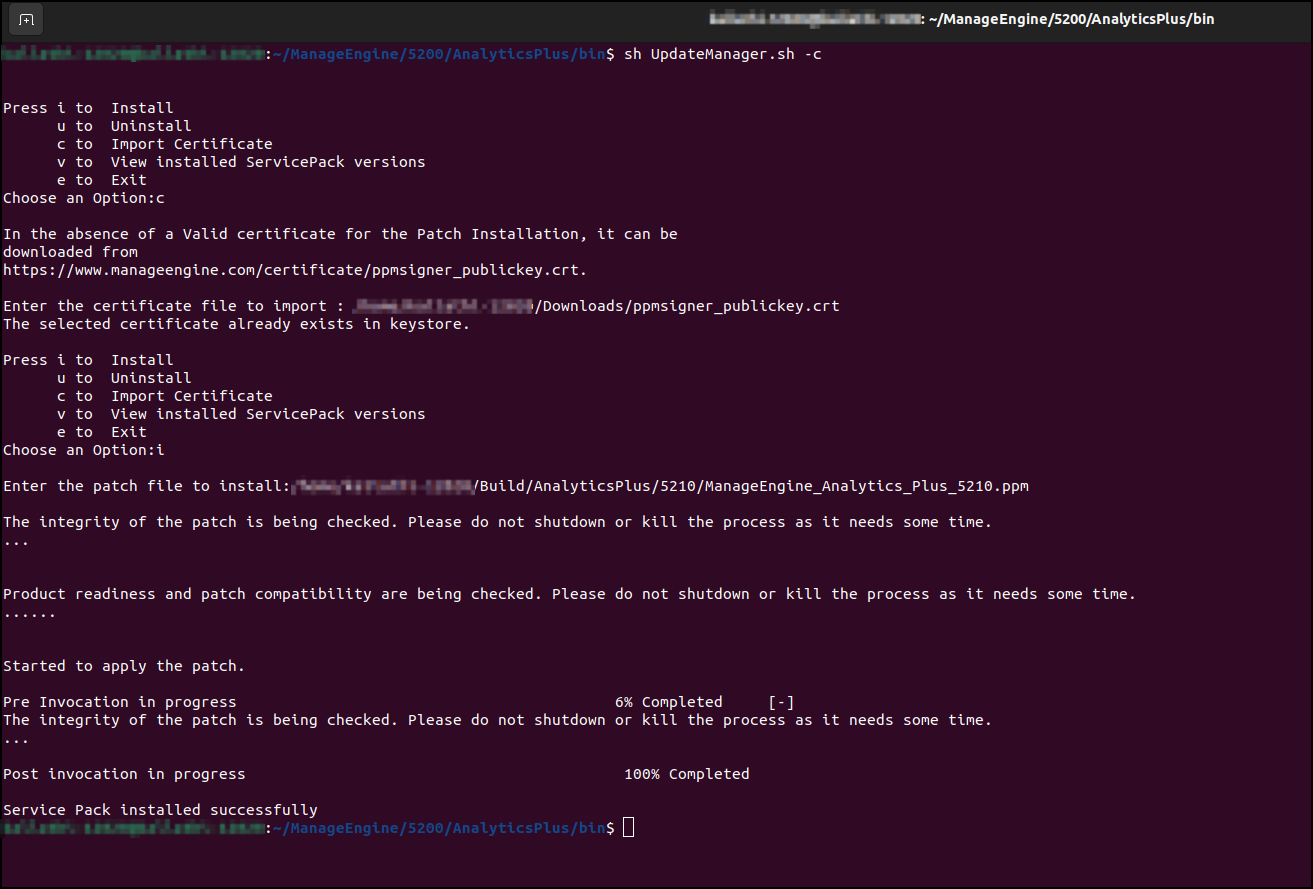
Analytics Plus displays the following error when there is an issue in downloading the certificate automatically.
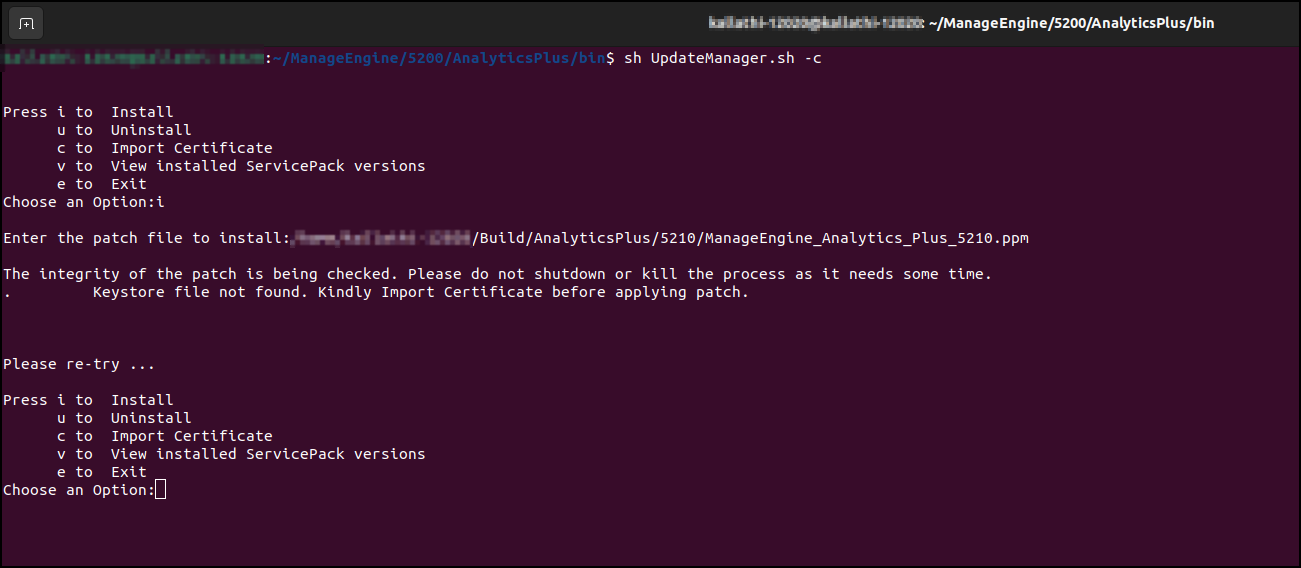
- Enter c to import the certificate manually. You can download the certificate from here.
- Enter the location of the downloaded certificate, and press Enter.
- Once the certificate upload is successful, follow the .ppm installation steps for Linux (console mode).