Managing Insights
The Insights module in DEX Manager Plus provides IT administrators with intelligent, data-driven observations about endpoint health, reliability, performance, and application stability. Insights are automatically generated when monitored health indicators breach configured thresholds.
By surfacing actionable insights, DEX Manager Plus helps teams detect issues early, triage devices, and take remediation steps to improve the digital employee experience — whether it's identifying high crash rates, degraded boot performance, aging hardware, or network connectivity problems.
How Insights Work
Insights are triggered when monitored health indicators breach the thresholds defined under Insights Settings. Each insight corresponds to a specific category and metric, and includes:
- A short description of the issue
- The number of impacted devices
- The category it falls under (e.g., Device Performance, Startup Performance, Device Reliability)
- Summary cards showing the top impacted model, vendor, process, or location
- A device-level table with drill-down details for investigation
- Links to dedicated reports for historical analysis
Accessing the Insights Page
Navigate to DEX > Insights from the left-hand pane. The main panel displays a table of all active insights.
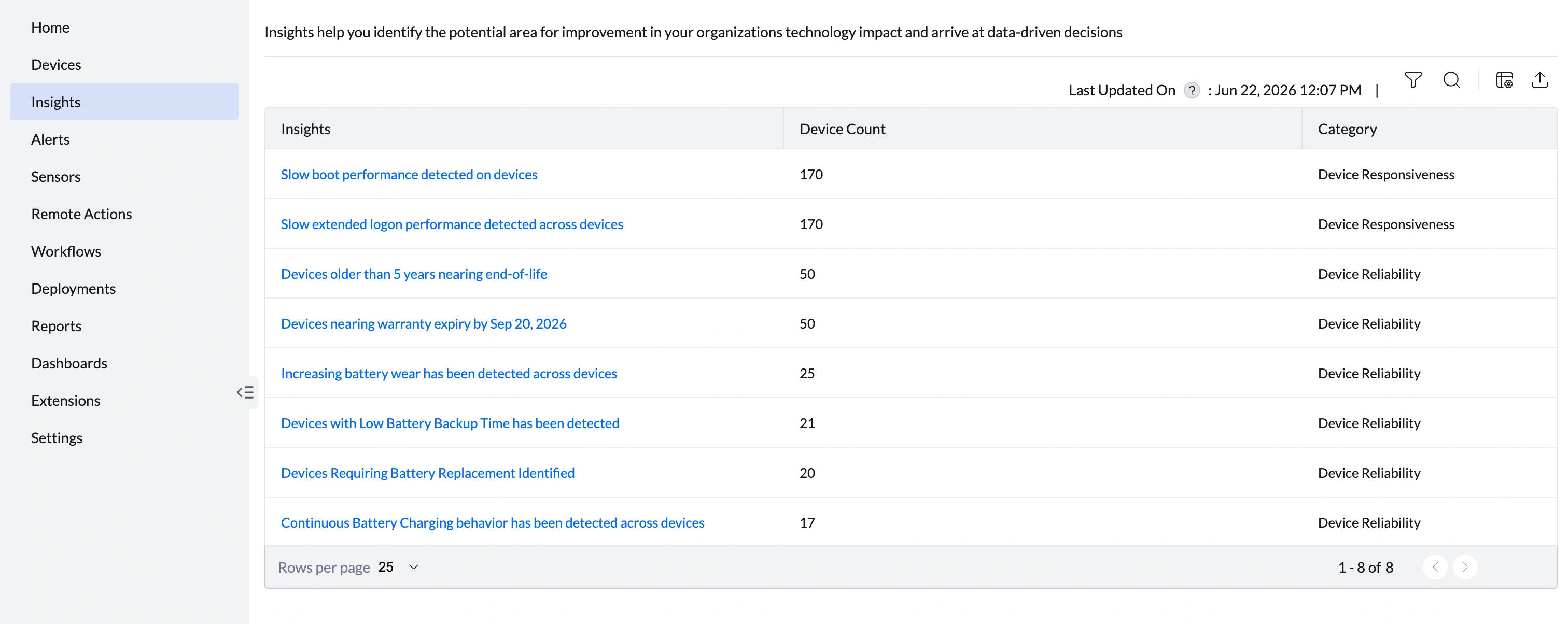
| Column | Description |
|---|---|
| Insight | Describes the observed issue. Click to open the insight detail view. |
| Device Count | Number of endpoints currently affected by the issue. |
| Category | Classification: Device Performance, Disk Capacity, Startup Performance, Network Performance, Application Reliability, or Device Reliability. |
| Last Updated On | Timestamp of the most recent insight refresh. |
Using the Insights Interface
- Filters: Narrow insights by category using the filter icon at the top of the table.
- Search: Locate specific insight types quickly using the search icon.
- Export: Download the full list of insights for offline analysis or reporting using the export icon.
Configuring Insight Thresholds
Insights are powered by configurable health indicators. Each indicator has its own threshold that determines when an insight is triggered. To configure thresholds:
- Navigate to Admin > Endpoint Analytics Settings > Score Settings > Insights tab.
- Expand a metric category (e.g., Device Performance).
- Click the pencil icon beside the metric you want to adjust.
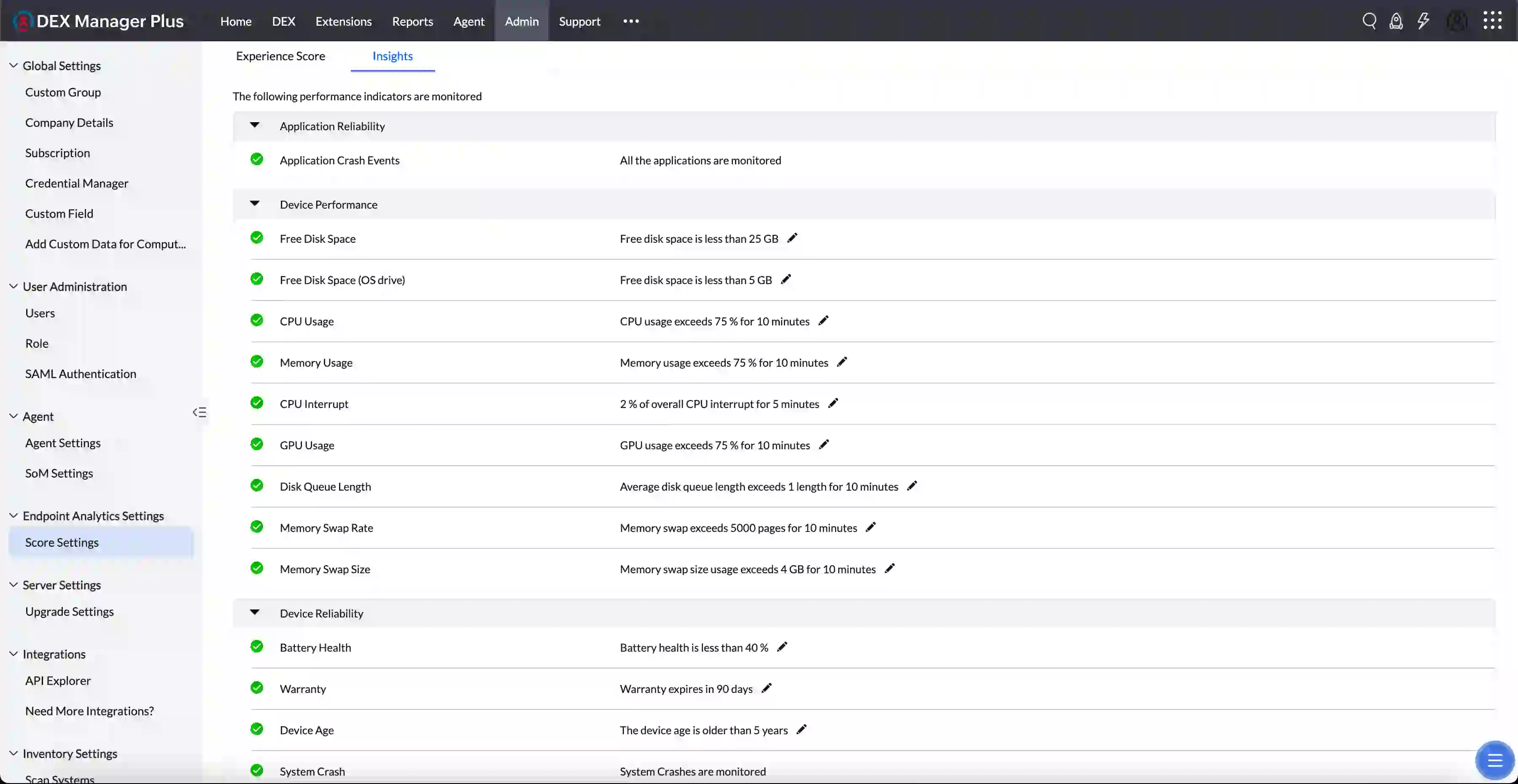
- Enter the desired threshold value and observation period (e.g., CPU > 75%).
- Click Save.
Available Insights
The following insights are available in DEX Manager Plus, organized by category. Click any insight to open its full documentation — including trigger conditions, metric explanations, root cause investigation steps, and remediation guidance.
Device Performance
| Insight | Default Threshold |
|---|---|
| Devices experiencing application slowdowns due to high CPU usage | CPU usage > 75% |
| Devices experiencing slow app and graphics rendering due to high GPU usage | GPU usage > 75% |
| Devices experiencing application slowdowns due to high Memory usage | Memory usage > 75% |
| Slow disk response is affecting application performance | Disk queue length > 1 |
| Devices experiencing slow keyboard and mouse response | Users Input Delay > 500 milliseconds |
Disk Capacity
| Insight | Default Threshold |
|---|---|
| Low OS drive space impacts update completion and device responsiveness | OS drive free space < 25 GB |
| Devices experiencing storage capacity limitations affecting system operations | OS drive free space < 25 GB or non-OS drive free space < 25 GB |
Startup Performance
| Insight | Default Threshold |
|---|---|
| Devices experiencing slow boot time | Boot time > 30 seconds |
| Devices experiencing slow user logon | Extended logon time > 30 seconds |
| Devices with fast startup enabled may experience ineffective restarts and delayed updates | Fast boot is enabled |
| Extended uptime detected, performance and updates may be affected | Last boot older than 7 days |
Network Performance
| Insight | Default Threshold |
|---|---|
| Devices are experiencing degraded Wi-Fi connectivity | Signal strength < -75 dBm and SNR < 20 dB, or Packet loss > 3%, or Gateway latency > 100 milliseconds |
Application Reliability
| Insight | Default Threshold |
|---|---|
| Devices experiencing application crashes (explorer.exe, ms-teams.exe, outlook.exe, devenv.exe, and others) | All applications are monitored |
Battery Health
| Insight | Default Threshold |
|---|---|
| Battery replacement is recommended for devices with degraded battery health | Battery health < 50%, or backup time below threshold, or cycle count exceeds OEM limit |
Device Reliability
| Insight | Default Threshold |
|---|---|
| Devices experiencing system crashes | System crashes are monitored |
| Devices with hard resets may be experiencing hardware or power issues | System hard resets are monitored |
| Devices approaching or past End of Life, posing risks to security and support coverage | Warranty expiry < 90 days or device age > 5 years |
Proactive Battery Management
Battery health is a critical factor influencing user experience, device performance, and hardware longevity — especially in mobile and hybrid workforce environments. Undetected battery degradation can result in unexpected device shutdowns, reduced mobility, increased support tickets, and employee downtime.
The Battery Health Insights provide IT teams with actionable visibility into battery condition, charging behavior, degradation trends, and operational risks across managed devices. These insights enable proactive hardware lifecycle management, help prevent unplanned downtime, reduce device replacement costs, and support sustainability goals by extending device usability.
Battery Replacement Recommendation
The Battery Replacement Recommendation insight proactively identifies devices whose batteries have significantly degraded and are approaching end-of-life. By continuously analyzing multiple battery-related parameters, the insight detects early warning signs of battery failure and automatically recommends replacement actions — before they disrupt end users.
This insight enables IT teams to:
- Proactively detect degraded or failing batteries before they impact users
- Reduce incidents caused by sudden shutdowns, rapid battery drain, and insufficient backup time
- Prioritize devices requiring attention based on health, usage, and risk
- Streamline battery replacement workflows through automated validation, warranty checks, and ITSM ticket creation
- Improve end-user satisfaction by maintaining reliable and predictable device performance
Evaluation Criteria
The Battery Replacement Recommendation is generated based on the following criteria. Thresholds can be configured to align with organizational policies and usage patterns.
| Metric | What it measures | Recommended threshold |
|---|---|---|
| Battery Health (%) | Remaining charge capacity compared to the original design capacity. Values below the threshold indicate significant wear and reduced ability to hold a charge. | 50% |
| Backup Time (Minutes) | Expected runtime when operating on battery power. Insufficient backup time limits mobility and disrupts common use cases such as meetings or field work. | Configurable based on organizational requirements |
| Cycle Count | Number of complete charge-discharge cycles completed by the battery. Higher cycle counts indicate aging battery chemistry. Displayed only if supported by device firmware and manufacturer drivers. | Typically 300—500 cycles (OEM recommended) |
Threshold Configuration
Thresholds for the above metrics can be customized under Settings > Insights. Refer to the Configuring Insight Thresholds section above for step-by-step instructions.
Remediation Workflow
The Battery Replacement Extension automates the remediation process for devices identified by the Battery Replacement Recommendation insight. Using telemetry collected from managed endpoints, the workflow:
- Identifies devices that require battery replacement
- Validates device eligibility based on warranty status
- Prompts the end user for confirmation
- Automatically creates an ITSM request for battery replacement
This automated workflow reduces manual intervention, accelerates resolution times, and ensures consistent handling of battery replacement cases.
Frequently Asked Questions
How is battery backup time calculated?
The agent collects battery usage metrics every minute and stores this data locally on the device. On a daily schedule, the agent calculates the average battery runtime based on the previous seven days of usage and posts the details to the server.
Why is cycle count not displayed for some devices?
Cycle count data is collected using manufacturer-provided APIs. If a device manufacturer does not support cycle count reporting through these APIs, the metric is not displayed and is not considered in insight evaluation.
Which manufacturers are supported for battery warranty management?
Battery warranty management is currently supported for devices from Dell and Lenovo.
Next Steps for Each Insight
- Click an insight name in the table above or on the Insights page to open the affected device list.
- Use the summary cards — Top Impacted Model, Top Process, Top Vendor — to identify the most common factor driving the insight.
- Drill down using the View More links on each summary card for a detailed breakdown by model, vendor, or location.
- Review the per-device table to identify the most severely affected devices. Sort by the primary metric column to triage immediately.
- Follow the remediation guidance in the individual insight documentation linked above for step-by-step investigation and resolution.
- Trigger automated remediation via DEX > Workflows where applicable.
- Monitor resolution by checking whether the device count on the insight decreases after action is taken.
Scenario: Proactive Remediation with Insights
- The admin opens the High CPU Utilization insight and identifies ms-teams.exe as the Top CPU Process across 12 devices.
- The admin clicks View CPU Usage Report (DEX > Reports) to confirm the spike began on the day of the rollout.
- A workflow is triggered via DEX > Workflows to deploy a configuration policy limiting Teams background activity to the impacted devices.
- The admin monitors the insight — device count drops from 12 to 2 within 24 hours.
- The remaining 2 devices show high CPU Interrupt % in the device table — indicating a driver issue — and are escalated for hardware investigation.