
Unable to log in to EventLog Analyzer
Last updated on:In this page
Issue description
Users may not be able to log in to the EventLog Analyzer web console due to various reasons. This article provides a comprehensive troubleshooting guide to identify and resolve the root causes.
Prerequisites
- Use a supported web browser and version. EventLog Analyzer supports Microsoft Edge, Mozilla Firefox (version 4 and later), and Google Chrome (version 8 and later). Ensure the browser has JavaScript enabled.
- Verify that the system date and time on the EventLog Analyzer server and the Domain Controller are same.
- Ensure the user account is not locked out or disabled in Active Directory. If you are using Product authentication, verify if the user account is enabled in Settings >> Technicians and Roles
- EventLog Analyzer needs to connect to any configured Domain Controller to perform Active Directory authentication
| PORTS | INBOUND | OUTBOUND | SERVICE | ADDITIONAL RIGHTS & PERMISSION |
|---|---|---|---|---|
| TCP/389 | Domain Controller | EventLog Analyzer Server | LDAP | User should have read permission to Active Directory Domain Objects.Permission to run LDAP query in ADS_ SECURE_AUTHENTICATION mode should be present. |
Possible causes
- The username or password may be incorrect.
- An incorrect authentication method may have been selected under the 'Logon to' option while entering the credentials.
- The domain user account may be disabled or locked out or may not exist in the native Active Directory or in EventLog Analyzer.
- The user account credentials may not be synced among DC.
- Few Domain Controllers configured may not be reachable
- The domain user credentials may have been modified recently.
- Cached browser data, cookies, or browser extensions might interfere with the login process.
Resolution
1. Verify credentials:
Verify the username and password entered, as errors can happen when typing manually or copying and pasting the credentials.
2. Check the authentication method:
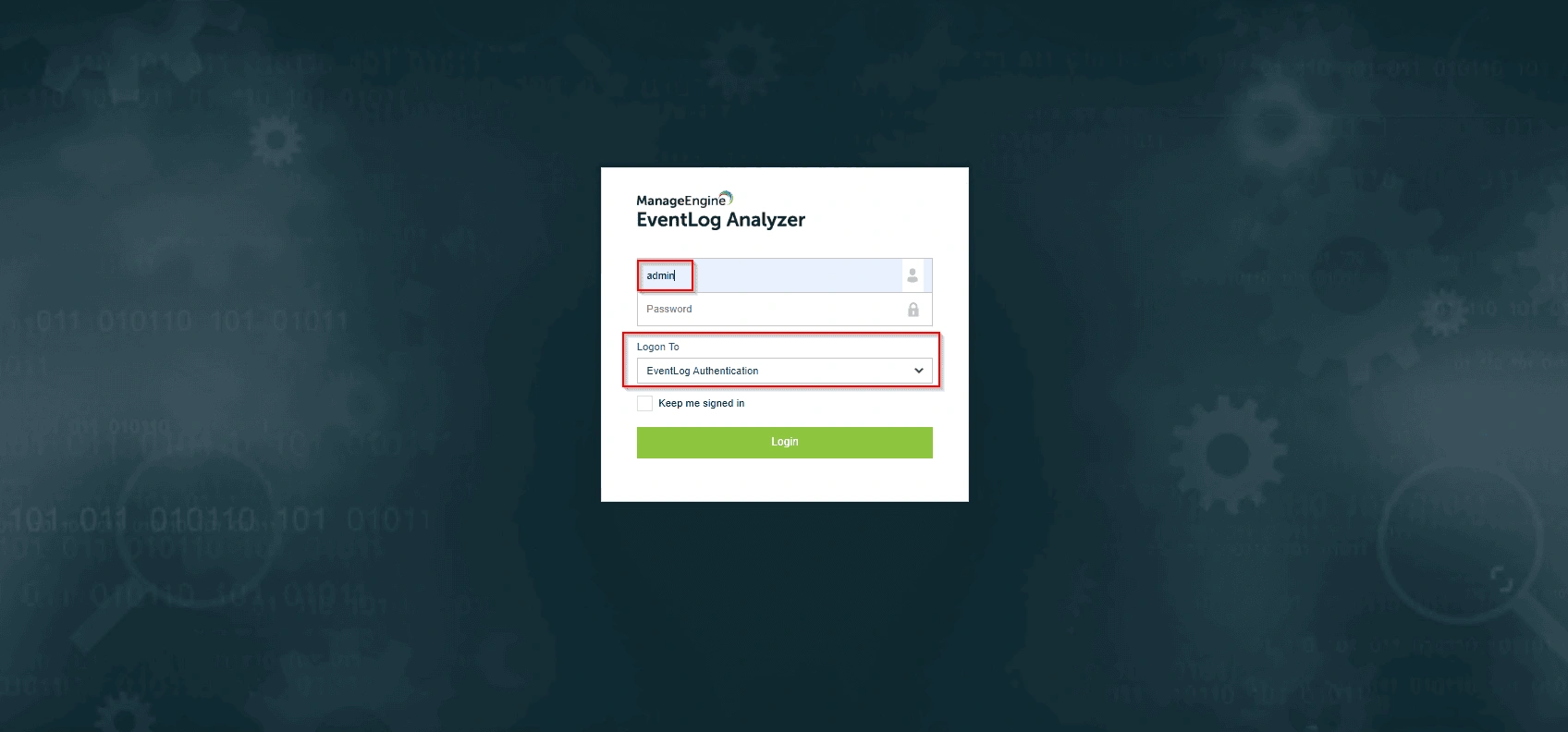
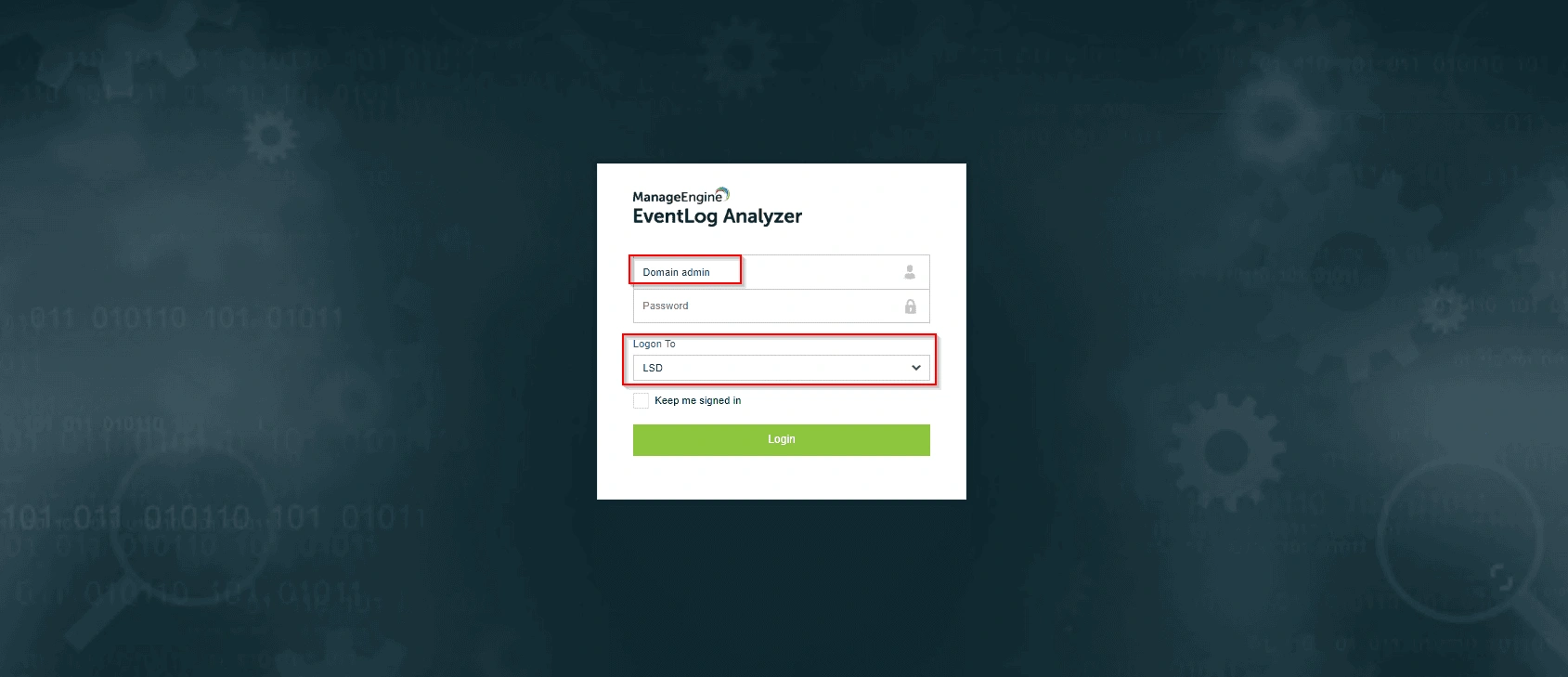
- If you're using a local technician account, select 'EventLog Authentication' under the 'Logon To' tab.
- If you're using a domain user account, select the corresponding domain. Refer to the images below for guidance.
3. Clear browser cache or switch browsers:
- Clear your browser's cache or access EventLog Analyzer in an incognito/private window. Try with different browsers. Check if the browser is in the supported browser list.
4. Ensure domain user account is synced with EventLog Analyzer:
- If the domain user is not reflected in the EventLog Analyzer, follow the below steps to resolve the case.
- Login to the EventLog Analyzer as a default built-in admin via an incognito/private window.
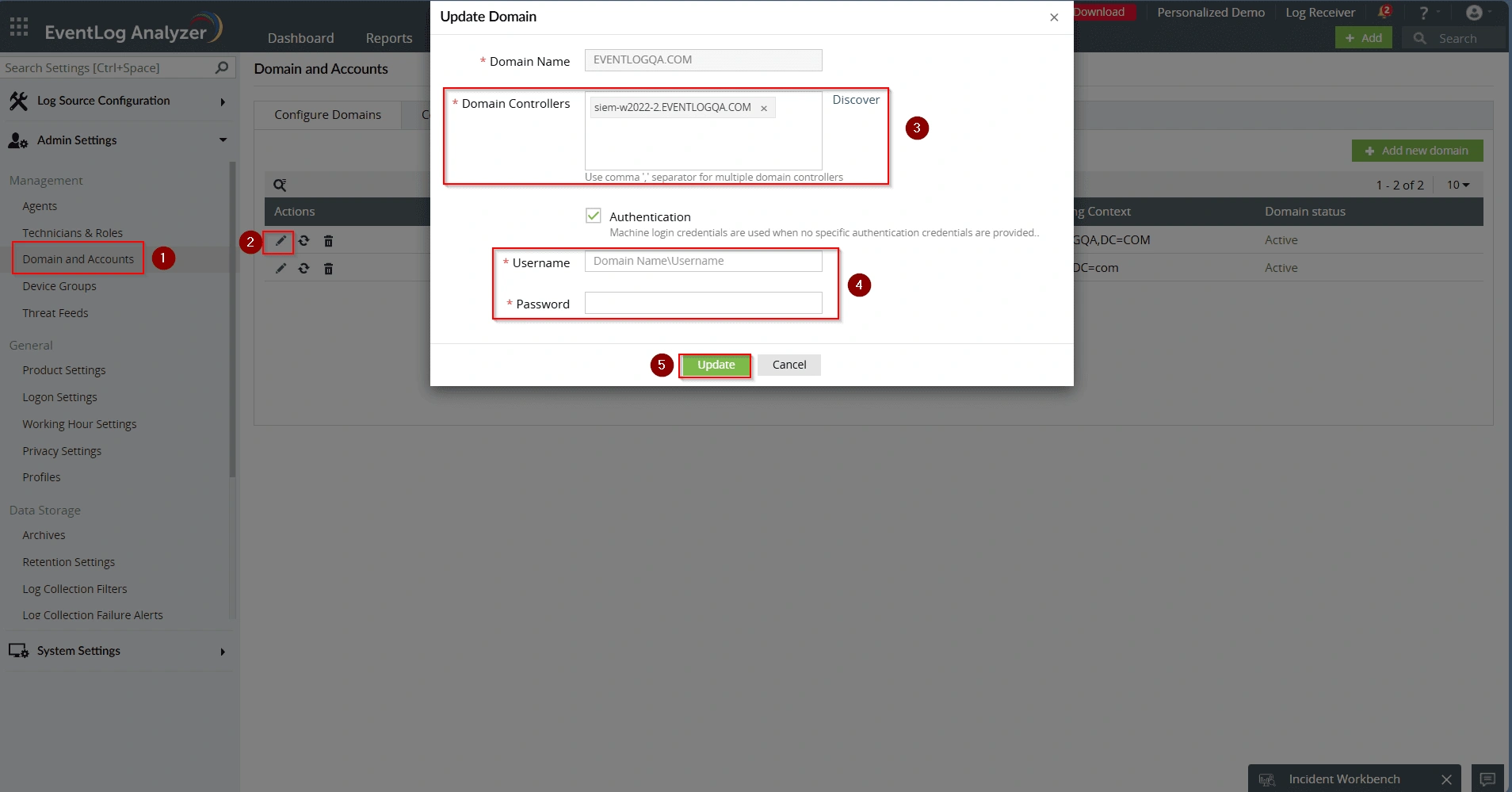
- Go to Settings > Domain and accounts > Click the edit icon next to the respective domain from which the user is set to be added > Verify that all of the domain controllers including the PDC, ADC are added under the domain controllers section > Update the domain admin credentials. The image below is for your reference.
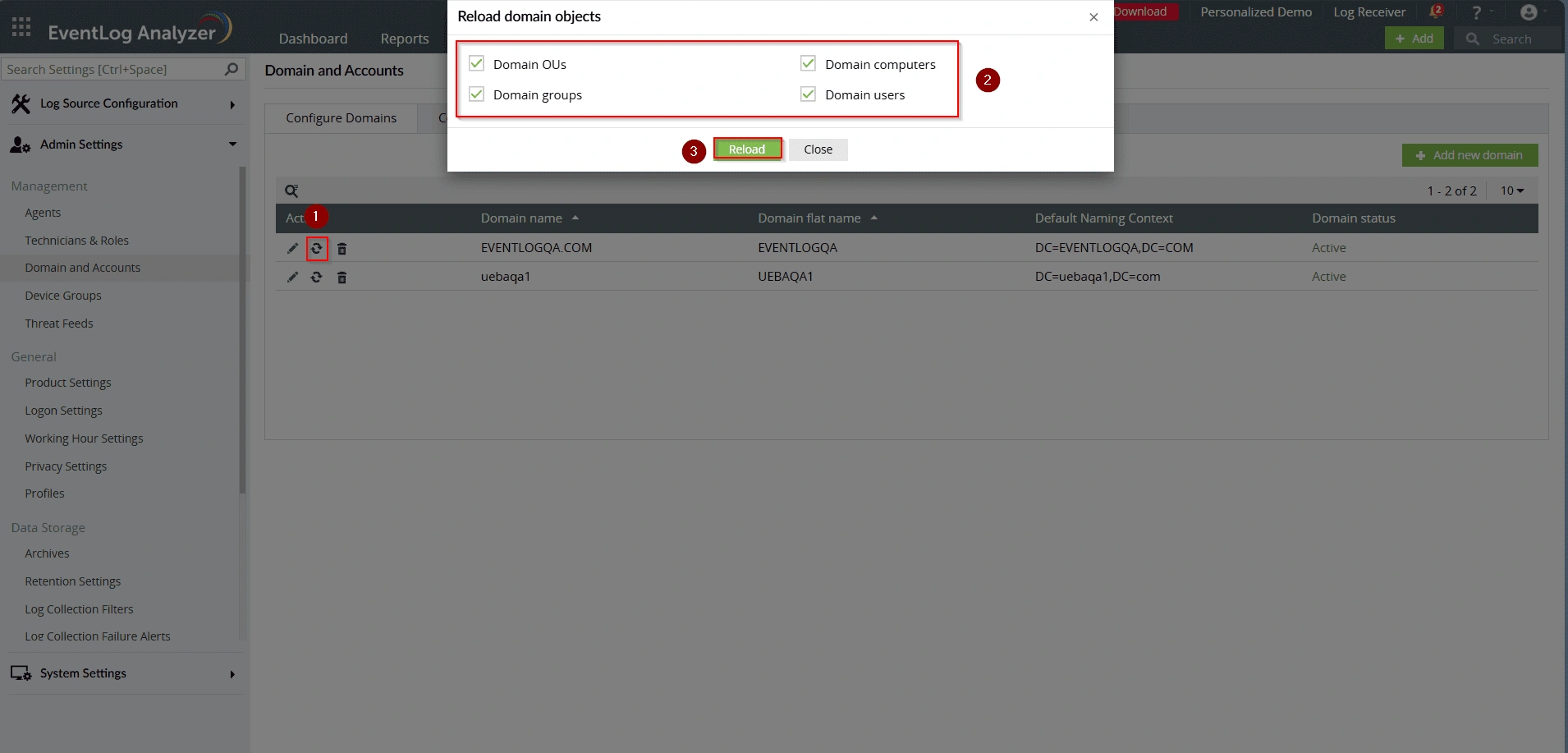
- Now, click on the reload icon next to the same domain to refresh the domain objects including the users, computers, OUs etc. The image below is for your reference.
Reference guide: Domain and Accounts | Admin Settings
- If you are unable to login using the default built-in admin or forgot the password of the account, feel free to reset the Admin account using the instructions provided in the Reset Account Settingsdocument.Note: Resetting the default built-in admin account credentials will not affect the product settings.
- Verify the network connectivity between the EventLog Analyzer installed server and the domain controllers. You can use the 'Ping' and 'Tracert' or you can test the port connectivity using the 'telnet' or 'TNC' commands from the powershell or command prompt.
Validation and testing:
Validate and test to see if the issue has been fixed in EventLog Analyzer by following the steps below
- Log in to EventLog Analyzer with user name you faced issue with.
- Open an incognito window, Login and check if all the tabs are accessible after login.
How to reach support
If the issue persists even after following the above steps, contact our support team Click here to contact our support team or reach out directly via email: eventlog-support@manageengine.com
You can submit a ticket through their official support portal: Submit a request