Other Reports
There are several other essential reports that play pivotal roles in every network environment. We've got you covered with ManageEngine Network Configuration Manager. Some of the reports categorized under this section include:
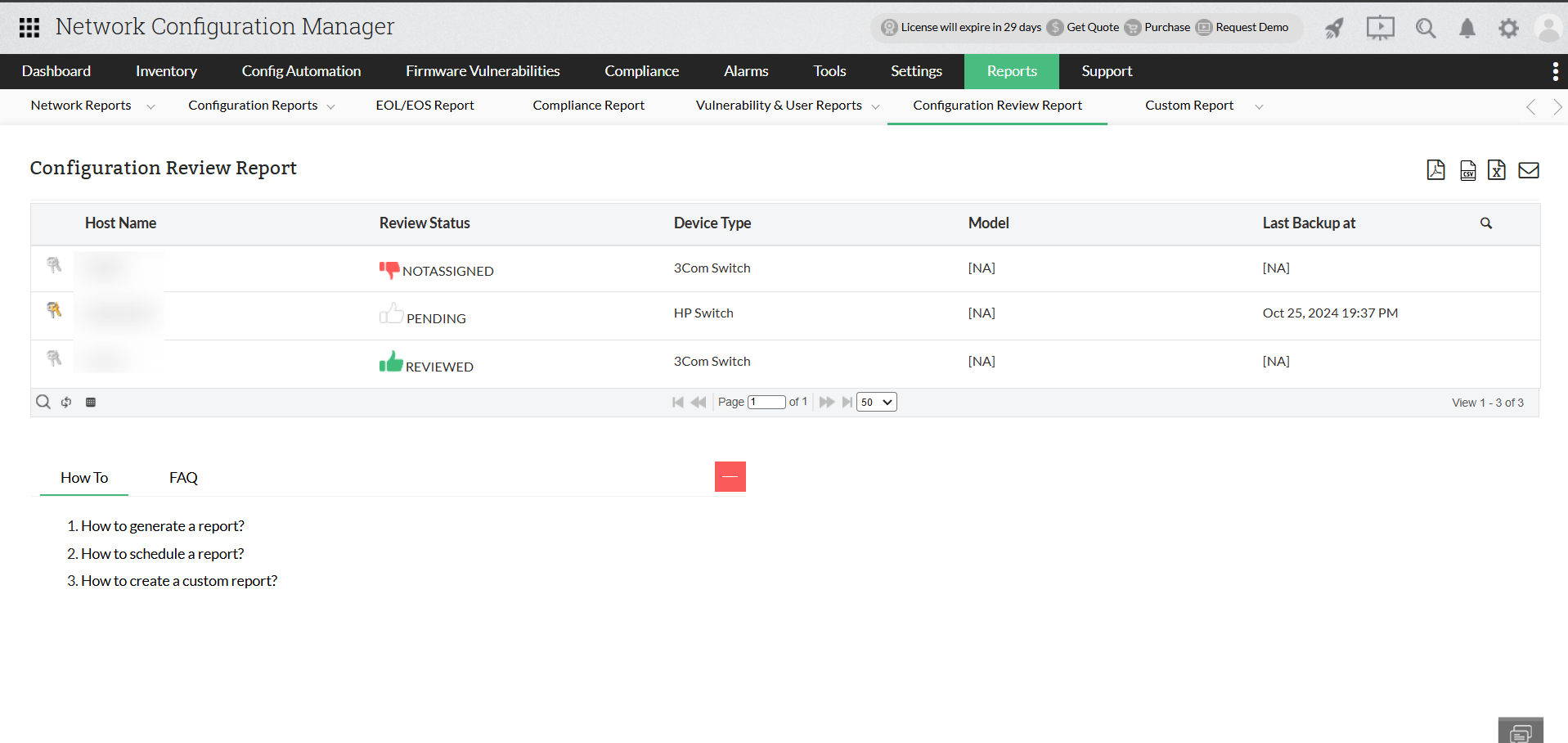
Configuration Review Report
A configuration review helps administrators ensure that network device configurations align with defined security and operational standards. It enables teams to regularly examine configurations, identify deviations, and address potential risks before they lead to security incidents or operational failures.
With this specialized Configuration Review Report, administrators can efficiently oversee configuration review activities and proactively address any non-compliance issues. The report provides clear visibility into the status of configuration reviews performed by specific administrators or operators, indicating whether reviews are pending or completed.
The report includes key details such as the device host name, review status, device type, and the timestamp of the last configuration backup.
Additionally, the report can be exported in PDF or CSV formats, or shared directly via email for easier collaboration and auditing.
To access this report, navigate to Reports → Other Reports → Configuration Review Report.
Custom Report
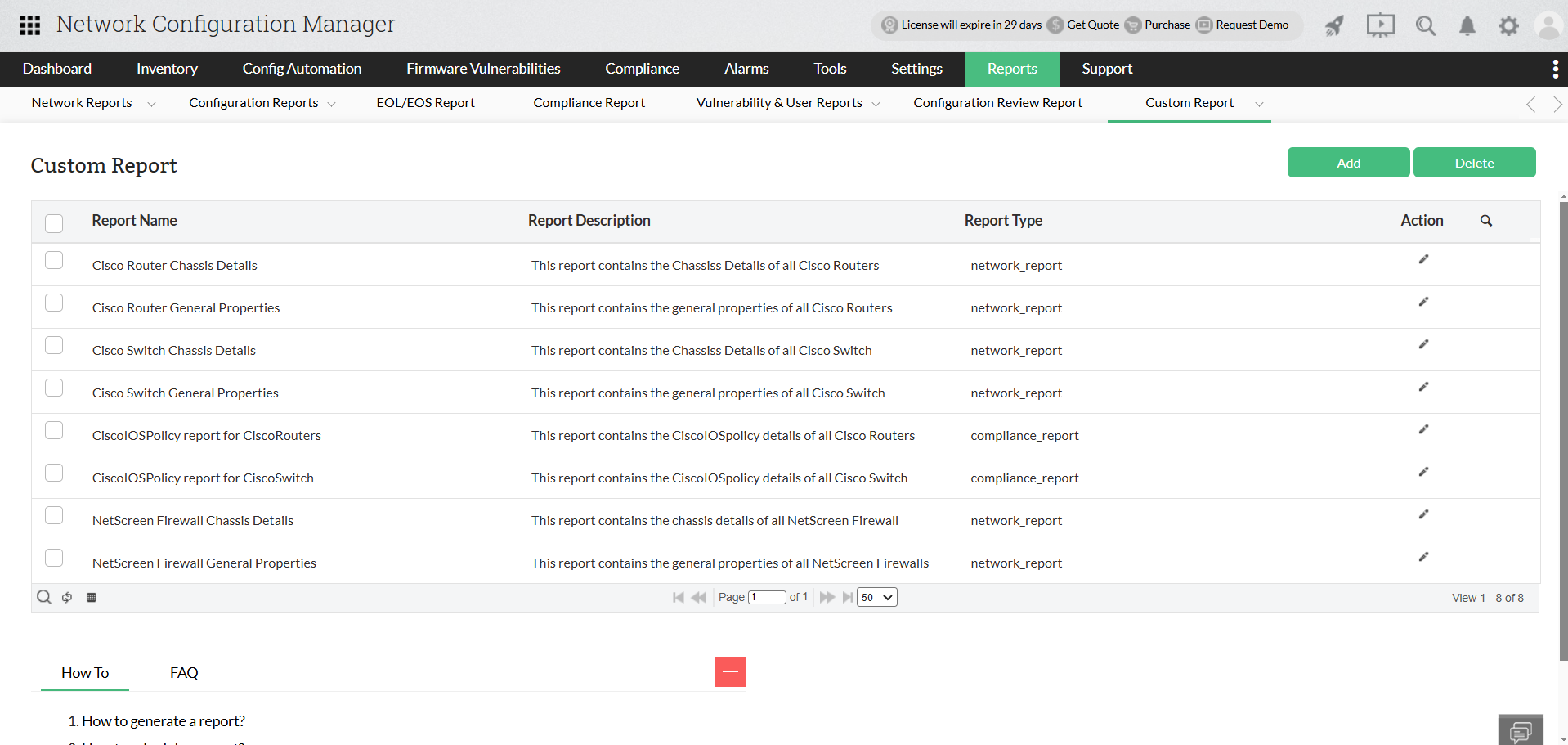
Customizing reports will help network admins create their own reports based on their needs and requirements of their industry. This allows growth in scalability for their network infrastructure.
With this custom report, you can create a customized Hardware Inventory Report or Compliance Report from the ground up.
You have the option to add or delete reports by selecting the corresponding button located in the top-right corner. For adding a report, you have the option to handpick specific devices or device groups and select the necessary columns or compliance option for the report. Once the report is created, it lists the report name, report description, and report type. You can also choose to edit them if required.
To access this report, navigate to Reports -> Locate and click on Custom Report within the Other Reports section.
Advanced Report
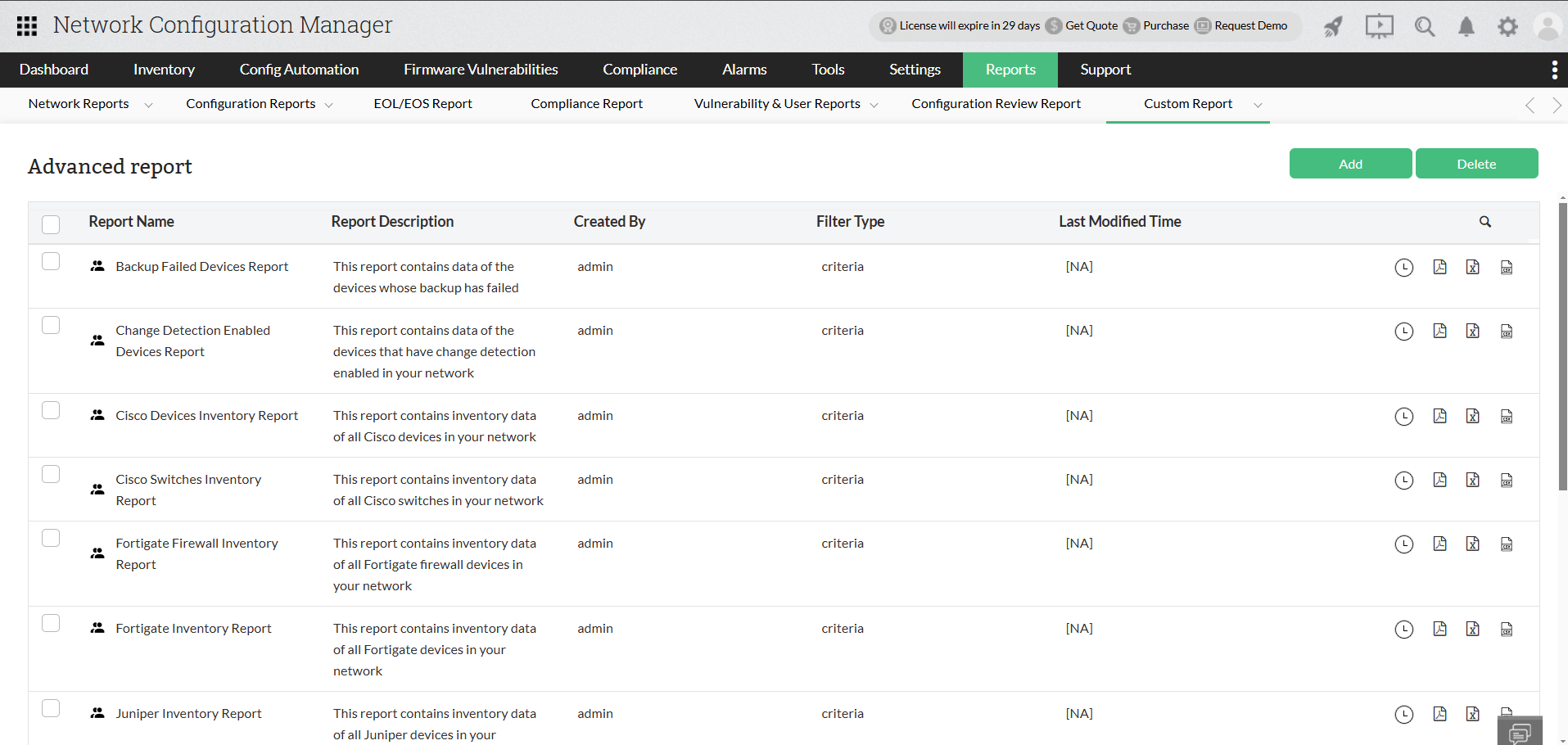
This report empowers users to generate detailed reports tailored to specific devices and tasks, such as a Fortigate Firewall Inventory Report containing comprehensive inventory data for all Fortigate firewall devices within the network.
Moreover, users have the option to craft advanced reports from the ground up. They can handpick the necessary columns and then designate either individual devices, device groups, or employ dynamic criteria, allowing for the creation of multiple criteria, separated by and/or.
To access this report, navigate to Reports -> Locate and click on Advanced Report within the Other Reports section.
Download Network Configuration Manager now and enjoy these and various other kinds of reports and audits with a free, 30-day trial.
Want to see the reports in action? Request a free, personalized demo.
You can also get a price quote based on your usage and needs.