Windows 11 Feature Pack Deployment - The Windows 11 version 21H2 update
Steps to deploy Windows 11 21H2 update
1.Prerequisites
- Before deployment, run through the Compatibility Check available under the Important Notes section to find if you meet all the minimum requirements that impact upgradability.
- Ensure that feature pack option is enabled under Patch database settings.
- Navigate to: Admin -> Settings -> Patch Database Settings -> click on the Windows tab and enable the Optional Updates option.
- Ensure that you have not declined the feature pack updates under decline patches section.
- Microsoft has recommended upgrading to the latest version of Windows. You shall directly upgrade to the Windows 11 21H2 version from your existing version of Windows and, you do not have to deploy any versions in between.
2.Downloading the dependency patch (ISO file) and adding/uploading
Follow the below steps to download the ISO image.
- Method 1:
- Download Windows 11 21H2 ISO file from the Microsoft 365 Admin Center or by referring to this page.
- Navigate to distribution store in the Distribution Server: To find the distribution store location <DS_INSTALL_DIR> -> Replication -> Store.
- Copy the downloaded ISO file manually into the distribution store directory, and rename the ISO file as given below:
Language-English:- 64 Bit: 109023-Win11_21H2_en_enterprisex64.iso
The above naming convention is applicable only for Windows 11 Enterprise edition.
- Patch Manager Plus supports the deployment of feature packs for multiple languages. Click here to view the ISO setup file for the language of your choice.
Note - To deploy Win 10 feature packs in more than one language, check the respective ISO files for each language, download and place them in the distribution store.
- Method 2:
- Download Windows 11 21H2 ISO file from the Microsoft 365 Admin Center or by referring to this page.
- Click on Upload near the Download failed error message
- In the pop-up window, browse and select the file to upload
- Choose between the Checksum types (MD5 and SHA256)
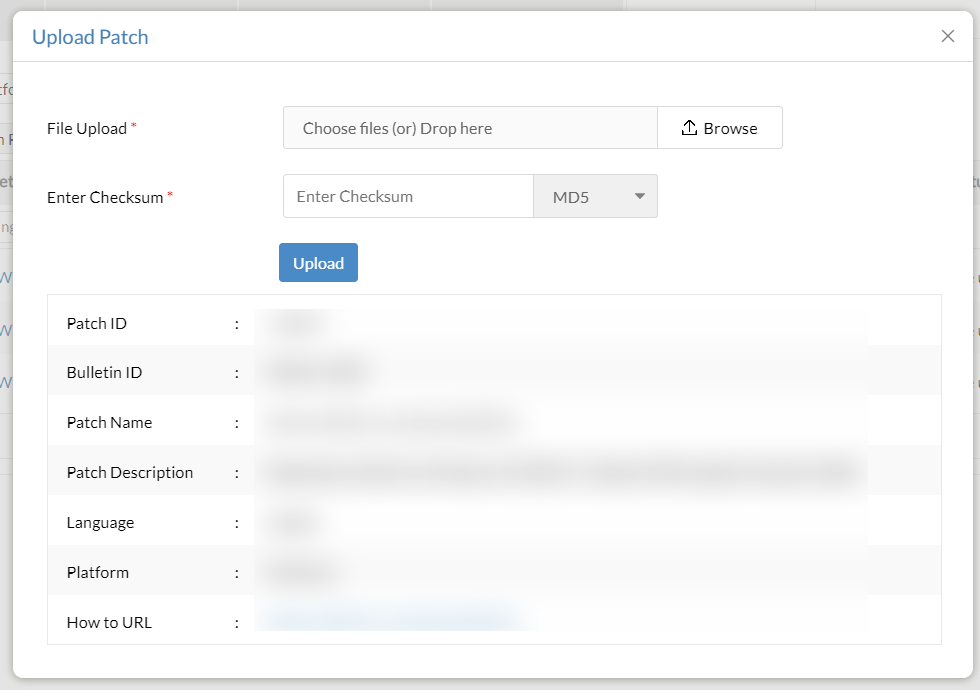
- Enter the checksum and wait for it to be validated
- Once validated, click on Upload
- Once the patch has been uploaded, it can be installed
Follow the below steps to download the ISO image.
- Method 1:
- Download Windows 11 21H2 ISO file from the Microsoft 365 Admin Center or by referring to this page.
- Navigate to distribution store in the Distribution Server: To find the distribution store location <DS_INSTALL_DIR> -> Replication -> Store.
- Copy the downloaded ISO file manually into the distribution store directory, and rename the ISO file as given below:
Language-English:- 64 Bit: 109021-Win11_21H2_enx64.iso
The above naming convention is applicable only for all other Windows 11 editions except the Enterprise edition.
- Patch Manager Plus supports the deployment of feature packs for multiple languages. Click here to view the ISO setup file for the language of your choice.
Note - To deploy Win 10 feature packs in more than one language, check the respective ISO files for each language, download and place them in the distribution store.
- Method 2:
- Download Windows 11 21H2 ISO file from the Microsoft 365 Admin Center or by referring to this page.
- Click on Upload near the Download failed error message
- In the pop-up window, browse and select the file to upload
- Choose between the Checksum types (MD5 and SHA256)
- Enter the checksum and wait for it to be validated
- Once validated, click on Upload
- Once the patch has been uploaded, it can be installed
Note: For roaming users and those with direct download enabled,
You can download the Windows 11 21H2 ISO file and then deploy the patches by referring to the mentioned Patch ID details.
If upgrading within Windows 11 versions,
- You can deploy Windows 11 21H2 patches from the Missing Patches view.
If upgrading from Windows 10 version to Windows 11 21H2,
- You can deploy the patches from the Supported Patches view.
- Method 1:
- Download Windows 11 21H2 ISO file from the Microsoft 365 Admin Center or by referring to this page.
- Navigate to distribution store in the Distribution Server: To find the distribution store location <DS_INSTALL_DIR> -> Replication -> Store.
- Copy the downloaded ISO file manually into the distribution store directory, and rename the ISO file as given below:
Language - English- 64 Bit: 109021-Win11_21H2_enx64.iso
The above naming convention is applicable for all other editions of Windows 11 21H2 editions except the Enterprise editions.
- Endpoint Central and Patch Manager Plus supports the deployment of feature packs for multiple languages. Click here to view the ISO setup file for the language of your choice.
Note - To deploy Win 11 feature packs in more than one language, check the respective ISO files for each language, download and place them in the distribution store.
- Method 2:
- Download Windows 11 21H2 ISO file from the Microsoft 365 Admin Center or by referring to this page.
- Click on Upload near the Download failed error message
- In the pop-up window, browse and select the file to upload
- Choose between the Checksum types (MD5 and SHA256)
- Enter the checksum and wait for it to be validated
- Once validated, click on Upload
- Once the patch has been uploaded, it can be installed
3.Deploy the Windows 11 21H2 Feature Pack.
- In the server web console, navigate to supported patches view.
- Choose the Windows 11 21H2 feature pack patches you wish to deploy.
Patch ID details:
- 109024 - Windows 11 21H2 Enterprise Edition - 64 Bit
- 109022 - Other Windows 11 21H2 Editions - 64 Bit
Are you facing issues while installing or upgrading to Windows 11? Refer knowledge base for resolution.
Below table contains the language wise ISO file name. Rename the ISO file name based on the language of your choice before deployment.
| Language | Other Editions | Enterprise Edition |
| English | 64-Bit: 109021-Win11_21H2_enx64.iso | 64-Bit: 109023-Win11_21H2_en_enterprisex64.iso |
| Spanish | 64-Bit: 109021-Win11_21H2_Spx64.iso | 64-Bit: 109023-Win11_21H2_Sp_enterprisex64.iso |
| Arabic | 64-Bit: 109021-Win11_21H2_Arx64.iso | 64-Bit: 109023-Win11_21H2_Ar_enterprisex64.iso |
| Chinese (Simplified) | 64-Bit: 109021-Win11_21H2_csx64.iso | 64-Bit: 109023-Win11_21H2_cs_enterprisex64.iso |
| Chinese (Traditional) | 64-Bit: 109021-Win11_21H2_ctx64.iso | 64-Bit: 109023-Win11_21H2_ct_enterprisex64.iso |
| Czech | 64-Bit: 109021-Win11_21H2_Czx64.iso | 64-Bit: 109023-Win11_21H2_Cz_enterprisex64.iso |
| Danish | 64-Bit: 109021-Win11_21H2_Dax64.iso | 64-Bit: 109023-Win11_21H2_Da_enterprisex64.iso |
| Dutch | 64-Bit: 109021-Win11_21H2_Dux64.iso | 64-Bit: 109023-Win11_21H2_Du_enterprisex64.iso |
| Finnish | 64-Bit: 109021-Win11_21H2_Fix64.iso | 64-Bit: 109023-Win11_21H2_Fi_enterprisex64.iso |
| French | 64-Bit: 109021-Win11_21H2_Frx64.iso | 64-Bit: 109023-Win11_21H2_Fr_enterprisex64.iso |
| German | 64-Bit: 109021-Win11_21H2_Gex64.iso | 64-Bit: 109023-Win11_21H2_Ge_enterprisex64.iso |
| Greek | 64-Bit: 109021-Win11_21H2_Grx64.iso | 64-Bit: 109023-Win11_21H2_Gr_enterprisex64.iso |
| Hebrew | 364-Bit: 109021-Win11_21H2_Hbx64.iso | 64-Bit: 109023-Win11_21H2_Hb_enterprisex64.iso |
| Hungarian | 64-Bit: 109021-Win11_21H2_Hnx64.iso | 64-Bit: 109023-Win11_21H2_Hn_enterprisex64.iso |
| Italian | 64-Bit: 109021-Win11_21H2_Itx64.iso | 64-Bit: 109023-Win11_21H2_It_enterprisex64.iso |
| Japanese | 64-Bit: 109021-Win11_21H2_Jpx64.iso | 64-Bit: 109023-Win11_21H2_Jp_enterprisex64.iso |
| Japanese (NEC) | 64-Bit: 109021-Win11_21H2_Jpnx64.iso | 64-Bit: 109023-Win11_21H2_Jpn_enterprisex64.iso |
| Korean | 64-Bit: 109021-Win11_21H2_Kox64.iso | 64-Bit: 109023-Win11_21H2_Ko_enterprisex64.iso |
| Norwegian | 64-Bit: 109021-Win11_21H2_Nrx64.iso | 64-Bit: 109023-Win11_21H2_Nr_enterprisex64.iso |
| Polish | 64-Bit: 109021-Win11_21H2_Pox64.iso | 64-Bit: 109023-Win11_21H2_Po_enterprisex64.iso |
| Portuguese (Brazil) | 64-Bit: 109021-Win11_21H2_Pbx64.iso | 64-Bit: 109023-Win11_21H2_Pb_enterprisex64.iso |
| Portuguese (Portugal) | 64-Bit: 109021-Win11_21H2_Ppx64.iso | 64-Bit: 109023-Win11_21H2_Pp_enterprisex64.iso |
| Russian | 64-Bit: 109021-Win11_21H2_Rux64.iso | 64-Bit: 109023-Win11_21H2_Ru_enterprisex64.iso |
| Swedish | 64-Bit: 109021-Win11_21H2_Sdx64.iso | 64-Bit: 109023-Win11_21H2_Sd_enterprisex64.iso |
| Turkish | 64-Bit: 109021-Win11_21H2_Tkx64.iso | 64-Bit: 109023-Win11_21H2_Tk_enterprisex64.iso |
| Thai | 64-Bit: 109021-Win11_21H2_Thx64.iso | 64-Bit: 109023-Win11_21H2_Th_enterprisex64.iso |
| Slovenian | 64-Bit: 109021-Win11_21H2_Slx64.iso | 64-Bit: 109023-Win11_21H2_Sl_enterprisex64.iso |
| Croatian | 64-Bit: 109021-Win11_21H2_Crx64.iso | 64-Bit: 109023-Win11_21H2_Cr_enterprisex64.iso |
| Slovak | 64-Bit: 109021-Win11_21H2_Skx64.iso | 64-Bit: 109023-Win11_21H2_Sk_enterprisex64.iso |
| English (Great Britain) | 64-Bit: 109021-Win11_21H2_en-gbx64.iso | 64-Bit: 109023-Win11_21H2_en-gb_enterprisex64.iso |
| Spanish (Mexico) | 64-Bit: 109021-Win11_21H2_es-mxx64.iso | 64-Bit: 109023-Win11_21H2_es-mx_enterprisex64.iso |
| Bulgarian | 64-Bit: 109021-Win11_21H2_bg-bgx64.iso | 64-Bit: 109023-Win11_21H2_ct_enterprisex64.iso |
| French (Canada) | 64-Bit: 109021-Win11_21H2_fr-cax64.iso | 64-Bit: 109023-Win11_21H2_fr-ca_enterprisex64.iso |
| Estonian | 64-Bit: 109021-Win11_21H2_et-eex64.iso | 64-Bit: 109023-Win11_21H2_et-ee_enterprisex64.iso |
| Latvian | 64-Bit: 109021-Win11_21H2_lv-lvx64.iso | 64-Bit: 109023-Win11_21H2_lv-lv_enterprisex64.iso |
| Lithuanian | 64-Bit: 109021-Win11_21H2_lt-ltx64.iso | 64-Bit: 109023-Win11_21H2_lt-lt_enterprisex64.iso |
| Romanian | 64-Bit: 109021-Win11_21H2_ro-rox64.iso | 64-Bit: 109023-Win11_21H2_ro-ro_enterprisex64.iso |
| Serbian | 64-Bit: 109021-Win11_21H2_sr-latn-rsx64.iso | 64-Bit: 109023-Win11_21H2_sr-latn-rs_enterprisex64.iso |
| Ukranian | 64-Bit: 109021-Win11_21H2_uk-uax64.iso | 64-Bit: 109023-Win11_21H2_uk-ua_enterprisex64.iso |
| Maori (New Zealand) | 64-Bit: 109021-Win11_21H2_mi-nzx64.iso | 64-Bit: 109023-Win11_21H2_mi-nz_enterprisex64.iso |