Creating Exclusion List
Endpoint Central provides users with the ability to exclude specific files or folders from detection to prevent false positive detections and improve the overall efficiency of the platform.
By excluding files or folders from detection, users can prevent legitimate file activity from triggering alerts and avoid unnecessary interruptions to their workflow. However, it is important to exercise caution when using this option and ensure that only authorized files and folders are excluded from detection to maintain the security of the system.
Here are the steps on how to exclude files or folders from detection.
In the event that an incident is labeled as a false positive during its initial detection, Endpoint Central automatically recognizes it as such during subsequent detections. However, to prevent future false positive detections and to exclude similar processes, the incident can be added to the Exclusion List.
How to add false positive files to the Exclusion List?
Adding a false positive process to the Exclusion List should only be done if there is a high level of certainty that it is indeed a false positive. Otherwise, it could potentially compromise the security of the device.
To add false positives to the Exclusion List, please follow the steps below:
- Navigate to Settings -> Exclusion.
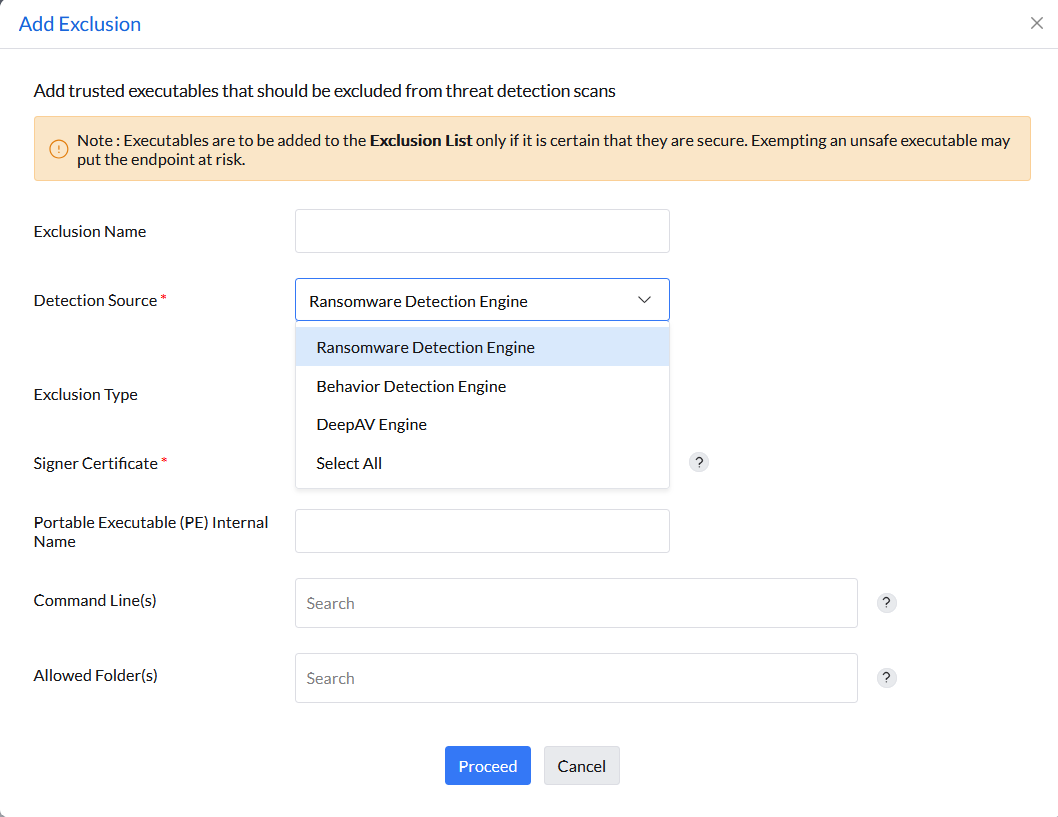
- Click the Add Exclusion option.
- Enter the details of the false positive executable.
- Choose the engine type from which to exclude detection, or choose Select All to exclude detection by the system.
- Choose the exclusion type and provide the Portable Executable (PE) Internal Name to identify the process.
You can exclude processes using any of the following techniques:
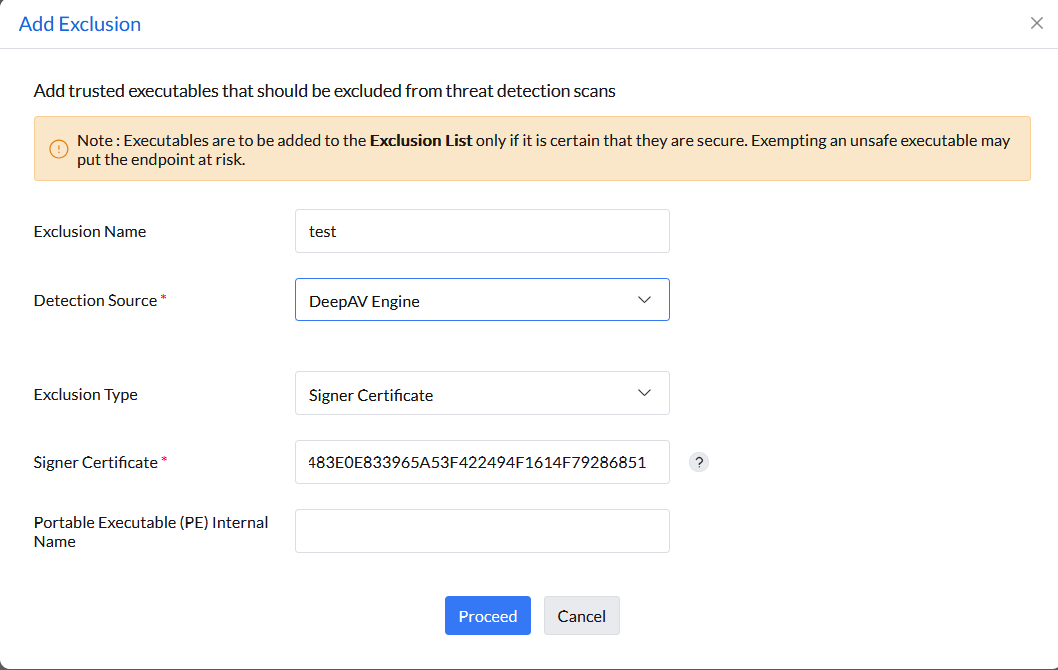
Signer Certificate: Narrow down exclusions using this method where executables signed by the same certificate thumbprint specified are excluded. To obtain the thumbprint of a leaf signer certificate, use programs such as sigcheck.exe -i.
NoteThis method is case-insensitive, and the executable must have a valid signature.
Example: 8870483E0E833965A53F422494F1614F79286851
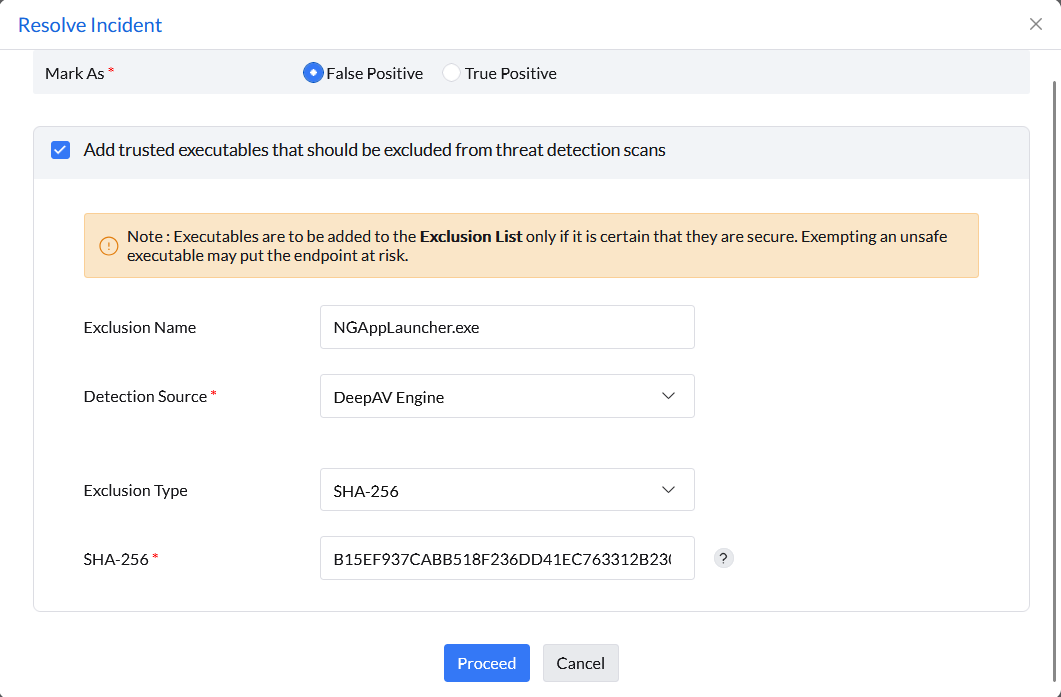
- SHA-256 : Executables that match the SHA-256 hash value will be excluded. To retrieve the hash value of an executable, use tools like sigcheck.exe
Example: b07f4b15a93ee95a7679be7dd3bd4f1399f12a02e826911515de7cef54f7fd1d
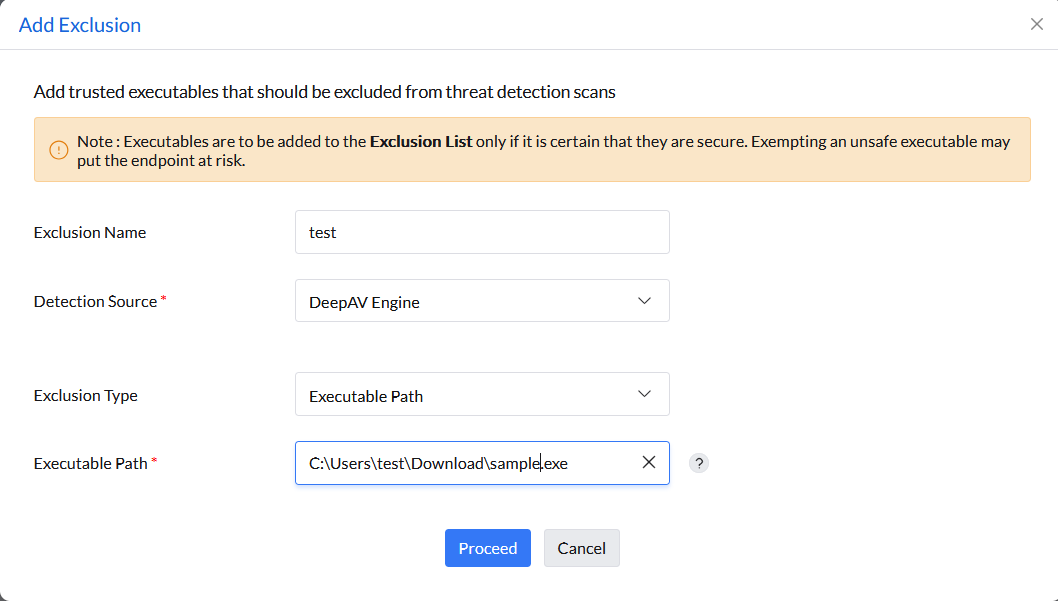
Executable Path: This is a broad exclusion where any executable that falls under the path is considered.
NoteThis method is not recommended since ransomware may copy itself to this location and evade detection.Example: C:\Windows\system32\notepad.exe
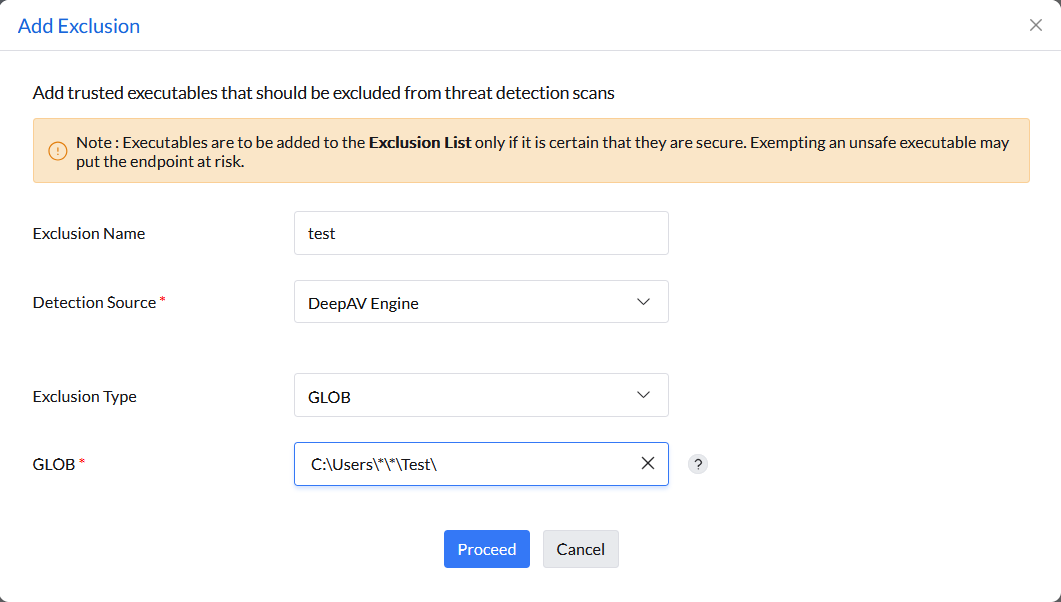
GLOB (Global Level of Binary): Implement GLOB to exclude executables based on a specified path. Any executable falling under this path will be excluded. Ensure careful usage to maintain security and avoid potential evasion by threats.
Example: C:\*\*\notepad.exe
Command-Line Support: This enables the selective exclusion of a specific command-line. The process created or executed by the particular command-line will be excluded.
Example: cmd.exe /c vssadmin delete shadows /all,
cmd.exe /c DeleteBackups.bat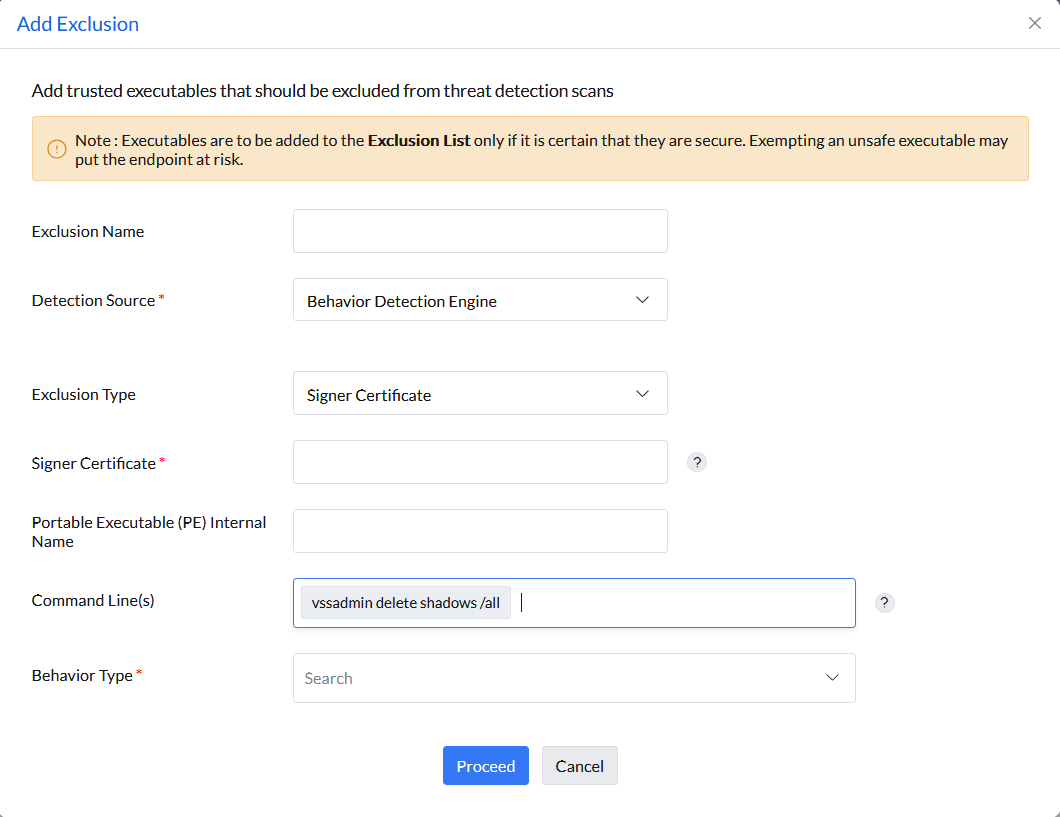
Exclusion Scope and Limitations
Global Scope: All exclusions configured in Endpoint Central are applied globally to all endpoints managed under Malware Protection. Individual machine or per-endpoint local exclusions are not supported.
What this means:
- When you add an exclusion for a file path, certificate, or command-line, it applies to all managed endpoints in the policy scope
- There is no option to limit an exclusion to a single computer or subset of machines
- To protect only specific machines while excluding others, use policy scoping: create separate policies with different exclusion configurations and assign them to different custom groups
Recommendation: Exercise caution when creating broad exclusions (such as executable paths or folder exclusions). Ensure that only legitimate, verified files are excluded to maintain security across all managed endpoints.
Identifying Behavior Type for Exclusions
While adding an exclusion from the detection source Behavior Detection Engine, the Behavior Type, an alert rule for precise behavior detection, is to be selected. Follow the steps below to identify the behavior type:

- Navigate to Incidents.
- Click on the incident detected by the Behavior Detection Engine and go to the Alerts tab.
- The Behavior Type will be mentioned with the alert.

- The Behavior type(s) given can be chosen while marking it as a false positive and adding the incident as an exclusion.
Excluding Folders from detection
Additionally, it is possible to exclude specific folders from detection by the Ransomware Detection Engine in Endpoint Central. To exclude a folder from detection, follow these steps:
- Refer the steps given above to create an Exclusion policy.
- Give a name for the Exclusion policy and choose the detection source as Ransomware Detection Engine or Exfiltration Detection Engine.
- Give the details of the exclusion.
- Choose the Allowed Folder(s) tab and add the folder name you wish to exclude. Each folder name must be provided separately under authorized folders. This can also be provided through the Incidents tab while marking an incident as False Positive and adding it as an exclusion.