Configuring Patch Store Location
The patch store contains all the downloaded patches. There might occur patch deployment error due to improper configurations of the Patch repository in the Endpoint Central Server. This can be rectified by specifying the exact patch store location. Follow the steps below to configure the setting:
- Open Endpoint Central console and navigate to Threats & Patches -> Settings -> Cleanup Settings.
- Under Patch download location, you have the option to configure the patch repository location.
- Specify the new patch store path.
- Click Save.

- Now, copy the existing patches from the old location to the new patch store directory and restart the central server for the changes to take effect.
Migration of Patch Store
You can migrate the patch store to a different location on the same computer or to a remote computer. To migrate patch store to a different location on the same computer, follow the steps given above. You can also migrate patch store to a Distribution Server.
Migration of Patch Store to a remote computer
For migrating the patch store to a remote computer, the following steps has to be implemented:
- Give permission for the central server to access the remote patch store.
- Configure Patch store network path in the console.
Note: While Endpoint Central supports using network share paths as the patch store location, Network Attached Storage (NAS) devices are not supported. Configure the patch store on a local drive or Windows server share with proper permissions for reliable deployment.
Grant permission for Central Server
To give permission for the central server to access the remote patch store, follow these steps on the remote computer to which the patch store will be migrated:
- Create a new directory in the remote computer which would serve as the Patch repository.
- Right click on the patch store directory and choose Sharing tab.
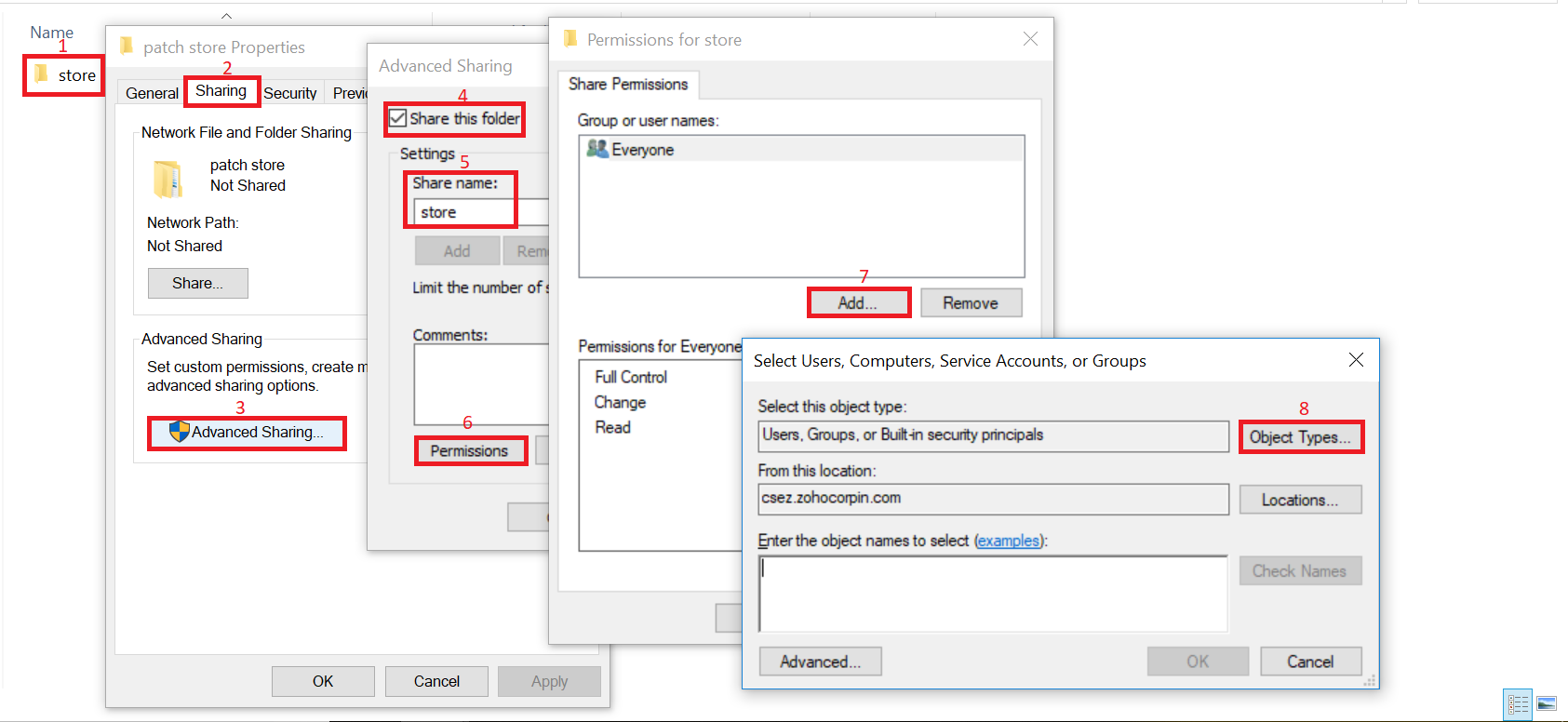
- Click Advanced Sharing.
- Enable Share this Folder.
- Specify the share name as store.
- Click Permissions.
- Click Add.
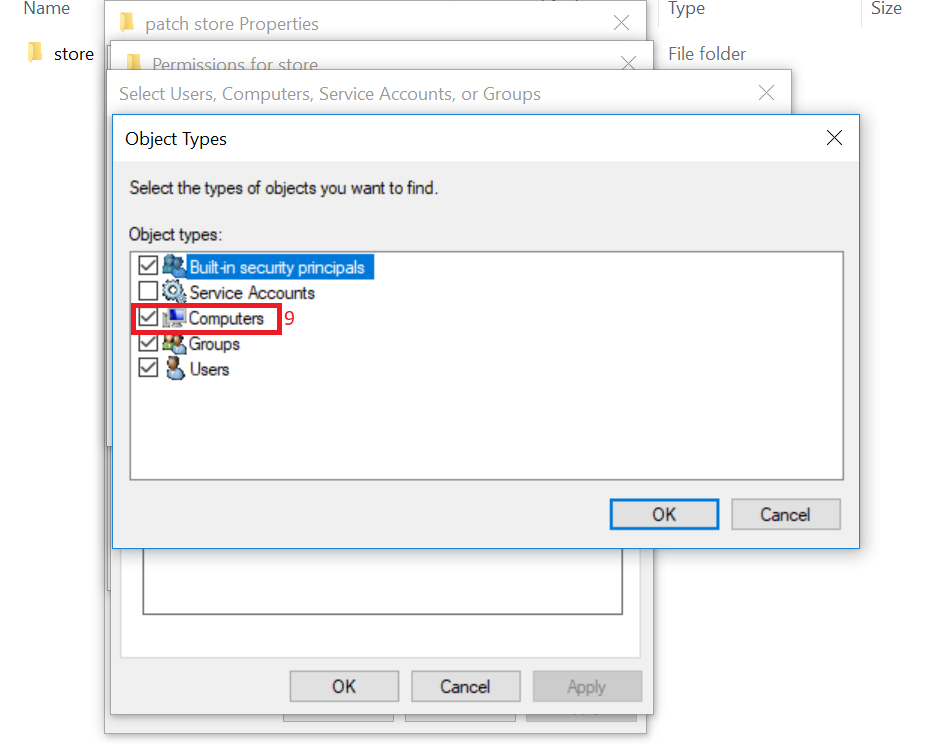
- Choose Object Types.
- Enable Computers and click OK.
- Under Enter Object Name, specify the computer name on which the central server is installed and click OK.

- Under share permissions, select the computer on which the central server is installed and ensure Full Control is enabled.
- Click OK to complete the process.

Migration of Patch Store to a Distribution Server
To move a patch store location on a Distribution Server, follow the steps given below:
Note: It is recommended to configure the patch store on the same computer where the Distribution Server is installed.
- Open Command Prompt and Run as Administrator, on the computer where the Distribution Server is installed.
- Navigate to the Distribution Server location, <DS_INSTALL_DIR>
\Scripts\ - Execute the command wscript changepath.vbs patchstore <new path> the new path indicates the new patch store location.
- Relocate all the files available in the <DS_INSTALL_DIR>
\replication\store\ to new patch store location.
You have successfully changed the patch store location on the Distribution Server. So that all the patch related data replicated from the central server will be located in the new patch store location.
Kindly contact support for any queries.