Add Device - Firewall Analyzer
Add firewalls and routers manually to Firewall Analyzer

In Firewall Analyzer, you can add a firewall or a router device manually. To fetch the firewall rules/policies and generate Rule management and Standards reports, click the 'I want Rule Management & Compliance report' link and provide device credentials. The device added will not forward Syslogs, you have to configure it separately.
Note: Only Rule Management reports are supported for Router devices.
You can add device manually from Settings > Discovery > Add Firewall page.
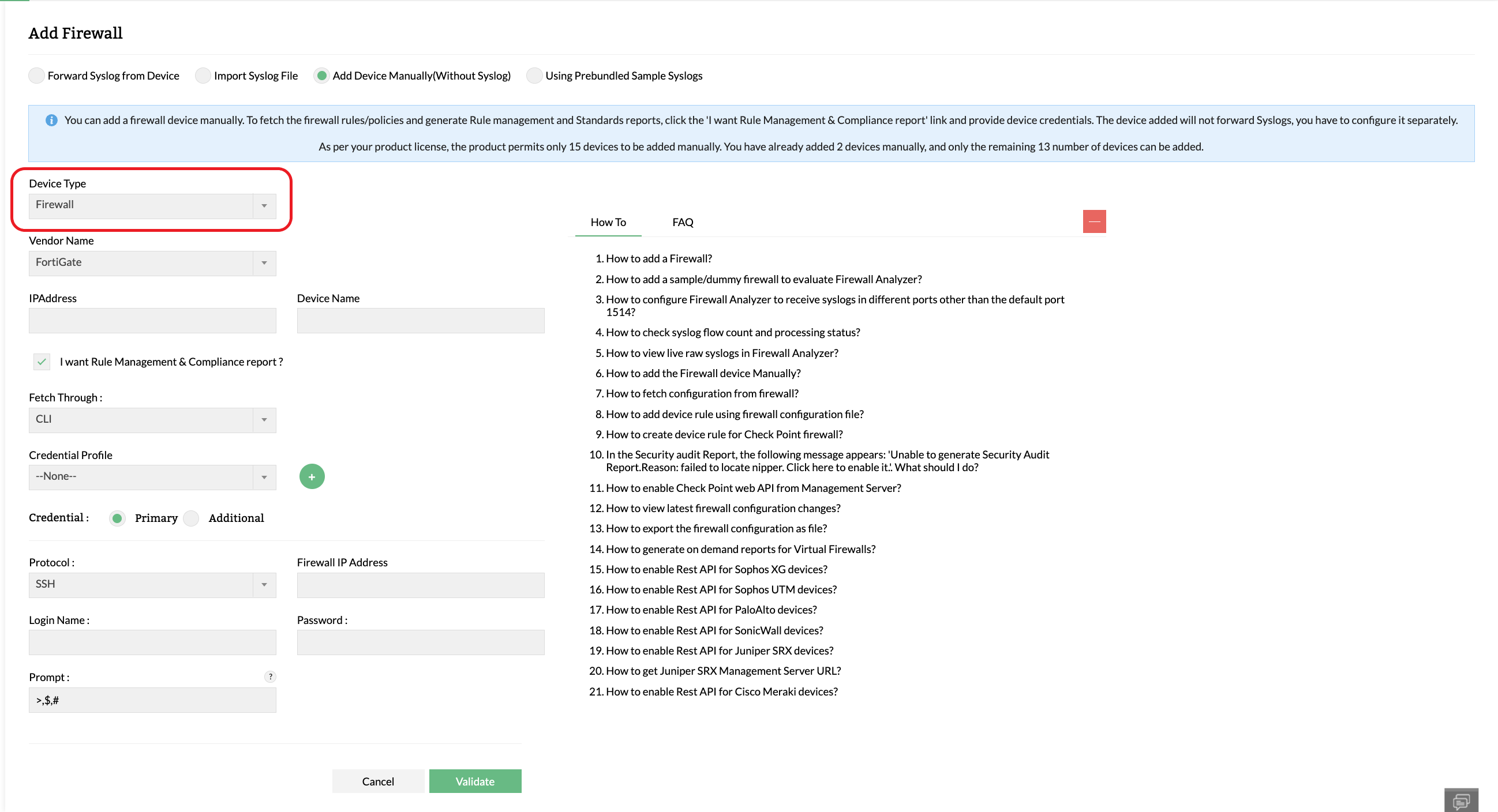
Add Device Manually (Without Syslog)
Follow the procedure given below to add firewall or router device manually to Firewall Analyzer:
- Select the Add Device Manually (Without Syslog) option.
- In the Device Type drop-down, choose between Firewall or Router.
- Choose your device's Vendor Name from the drop-down list. All the devices listed under the firewall rule management report in this page supports manual device addition.
- Enter the IP address of the firewall in the IP Address field.
- Enter the Device Name.
- Select the I want Rule Management & Compliance report check box to enable Firewall Analyzer's Rule Management and Compliance Reports for your device.
- Note: Generating Rule management and Compliance reports requires syslogs from your device.
- For CLI and API mode of device addition, refer this page.
- For File mode of device addition, refer this page.
- Click Validate button to check the reachability of the firewall from Firewall Analyzer with the given credentials.
- Click Save to proceed.
Note:
We limit the ability to re-add a manually added device once it has been deleted. If a customer wishes to add the same device again, they can do so using the syslog import or syslog forward options, which do not affect the manual addition limit.
For instance, with a 100-device license, a customer can manually add up to 100 firewall devices. If one of these devices is deleted, a confirmation message will appear. After confirming the deletion, re-adding the device manually will count as a new device. However, the same device can still be added back using the syslog import or syslog forward options without impacting the manual device count.
Adding a Virtual Device Manually
To add a virtual device using the Manual Device Add feature:
- Add the root device as a physical device by setting Is Virtual Device to No.
- Add the associated virtual device by setting Is Virtual Device to Yes.
- From the Root Device drop-down list, select the root device added in the previous step.
- Enter the Virtual Device Name, and click Add.
- After adding the virtual device, go to Settings → Firewall Server → Credentials, click Add, and configure the required credentials to retrieve the device's rule details.
Note: The root device must be added before its associated virtual devices. The credentials configured for a virtual device are used to retrieve its rule details.