Cost Centers
Cost Centers allow one or more accounts to be grouped together, and to be organized in a management hierarchy. Tracking cloud costs across various cost centers using inefficient tools or minimal cost tracking mechanisms tends to delay business decisions between teams. When an organization manages multiple cloud accounts, tracking cloud costs can be a lot of work. If you have a hybrid cloud environment, you can combine and view all your cloud cost data with Cost Centers.
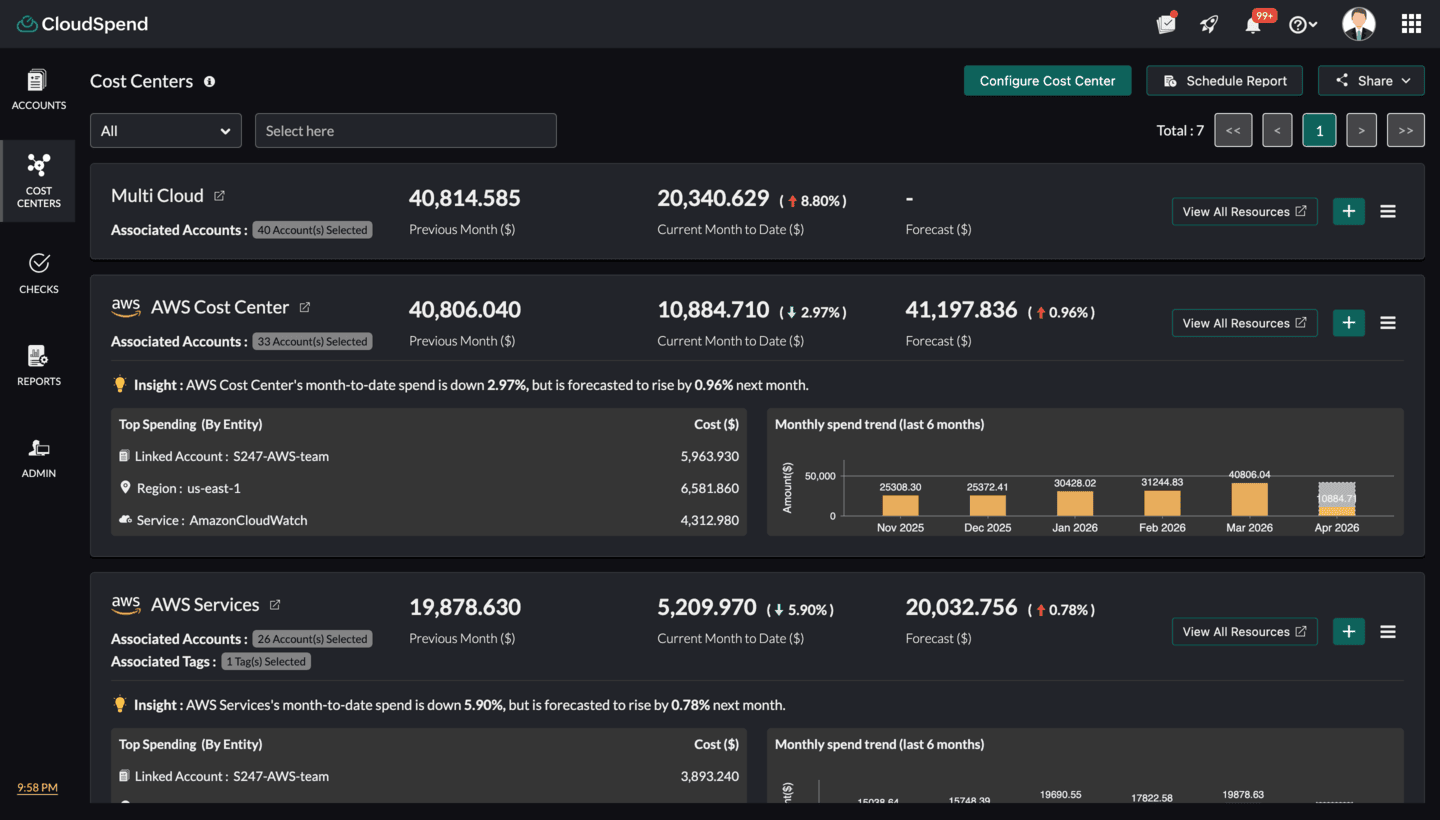
You can create a Cost Center for:
- Functional levels, like sales, consulting, and product development.
- Each combination of countries in which you operate, and the functions in each country.
- Resource cost data analysis at the resource group level.
Use cases
- Consider a scenario where you use multiple Azure services across three different subscriptions - Test, Dev, and Prod, to build and ship a new application for a customer. You also have a standard tag naming scheme (for example, naming projects by letter, i.e., Project X) for all the resources involved. Now, you can track the costs involved in the development of the app by creating a Cost Center filtered by the common user-defined tag (Project X) and the subscriptions (Test, Dev, and Prod).
- For geographically distributed sales teams, to view costs accrued only for teams present in the USA, you can select the teams located in the USA and group them as a Cost Center.
- For a second project within your engineering team (we'll call this one Project Y), you can select specific accounts - say the accounts of the research and development team within your engineering team to track costs using a Cost Center.
Why Cost Centers?
The benefits of leveraging Cost Centers include:
- Analyzing your cloud costs using the resourceGroup system tag, which helps you understand and manage the cloud costs at each Resource Group level.
- Tracking cloud bills, and performing deeper analysis by separating the development, testing, and production environments.
- Forecasting your spending at the Cost Center level to optimize your cloud bills.
- Tracking governance and compliance according to company standards.
- Facilitating faster business decisions between finance and tech teams.
- Allocating shared cloud vendor support charges between teams.
- Improving managerial reporting and analytics with accessibility to global data.
- Obtaining the right balance of centralized and decentralized functions to improve decision-making.
Configuring Cost Centers
While you configure a Cost Center, you can associate multiple accounts from the same team or cross-accounts with a Cost Center. Utilize tags to group and analyze your cloud costs further. To configure a Cost Center, you need to:
- Log in to your CloudSpend account.
- Choose Cost Centers in the left navigation pane.
- Click Configure Cost Centers in the top-right corner, which opens the Cost Centers tab.
- Provide a Display Name, and select the different accounts that you wish to group as a Cost Center.
- The Tags field allows you to group the BU according to various categories like resourceLocation, consumedService, resourceType, resourceGroup, chargeType, or meterCategory. You can also use Tag Profile to combine two or more tags with multiple conditions for better filtering options. You simply need to type into the Tags field for the suggestions to appear.
- Click Save.
Cost Analytics
Cost Center cost analytics provide a detailed view of your cloud cost spending. Your cloud resources are analyzed in the Spend Analysis and Resource Explorer sections.
Spend Analysis
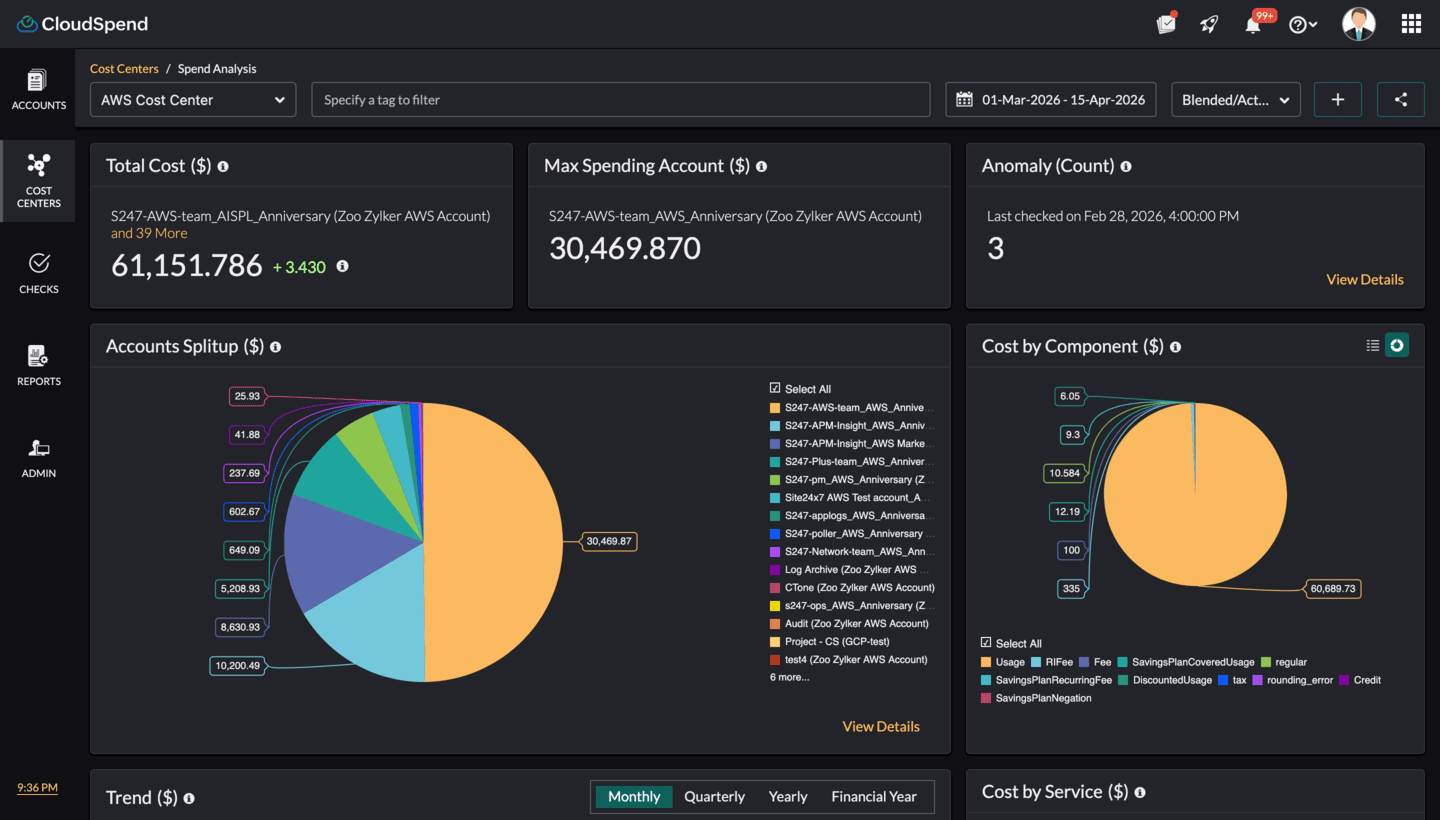
Spend Analysis provides you with information on costs split up by Service, Account, Region, Component, Trend, and Resource. When you select a specific Cost Center from the dashboard as shown in Fig. 1, you'll be taken to the Spend Analysis section of your Cost Center where details on the total cost accrued, the maximum spending account, and the minimum spending account are provided. You can set a custom duration and view the cost data. You can also configure Cost Centers, Budget, and Schedule Report using the Add button. Learn more about scheduling your cost and usage reports for spend analysis of a Cost Center.
Resource Explorer
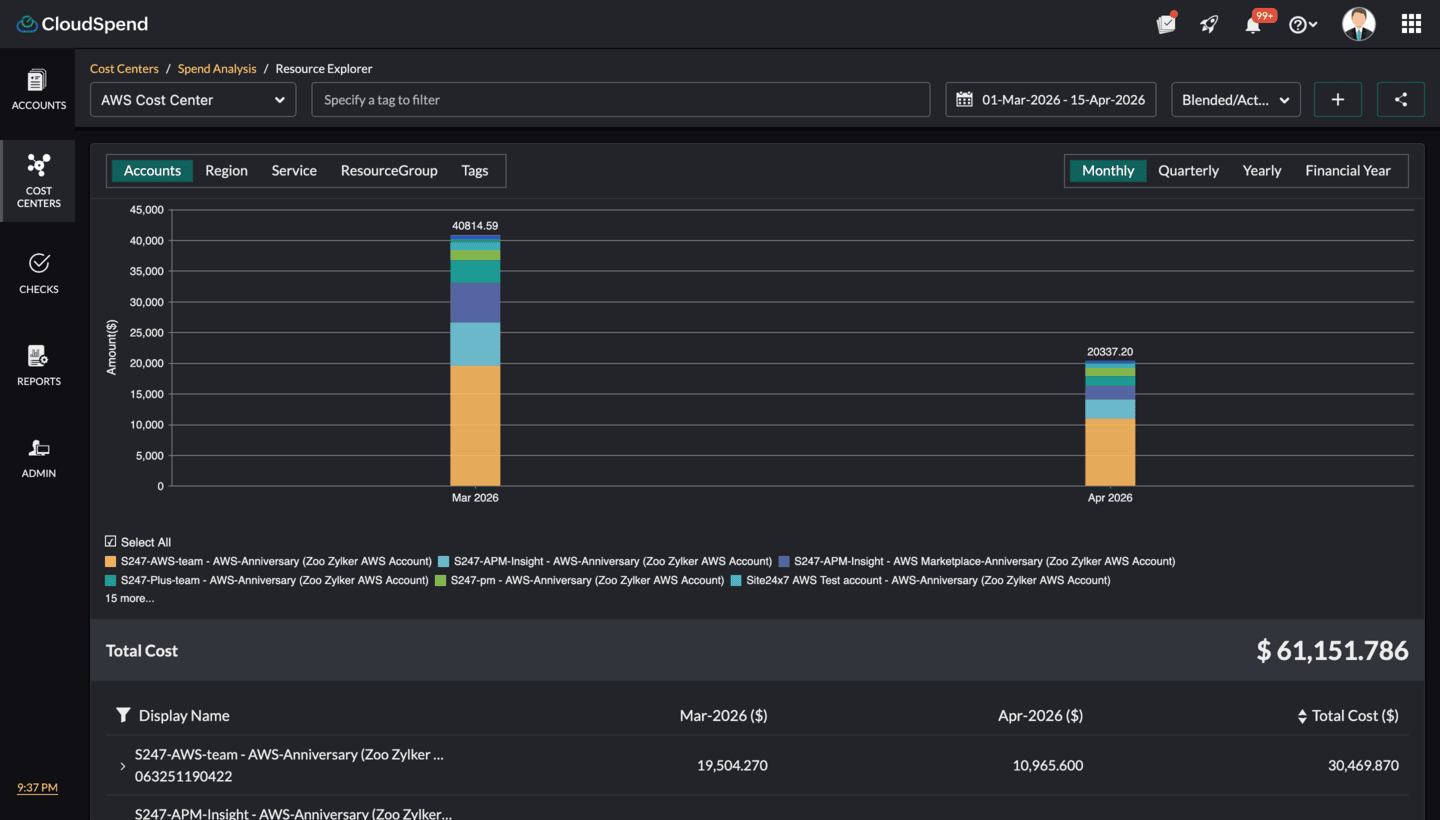
The Cost Center Resource Explorer provides you with an aggregated view of your cloud resources in various categories like Accounts, Region, Service, Resource Group, or Tags for each Cost Center. When you select View Details in the Accounts Splitup view of a specific Cost Center as shown in Fig. 2, you'll be taken to the Resource Explorer section. The granular details of your resource-level spending can be viewed on a daily, monthly, quarterly, or yearly basis, and can be exported as a PDF or emailed immediately. You can set a custom duration and view cost data. You can also configure Cost Centers, Budget, and Schedule Report using the Add button.
Learn more about scheduling your cost and usage reports for Resource Explorer.
Budgeting
You can create budgets for each Cost Center to manage your costs proactively. Each budget configured for a Cost Center will run monthly, quarterly, yearly, month to date, or year to date to notify you of any cost overruns. When you create a Budget Profile to associate with a budget, you can assign it to an existing Cost Center. In this way, each team can track and manage its cloud costs within a budget. You can also get alerts about budget threshold breaches by:
- Setting the budget amount to be in the currency of your choice. Learn more.
- Setting the budget value to be a percentage to track the rise or drop in percent.
To configure a budget for a Cost Center, you need to:
- Select the applicable cost center and click the +icon on the top right corner.
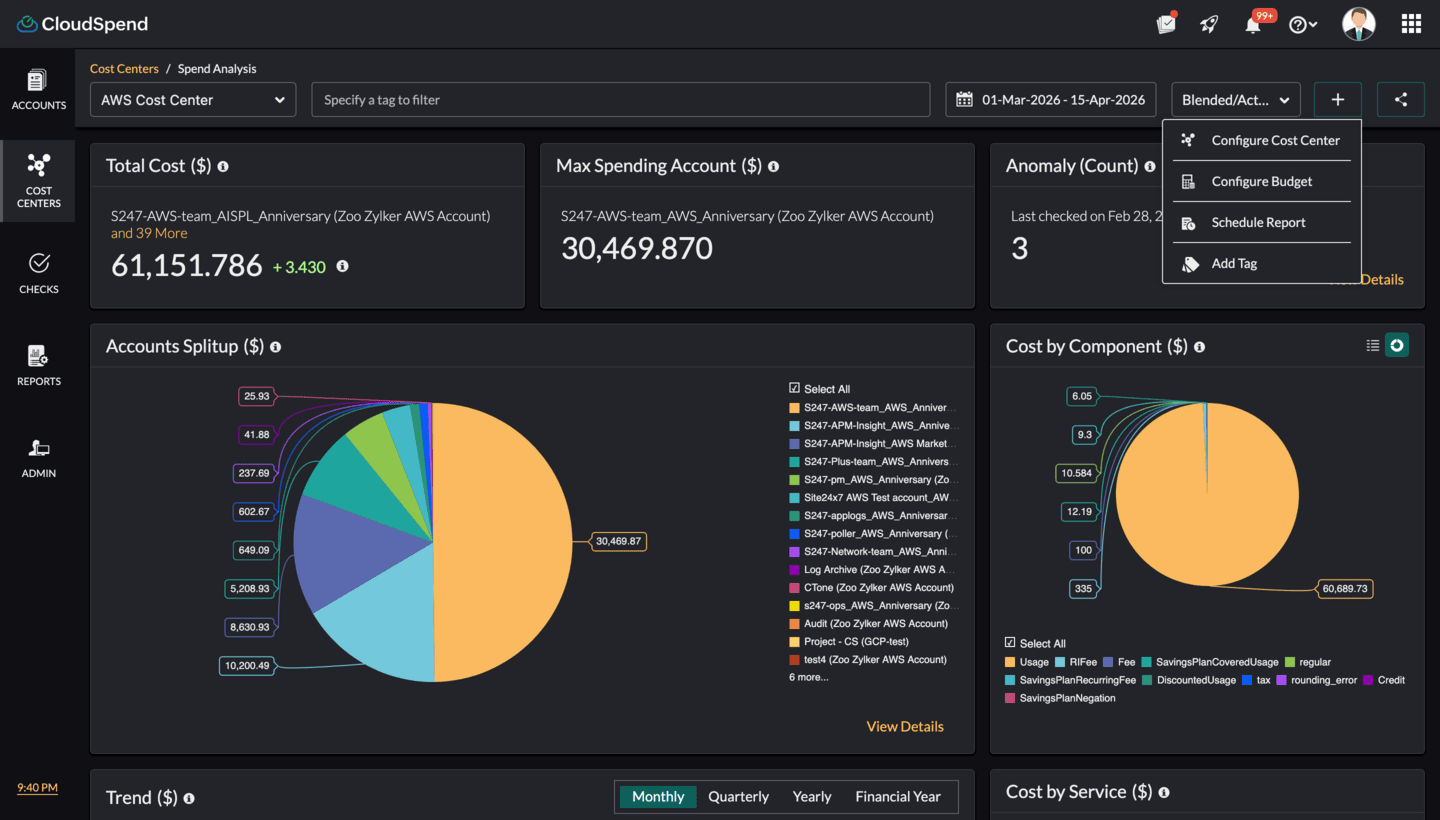
- Select Configure Budget.
- Provide the applicable details in the Configure Budget dialog box and click Save to save the budget details.
Forecasting
For Cost Centers, allocating costs to individual departments equally and sticking to the monthly budget can be a cumbersome process. However, responsible accounting and chargebacks can help administrators find departments that go over their budgets, help track factors that ballooned expenses, and play a pivotal role in the implementation of tools like budgeting and forecasting. While budgeting is all about a Cost Center's targets or expected expenses, forecasting is a reality check that analyzes the historical data and provides an idea of whether the expenses will meet the budget goals or exceed them. Forecasting thereby provides administrators an opportunity to rightsize resources or make changes in the plan accordingly.
To determine the forecast value, CloudSpend requires atleast a month's data.
With forecasting for Cost Centers, you can obtain an estimated total bill amount for your chargeback entities for the current or ongoing month based on your past usage. You can also assess the split-up expenditure for individual Cost Centers, plan accordingly, and take measures not to exceed the monthly budget.
Cost Reporting
Billing reports provide visibility into the current cloud cost trends of your Cost Center, and slice-and-dice reporting facilitates effective tracking of costs. With cost reporting, you can schedule reports monthly, quarterly, or yearly for each Cost Center.
Types of reporting for Cost Centers
(i) The Cost Center dashboard
You can easily schedule reports for multiple Cost Centers from the Schedule Report Cost Center dashboard. The default frequency for these reports is monthly. Once you configure a report for a group of Cost Centers, a pop-up screen (shown in Fig. 6 below) appears. Cost Center group reports require you to select one or more Cost Center for which the report is scheduled monthly.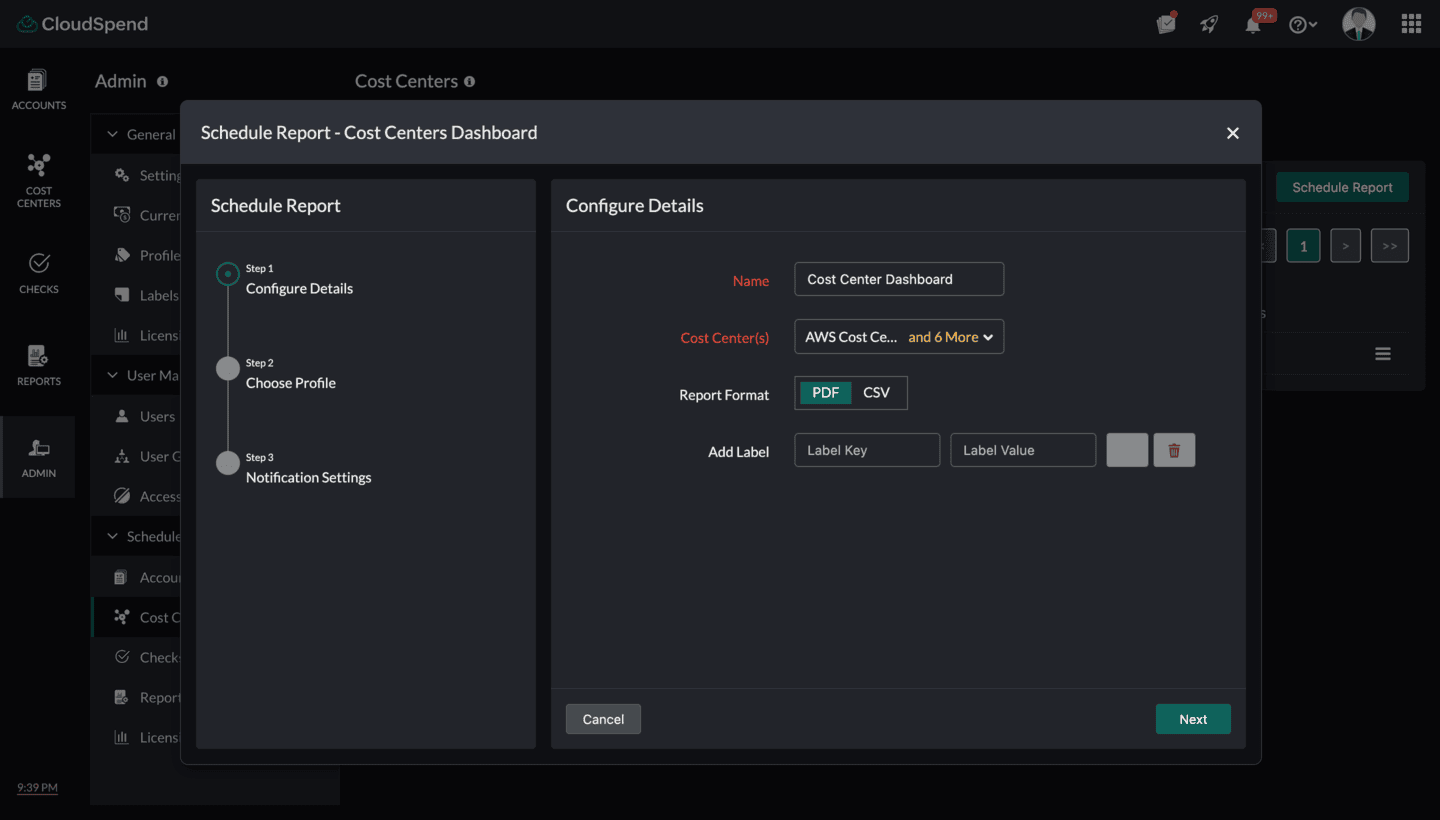
(ii) Reporting from Spend Analysis
For a Cost Center, you can select specific accounts for the Spend Analysis section to report on, and the report can be shared immediately using the Share option.
Click the Add button and select Schedule Report, to schedule the Spend Analysis reports for your entire Cost Center on a monthly, quarterly, or yearly basis to the email address you specify.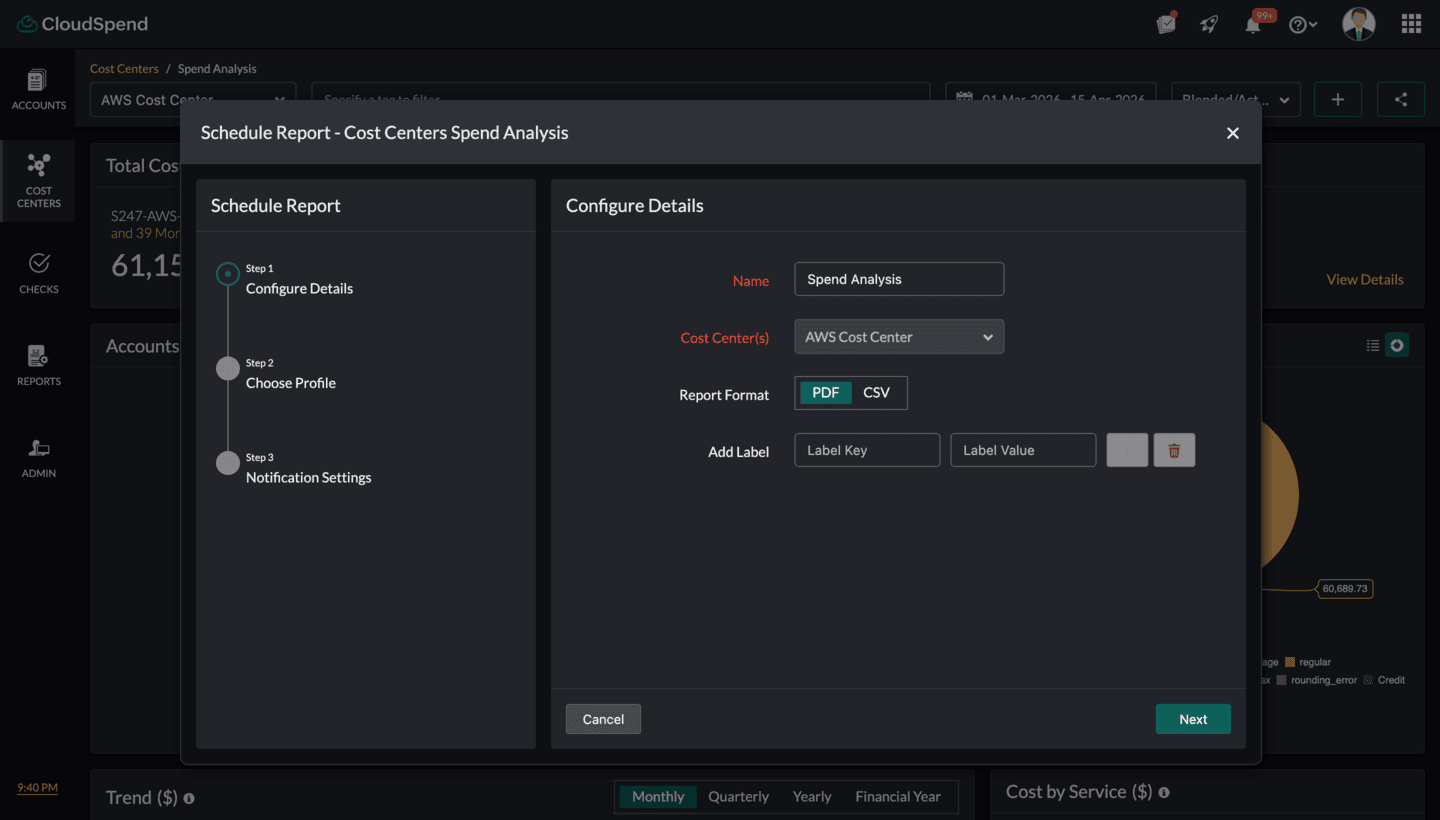
(iii) Reporting from Resource Explorer
For a Cost Center, you can pick specific accounts for the Resource Explorer section to report on, and the report can be shared immediately using the Share option.
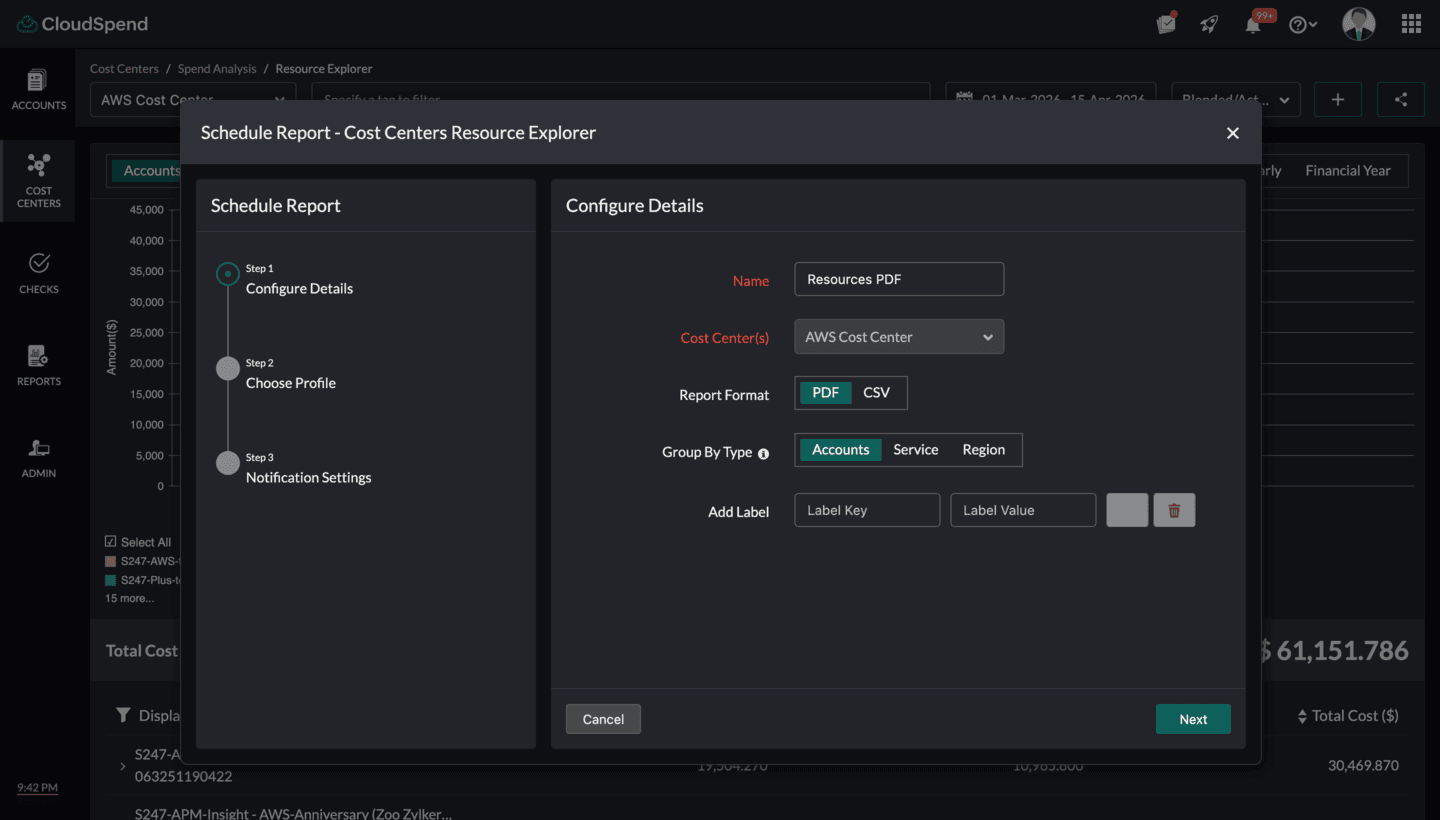
Click the Add button and select Schedule Report, to generate a report based on grouping criteria like Region, Service, Accounts, or ResourceGroup on a monthly, quarterly, or yearly basis.
(iv) Schedule Reports from the Admin tab
The Schedule Report feature in the Admin tab provides you with an overview of all the reports that have been scheduled to date. You can schedule reports for a Cost Center from the Admin tab on a yearly, quarterly, or monthly basis. If you have already scheduled a report for a Cost Center group, Cost Center Spend Analysis, or Cost Center Resource Explorer but would like to schedule it immediately, click the hamburger icon and select Schedule Now.
Tagging
Tags help you group and organize cloud costs that are similar. Here are two types of tags available for cloud cost analysis.
- Built-in tags
- Tag Profiles
Prerequisites
- You'll need at least one cost account.
- You need to have a CloudSpend role of Cost Administrator in your subscription account to configure a Cost Center. Learn more.
Various tagging strategies are available for a Cost Center, like built-in tags, tags at the resource level, and Tag Profiles; they facilitate grouping of identical cloud costs. Check out the following section to understand each of them.
(i) Built-in tags
Built-in tags, or auto-generated tags, are the specific entities in your cloud bills that have been parsed and provided as tags for your convenience to organize costs. These consist of cost allocation tags like user-defined tags and system-generated tags configured in the cloud portal. The user-defined tags configured in the Azure portal, like group_site24x7 and monitor_site24x7, appear here.
Use case
Consider a scenario where you want to view a particular Resource Group's cost view. First, choose an account in which that Resource Group is present, and then select a built-in tag, i.e., resourceGroup. In this way, you can view the in-depth data of a particular Resource Group's cost analysis.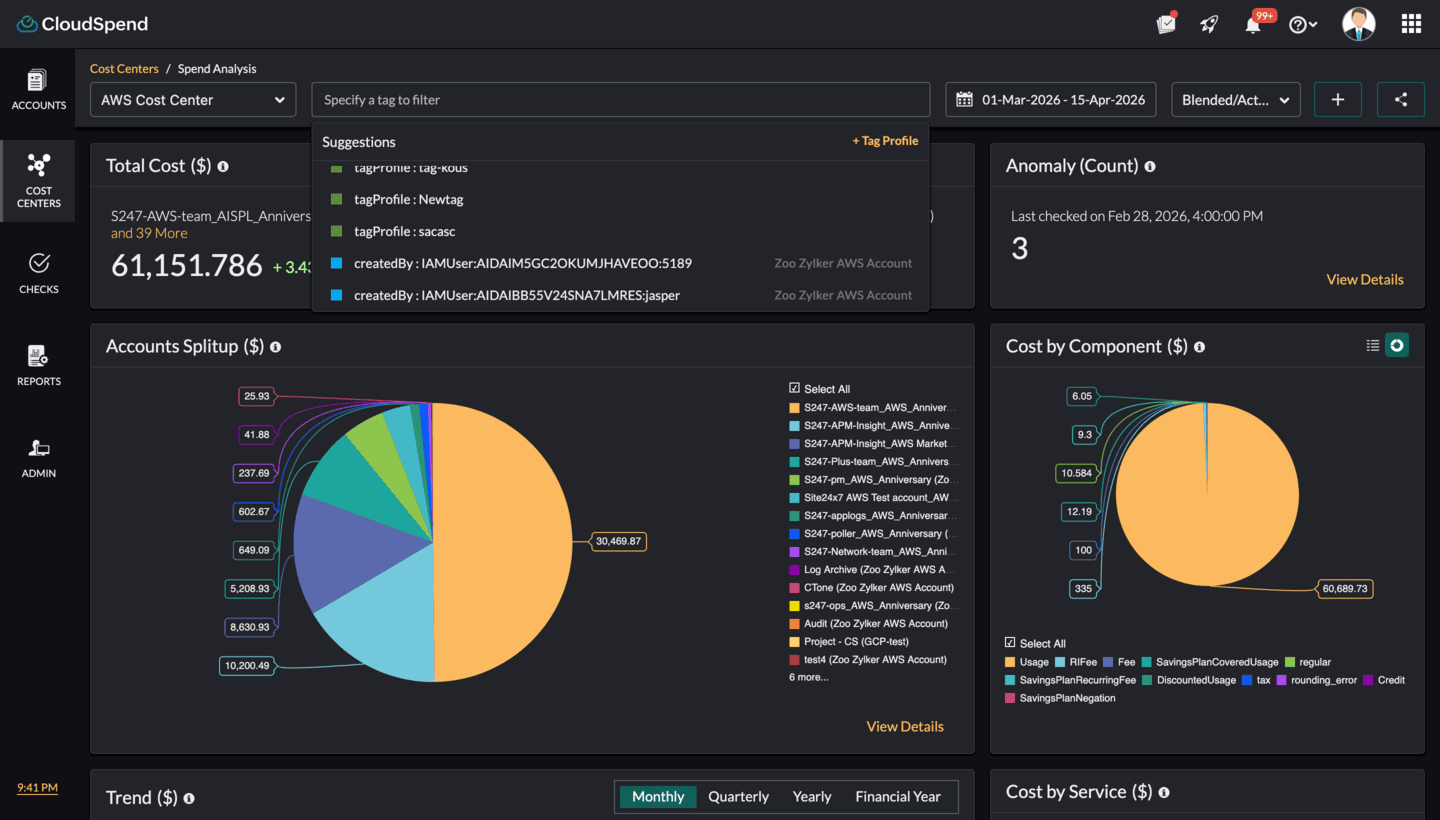
Grouping tags at the Resource Explorer level
Tags at the Resource Explorer level of a Cost Center enable you to view the spending pattern of resources. Built-in tags are displayed across the Resource Explorer section of a Cost Center to help you obtain a drilled-down view of the cost accrued for each cloud resource.
The paginated view of resources enable you to search for the cost associated with an individual resource in your cloud bill.
Use case
Consider a scenario where you need to view the costs accrued for resources in the Eastern US region and the consumed service of Microsoft.Compute. To do this, you need to pick the tags associated with the resourceLocation and consumedService from the drop-down and view the resource-level costs.
(ii) Tag Profiles
Tag Profiles customize tags by adding a key and a value. Each key must be unique, and each tag key can have only one value. Tag Profiles can combine two or more tags using AND, OR, or a combination of logical operators to create a tag value.
Use case
Consider a scenario where you need to track the cloud costs of an application running in three different environments, like Dev, Test, and Stage. Each environment represents a Cost Center. To identify the cost accrued for virtual machines utilized in the Dev environment and running in the Eastern US region, you can easily create a Tag Profile using the AND logical operator. These tags can be used in the Spend Analysis and Resource Explorer sections of each Cost Center to obtain the costs.
Editing or deleting a Cost Center
You can modify or delete a Cost Center that you created by following these steps:
- Click the hamburger icon beside the Cost Center that you want to edit.
- Choose Edit or Delete from the drop-down menu to modify or delete the existing Cost Center.
- If selecting Edit, in the following dialog box, make the necessary modifications for the Cost Center, and click Save.
Access cost center cost insights through AI
Instead of navigating through the Cost Centers dashboard, you can retrieve cost allocation insights directly through your AI assistant when Zoho MCP is connected. This helps you understand how costs are distributed across teams or departments without manually drilling into each unit.
Here is what you can pull through the AI:
- Spend by cost center: Ask for total spend per cost center for a given period. The AI aggregates costs mapped to each unit.
- Cost center comparisons: Compare multiple cost centers to identify which team is contributing the most to overall cloud spend.
- Cost distribution trends: Understand how spending is shifting between cost centers over time, such as increasing usage in one unit or stable usage in another.
- Top contributing services or accounts within a unit: Identify which services or linked accounts are driving costs for a specific cost center.
- Month over month changes: Track how each cost center's spend has changed compared to the previous billing cycle.
Sample prompt: Which cost center has the highest cloud spend this month and how has it changed compared to last month?
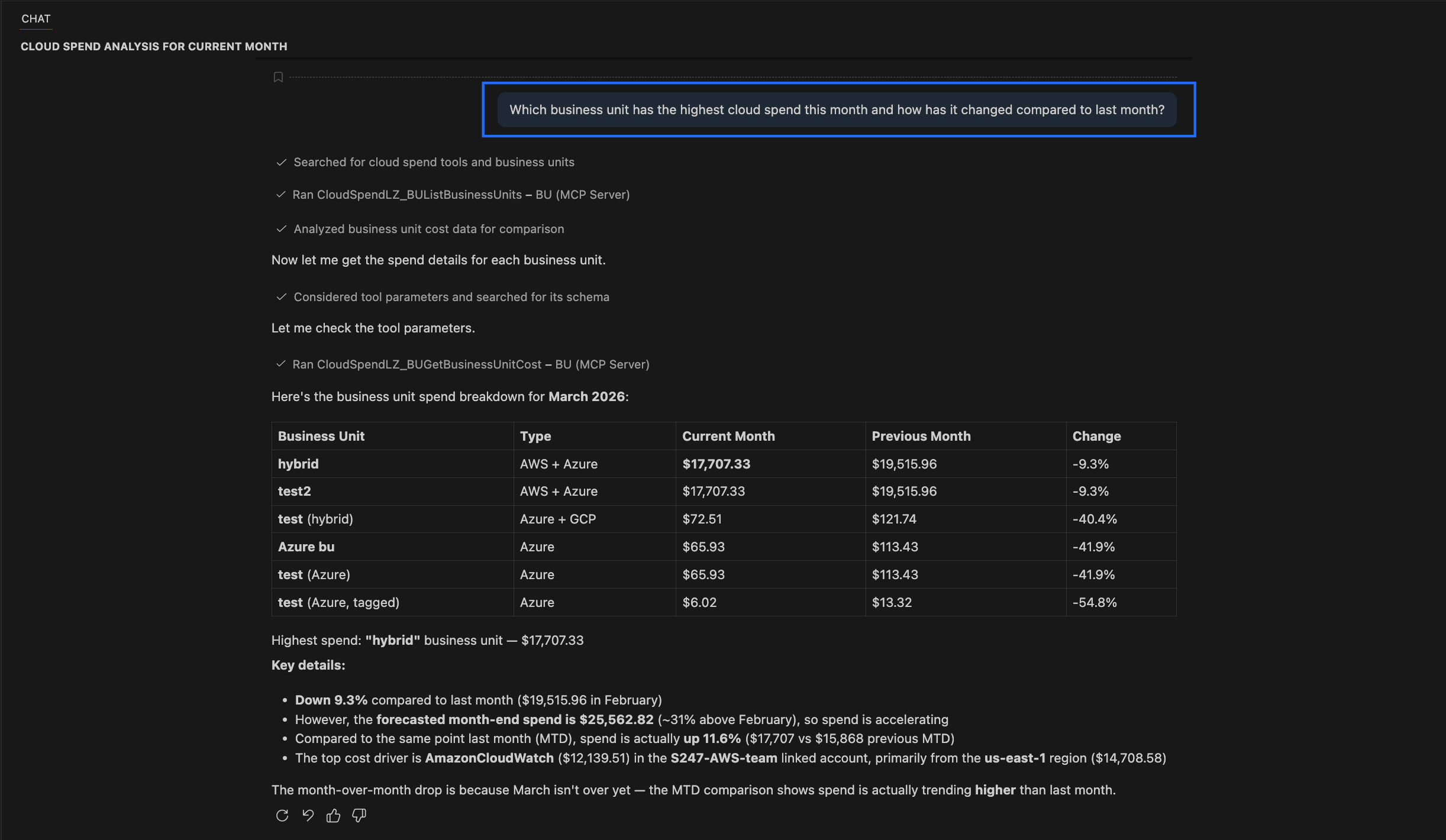
What AI returns: The AI retrieves spend details for all cost centers and displays them in a table with current month spend, previous month spend, and percentage change. It identifies the cost center with the highest spend and shows its cost. It also highlights the month over month change, includes current month to date comparison where relevant, and provides forecasted spend if available. In addition, it points to key cost drivers such as services, accounts, or regions and indicates whether the spend trend is increasing or decreasing.