CloudSpend Tag Profile
A Tag Profile provide customized labels that group user-defined parameters such as resourceLocation, service, resource, resourceGroup, meter category, and meter subcategory. It allows you to manage your cloud costs efficiently.
A Tag Profile can include user-defined tags, system-generated tags, and dimensions to validate resource classification.
- User-defined tags are custom tags created and applied within your cloud environment.
- System-generated tags are provider managed tags available from AWS, Azure, or GCP.
- Dimensions are custom name-value pairs that help you organize, categorize, and manage cloud resources based on your business requirements in CloudSpend.
Each selected tag or dimension is associated with one or more values. You can combine multiple tags and dimensions using AND or OR conditions to build a Tag Profile that matches your organization's tagging standards.
The CloudSpend AWS cost supports Parquet and GZIP file formats of legacy AWS Cost and Usage Reports. For cost accounts parsed from the Parquet format report, the user-defined tags with camel case, colon, and hyphen will be replaced with an underscore and follow lower casing.
See the below table for examples:
| Tag name in GZIP file type | Tag name in Parquet file type |
| autoscaling:groupName | autoscaling_group_name |
| cloudformation:id | cloudformation_id |
| CreatedBy | created_by |
| Environment-type | environment_type |
The system-generated tags will not have any changes.
Benefits of a Tag Profile
Some of the key benefits of a Tag Profile include:
- Managing cloud data in an easy and efficient manner.
- Breaking down and analyzing cloud costs from a bird's-eye view.
- Group, filter, and understand cloud costs using different parameters like resourceLocation, service, accounts, resource types, and meter category.
- Reuse and combine two or more tags to create a Cost Center or Budget to reuse in the future.
System tags
Click on each tab below to view the system-generated tags.
System-generated tags for AWS
CloudSpend provides the following system-generated tags for AWS:
- usageType
- operationType
- usageInfo
- serviceName
- dataTransferType
- instanceType
- usageSubType
- availabilityZone
- regionName
- productFamily
System-generated tags for Azure
CloudSpend provides the following system-generated tags for Azure:
- frequency
- chargeType
- consumedService
- meterCategory
- meterName
- meterSubCategory
- pricingModel
- resourceLocation
- resourceType
- product
- resourceGroup
System-generated tags for GCP
CloudSpend provides the following system-generated tags for GCP:
- costType
- skuName
- serviceName
- serviceName
- creditType
- regionName
- transactionType
- zone
- adjustmentType
- adjustmentMode
Creating a Tag Profile
To create a Tag Profile:
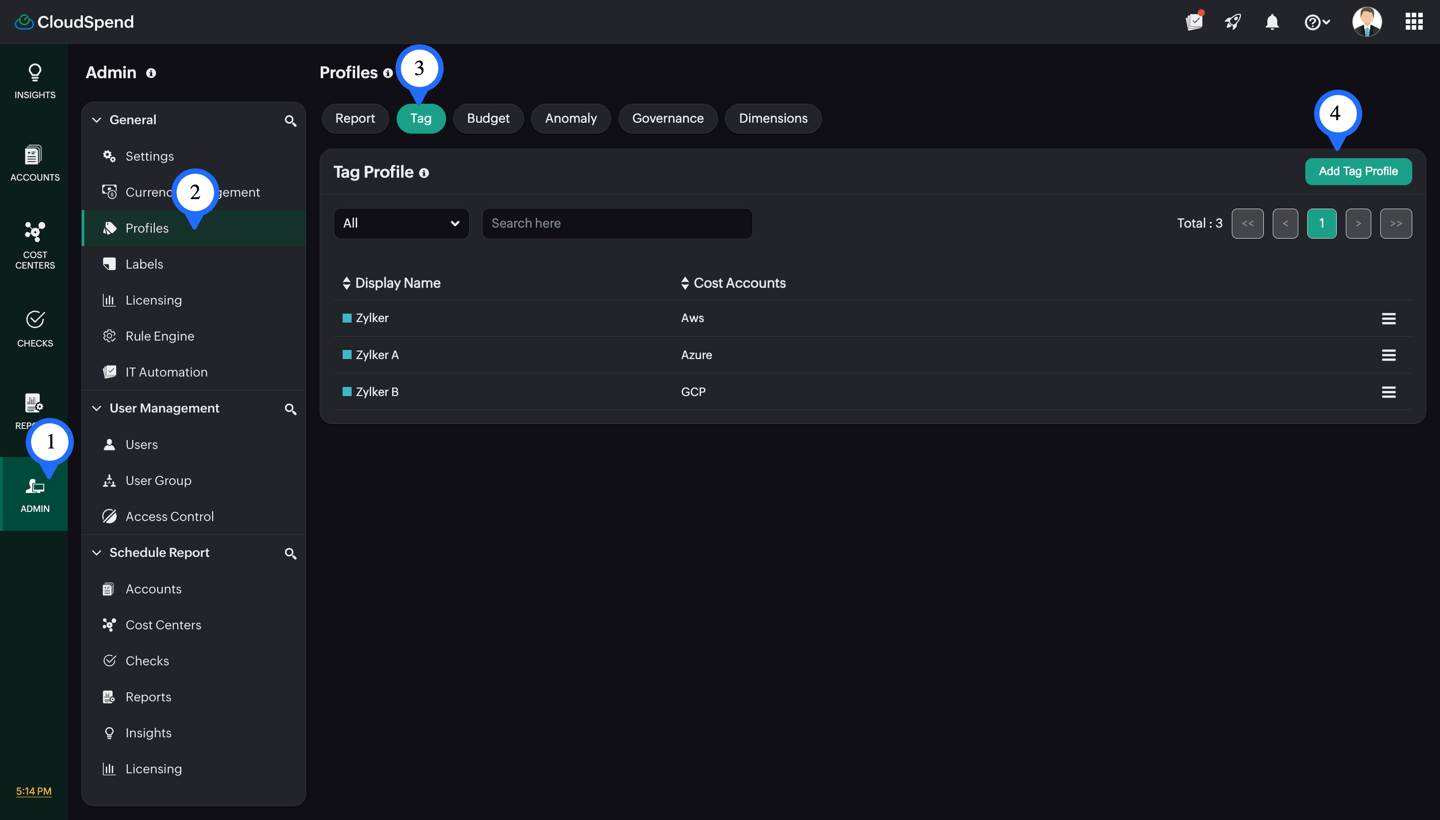
- Go to Admin > Profiles > Tag.
- Click Add Tag Profile.
- In the Select Cost Account step, enter a unique name for the tag profile in the Tag Key field.
- From the Cost Accounts drop-down list, select one or more cost accounts to which the tag profile should apply.
- Click the Color field and choose a color to identify the tag profile.
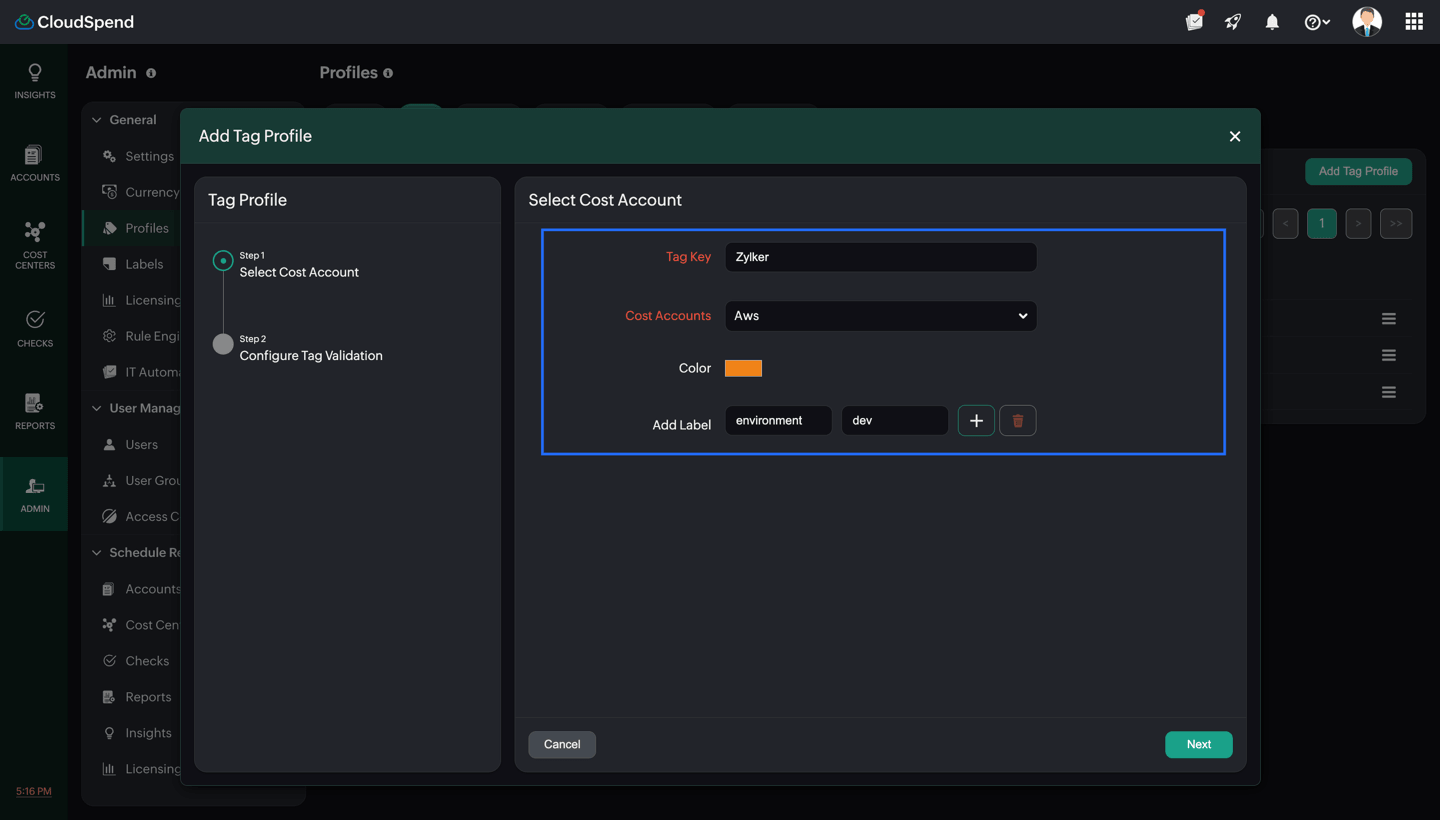
- Optionally, select one or more labels to group the tag profile with related CloudSpend configurations for easier organization and management.
- Enter a Label Key and Label Value.
- Click the + icon to add the label. Repeat the process to add additional labels.To remove a label, click the Delete icon next to it.
- Click Next to proceed to the Configure Tag Validation step.
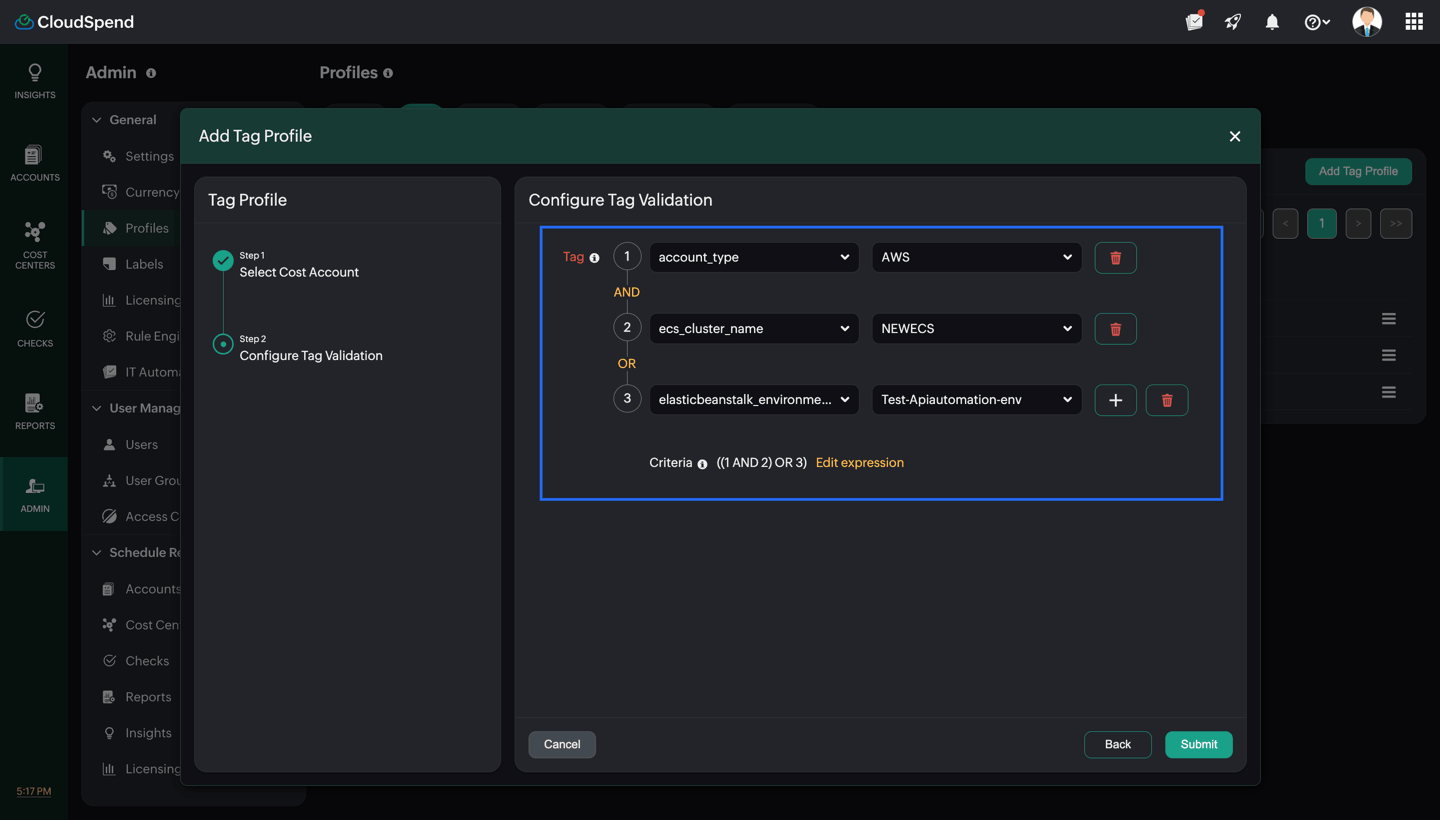
- In the Configure Tag Validation page, select the required tags or dimensions and their corresponding values.
- If required, click the + icon to include additional tags or dimensions. Use AND or OR conditions to combine multiple tags and dimensions based on your validation requirements.
- Click Submit to create the tag profile.
Editing a Tag Profile
To edit a Tag Profile:
- Go to Admin > Profiles > Tag.
- Select the required Tag Profile to from the list of all the existing tag profiles created.
- Click the hamburger icon corresponding to the tag profile you wish to edit.
- Click Edit and edit the necessary fields.
- Click Save to save the changes.
Deleting a Tag Profile
To delete a Tag Profile:
- Follow steps 1-3 from the Editing a Tag Profile section.
- Click Delete to delete the tag profile.
Use cases
The following examples explain different scenarios where tags are used with the AND/OR conditions while creating a Tag Profile.
Example 1
You want to filter cost data using the resourceLocation tag key for an account of your choice. For instance, let's use the resourceLocation:East US tag and resourceLocation:West US tag. Here, we use the OR condition and enter the tags. Thus, we can get data for the resources present in the East US OR West US region.
Example 2
Say you want to filter compute service data with two tags using the DataTransferOut tag key for an account of your preference. In this scenario, let's use the meterName:Standard Data Transfer Out tag and consumedService:microsoft.compute tag. Here, the AND condition is used, so that the filter is applied based on both the meterName and consumedService tags.
Example 3
You now want to add multiple tags for an account of your preference using both the AND/OR conditions. For instance, let's use the resourceLocation:East US tag, resourceLocation:EU West tag and the meterCategory:Virtual Machines tag with parenthesis to group and retrieve the data according to the logical operations order.
In this case, we enter these tags as: (resourceLocation:East US OR resourceLocation:EU West) AND meterCategory:Virtual Machines. In this example, the application will display the data for either resourceLocation:East US or resourceLocation:EU West and data for meterCategory:Virtual Machines for the applicable account.
Invalid expressions scenarios
While creating a Tag Profile, invalid expressions can occur if the data entry is incomplete, if operations are missing, or if inputs are invalid. The below examples of invalid expressions can occur in a logical expression while using Tag Profiles in CloudSpend:
- No logical operation (OR/AND)
- e.g.: Virtual Machines, East US
- No opening or closing braces
- e.g.: microsoft.compute) AND East US
Related topics