Download service packs!

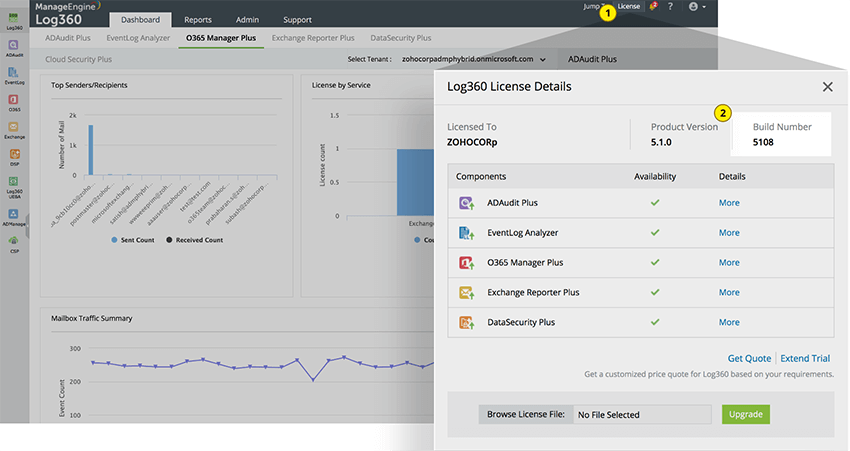
Choose your current product build number How do I find my build number?

Users on builds 13000–13016: Install Service Pack 13.1.1 (Build 13017).

  • 5500 to 5567

    1. Step 1. Download and install the service pack 5.5.7 (Build 5570).
  • 5400 to 5499

    1. Step 1. Download and install the service pack 5.5.0 (Build 5503).
    2. Step 2. Download and install the service pack 5.5.7 (Build 5570).
  • 5201 to 5346

    1. Step 1. Download and install the service pack 5.4.0 (Build 5402).
    2. Step 2. Download and install the service pack 5.5.0 (Build 5503).
    3. Step 3. Download and install the service pack 5.5.7 (Build 5570).
  • 5030 to 5200

    1. Step 1. Download and install the service pack 5.2.0 (Build 5201).
    2. Step 2. Download and install the service pack 5.4.0 (Build 5402).
    3. Step 3. Download and install the service pack 5.5.0 (Build 5503).
    4. Step 4. Download and install the service pack 5.5.7 (Build 5570).
  • 5000 to 5025

    1. Step 1. Download and install the service pack 5.0 (Build 5030).
    2. Step 2. Download and install the service pack 5.2.0 (Build 5201).
    3. Step 3. Download and install the service pack 5.4.0 (Build 5402).
    4. Step 4. Download and install the service pack 5.5.0 (Build 5503).
    5. Step 5. Download and install the service pack 5.5.7 (Build 5570).
We strongly recommend that you back up Log360 before upgrading to the latest version. This helps prevent accidental loss of data.
  • If your build number isUpgrade to Build NumberSHA256 Checksum hash value
  • 13000 to 13016Download and upgrade to 13017 9a71e19bc0c2c3c3328353ce5c9d66cf26fed61b7b860816b325838c95084247
  • 5500 to 5567Download and upgrade to 5570 de588ea97d75aadb2a02727eef834313976246aff3a8c042b2da6cc392a09f9f
  • 5400 to 5499Download and upgrade to 550320b9c190ea62a4865714ba53b4de3ab3e5fea903890893473a6a4aea45c94c52
  • 5201 to 5346Download and upgrade to 54027593b8e645af299ae2adecd32d390725f7d9ba9c88ea5cd8bb11a66b63f3948a
  • 5030 to 5200Download and upgrade to 52019e7e7b9b038012dcd293e6a2234a7eb6c9b5c46996be995073d53a8b2af1227f

Instructions to apply service pack Frequently asked questions

Important notes (pre-upgrade checklist)

The following pre-upgrade notes are mandatory before proceeding.

  • Stop the product service and take a full backup of the installation folder (or a server snapshot). Back up is mandatory so that you can restore the installation to the previous version in case of upgrade failure.
  • Before proceeding with the upgrade, ensure sufficient disk space is available on the server where Log360 is installed.
  • If you use a MS SQL database, take a snapshot of the database as well.
  • If you need to apply more than one service pack, start the application after each service pack upgrade before applying the next.

Step-by-step instructions

Windows

  • 1If running as an application: Start → All Programs → Log360 → Stop Log360.
  • 2If running as a Windows service: Start → Run → type services.msc → Stop ManageEngine Log360.
  • 3Open Command Prompt with administrative privileges.
  • 4Back up Log360 by zipping the contents of the <Log360> directory.
    1. If you are using an external database server (Microsoft SQL), then ensure to take a backup of the database too.
  • 5Navigate to <Log360 Home>\bin folder.
  • 6Run the following commands to ensure complete shutdown:
    1. shutdown.bat
    2. stopDB.bat (if PostgreSQL is the default DB;skip if using MS SQL)
    3. stopSEC.bat

    Note: Steps b and c are applicable only for build 13000 and above.

  • 7Run setAppPermission.bat to apply the required permissions for the currently logged-in Windows user.

    (Note: This script is needed only when using the bundled PostgreSQL configuration.)

  • 8Open Command Prompt and execute UpdateManager.bat under the <Log360>\bin directory.
    1. For Windows Server 2008 and higher with User Account Control (UAC) enabled, start Command Prompt as Administrator (right-click → Run as Administrator).
  • 9Click Browse and select the downloaded PPM file.
  • 10Click Install and wait for the upgrade to complete.
  • 11Do not terminate or interrupt the upgrade process prematurely.
  • 12Click Close and then Exit to quit the Update Manager tool.
  • 13Start the application and check the build number.
    1. If running as an application: Start → All Programs → Log360 → Start Log360
    2. If running as a Windows service: Start → Run → type services.msc → Start ManageEngine Log360

Linux

Please note that these steps are applicable only for Unified Log360 i.e., build 13000 and above.

  • 1Take a back up of the server.

    Stop Log360 using one of the following commands:

    service "ManageEngine SIEM" stop

    OR

    systemctl "ManageEngine SIEM" stop

  • 2From the installation directory (/ManageEngine/Log360/bin), execute the following scripts to ensure the product is completely stopped:
    1. shutdown.sh
    2. stopDB.sh
    3. stopSEC.sh
  • 3Once stopped, execute the Update Manager:
    1. For Linux with GUI: sudo UpdateManager.sh
    2. For CLI-based Linux: sudo UpdateManager.sh -c
  • 4Choose i to initiate PPM installation and specify the path where the PPM file is downloaded (e.g., /home/ubuntu/**.ppm).
  • 5Once the upgrade is successful, start EventLog Analyzer:

    service "ManageEngine SIEM" start

    OR

    systemctl "ManageEngine SIEM" start

Opening Update Manager in Console Mode

Windows:

UpdateManager.bat -c

Linux (Unified Log360 only):

./UpdateManager.sh -c

Once in console mode, the following options are available:

Key Action
i Install a PPM file
c Import Certificate
v View installed ServicePack versions
e Exit

How do I import a certificate?

Download the certificate from one of the links below:

For Unified Log360 only – SHA256 verification: For both ppmsigner_publickey.crt and latest.crt, the SHA256 value is: 2baeaee89ad91824b3ceca55499eebeb7a5c02d4b751bddfa2c2149ea2102155

Console Mode

  • Run the UpdateManager.bat/sh(sh applies only for 13k and above builds) file with -c as a command-line argument.

    Console Mode

  • After invoking UpdateManager in command-line mode, select option c from the list of options to import the certificate. and enter the path of the certificate when requested.

    Console Mode

  • To install a ppm file, type i and press enter. Now enter the path of the ppm file to be installed and press enter.

    Console Mode

  • To view installed service pack version, type v and press enter.

    Console Mode

  • To exit the console mode, type e and press enter.

UI mode:

  • Execute UpdateManager.bat/sh.
  • Open the import certificate tool by clicking the Import Certificate button on the top-left corner.
  • Select the shared certificate using the Browse button to locate the file.
  • Click Import to pull in the certificate and proceed with steps 8-13.

How do I find my current build number?

Log360:

  • Log in to the Log360 web client.
  • Click the License link at the top-right corner.
  • The build number is displayed in the License Details window.

Unified Log360:

  • Open the Log360 web client.
  • Click the ? (question mark) on the right side of the top pane.
  • Select the About option.
  • A pop-up window appears with your EventLog Analyzer version details, including the build number.

Cluster upgrade steps

  • Upgrade order

    Always start with the primary log processor (Log Processor-1). Secondary nodes (Log Processor-2 or Log Processor-3) cannot be upgraded until the primary is upgraded.

  • No mixed versions

    Do not restart or bring the cluster online if log processors are running different versions. Secondary nodes will show a version-mismatch error until they match the primary.

  • Database operations

    Database backup and related operations run only during the primary upgrade. These steps are automatically skipped on secondary nodes to avoid repeated or conflicting changes.

  • Upgrade sequence

    Upgrade each node one at a time in this order:

    • Log Processor-1 (Primary)
    • Log Processor-2 (Secondary)
    • Log Processor-3 (Secondary)

    After all upgrades are complete, restart the cluster in the documented startup order.

  • Post-upgrade checks

    After the cluster restarts:

    • Confirm all Log Processors are online and healthy.
    • Ensure all nodes show the same version.
    • Verify that all services are running as expected.
  • Important notes:

    • Upgrade only one node at a time.
    • Do not run upgrades in parallel.
    • If two PPMs need to be applied, upgrade all nodes sequentially with the first PPM → start the cluster to confirm → stop the cluster → apply the second PPM in the same sequential order.

Update Manager SHA256 values (for verification): (Section required only for 13k and above series)

File SHA256 Value
UpdateManager_Windows.zip d3e8ada38e46c20c8b5a70c5dceb11f0550b25bbbefe61decce03fb9e61d8dab
UpdateManager_Linux.zip 3ad1dda4d1799acc4010bd9f53841e0864130c88e5b86b7f9a492667f280c7ce

General notes

  • Do not interrupt or cancel the upgrade process, if the upgrade fails, contact the Log360 support team.
  • Log360 and its components need to be updated to the latest edition for smooth performance.
  • After the upgrade, clear the browser cache or access the application in an incognito/private tab.
service-pack-close

How do I find out my Build number?

  • 1Log in to the Log360 web client, and click the “License” link in the top pane.
  • 2Your Log360 build number is mentioned next the “Product version”.
service-packs-licence