

- Home
- SIEM use cases
- Web shell installation
How to detect web shell installation
In this page
Understanding the threat
A web shell is a malicious script or program, often written in languages like PHP, ASP.NET, or JSP, that an attacker uploads to a compromised web server. Once installed, it provides a persistent remote interface for executing commands, navigating the file system, and exfiltrating data. Web shells are particularly dangerous because they allow attackers to bypass standard authentication and maintain long-term access by hiding within legitimate web directories.
For enterprises, web shells represent a critical breach of the application layer. They serve as a primary "beachhead" for lateral movement, allowing attackers to pivot from a public-facing server into the internal network, often leading to full environment compromise or ransomware deployment.
Category
Application threat
Relevant MITRE ATT&CK® mapping
This use case maps to the Persistence and Server Software Component tactics:
- TA0003 - Persistence: T1505.003 - Server Software Component: Web Shell: Adversaries may install web shells to maintain persistent access to interactive command-line utilities on a compromised web server.
Scenario
What went wrong
The security team noticed an unusual spike in outbound traffic originating from its primary customer-facing web server. Upon investigation, the team discovered that an attacker had exploited a known unpatched vulnerability in the web application's file upload component. This allowed the attacker to upload a PHP-based web shell into the /images/ directory.
Because the server’s file integrity monitoring was only configured for system binaries and not the web root, the addition of the new script went unnoticed. Furthermore, the web server process was running with excessive privileges, allowing the shell to execute system-level commands. The breach was only detected after the attacker began exfiltrating sensitive database backups via an encrypted tunnel, which finally triggered a generic network anomaly alert.
How web shell installation monitoring helps
Web shell installation monitoring provides proactive defense by focusing on the point of entry and execution. It involves:
- File integrity monitoring: By monitoring web directories for the creation of new files or modification of existing scripts, organizations can catch the upload phase of the attack in real time.
- Process execution analysis: It identifies suspicious child processes spawned by web server services (like cmd.exe or /bin/sh originating from w3wp.exe or apache2), which is a definitive indicator of web shell activity.
Real-world trends
- Exploitation of zero-day vulnerabilities: Modern threat actors, including state-sponsored groups, increasingly use web shells as the immediate follow-up to exploiting zero-day vulnerabilities in popular enterprise software (e.g., Microsoft Exchange or MOVEit) to ensure persistence before patches are applied.
- Living-off-the-land integration: Web shells are evolving to be more fileless or highly obfuscated, using built-in system tools and legitimate administrative scripts to carry out commands, making them harder for traditional signature-based antivirus solutions to detect.
How to detect web shell installation with Log360
Prerequisites
- Make sure your IIS server logs are flowing into Log360.
Detecting with Log360
Step 1: Visualize trends
- Navigate to Reports > Applications > IIS W3C Web Server. From the WebServer Attack Reports category on the left-hand side, select cmd.exe and root.exe file executions and xp cmdshell executions. These reports provide a comprehensive overview of web shell installation activities.
Step 2: Configure real-time alerting
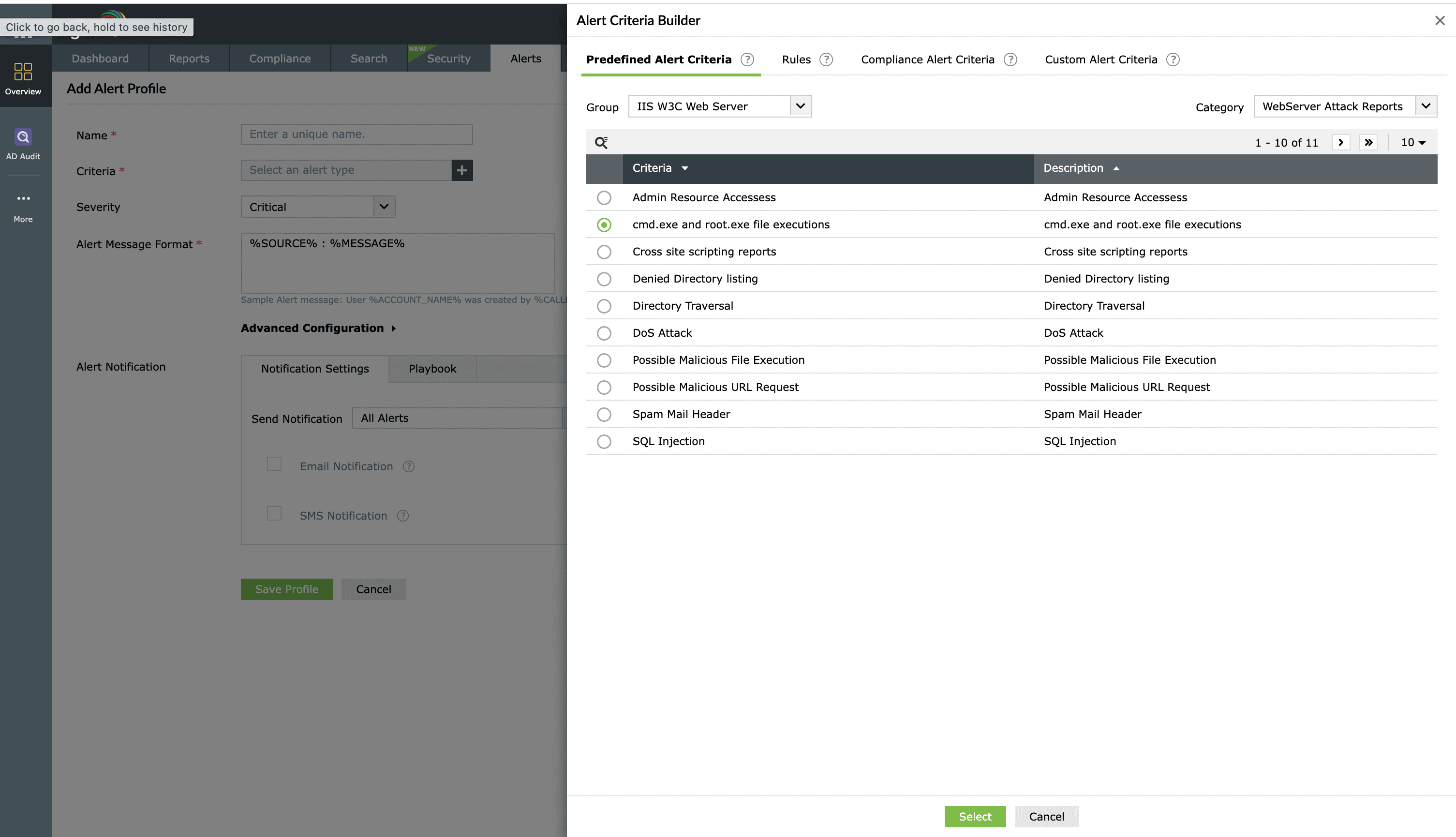
- Go to the Alerts tab and click Add Alert Profile. Under the Criteria section, select IIS W3C Web Server from the Group drop-down and WebServer Attack Reports from the Category drop-down. In the listed criteria, select cmd.exe and root.exe file executions and xp cmdshell executions.
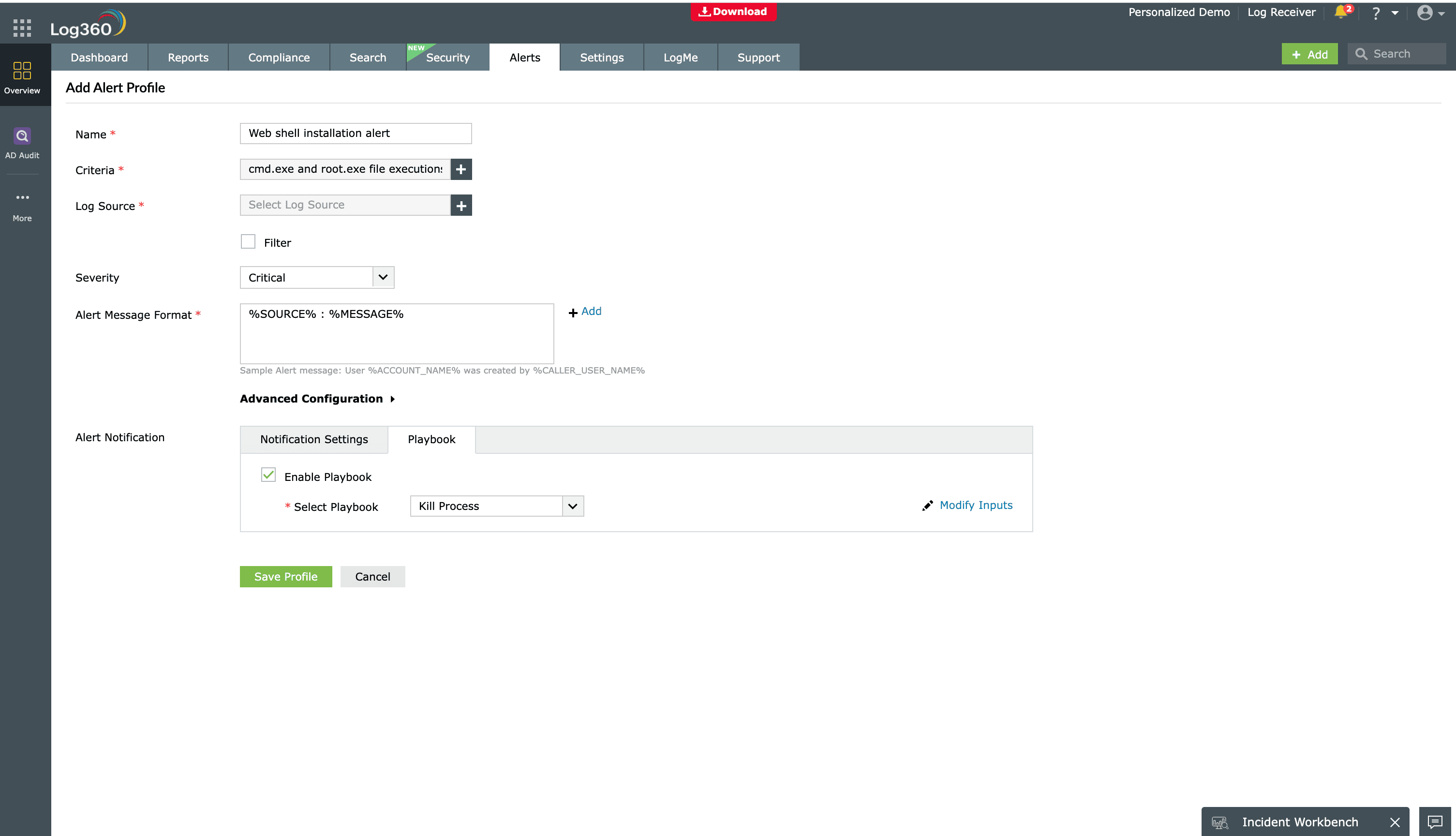
- Name the alert and assign a severity (e.g., Critical, Trouble, or Attention). Configure your preferred notification channel and select a workflow from the available options to trigger an immediate response.


Step 3: Deploy advanced detection rules
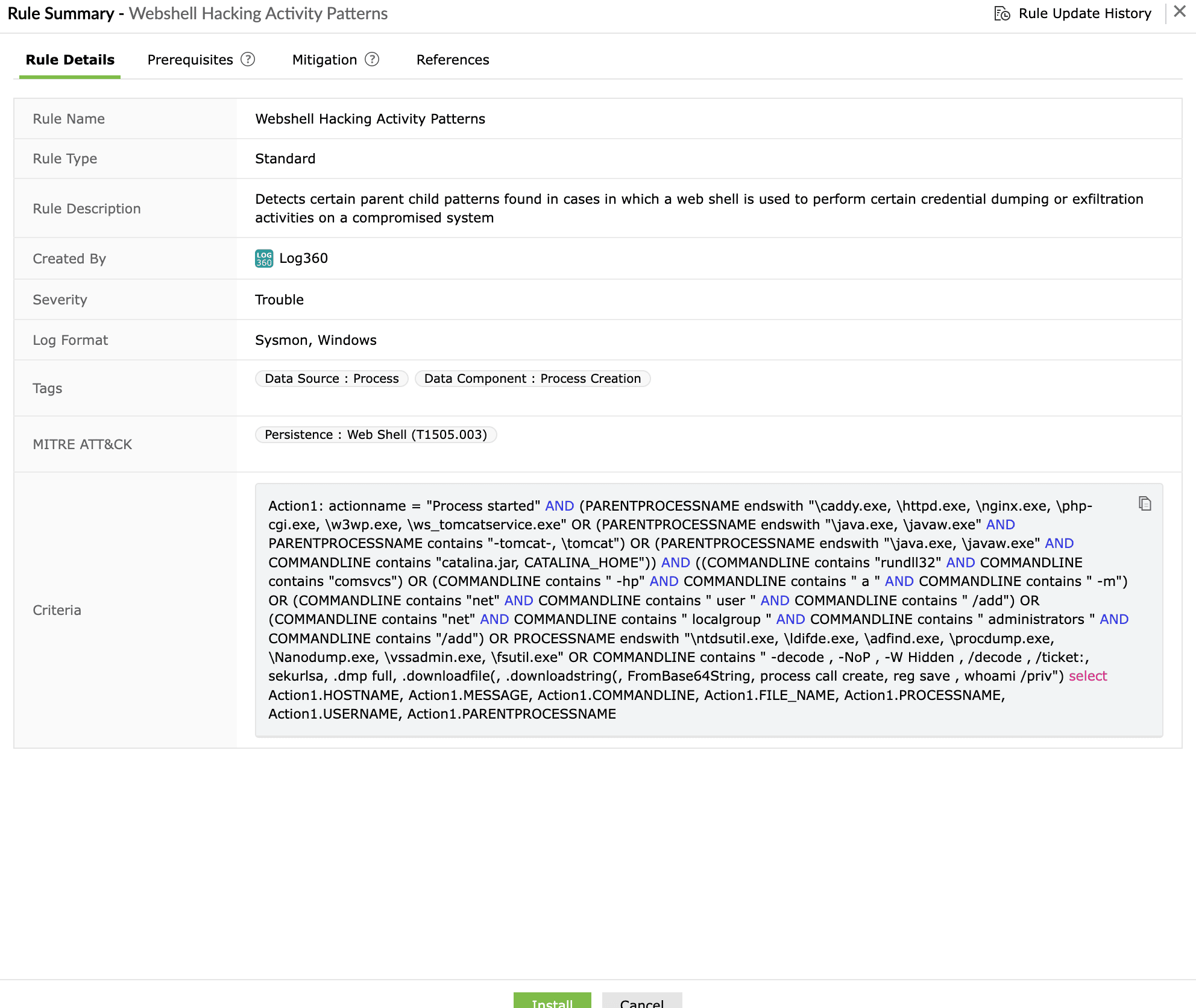
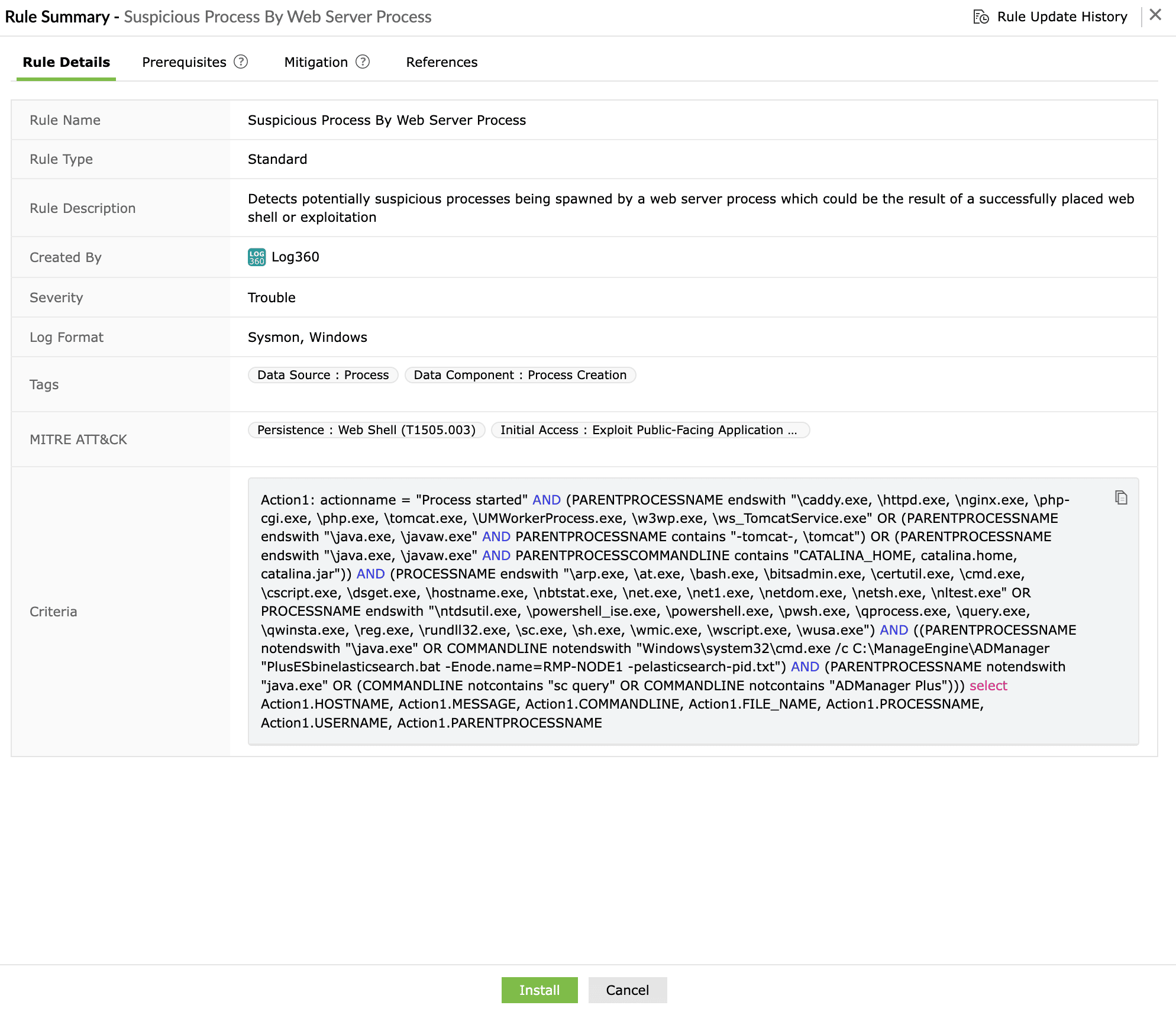
Go to Security > Manage Rules > Rule Library. Search for and install the following detection rules:
- Webshell Hacking Activity Patterns
- Suspicious Process By Web Server Process
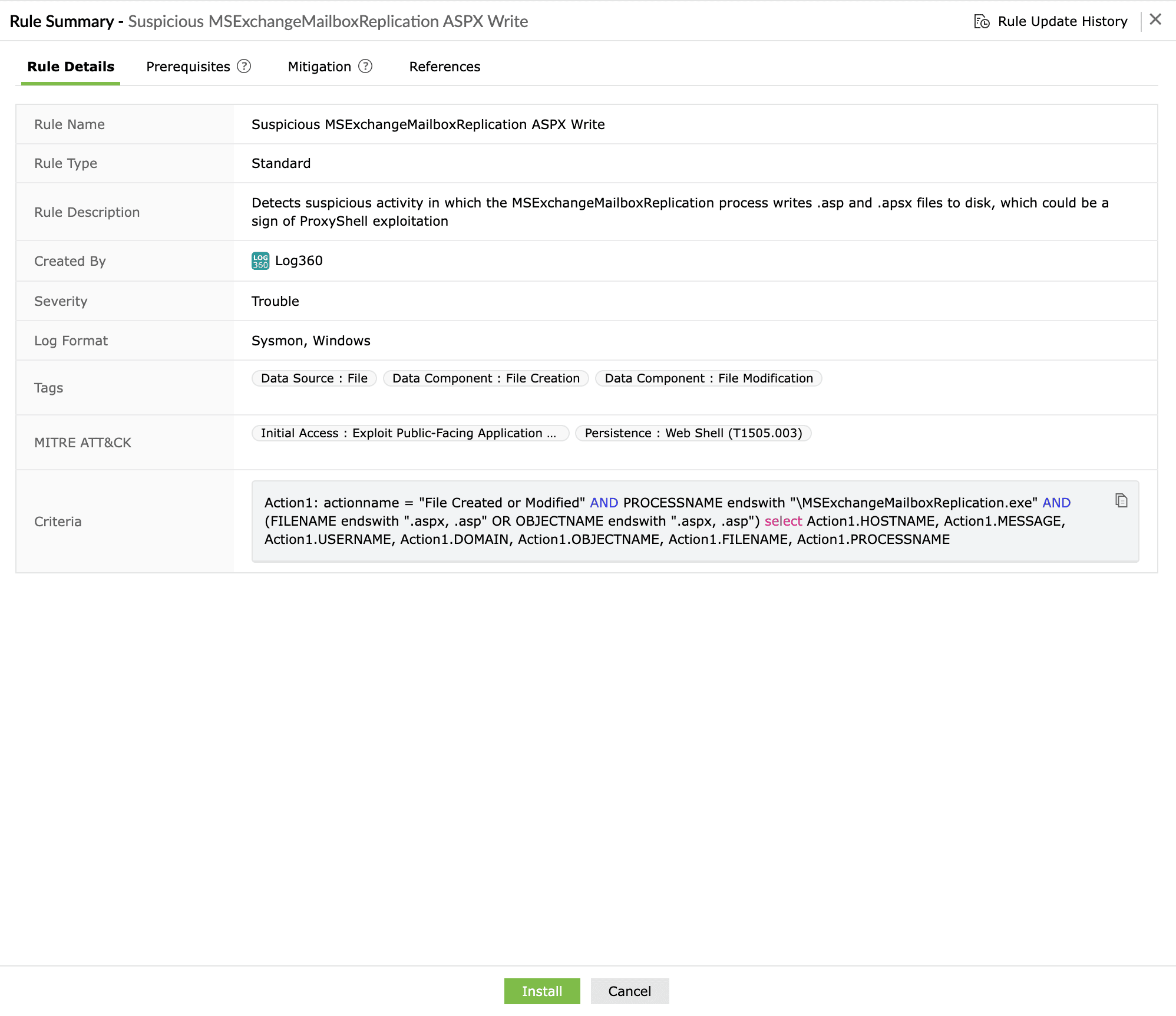
- Suspicious MSExchangeMailboxReplication ASPX Write
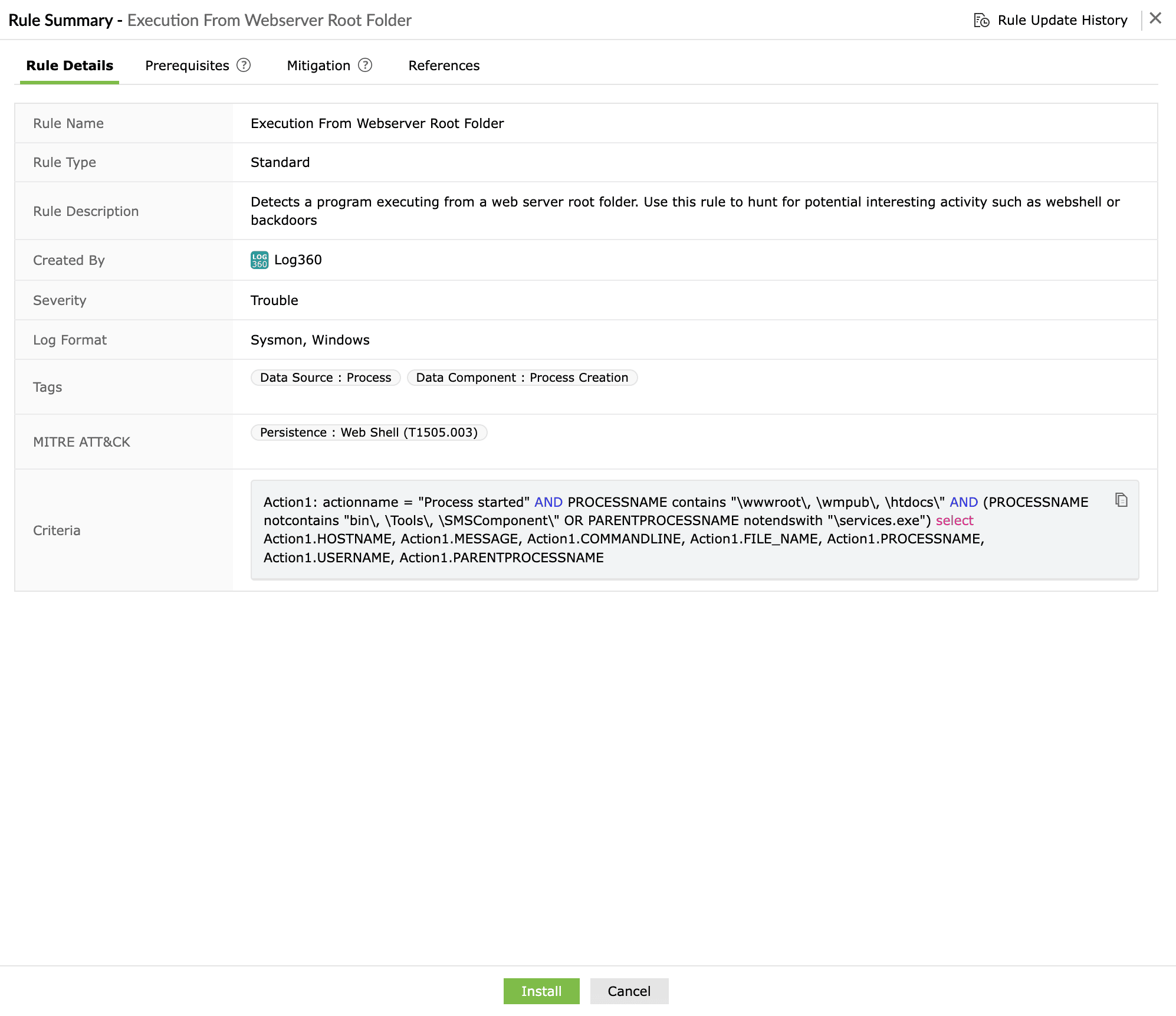
- Execution From Webserver Root Folder
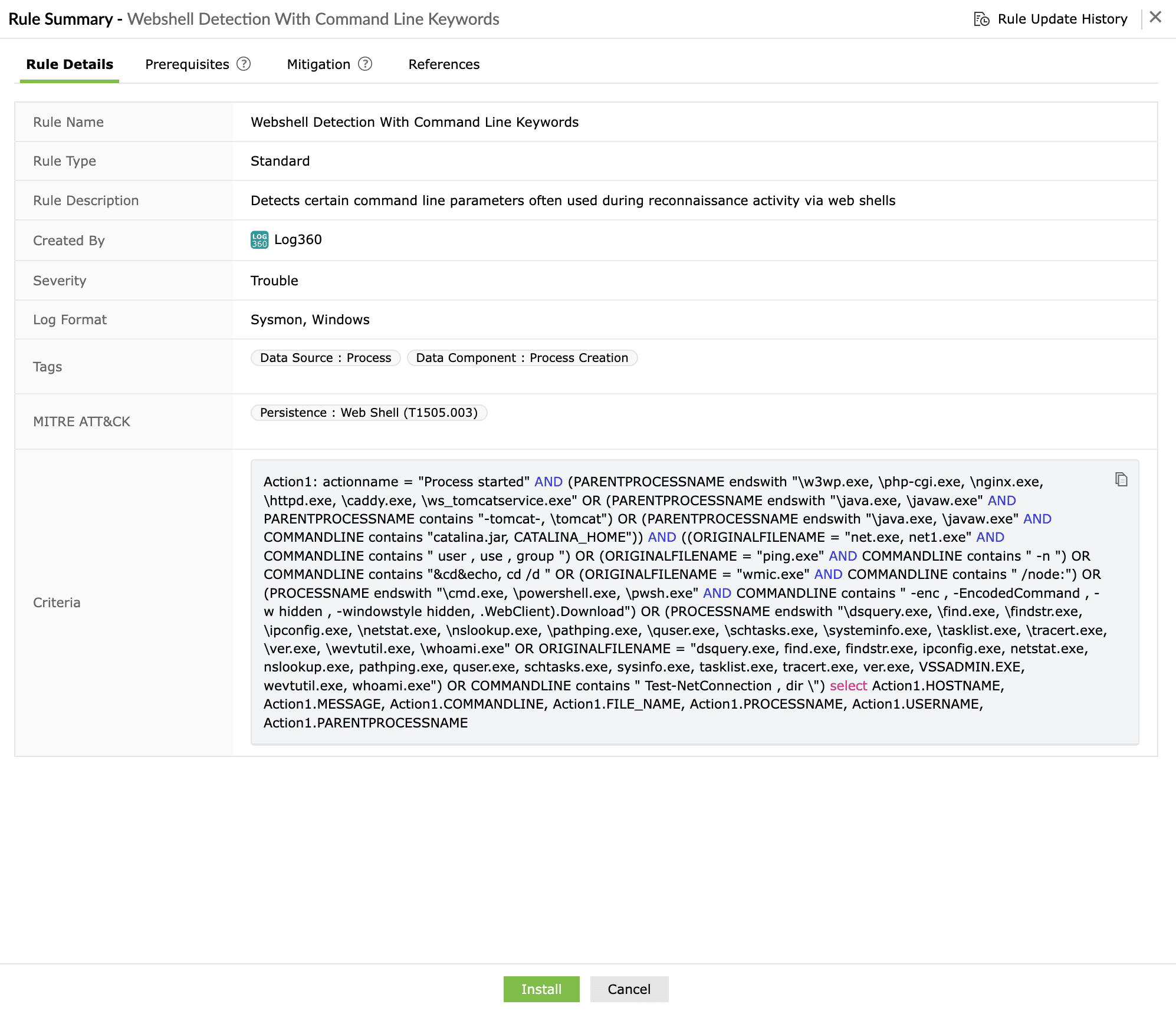
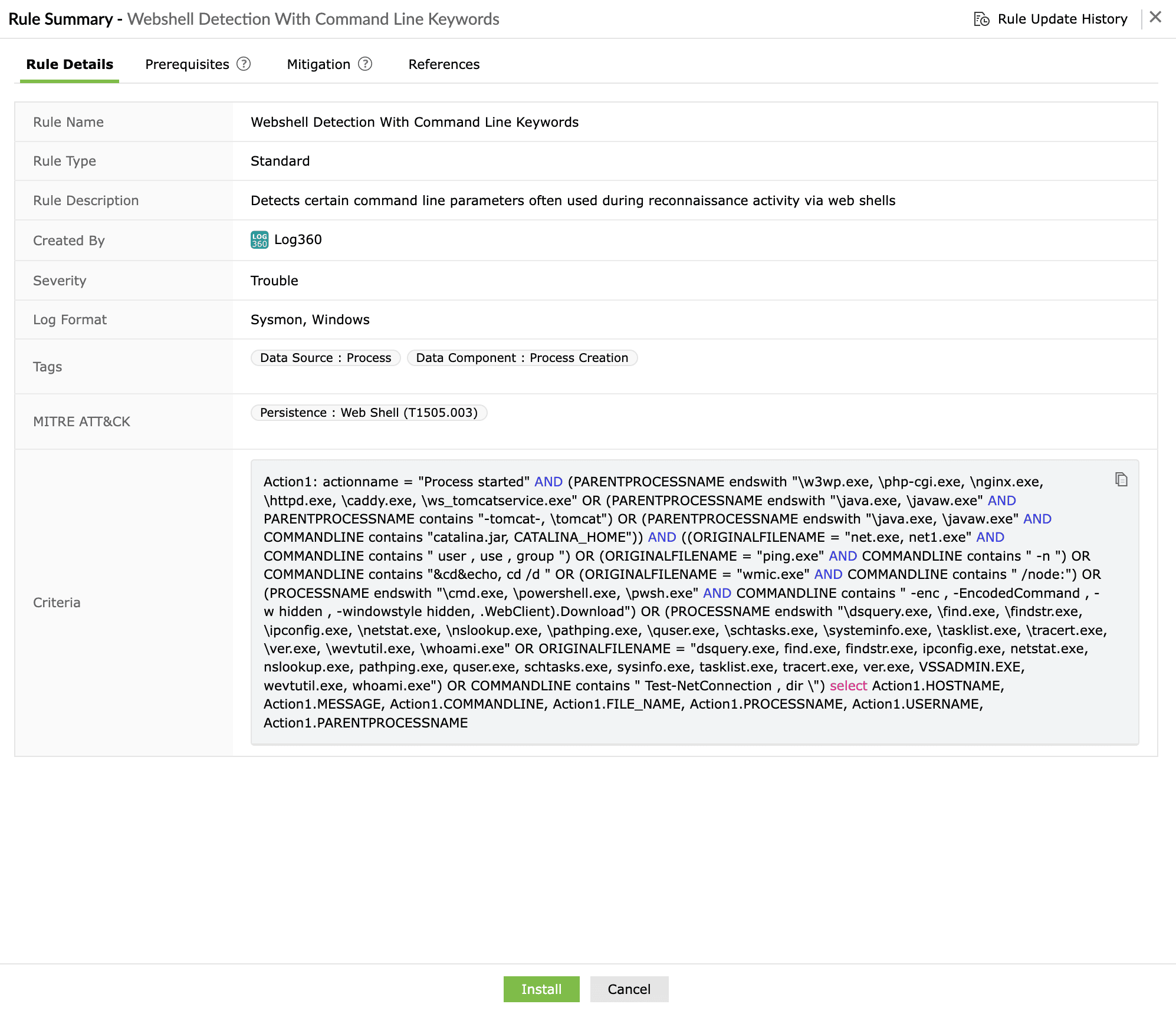
- Webshell Detection With Command Line Keywords
- Remote Access Tool - ScreenConnect Server Web Shell Execution


Install the rules and enable them. You're all set to monitor web shell installations.
Next steps
- Utilize the Log360 Incident Workbench to conduct deep-dive investigations into web shell alerts, allowing you to correlate file creation events with subsequent process executions and outbound network connections.
- Leverage the Zia AI assistant to gain instant context on flagged suspicious processes and receive intelligent recommendations on remediation steps, such as isolating the affected server or identifying the initial entry point.