☰
Related Products
 ADManager Plus
 ADAudit Plus
 ADSelfService Plus
 AD360
AD360
The Security Hardening menu helps you configure important security settings to protect M365 Security Plus from attacks from a single menu. A Product Security Hardening score is calculated based on the configured security settings and displayed, providing a clear indication of the product's strength against security attacks.
To configure the security settings of M365 Security Plus:
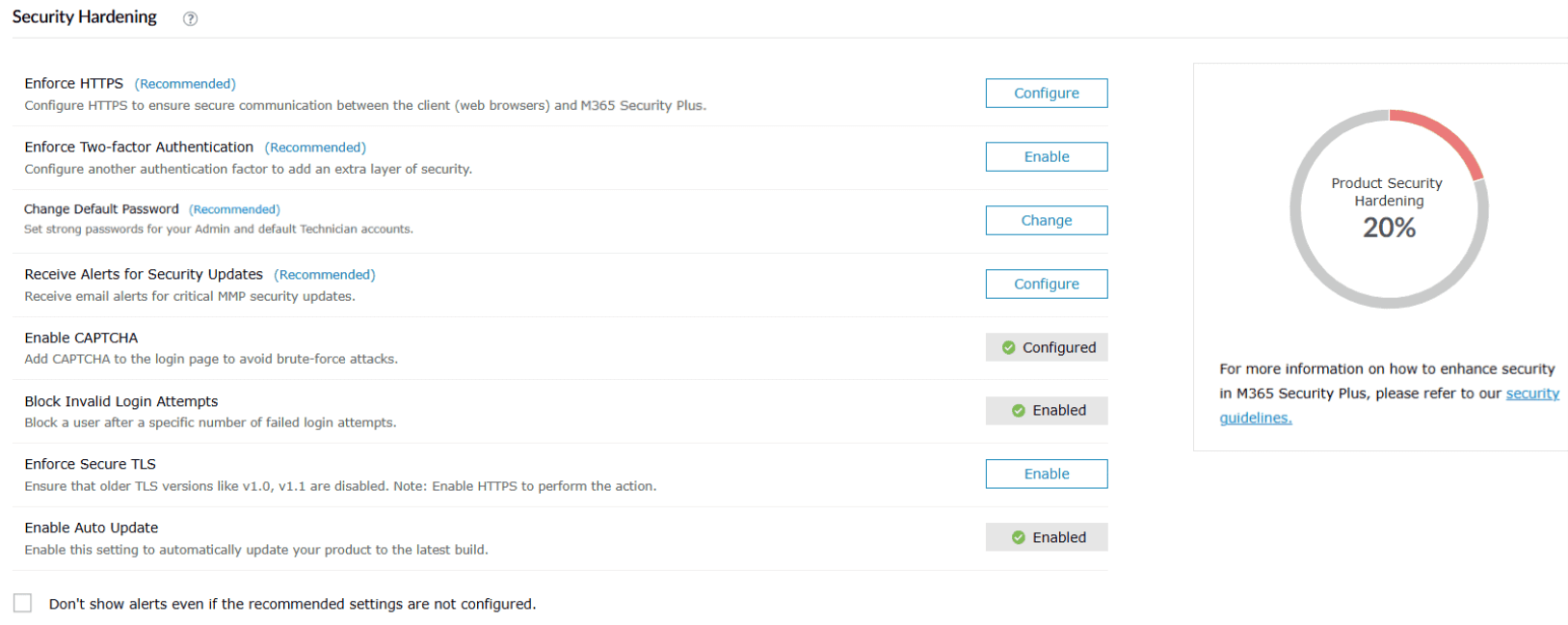
| Enforce HTTPS | Ensure secure communication between M365 Security Plus and the browser by enforcing HTTPS. Configure this security option. |
|---|---|
| Enforce Two-factor Authentication | Configure 2FA to add an extra layer of security. Follow these steps to enable 2FA. |
| Change Default Password | Configure a stronger, more secure password for the default product technician to enhance security and protect the accounts from unauthorized access. |
| Receive Alerts for Security Updates |
Configure this setting and provide your contact details to be notified of released security patches. This ensures that you are well-informed about any security updates for the product, enabling you to update it as soon as possible.
Note: You can configure this only with a primary and secondary email address, and a telephone number, that have not been previously shared with ManageEngine. This ensures that these contact details are unique and can serve as a fallback if the previously provided information becomes inaccessible.
|
| Enable CAPTCHA | Enforce CAPTCHA on the login page to reduce brute-force attacks. Enable this option. |
| Block Invalid Login Attempts | Block users after a specific number of failed login attempts by following these steps. |
| Enforce Secure TLS | Make sure that older TLS versions, such as v1.0, are disabled for better security. Enforce secure TLS. |
| Enable Auto Update | Enable this option to allow M365 Security Plus to automatically update to the latest build. |
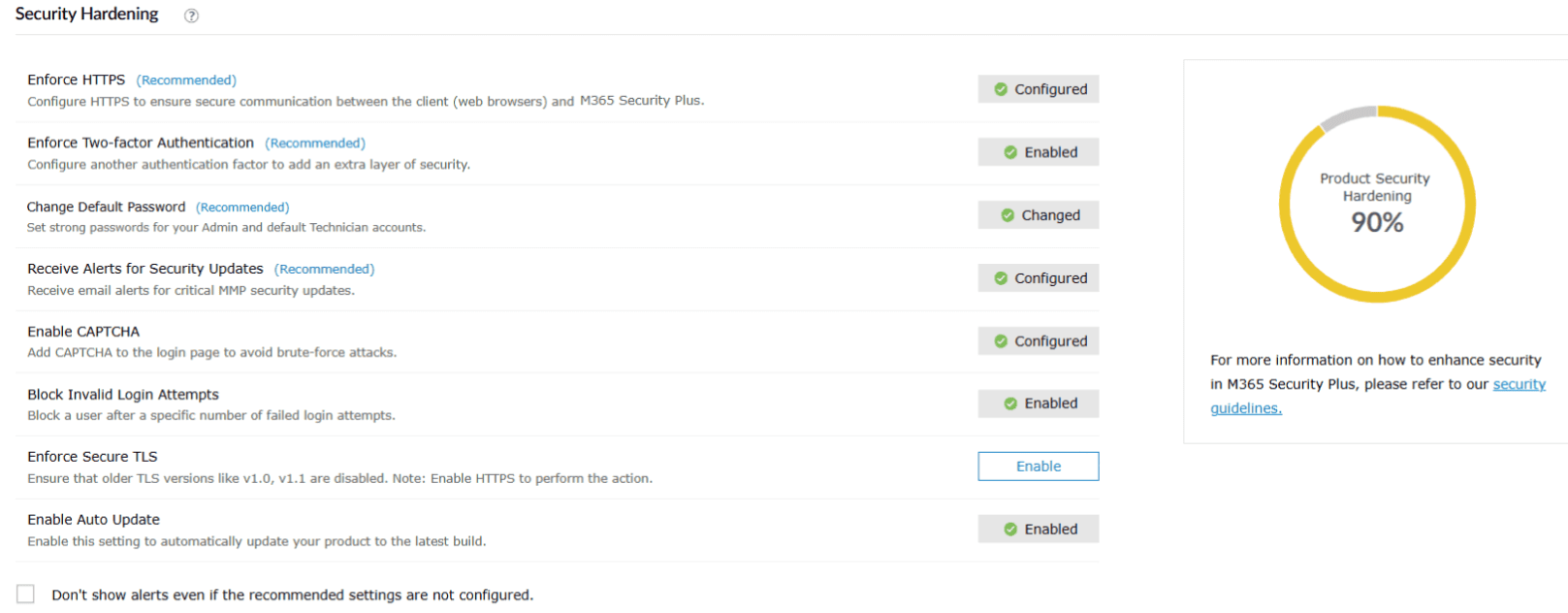
Note: You can click the Don't show alerts even if the recommended settings are not configured checkbox to hide alerts on security hardening in other pages, regardless of the state of the recommended settings.
Copyright © 2023, ZOHO Corp. All Rights Reserved.
 Previous Topic