OpManager Android App Notifications
OpManager Android application helps network admins monitor their IT infrastructure on-the-go, 24/7. With the mobile application, users can keep track of the availability and performance of servers, switches, routers and other networking devices.
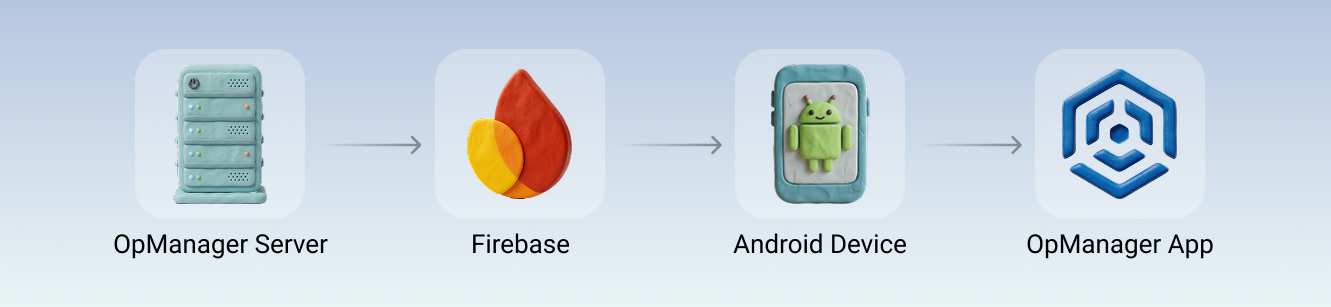
The application notifies the user about network faults, even when the application is not running, so they are always informed of the network's state. Google's Firebase Cloud Messaging is the centerpiece of this remote notifications feature. The Firebase acts as a portal between the OpManager server and your android device for delivering the notification payload to the application.
- Push Notification Mechanism
- Authorizing OpManager Server
- Establishing Secure Connection
- Enabling Notifications in your Android Device
- Filtering Notifications
Push Notification Mechanism
- The OpManager server sends notification request to the Firebase.
- The configured Firebase transmits the corresponding notification payload to the targeted device.
- When the notification is received by the Android device, it delivers the notification payload to the OpManager Android application.
Authorizing OpManager Server
The Firebase issues a server key - Firebase oAuth Authentication Key to the OpManager server. This key is responsible for authorizing the OpManager server to send push notifications to the OpManager's Android application.
Establishing Secure Connection
- For sending push notifications, a secure connection must be established between OpManager and the Firebase.
- OpManager requests a secure connection with the Firebase.
- The Firebase provides a server key or an oAuth token which is used by OpManager to establish a secure connection.
Enabling Notifications in your Android Device
After the installation of the mobile application on the android device, the user would have to login using the OpManager server credentials. After the login is completed, the user will be prompted to allow Push Notifications via a pop-up dialog box. To enable the notifications, click Allow.
You can choose to skip the previous step; but if you want to enable them at a later stage, you can do so by navigating to More > Settings > Push Notifications and click on Allow.
Note: For seamless functioning, port 443 should be open on the OpManager installed machine and through the firewall with outbound access enabled to the following:
Common: *.googleapis.com:443
Specific: fcm.googleapis.com:443, oauth2.googleapis.com:443, firebaseinstallations.googleapis.com:443
Learn more about Firebase Cloud Messaging here.
Filtering Notifications
Considering the number of devices in your network, you might receive a lot of push notifications. To avoid getting so many notifications, you can add filters to shortlist the devices that match the desired filter criteria. The filters are classified as:
Alarm Severity Filters: You can choose to show the notifications from the devices that are under a particular severity. (e.g. Show 'Critical' devices, or show 'Critical' and 'Trouble', etc.)
Advanced Filters: This class of filters lets you choose devices from a much specific criteria related to the properties of the devices. They include:
Device Category, Type, or Vendor: Add these filters to shortlist the devices matching a particular device category (e.g. 'Servers', or 'Routers'), device type (e.g. 'HP Switch', 'Windows 2016 devices'), or a vendor (e.g. 'Microsoft devices').
Apps and Protocols: These filters show the devices that run the selected applications (e.g. Devices that run Exchange, or MSSQL, etc.), or the ones that are monitored using a particular set of protocols or credentials (e.g. Show devices that are monitored using 'SNMP' or 'CLI').
- Business Hours Filter: You can restrict push notifications to a specific time window and selected days of the week. Notifications will only be delivered during the configured hours on the chosen days, ensuring you are not disturbed outside of your working hours. (e.g., Receive notifications only between 9:00 AM — 6:00 PM on Monday through Friday.)
Selecting a filter will list all the devices that match the chosen filter. You can select the devices whose notifications you want to receive on your android device. Select the desired devices and click on Save.